
Appearance
Exercise 1: Set Up Secure Access to Salesforce
In this exercise, you'll set up your Salesforce org to allow AI clients to connect securely.
Step 1: Verify Your Email Address
TIP
Using your own Salesforce org? You can skip this step.
Salesforce will email you a verification code later in this exercise, so make sure your Salesforce user is associated with an email address you can access.
In Salesforce, click the gear icon in the upper right of the screen and click Setup.
Enter
Usersin the Quick Find box, then select Users.Click Edit next to your user.
Check the Email field:
- If the email address is already yours, click Cancel.
- Otherwise, enter your email address and click Save. Go to your email inbox, open the email titled "Finish changing your Salesforce account's email address", and click the verification link to confirm the change.
Step 2: Create an External Client App
TIP
Participating in a hosted workshop? An External Client App has already been created for you. You can skip this step.
An External Client App (ECA) allows external applications, such as Claude, to securely connect to Salesforce using standard protocols like OAuth 2.0. It defines how the application authenticates, what access it can request, and the security policies that govern its use.
From Setup, enter
External Clientin the Quick Find box, then select External Client App Manager.Click New External Client App.
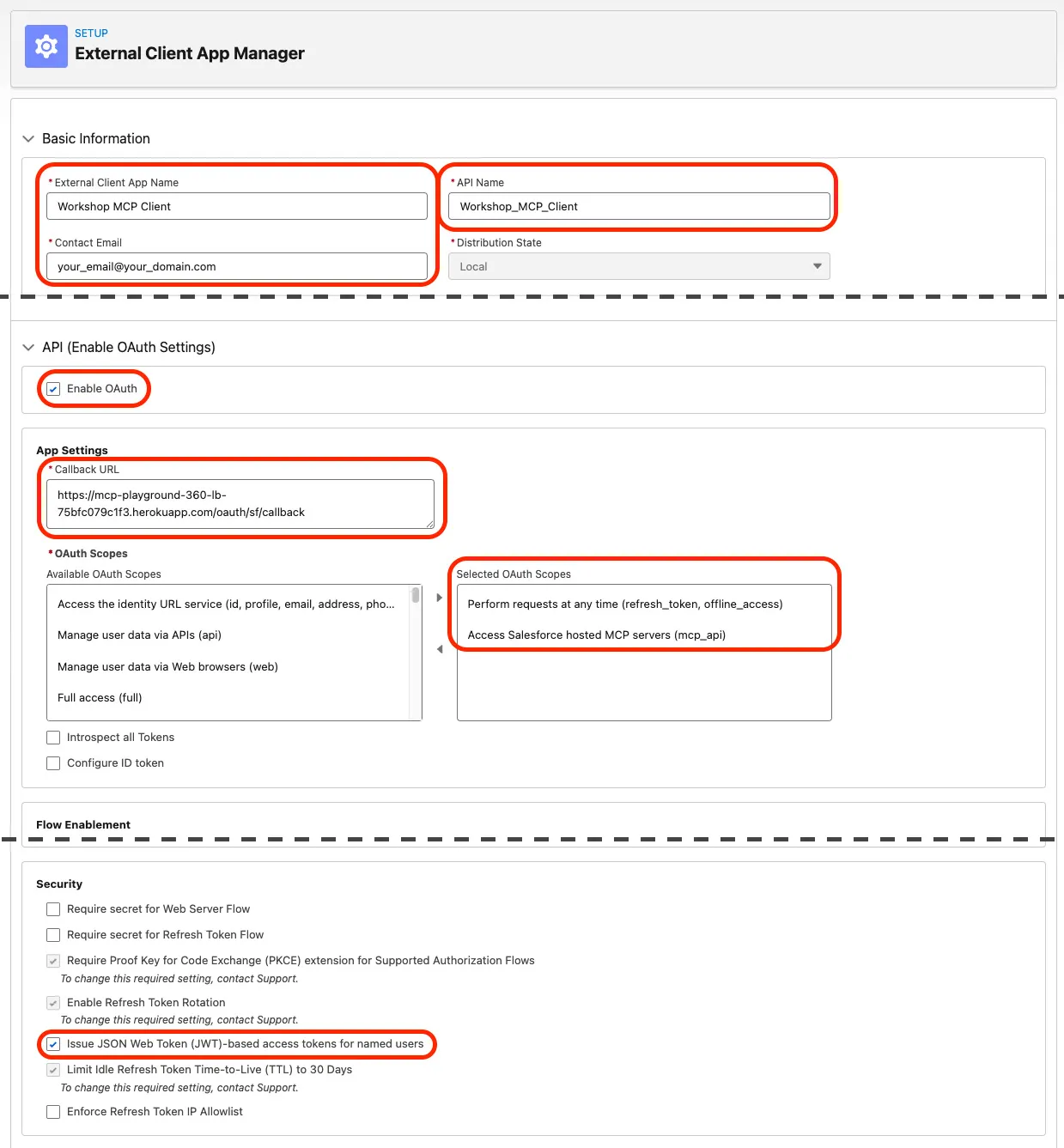
Under Basic Information, enter:
Field Value App Name Workshop MCP ClientAPI Name Workshop_MCP_Client(automatically populated)Contact Email Your email address Distribution State LocalExpand API (Enable OAuth Settings) and configure OAuth as follows:
Check Enable OAuth.
Callback URL. Enter two URLs, one per line:
txthttps://claude.ai/api/mcp/auth_callback https://aiforce-mcp-playground-lb-73274fdb9e2c.herokuapp.com/oauth/sf/callbackSelected OAuth Scopes. Add the following OAuth scopes:
- Perform requests at any time (refresh_token, offline_access)
- Access Salesforce hosted MCP servers (mcp_api).
Under Security, check Issue JSON Web Token (JWT)-based access tokens for named users. Leave the other security settings unchanged.
Double-check the information you entered, then click Create.
TIP
Your External Client App may take up to 30 minutes to become available. You can continue with the workshop while Salesforce activates it. You'll need it in Exercise 2.
Step 3: Copy the Consumer Key and Secret
You'll need your External Client App's credentials to connect Claude or the AIforce Playground to your Salesforce org in the next exercise.
From Setup, enter
External Clientin the Quick Find box, then select External Client App Manager.Select Workshop MCP Client.
Click the Settings tab.
Under OAuth Settings, click Consumer Key and Secret.
Go to your email inbox and retrieve the verification code from Salesforce. Enter it on the Verify Your Identity screen.
Copy the Consumer Key and Consumer Secret and paste them in a secure location. You'll use them to configure your AI assistant connection in the next exercise.
Summary
Your Salesforce org is now configured to allow secure connections from AI assistants.
Next, you'll connect Claude or the AIforce Playground to your org through the Headless 360 MCP Server.