
Appearance
Exercise 4: Turn Your Logic into an MCP Tool
In this exercise, you'll create a custom MCP server in Salesforce Setup, add the Appraise Trade-In action as a tool, and make it available to your AI assistant.
Unlike the Headless 360 MCP Server you used in Exercise 2, which provides a predefined set of Salesforce tools, a custom MCP server exposes only the tools you choose. This allows your AI assistant to use the retailer's business logic to calculate trade-in offers instead of guessing their values.
Step 1: Create the Custom MCP Server
From Setup, enter
MCP Serversin the Quick Find box, then select MCP Servers under API Catalog.Click Add MCP Server, then select Create Salesforce MCP Server.
Enter the following values, then click Create:
Field Value Label Trade-In ToolsName TradeInTools(automatically populated)Description Appraises trade-in vehicles using the retailer's business rules.
Step 2: Add Your Action as a Tool
Click Add Server Assets, then select Add Tools.
In the left sidebar, select Apex Actions from the dropdown menu.
Select Appraise Trade-In, then click Add Tool.
Click Save. The page header should now display 1 under Tools, confirming that your MCP server has one tool.
Step 3: Activate the Server
Click Activate.
Copy the Server URL. You'll need it to connect your AI assistant in the next step. The URL should look similar to this:
txthttps://api.salesforce.com/platform/mcp/v1/custom/TradeInToolsTIP
The above URL will be different from your org. Please ensure to copy from your own setup.
Step 4: Connect Your AI Assistant
Option 1: Using Claude
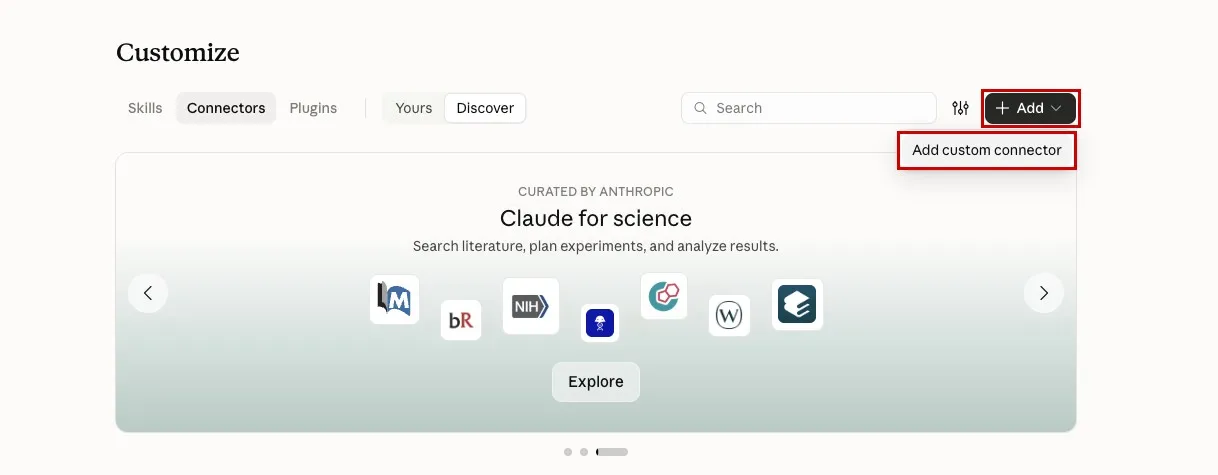
In Claude, click Customize in the left sidebar, then select Connectors.
Click Add, then select Add custom connector.
Enter the following values, then click Continue:
Field Value Name Trade-In ToolsMCP server URL The Server URL you copied in Step 3 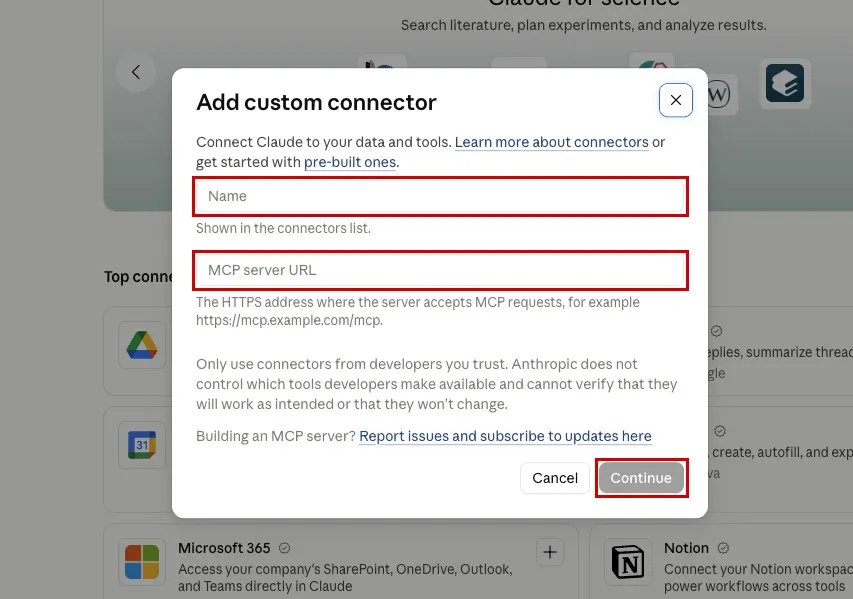
Select Use your own OAuth client at the bottom of the form. Enter your Consumer Key from Exercise 1 as the OAuth client ID and your Consumer Secret as the OAuth client secret.
Click Add, then sign in to Salesforce and authorize access if prompted.
Option 2: Using the AIforce Playground
Open the Servers tab and click Add server.
On the From URL tab, paste the Server URL you copied in Step 3 into the URL field.
Click Test connection and verify that the Appraise Trade-In tool appears. Then click Add server.
Your custom MCP server is now connected to your AI assistant. The Appraise Trade-In tool is available to calculate trade-in offers using the retailer's business rules.
Step 5: Test Your Appraisal Tool
First, you'll use your custom MCP tool to appraise a single vehicle. Then, you'll combine it with the Headless 360 MCP Server to appraise vehicles from your Salesforce opportunities.
Start a new chat with only your custom MCP server enabled:
Claude: Click New chat. Click + in the chat box, select Connectors, turn on Trade-In Tools, and turn off Salesforce.
AIforce Playground: On the Chat tab, click New chat. Click Tools and select only TRADEINTOOLS.
Enter the following prompt:
txtAppraise this vehicle: VIN WVWZZZAUZKW123456, 62,000 miles, good condition.If prompted to authorize the tool, approve the request.
Review the response. Your AI assistant should call Appraise Trade-In and return an appraisal for a 2019 Volkswagen, including a trade-in offer, an offer range, and the adjustments behind the calculation. These values come from your business rules, not the assistant's own estimates.
Now try appraising multiple vehicles in a single request:
txtAppraise these cars: VIN 1HGCM826XNA004352, 54,000 miles, excellent condition VIN 4T1BF1FK5PU123456, 23,500 miles, poor conditionNotice that your AI assistant can invoke the same tool for multiple vehicles and combine the results in a single response. You didn't have to build a separate workflow to handle multiple appraisals.
Your AI assistant can also combine tools from different MCP servers to complete a task. Let's see it in action. Start a new chat with both MCP servers enabled:
Claude: Click New chat. Click + in the chat box, select Connectors, and turn on both Trade-In Tools and Salesforce.
AIforce Playground: On the Chat tab, click New chat. Click Tools and select TRADEINTOOLS and HEADLESS-360.
Enter the following prompt:
txtFind my open opportunities with vehicle trade-ins. Appraise each vehicle using its VIN, mileage, and condition. Summarize the trade-in offers in a table and identify the highest.Review the results. Your AI assistant should retrieve the trade-in details from your opportunities through the Headless 360 MCP Server, then use Appraise Trade-In to calculate the offers. Verify that it uses both MCP servers.
Compare the results with Exercise 2. Instead of guessing trade-in values, your AI assistant now uses the retailer's deterministic appraisal logic. Try the same appraisals in a new chat—the calculated offers should remain consistent for the same inputs.
Summary
You created the Trade-In Tools custom MCP server in Salesforce Setup and exposed your Apex action as a tool, without writing additional code.
You connected your custom MCP server to Claude or the AIforce Playground.
You saw your AI assistant use the retailer's business logic instead of guessing trade-in values.
You combined tools from two MCP servers to appraise vehicles directly from Salesforce opportunities.
The appraisals now follow your business rules, but the results are still presented as text. Next, you'll turn them into an interactive UI.