
Appearance
Exercise 2: Connect Your AI Assistant to Salesforce
In this exercise, you'll connect your AI assistant to your Salesforce org using the Headless 360 MCP Server. You'll add sample data and start working with Salesforce directly in Claude or the AIforce Playground.
An MCP (Model Context Protocol) server provides tools that AI assistants can use to interact with external systems. The Headless 360 MCP Server is one of the Salesforce Hosted MCP Servers, which Salesforce manages for you. It allows your AI assistant to access Salesforce data and capabilities while respecting the permissions of the authenticated Salesforce user.
Step 1: Try Accessing Salesforce
Before connecting your AI assistant to Salesforce, let's see what happens when you ask it to perform a task that requires Salesforce data.
Start a new chat without a Salesforce connection:
Using Claude: Open claude.ai and click New chat. If you've previously connected Salesforce, click + in the chat box, select Connectors, and turn off all Salesforce connectors.
Using the AIforce Playground: Open the AIforce Playground and sign in with the credentials provided by your instructor. Open the Chat tab and click New chat.
Enter the following prompt:
txtBrief me on my open opportunities. What should I pay attention to?Review the response. Your AI assistant won't be able to answer using your Salesforce data because it isn't connected to your org.
Next, you'll activate the Headless 360 MCP Server to prepare for connecting your AI assistant to Salesforce.
Step 2: Activate the Headless 360 MCP Server
From Setup, enter
MCP Serversin the Quick Find box, then select MCP Servers under API Catalog.On the Salesforce Servers tab, select Headless360 (H360) MCP Server.
Click Activate in the upper right corner. If the server is already active, proceed to the next step.
What's Included in the Headless 360 MCP Server?
The Headless 360 MCP Server provides five tools that let AI assistants discover and use Salesforce capabilities.
| Tool | What It Does |
|---|---|
| Discover APIs | Finds Salesforce APIs that can help accomplish a task. |
| Describe API | Provides the details needed to call a specific API. |
| Dispatch API | Executes Salesforce API requests that can make changes to data or configuration. |
| Dispatch read-only API | Retrieves information from Salesforce without making changes. |
| Display widget | Renders Salesforce information as an interactive UI in the conversation. |
Together, these tools allow your AI assistant to discover Salesforce capabilities, retrieve and update data, and display results in a visual interface.
Step 3: Connect Your AI Assistant
Option 1: Using Claude
In Claude, click Connect.
When asked whether you have a client ID and secret, select Yes, I have them, then click Continue.
Enter the following values, then click Connect:
Field Value Server URL https://api.salesforce.com/platform/mcp/v1/platform/headless-360OAuth client ID Your Consumer Key from Exercise 1 OAuth client secret Your Consumer Secret from Exercise 1 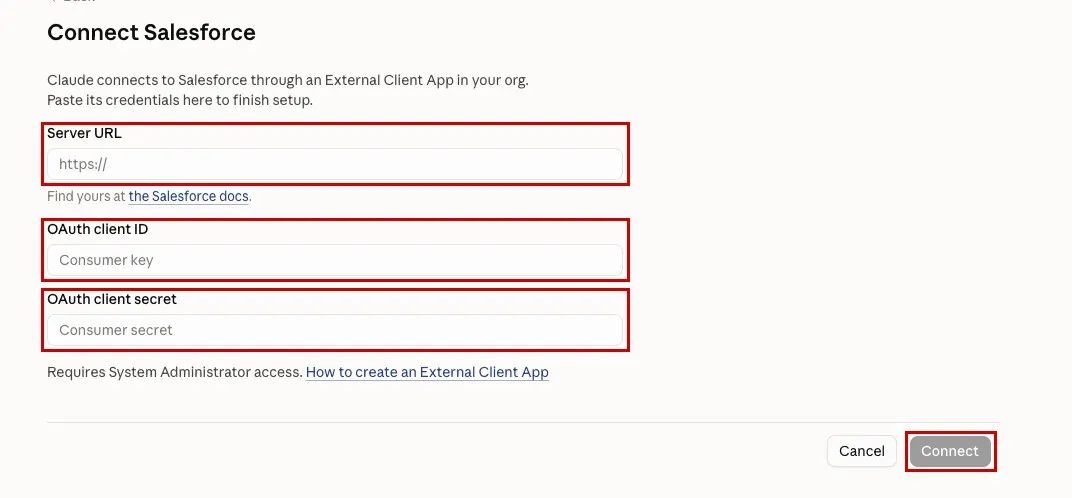
Sign in to your Salesforce org and click Allow if prompted to authorize access.
Option 2: Using the AIforce Playground
In Salesforce Setup, enter
My Domainin the Quick Find box, then select My Domain. Copy your Current My Domain URL (for example,https://your-domain.my.salesforce.com).In the AIforce Playground, click Connect and enter the following values:
Field Value Instance URL Your My Domain URL Consumer Key Your Consumer Key from Exercise 1 Consumer Secret Your Consumer Secret from Exercise 1 Click Connect, then sign in to Salesforce and authorize access when prompted.
Open the Servers tab and click Add server.
Select the Salesforce hosted tab, then click the headless-360 tile. Click Test connection, then Add server.
TIP
Getting an invalid_client_id error? Your External Client App from Exercise 1 may not be available yet. Wait a few minutes, then try again.
Your AI assistant is now connected to Salesforce through the Headless 360 MCP Server, giving it access to Salesforce data and capabilities through MCP tools.
Step 4: Add Sample Data
The Headless 360 MCP Server isn't limited to working with customer and opportunity data. It also allows administrators and developers to perform Salesforce administration and configuration tasks through their AI assistants, subject to their Salesforce permissions.
Let's put those capabilities to work. You'll use your AI assistant to create sample customers who are purchasing vehicles and trading in their current ones.
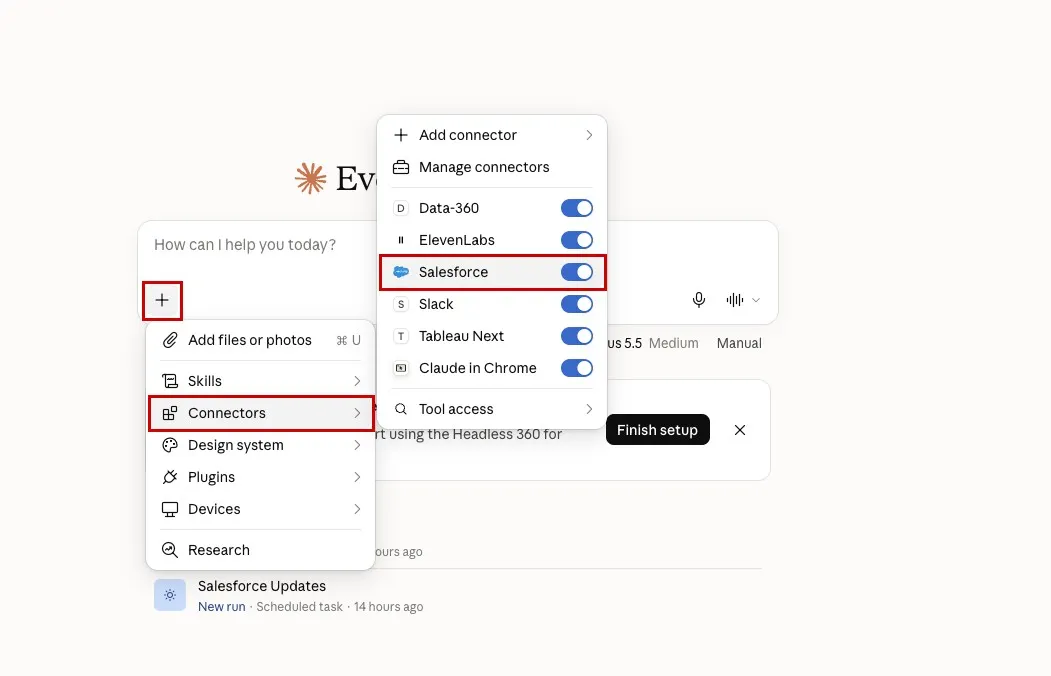
Start a new chat with the Headless 360 MCP Server enabled:
Claude: Click New chat. Click + in the chat box, select Connectors, and turn on Salesforce.
AIforce Playground: On the Chat tab, click New chat. Click Tools and select HEADLESS-360.
Enter the following prompt:
txtCreate realistic Salesforce sample data for six customers who are buying vehicles from us and trading in their current cars. For each customer: - Create an Account and an associated Contact. - Create an open Opportunity for the vehicle purchase, linked to the Account. - Give each Opportunity a realistic amount, stage, close date, and next step. - Include the trade-in vehicle's VIN, odometer reading (in miles), and condition (Excellent, Good, Fair, or Poor) in the Opportunity Description. Use realistic customer details and vehicles from different manufacturers, with model years between 2018 and 2025. Generate plausible 17-character VINs with manufacturer prefixes and model-year characters that match the vehicles described. Vary the opportunity amounts, stages, close dates, and next steps so a sales briefing can highlight useful insights and priorities. Create all records without asking for confirmation after each one. When finished, summarize the customers, opportunities, and trade-in vehicles in a short table.If your AI assistant requests permission to use a Salesforce tool, click Always allow.
Review the results. You should have six customers, each with a Contact and an open Opportunity containing the trade-in vehicle's details. Your AI assistant generates the customer and vehicle information, so your records may differ from those of other participants. If anything is missing, ask it to complete the data.
Step 5: Ask the Question Again
Now that your AI assistant is connected to Salesforce and you've added sample data, let's see how its response changes.
Start a new chat with the Headless 360 MCP Server enabled and ask the same question you asked in Step 1:
txtBrief me on my open opportunities. What should I pay attention to?Review the response. This time, your AI assistant can access your customer and opportunity data in Salesforce and reason over it to give you useful guidance.
TIP
Why a new chat? Your previous chat already has context from creating the sample data. Starting fresh ensures the assistant retrieves the information directly from Salesforce.
Now ask your AI assistant to appraise the vehicles being traded in on your open opportunities:
txtFind my open opportunities with vehicle trade-ins in the description. Appraise each vehicle using its VIN, mileage, and condition. Summarize the results in a table and identify the highest offer.Examine how the assistant estimates trade-in values. It's trying to be helpful and use its general knowledge of vehicle prices, but without access to the retailer's appraisal business logic, the trade-in values are just guesses that may hurt the business. Try asking the same question in another new chat. You may get different estimates.
That's the gap you'll close in the next exercises. The retailer needs reliable trade-in appraisals that consistently apply its own deterministic business logic.
Summary
You activated the Headless 360 MCP Server and connected your AI assistant to Salesforce.
You used your AI assistant to create sample data directly in Salesforce.
You saw how your AI assistant can access and analyze Salesforce data but needs the retailer's business logic to produce reliable trade-in appraisals.
Next, you'll build the retailer's custom appraisal logic in Salesforce.