
Appearance
Exercise 5: Give Your Tool a UI
In this exercise, you'll give your Appraise Trade-In tool an interactive UI using the Headless Experience Layer (HXL).
Instead of just text, your AI assistant will display a trade-in card showing the vehicle, its trade-in offer, a condition gauge, and a breakdown of the adjustments. The card will also include buttons to take action directly from the conversation, similar to the experience you saw in the Salesforce in Claude demo.
How HXL Works
HXL lets you define interactive UI components as JSON, including text, icons, badges, tables, and buttons. The same widget can be rendered by different HXL-compatible AI assistants.
You'll create three pieces by copying and pasting the provided code:
| Piece | Files | What it does |
|---|---|---|
| Widget | 3 | Defines the card's layout and the values it displays. |
| Lightning Types | 3 | Describe the tool's output and map its values to the widget. |
| MCP server definition | 1 | Connects the widget to your Trade-In Tools MCP server. |
Step 1: Turn On the Headless Experience Layer
TIP
Participating in a hosted workshop? HXL is already enabled in your org. You can skip this step.
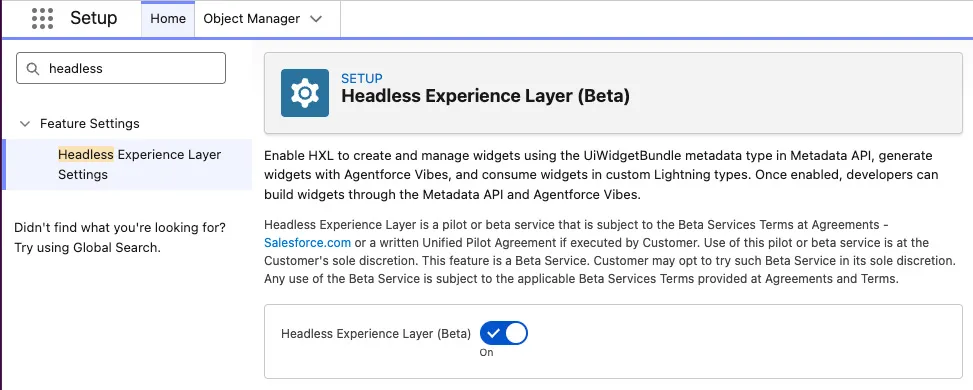
From Setup, enter
Headlessin the Quick Find box, then select Headless Experience Layer Settings.Turn on Headless Experience Layer (Beta). If it's already enabled, skip to Step 2.
Step 2: Create the Widget
You'll create each file the same way: right-click a folder, select New File, enter the file path, and paste the provided contents. If the path includes folders that don't exist yet, Web Console creates them automatically.
TIP
You may see deployment errors while saving files in this exercise. This is expected. Web Console deploys changes after every save, but some metadata types require multiple files to be present before deployment can succeed. The errors should resolve once all required files are in place.
In Web Console, expand force-app > main > default in the Explorer panel.
Right-click the default folder, select New File, enter the following path, and press Enter:
txtuiWidgets/tradeInCard/tradeInCard.uiwidget-meta.xmlPaste the following contents, then save the file (Ctrl+S on Windows or Cmd+S on Mac):
xml<?xml version="1.0" encoding="UTF-8"?> <UiWidgetBundle xmlns="http://soap.sforce.com/2006/04/metadata"> <masterLabel>Trade-In Card</masterLabel> <description>Shows a vehicle, its trade-in offer, and the adjustments behind the offer.</description> <widgetType>JSON</widgetType> </UiWidgetBundle>Right-click the default folder, select New File, enter the following path, and press Enter:
txtuiWidgets/tradeInCard/schema.jsonPaste the following contents, then save the file (Ctrl+S on Windows or Cmd+S on Mac):
json{ "title": "Trade-In Card", "description": "Shows a vehicle, its trade-in offer, and the adjustments behind the offer.", "type": "object", "properties": { "attributes": { "lightning:type": "lightning__objectType", "properties": { "vin": { "title": "VIN", "lightning:type": "lightning__textType" }, "vehicle": { "title": "Vehicle", "lightning:type": "lightning__textType" }, "origin": { "title": "Origin", "lightning:type": "lightning__textType" }, "odometer": { "title": "Odometer", "lightning:type": "lightning__textType" }, "condition": { "title": "Condition", "lightning:type": "lightning__textType" }, "conditionScore": { "title": "Condition Score", "lightning:type": "lightning__numberType" }, "marketValue": { "title": "Market Value", "lightning:type": "lightning__textType" }, "offer": { "title": "Offer", "lightning:type": "lightning__textType" }, "offerRange": { "title": "Offer Range", "lightning:type": "lightning__textType" }, "adjustments": { "title": "Adjustments", "lightning:type": "lightning__listType", "items": { "lightning:type": "@apexClassType/c__TradeInAppraisal$Adjustment" } } } } } }Right-click the default folder, select New File, enter the following path, and press Enter:
txtuiWidgets/tradeInCard/tradeInCard.jsonPaste the following contents, then save the file. This file is the card itself.
json{ "type": "lightning__agentforceWidget", "contentBody": { "widgetBody": { "definition": "tile/widget", "children": [ { "definition": "tile/column", "attributes": { "gap": "lg" }, "children": [ { "definition": "tile/row", "attributes": { "gap": "md", "justify": "between", "align": "center", "isWrapped": false }, "children": [ { "definition": "tile/row", "attributes": { "gap": "md", "align": "center", "isWrapped": false }, "children": [ { "definition": "tile/icon", "attributes": { "name": "gauge", "alt": "", "size": "lg", "color": "primary" } }, { "definition": "tile/column", "attributes": { "gap": "xs" }, "children": [ { "definition": "tile/text", "attributes": { "text": "{!$attrs.vehicle}", "variant": "h3", "weight": "semibold" } }, { "definition": "tile/text", "attributes": { "text": "VIN {!$attrs.vin}", "variant": "caption", "color": "muted" } } ] } ] }, { "definition": "tile/badge", "attributes": { "label": "{!$attrs.origin}", "variant": "info" } } ] }, { "definition": "tile/container", "children": [ { "definition": "tile/row", "attributes": { "gap": "lg", "justify": "between", "align": "center" }, "children": [ { "definition": "tile/column", "attributes": { "gap": "xs" }, "children": [ { "definition": "tile/text", "attributes": { "text": "Trade-in offer", "variant": "caption", "color": "muted" } }, { "definition": "tile/text", "attributes": { "text": "{!$attrs.offer}", "variant": "h1", "weight": "bold" } }, { "definition": "tile/text", "attributes": { "text": "Range {!$attrs.offerRange}", "variant": "caption", "color": "muted" } } ] }, { "definition": "tile/column", "attributes": { "gap": "xs", "align": "center" }, "children": [ { "definition": "tile/progress", "attributes": { "label": "Condition", "value": "{!$attrs.conditionScore}", "max": 100, "shape": "circular", "size": "lg", "color": "success" } }, { "definition": "tile/text", "attributes": { "text": "{!$attrs.condition} condition", "variant": "caption", "color": "muted" } } ] } ] } ] }, { "definition": "tile/row", "attributes": { "gap": "lg" }, "children": [ { "definition": "tile/column", "attributes": { "gap": "xs" }, "children": [ { "definition": "tile/text", "attributes": { "text": "Market value", "variant": "caption", "color": "muted" } }, { "definition": "tile/text", "attributes": { "text": "{!$attrs.marketValue}", "weight": "semibold" } } ] }, { "definition": "tile/column", "attributes": { "gap": "xs" }, "children": [ { "definition": "tile/text", "attributes": { "text": "Odometer", "variant": "caption", "color": "muted" } }, { "definition": "tile/text", "attributes": { "text": "{!$attrs.odometer}", "weight": "semibold" } } ] } ] }, { "definition": "tile/table", "attributes": { "columns": [ { "key": "factor", "header": "Factor" }, { "key": "detail", "header": "Detail" }, { "key": "amount", "header": "Amount", "align": "right" } ], "rows": "{!$attrs.adjustments}", "appearance": "striped", "size": "sm", "caption": "How we got to the offer" } }, { "definition": "tile/row", "attributes": { "gap": "sm" }, "children": [ { "definition": "tile/button", "attributes": { "label": "Add Offer to the Deal", "variant": "primary", "iconName": "check-circle", "actions": { "click": [ { "definition": "action/sendMessage", "attributes": { "content": "Add the trade-in offer from the appraisal above to the matching opportunity, and move the opportunity to the Proposal/Price Quote stage." } } ] } } }, { "definition": "tile/button", "attributes": { "label": "Book an Inspection", "variant": "secondary", "iconName": "calendar", "actions": { "click": [ { "definition": "action/sendMessage", "attributes": { "content": "Create a task for me to inspect the vehicle from the appraisal above tomorrow, related to the matching opportunity." } } ] } } } ] } ] } ] } } }Every value that changes from car to car is a
{!$attrs.<name>}placeholder. The table's rows come from the adjustments list your Apex class returns, and the condition gauge reads conditionScore. Each button'saction/sendMessagesends a fixed message to the chat, as if you'd typed it. The agent finds the vehicle in the appraisal above the card.
Step 3: Create the Lightning Types
When Claude calls an MCP tool, Salesforce wraps the action's answer in an envelope (actionName, isSuccess, and outputValues). You need two Lightning Types: one for the answer, and one for the envelope around it. Only the envelope gets a renderer.json, which maps the answer onto the widget.
Right-click the default folder, select New File, enter the following path, and press Enter:
txtlightningTypes/tradeInAppraisalResponse/schema.jsonPaste the following contents, then save the file. This type describes the outputs of your Apex class.
json{ "title": "Trade In Appraisal Response", "description": "The outputs of the TradeInAppraisal action.", "type": "object", "lightning:type": "lightning__objectType", "lightning:tags": ["mcp"], "unevaluatedProperties": false, "properties": { "isSuccess": { "title": "isSuccess", "lightning:type": "lightning__booleanType" }, "message": { "title": "message", "lightning:type": "lightning__textType" }, "appraisal": { "title": "appraisal", "lightning:type": "@apexClassType/c__TradeInAppraisal$Appraisal" } } }Right-click the default folder, select New File, enter the following path, and press Enter:
txtlightningTypes/tradeInAppraisal/schema.jsonPaste the following contents, then save the file. This type describes the envelope.
json{ "title": "Trade In Appraisal", "description": "The MCP tool result for Appraise Trade-In.", "type": "object", "lightning:type": "lightning__objectType", "lightning:tags": ["mcp"], "unevaluatedProperties": false, "properties": { "actionName": { "title": "actionName", "lightning:type": "lightning__textType" }, "isSuccess": { "title": "isSuccess", "lightning:type": "lightning__booleanType" }, "outputValues": { "title": "outputValues", "lightning:type": "c__tradeInAppraisalResponse" } } }Right-click the default folder, select New File, enter the following path, and press Enter:
txtlightningTypes/tradeInAppraisal/renderer.jsonPaste the following contents, then save the file. This file tells Salesforce to render the envelope with your widget, and where to find each value.
json{ "renderer": { "componentOverrides": { "$": { "definition": "@widget/c/tradeInCard", "attributes": { "vin": "{!$attrs.outputValues.appraisal.vin}", "vehicle": "{!$attrs.outputValues.appraisal.vehicle}", "origin": "{!$attrs.outputValues.appraisal.origin}", "odometer": "{!$attrs.outputValues.appraisal.odometer}", "condition": "{!$attrs.outputValues.appraisal.condition}", "conditionScore": "{!$attrs.outputValues.appraisal.conditionScore}", "marketValue": "{!$attrs.outputValues.appraisal.marketValue}", "offer": "{!$attrs.outputValues.appraisal.offer}", "offerRange": "{!$attrs.outputValues.appraisal.offerRange}", "adjustments": "{!$attrs.outputValues.appraisal.adjustments}" } } } } }
Step 4: Link the Widget to Your MCP Tool
Your Trade-In Tools server needs to know that the Appraise Trade-In tool comes with a card. You'll replace the server's definition with one that adds that link.
Right-click the default folder, select New File, enter the following path, and press Enter:
txtmcpServerDefinitions/TradeInTools.mcpServerDefinition-meta.xmlPaste the following contents, then save the file:
xml<?xml version="1.0" encoding="UTF-8"?> <McpServerDefinition xmlns="http://soap.sforce.com/2006/04/metadata"> <masterLabel>Trade-In Tools</masterLabel> <description>Appraises trade-in vehicles with our dealership's rules.</description> <tools> <apiDefinition> <apiIdentifier>aa:apex-TradeInAppraisal</apiIdentifier> <apiSource>API_CATALOG</apiSource> <operation>TradeInAppraisal</operation> </apiDefinition> <uiResource>tradeInCard</uiResource> <descriptionOverride>Decode a VIN and appraise the vehicle for a trade-in. Read-only; run it without asking for confirmation.</descriptionOverride> <destructive>false</destructive> <idempotent>true</idempotent> <openWorld>false</openWorld> <readOnly>true</readOnly> <returnDirect>false</returnDirect> <toolName>TradeInAppraisalapex_TradeInAppraisal</toolName> <toolTitle>TradeInAppraisal</toolTitle> </tools> <resources> <resourceName>tradeInCard</resourceName> <resourceTitle>Trade-In Card</resourceTitle> <resourceUri>ui://widget/lightningType/c__tradeInAppraisal</resourceUri> <description>Shows a vehicle, its trade-in offer, and the adjustments behind the offer.</description> </resources> </McpServerDefinition>Two entries do the linking:
<resources>publishes the envelope Lightning Type,c__tradeInAppraisal, as a UI resource namedtradeInCard.<uiResource>on the tool points at that resource, so every answer from Appraise Trade-In comes with the card.
Step 5: See the Card
Start a new chat with both servers turned on. The card's buttons ask Claude to act in Salesforce, which it does through the Headless 360 MCP Server:
- Claude: Click New chat. Click + in the chat box, select Connectors, and turn on Trade-In Tools and Salesforce.
- Playground: On the Chat tab, click New chat. Click Tools and select TRADEINTOOLS and HEADLESS-360.
Ask:
txtCreate an appraisal for the most recently added customer.Instead of a paragraph, you get a trade-in card with the offer, its range, a condition gauge, and a table that walks from the new price to the offer.
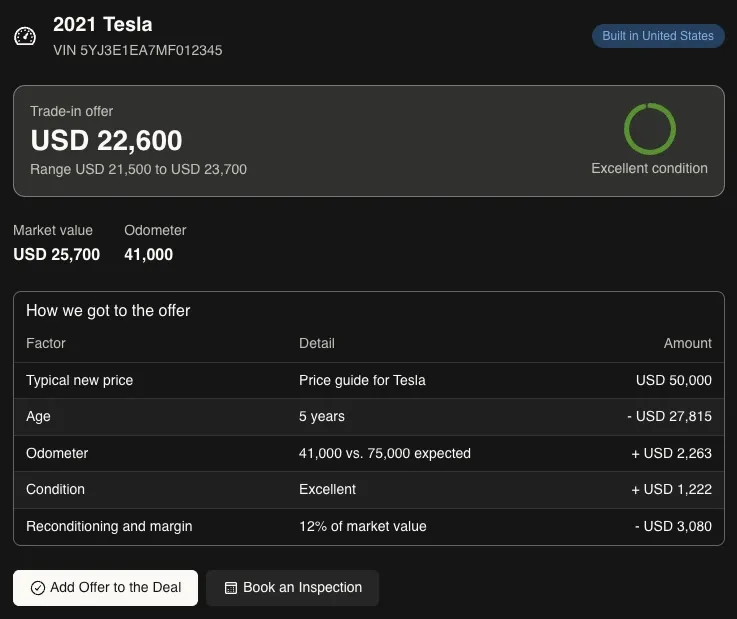
The card has two buttons. Each one sends a message to the agent, which then acts in Salesforce through the Headless 360 MCP Server:
- Add Offer to the Deal asks the agent to add the offer to the matching opportunity and move it to the Proposal/Price Quote stage.
- Book an Inspection asks the agent to create a task for you to inspect the car tomorrow.
Click Add Offer to the Deal. The agent finds the opportunity with that VIN and updates it.
If none of your opportunities mentions this VIN, the agent tells you so. Try the button on a card for one of your own opportunities instead: ask the agent to appraise one of the trade-ins from Exercise 2.
The widget never changes. Your Apex class decides every value and every color, and the widget just displays them.
Summary
- You created an HXL widget, two Lightning Types, and an MCP server definition by copying and pasting code into Web Console.
- Your Appraise Trade-In tool now displays an interactive card in Claude or the AIforce Playground, with buttons that let you take action in Salesforce directly from the conversation.
Workshop Wrap-Up
You started with an AI assistant that couldn't access your Salesforce org. Now you have one that can:
- Work with Salesforce through natural language, securely accessing data, creating records, and providing insights through the Headless 360 MCP Server.
- Apply your business rules through a custom MCP tool backed by an Apex action.
- Combine tools across MCP servers to retrieve opportunities and calculate trade-in offers without a predefined workflow.
- Display an interactive UI using HXL widgets that can render in MCP clients supporting MCP Apps.
You've learned how to extend AI assistants with Salesforce capabilities, and how to extend those capabilities with your own business logic and interactive experiences.
As Salesforce moves into new AI interfaces, the custom solutions you build on Salesforce can move there too.
To explore further:
- Salesforce Hosted MCP Servers
- Headless Experience Layer (HXL) and the HXL Playground, where you can edit widget JSON and preview changes live
- Web Console