
Appearance
Step 1: Activate the Servers
In this step, you'll set up your Salesforce org and turn on the Salesforce Hosted MCP servers that Claude will use later.
Set up your org
Use a Salesforce Developer Edition org for this quick start. You can create a free org or use one you already have.
If you need a new org, open the Salesforce Developer Edition signup page:
Complete the signup form with an email inbox you can access.
Open the activation email from Salesforce, set your password, and log in to the org.
Keep the org open in one browser tab. You'll return to Setup several times.
Confirm your admin email is accessible:
From Setup, in the Quick Find box, enter
Users, then select Users.Open your admin user record.
Confirm the Email value is an inbox you can access.
If you change the email, save the user and complete the Salesforce email verification flow.
You need an accessible admin email because Salesforce may send verification codes when you view app credentials.
TIP
If you already have a workshop Developer Edition org, you can use it instead of creating a new one. Make sure you can access Setup and receive verification emails for the admin user.
Activate Salesforce Hosted MCP servers
From Setup, in the Quick Find box, enter
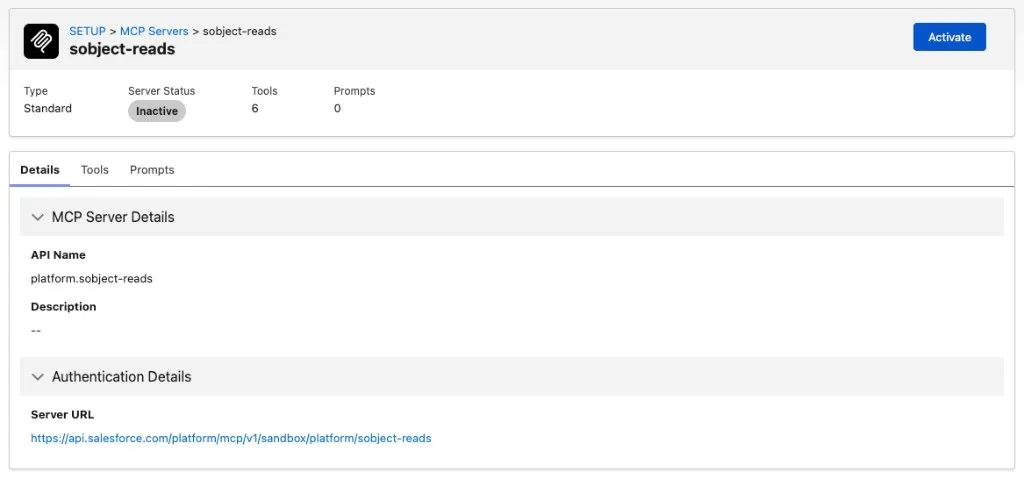
MCP Servers, then select MCP Servers under API Catalog.Click Salesforce Servers.
Activate these servers:
sobject-readssobject-allsalesforce-api-contextmetadata-experts
TIP
For this quick start, sobject-reads is the most important server because it lets Claude read Salesforce records through MCP tools. The other servers are useful once you start asking questions about org metadata and broader record operations.
Summary
You set up your org and activated Salesforce Hosted MCP servers. Next, create the app that lets Claude sign in with Salesforce.
Continue learning
Go deeper with official Salesforce learning, API docs, Hosted MCP references, and agent skills.
TrailheadIntroduction to Salesforce Headless 360Learn the core Headless 360 concepts and when to use a headless approach.Start learningDeveloper DocsSalesforce APIsExplore the Salesforce API library for data, metadata, automation, and integration.Browse APIsReferenceHosted MCP ServersReview the standard Salesforce Hosted MCP servers and their capabilities.View referenceGitHubSalesforce Skills LibraryBrowse Salesforce skills for building with agents, AI tools, and Salesforce metadata.Explore skills