Sales reps need to regularly update their pipeline, check their Tableau quota attainment metrics, and prep their account team for customer calls. As a developer, you’d have to build a custom app to support these workflows. But with Headless 360, your users can now access Salesforce Platform data and processes through a single Slack conversation, eliminating the need to ever open a Salesforce tab.
This is all made possible with Salesforce Hosted MCP Servers connected to Slackbot, your AI teammate built right into Slack. It’s the engagement layer where your teams, your AI agents, and everything you’ve built across the Salesforce ecosystem work together in one place.
In this post, we’ll explore why Slack is the best conversational interface for Salesforce, how Salesforce Hosted MCP Servers work within it, how to connect them with Slackbot, and what becomes possible when the Salesforce Platform meets the work operating system where your organization runs.
Slack: The engagement layer for the agentic enterprise
Slack is the work OS: a shared surface where the people, agents, and data that power your organization come together to move work forward. Through natively-built-in Salesforce Platform features and connected MCP servers, it’s where the full Salesforce ecosystem — Agentforce 360, Data 360, Tableau — becomes accessible through natural conversation, right where teams are already collaborating.
The screenshot below shows a Salesforce records list and Tableau insights inside of Slack’s desktop app, and the related conversation between a user and Slackbot on the Slack mobile app.
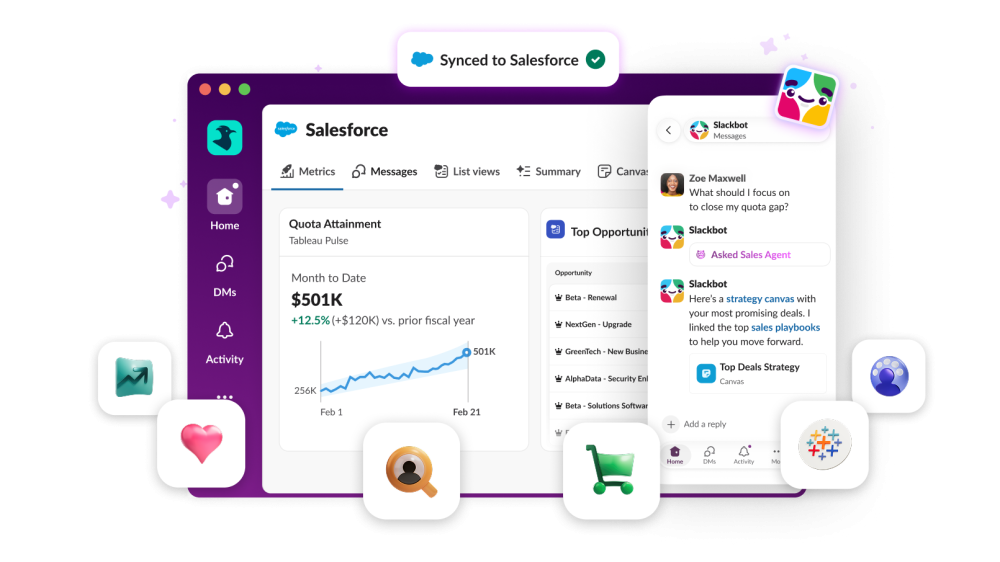
At the center of that experience is Slackbot: a single AI interface to every conversation, file, channel, and app across your organization. What Slackbot surfaces can be shared, discussed, and acted on by the whole team. And because Slackbot can synthesize your data with the conversations plus your connected tools, it can take the context that builds as you work with your team in Slack and bring it back into your records simply as a natural byproduct of work.
That’s what makes Slack uniquely powerful. And because your full business context is now available via MCP to the Slackbot MCP client, tools that once worked in parallel can finally work together, all through a single conversation.
Salesforce Hosted MCP Servers: A quick refresher
Model Context Protocol (MCP) is an open standard that lets AI agents interact with external tools and data sources from various vendors. Salesforce Hosted MCP Servers are our generally available implementation of this standard, giving any MCP-compatible client secure, governed access to run queries, modify records, and execute actions directly from their Salesforce org, without requiring a separate login or custom integration code.
Salesforce has shipped a set of standard hosted MCP servers out of the box: Salesforce servers, Tableau, and Data 360. Beyond the standard servers, developers can expose their own org’s capabilities by building custom MCP servers with tools — Apex actions, Lightning Flows, Apex REST endpoints, APIs from the API Catalog, Prompt Builder templates, and Agentforce agents — without writing new integration code.
For a deeper dive on Salesforce Hosted MCP Servers themselves, check out the Salesforce Hosted MCP Servers documentation.
Configuring Slack to work with Salesforce Hosted MCP Servers
Setting up Slackbot to work with Salesforce Hosted MCP Servers is simple; no URLs to copy, no OAuth configurations to wire up manually, no custom code required. The entire setup lives in the Slack Admin UI and takes just a few steps.
Prerequisites
Before getting started, you’ll need:
- A paid Slack plan (Business+, Enterprise Select, Enterprise Grid, or Enterprise+) with access to Slackbot and Salesforce
- At least one Salesforce org already connected to Slack
- Workspace Owner/Admin or Org Owner/Admin access
- Salesforce Administrator access to the connected org
- One or more active Salesforce Hosted MCP servers
If you haven’t connected Salesforce to Slack yet, follow the steps in the Connect Salesforce and Slack help article first. Once that connection is in place, user authentication is handled automatically. Slackbot uses your existing Slack-Salesforce account mapping, so members don’t need a separate login.
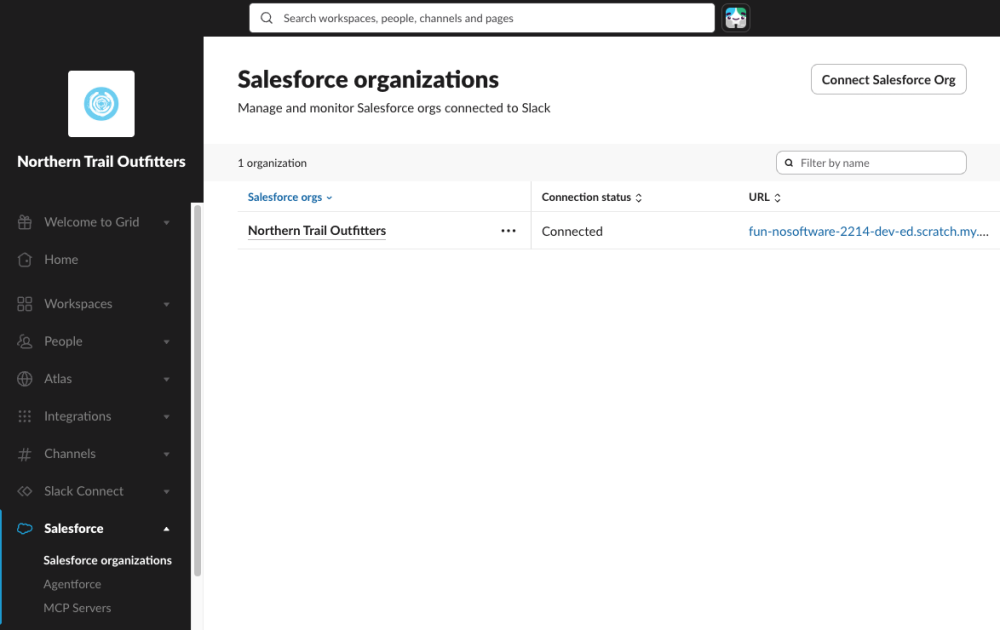
Note: Don’t have a Slack workspace yet? Creating one is simple: follow these steps to get started.
Step 1: Open MCP server settings
The path to MCP server configuration depends on your plan:
For Business+ and Enterprise Select:
Admin → Workspace settings → Salesforce → Salesforce MCP Servers
For Enterprise Grid and Enterprise+:
Organization name → Tools & settings → Organization settings → Salesforce → MCP Servers
Step 2: Add a Salesforce Hosted MCP Server
- Click Add MCP Server
- Choose the server you want to add from the list of active Salesforce Hosted MCP Servers (e.g., SObject All, Data 360, custom servers)
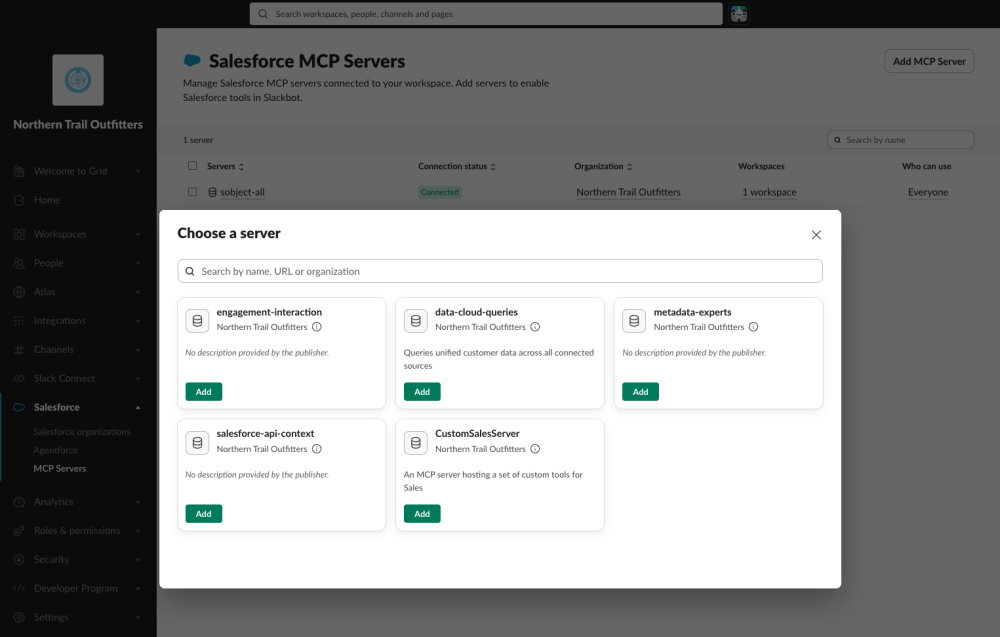
- Click Add, then review the tools the server exposes
- Click Next
If you’re on Enterprise Grid or Enterprise+, you’ll also select which workspaces the server will be available in before proceeding.
Step 3: Configure access
- Choose who in your organization can use this MCP server via Slackbot:
- Everyone: All members with access to Slackbot
- Specific people and group: Fine-grained control by team or individual
- No one: Install now, enable access later
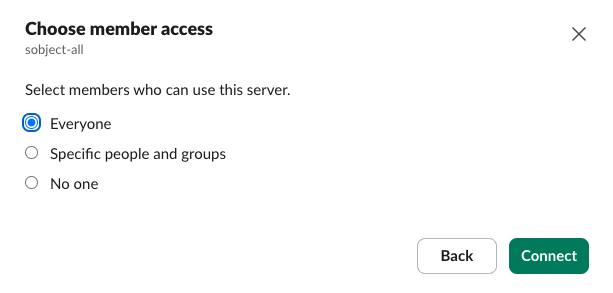
- Click Connect to finish.
The MCP server is now active and Slackbot can use it on behalf of anyone with access.
How Salesforce permissions apply to Slackbot MCP calls
Salesforce MCP servers in Slackbot are permission-aware by design. Every action Slackbot takes respects the standard Salesforce security model: field-level security, object permissions, and sharing rules are enforced per user, per request. Users only see and act on what they’re allowed to in Salesforce. Slack admins can adjust access, update permissions, or remove a server entirely from the Slack organization admin UI at any time.
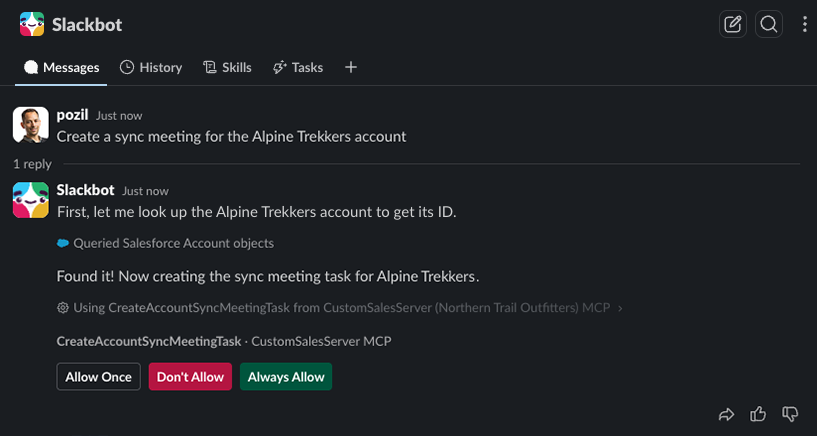
Security is also handled at the Slack user level with prompts to prevent accidental use of MCP tools. The screenshot below shows Slackbot prompting the user to confirm if it can use the CreateAccountSyncMeetingTask custom MCP tool.
Slackbot and Salesforce Hosted MCP Servers in action
Once your MCP servers are configured, every member of your team authenticated across Slack and Salesforce gains natural language access to your Salesforce org based on their permissions — directly in the place where they’re already working. Here’s what that can look like in practice. We’ll use Northern Trail Outfitters (a fictitious outdoors gear vendor) for the following examples.
Triggering a custom business process
A Northern Trail Outfitters sales rep has a call in an hour with one of their customers, Alpine Trekkers. Instead of opening Salesforce, navigating to the Account page, cross-referencing the opportunities and cases to prepare for the call, they just ask Slackbot:
“Run a health check on the Alpine Trekkers account”
Slackbot uses a tool from the standard SObject All MCP server to identify the account based on its name. It then calls the custom health check flow tool. The flow retrieves additional data from related cases, opportunities and activities to calculate a health score thanks to precise business rules.
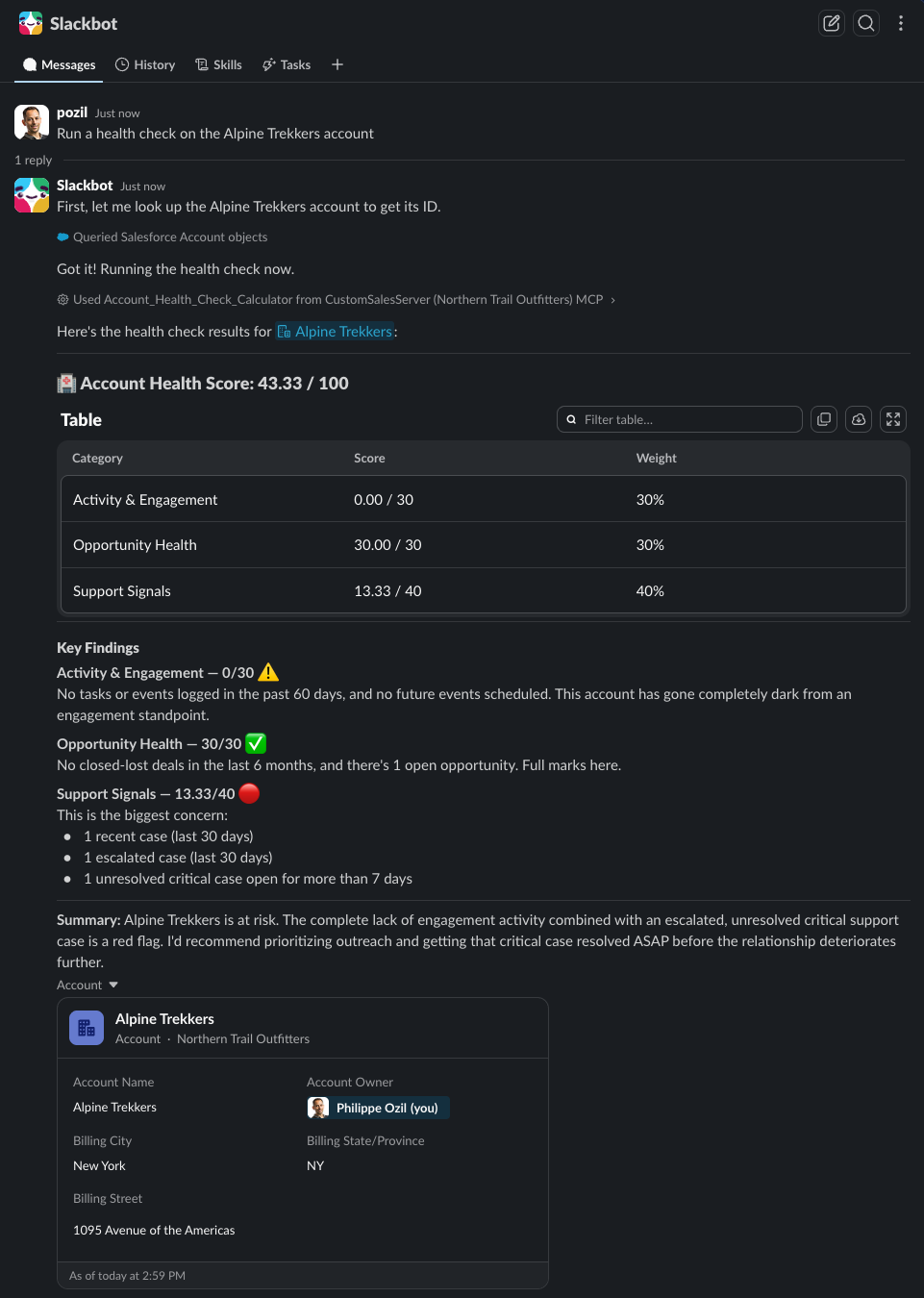
The health check indicates that the account is at risk because of an unresolved critical support case.
Prepping for a sales call
Once the sales rep reviews the Alpine Trekkers’ account health, they ask Slackbot to help plan for the customer meeting. Slackbot uses another custom tool to identify the meeting stakeholders (thanks to the Salesforce contacts related to the account) and logs the right information to prepare for the meeting. In the screenshot below, Slackbot calls a custom MCP tool that creates a task to set up an account sync meeting.

Pipeline analysis with live Tableau data
Thanks to Slackbot’s help with the preparation, the customer meeting goes well and their concerns are addressed. The Alpine Trekkers account is no longer at risk.
The Northern Trail Outfitters sales manager wants a current read on Q2 pipeline health. Rather than pulling up a Tableau dashboard separately, they ask directly Slackbot:
“What does Tableau show for Q2 pipeline conversion rates by region?”
With the Tableau MCP server connected, Slackbot queries the semantic layer — respecting row-level security — and returns a trusted, governed answer with visualizations, grounded in actual business metrics. The sales rep can share those insights with the team and hit the ground running, and the conversation about what to do happens right there, next to the data.
Conclusion
This concludes our tour of how to connect Slackbot to Salesforce Hosted MCP servers. You saw why Slack is the engagement layer for the agentic enterprise and how Salesforce Hosted MCP servers let you run your business with agents thanks to Headless 360. We took a look at how to configure Slackbot to work with Salesforce Hosted MCP servers and saw practical examples of its benefits.
It’s now your turn to connect Slackbot to your Salesforce org. Start with the Connect Slackbot to Salesforce with MCP help article for the full setup guide.
Resources
- Documentation: Connect Salesforce and Slack
- Documentation: Connect Slackbot to Salesforce with MCP
- Documentation: Salesforce Hosted MCP Servers
About the authors
Ashley Mao is a Senior Product Marketing Manager at Salesforce, where she leads product launches across Salesforce and Slack. She enjoys exploring what it means to work alongside agents as teammates, and what’s possible when data and dialogue come together.
Philippe Ozil is a Principal Developer Advocate at Salesforce, where he focuses on the Salesforce Platform. He writes technical content and speaks frequently at conferences. He is a full-stack developer and enjoys working with APIs, DevOps, robotics, and VR projects. Follow him on X, LinkedIn, and Bluesky, and check out his GitHub projects.