
In this post, I’ll show you how formulas can simplify Headless Experience Layer (HXL) widgets by putting the display logic next to the display itself. If you’re new to HXL, start with Building Interactive UI with Headless Experience Layer for a tour of widgets, components, and Custom Lightning Types.
HXL widgets, currently in beta, are declarative UI components, built with JSON, that you can embed in Claude, ChatGPT, and Agentforce. There’s no JavaScript or lifecycle hooks. Instead, you get a tree of components, bound to data with {!$attrs.fieldName}. Below is an account card widget I made with HXL. It’s populated by data from an Apex class invoked through an agent action (Agentforce) or an MCP tool call (Claude and ChatGPT).
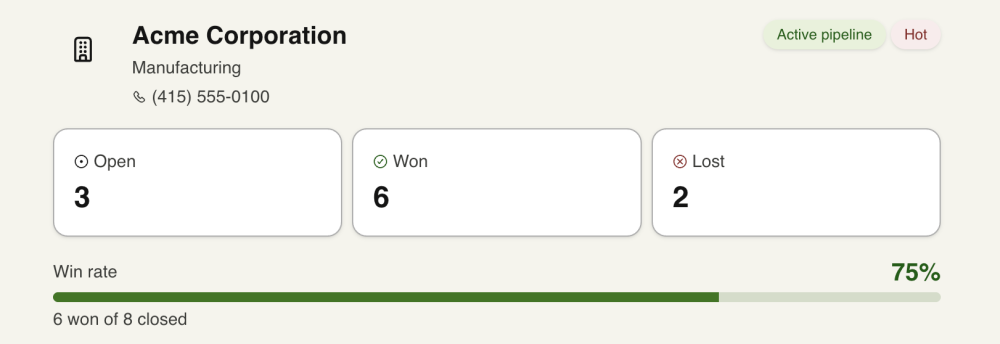
The UI is built with JSON, so it’s easy to think that widgets can only place and style the values you hand them, and that any logic must happen before the data arrives because JSON can’t do logic. My first HXL widget was an account card, and in its first implementation, I handled all the logic for computing the win rate, checking for a phone number, and picking the badge variant in my Apex code.
But HXL widgets can handle math and logic using formulas. HXL widget formulas go inside {!...} expressions and use a formula language based on the open-source Salesforce formula engine, with operators for math, comparison, and logic, alongside functions like IF, CASE, AND, and LEN. Once I knew that, my display fields became one-line formulas in the widget.
Before formulas: Display logic in Apex
Here’s a simplified version of the account card widget above. It renders an account record’s name, industry, account rating, phone number, and opportunities. It relies on precomputed display fields like $attrs.winRate, $attrs.ratingVariant, $attrs.hasOpenPipeline, and $attrs.hasPhone to handle how and when the data displays on the card.
1{
2  "definition": "tile/widget",
3  "children": [
4    {
5      "definition": "tile/column",
6      "children": [
7        {"definition": "tile/text", "attributes": {"text": "{!$attrs.name}"}},
8        {"definition": "tile/text", "attributes": {"text": "Industry: {!$attrs.industry}"}},
9        {"definition": "tile/badge", "attributes": {"label": "{!$attrs.rating}", "variant": "{!$attrs.ratingVariant}"}},
10        {"definition": "tile/text", "meta": {"if": "{!$attrs.hasPhone}"}, "attributes": {"text": "Phone: {!$attrs.phone}"}},
11        {"definition": "tile/text", "attributes": {"text": "Open opportunities: {!$attrs.openOpportunities}"}},
12        {"definition": "tile/text", "meta": {"if": "{!$attrs.hasOpenPipeline}"}, "attributes": {"text": "Active pipeline"}},
13        {"definition": "tile/progress", "attributes": {"label": "Win rate", "value": "{!$attrs.winRate}", "max": 100}}
14      ]
15    }
16  ]
17}
The display fields are calculated in an Apex method that formats account records as an AccountSummary data transfer object, which is rendered by the card.
1public with sharing class GetAccountSummary {
2    public class AccountSummary {
3        // Raw account data
4        @AuraEnabled public String name { get; set; }
5        @AuraEnabled public String industry { get; set; }
6        @AuraEnabled public String rating { get; set; }
7        @AuraEnabled public String phone { get; set; }
8        @AuraEnabled public Integer openOpportunities { get; set; }
9
10        // Display fields, precomputed so the widget has something to bind to
11        @AuraEnabled public String ratingVariant { get; set; }
12        @AuraEnabled public Decimal winRate { get; set; }
13        @AuraEnabled public Boolean hasOpenPipeline { get; set; }
14        @AuraEnabled public Boolean hasPhone { get; set; }
15    }
16
17    @InvocableMethod(label='Get Account Summary')
18    public static List<AccountSummary> getSummaries(List<Id> accountIds) {
19        // ... query each account and count its open, won, and lost opportunities
20
21        AccountSummary summary = new AccountSummary();
22        // ... copy name, industry, rating, phone, and openOpportunities from the record
23
24        summary.ratingVariant = acct.Rating == 'Hot' ? 'error'
25            : acct.Rating == 'Warm' ? 'warning'
26            : 'info';
27        summary.winRate = (won + lost) == 0 ? 0 : won * 100 / (won + lost);
28        summary.hasOpenPipeline = openOpportunities > 0;
29        summary.hasPhone = String.isNotBlank(acct.Phone);
30
31        // ... return one summary per account
32    }
33}
The problem with this approach is that the display logic lives in Apex while the display itself lives in JSON, so the implementations are tightly coupled. Every display tweak, like a new badge color or a different threshold, means changing Apex and redeploying it. A new display field also means updating the widget’s schema and your Custom Lightning Type’s renderer, and because a deployed schema can only grow, you can’t remove that property later without replacing the widget. With formulas, the display logic lives in the widget, so you only update and redeploy the widget.
Replacing Apex fields with widget formulas and expressions
Here’s how I made each display field a formula that lives in the widget.
Use expressions, not just booleans, in meta.if
The meta.if directive renders a component only when its expression evaluates to true. This is one place where you can include a formula. For example, instead of sending a hasOpenPipeline field, I compare the existing openOpportunities field directly:
1{
2  "definition": "tile/text",
3  "meta": { "if": "{!$attrs.openOpportunities > 0}" },
4  "attributes": { "text": "Active pipeline" }
5}
Color a badge with CASE()
Formulas aren’t limited to meta.if; you can use them in any of the JSON properties. Instead of sending ratingVariant, I use CASE() in the badge’s variant to color an account rated Hot, Warm, or Cold:
1{
2  "definition": "tile/badge",
3  "attributes": {
4    "label": "{!$attrs.rating}",
5    "variant": "{!CASE($attrs.rating, 'Hot', 'error', 'Warm', 'warning', 'info')}"
6  }
7}
Calculate a win rate with IF() and arithmetic operators
Instead of sending winRate, I send the raw counts, wonOpportunities and lostOpportunities, and let the widget do the math. Expressions support arithmetic operators (+, -, /, *, ^), and IF() guards against dividing by zero for an account with no closed opportunities:
1{
2  "definition": "tile/progress",
3  "attributes": {
4    "label": "Win rate",
5    "value": "{!IF($attrs.wonOpportunities + $attrs.lostOpportunities = 0, 0, $attrs.wonOpportunities / ($attrs.wonOpportunities + $attrs.lostOpportunities) * 100)}",
6    "max": 100,
7    "shape": "linear",
8    "size": "md",
9    "color": "primary"
10  }
11}
Check for a value with NOT(ISBLANK())
Instead of sending hasPhone, I check the phone field itself for a value with ISBLANK() and NOT():
1{
2  "definition": "tile/text",
3  "meta": { "if": "{!NOT(ISBLANK($attrs.phone))}" },
4  "attributes": { "text": "Phone: {!$attrs.phone}" }
5}
Supported operators and functions
What you can do with formulas goes beyond those examples. Here are the operators and functions you’ll reach for most:
| Category | Operators and functions | Example |
|---|---|---|
| Math | + - * / ^ |
$attrs.wonOpportunities + $attrs.lostOpportunities |
| Comparison | = <> > < >= <= |
$attrs.openOpportunities > 0 |
| Logic | IF() CASE() AND() OR() NOT() |
AND($attrs.openOpportunities > 0, $attrs.rating = 'Hot') |
| Empty values | ISBLANK() BLANKVALUE() |
BLANKVALUE($attrs.phone, 'No phone on file') |
| Text | LEN() CONTAINS() BEGINS() & |
$attrs.name & ' (' & $attrs.industry & ')' |
The Headless Experience Layer Playground lists the core operators and functions, with live examples. It also renders your widget as you edit, which makes it the fastest way to test a formula.
Formulas in HXL widgets are powerful, but there are a few scenarios where you may need to reach for Apex.
- Formatting dates or currency. There are no formatting functions, so format values like “Nov 13, 2026” or “$3,910.20” in Apex and send them to the widget as text.
- Adding up a list. There’s no
SUM()orAVERAGE(). You can add fields together with+, andLEN()counts the items in a list, but there’s no function that adds up a field across a list’s elements. If you need an order total from its line items, compute it in Apex.
Moving an existing widget to formulas
If you already have a widget that binds to precomputed fields, swapping in formulas is mostly find and replace unless you need to reference new fields in those formulas. But there is a catch: once a widget is deployed, its schema.json can only grow. When I tried to remove the old properties, the org rejected the deploy:
Schema update contains breaking changes: You can’t delete the … property
You can stop sending those values from Apex and stop binding them in your Custom Lightning Type‘s renderer, but the properties stay in the widget schema. To remove them for good, deploy a new widget bundle with the new schema, point your Custom Lightning Type’s renderer at it, and delete the old bundle. If you’re starting fresh, use formulas from day one and map your schema to the record’s real data.
Tell your coding agent
If you build widgets with a coding agent, make sure it knows formulas exist. The Salesforce platform-widget-generate skill includes a reference of supported formula functions in references/widget-formulas.md. You can add the Salesforce skills to your project with npx skills add forcedotcom/sf-skills --skill '*'.
Formulas don’t turn widgets into apps, but they can help your widget decide how to show your data, instead of making your Apex decide for it.
About the author
Charles Watkins is a self-taught software developer and Lead Developer Advocate at Salesforce. He spends his time blogging, crafting code samples, and finding new places to hike in the Pacific Northwest. You can follow him on LinkedIn.