Example: Customizing User Interface Using Custom Lightning Types with Top-Level Collection Renderer Override
This example explains how to override the default user interface to create a customized appearance of responses on the custom agent’s action output with custom Lightning types.
In this example, you specify a renderer collection override for the custom Lighting type that you created.
Example Apex Class for Retrieving Hotel Information
Use these Apex classes together to create a custom agent action that finds available hotels. The main HotelReservation class contains the invocable method, and the other classes define the complex data structures for the request and response.
When you create your custom agent action, select the method Find hotels.
HotelReservation Class
This class is the main class that contains the logic for the find hotels agent action.
1@JsonAccess(serializable='always' deserializable='always')2global class HotelReservation{3 @InvocableMethod(label='Find hotels ' description='Find Available Hotels')4 global static List<HotelResponse>findHotels(List<HotelRequest>req){5 // For example, we hardcode the data and don’t focus on how we retrieve it.6 // However, consider that we receive available hotel data from a service7 // and then iterate through the data to generate the final response.89 List<HotelResponse>hotelResponseList = new List<HotelResponse>();1011 Room r1 = new Room('DELUX', 2, 15.15d, 2000l, false);12 List<Room>rooms = new List<Room>();13 rooms.add(r1);1415 HotelCategory fourStar = new HotelCategory('four');16 Hotel hotel1 = new Hotel('Sahara Hotels', 'Gacchibowli Hyderabad', rooms, fourStar);17 HotelCategory fiveStar = new HotelCategory('five');18 Hotel hotel2 = new Hotel('Taj Vivanta', 'Kokapet', rooms, fiveStar);19 List<Hotel>hotels = new List<Hotel>();20 hotels.add(hotel1);21 hotels.add(hotel2);2223 HotelResponse hotelresponse = new HotelResponse(hotels);24 hotelResponseList.add(hotelresponse);2526 return hotelResponseList;27}28}
HotelResponse Class
This class defines the data structure for the response that returns a list of available hotels.
1@JsonAccess(serializable='always' deserializable='always')2global class HotelResponse{3 @InvocableVariable4 global List<Hotel>hotels;56 global HotelResponse(List<Hotel>hotels){7 this.hotels = hotels;8}9}
Hotel Class
This class defines the data structure for hotel details.
1@JsonAccess(serializable='always' deserializable='always')2global class Hotel{3 @InvocableVariable4 global String name;56 @InvocableVariable7 global String address;89 @InvocableVariable10 global List<Room>rooms;1112 @InvocableVariable13 global HotelCategory hotelCategory;1415 global Hotel(String name, String address, List<Room>rooms, HotelCategory hotelCategory){16 this.name = name;17 this.address = address;18 this.rooms = rooms;19 this.hotelCategory = hotelCategory;20}21}
Room Class
This class defines the data structure for rooms within a hotel.
1@JsonAccess(serializable='always' deserializable='always')2global class Room{3 @InvocableVariable4 global String type;56 @InvocableVariable7 global Integer available;89 @InvocableVariable10 global Double discountPercentage;1112 @InvocableVariable13 global Long price;1415 @InvocableVariable16 global Boolean petAllowed;1718 global Room(String type, Integer available, Double discountPercentage, Long price, Boolean petAllowed){19 this.type = type;20 this.available = available;21 this.discountPercentage = discountPercentage;22 this.price = price;23 this.petAllowed = petAllowed;24}25}
HotelCategory Class
This class defines the data structure for a hotel’s star rating.
1@JsonAccess(serializable='always' deserializable='always')2global class HotelCategory{3 @InvocableVariable4 global String star;56 global HotelCategory(String star){7 this.star = star;8}9}
HotelRequest Class
This class defines the data structure for the agent action’s input criteria.
1@JsonAccess(serializable='always' deserializable='always')2global class HotelRequest{3 @InvocableVariable4 global String city;56 @InvocableVariable7 global Date checkInDate;89 @InvocableVariable10 global Date checkOutDate;11}
The Apex class Hotel Reservation accepts the hotel search criteria, including the check in date, check out date, and city, and then returns a list of available hotels.
For this example, hotel availability data is already included in the Hotel Reservation Apex class. However, in a real-time scenario, hotel information is fetched from an external service, and the Apex class processes that data to generate the final response.
Create a custom Lightning type named hotelResponse to enhance the visibility of the information in the output UI.
Override Default UI for Output With Custom Lightning Types
Override the agent’s action UI for output to enhance the user experience by using Custom Lightning Types (CLTs). With CLTs, you can add your own Lightning Web Components (LWC) to present data for lists in a more structured and intuitive format.
Configure the renderer.json file to override the default UI of a custom Lightning type in the agent action.
Here’s an example showing a lightningTypes folder for a custom Lightning type named hotelResponse.
This example uses lightningDesktopGenAi to configure the custom Lightning type. To configure the type for the enhancedWebChat channel, create the renderer.json file in the corresponding channel folder.
Note
The custom Lightning type hotelResponse includes a schema.json file and a renderer.json file. The renderer.json file controls how the data is displayed to the user in the agent action output.
This sample code shows the contents of the schema.json file.
Build Output Components with Lightning Web Components
This section explains how the components are created and deployed for agent action output.
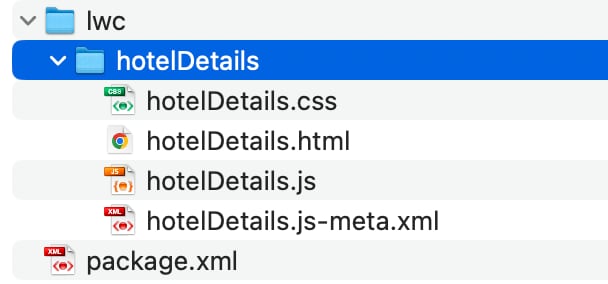
This image shows the Lightning Web Component (LWC) folder structure.
The LWC component includes HTML markup designed to accept output for @apexClassType/c__Hotel. This HTML markup ensures that the data is displayed in an intuitive and customized format.
This sample code shows the contents of the hotelDetails.js-meta.xml file.
When you create an LWC component to override the UI for action input, use lightning__AgentforceInput as the target. For output, use lightning__AgentforceOutput. For information about LWC target types, see lightning__AgentforceInput Target and lightning__AgentforceOutput Target.
Note
This sample code shows the contents of the hotelDetails.html file.
Integrate Custom Lightning Type into Agent Action Output
To add a custom Lightning type to the agent action, complete these steps.
Open the agent action.
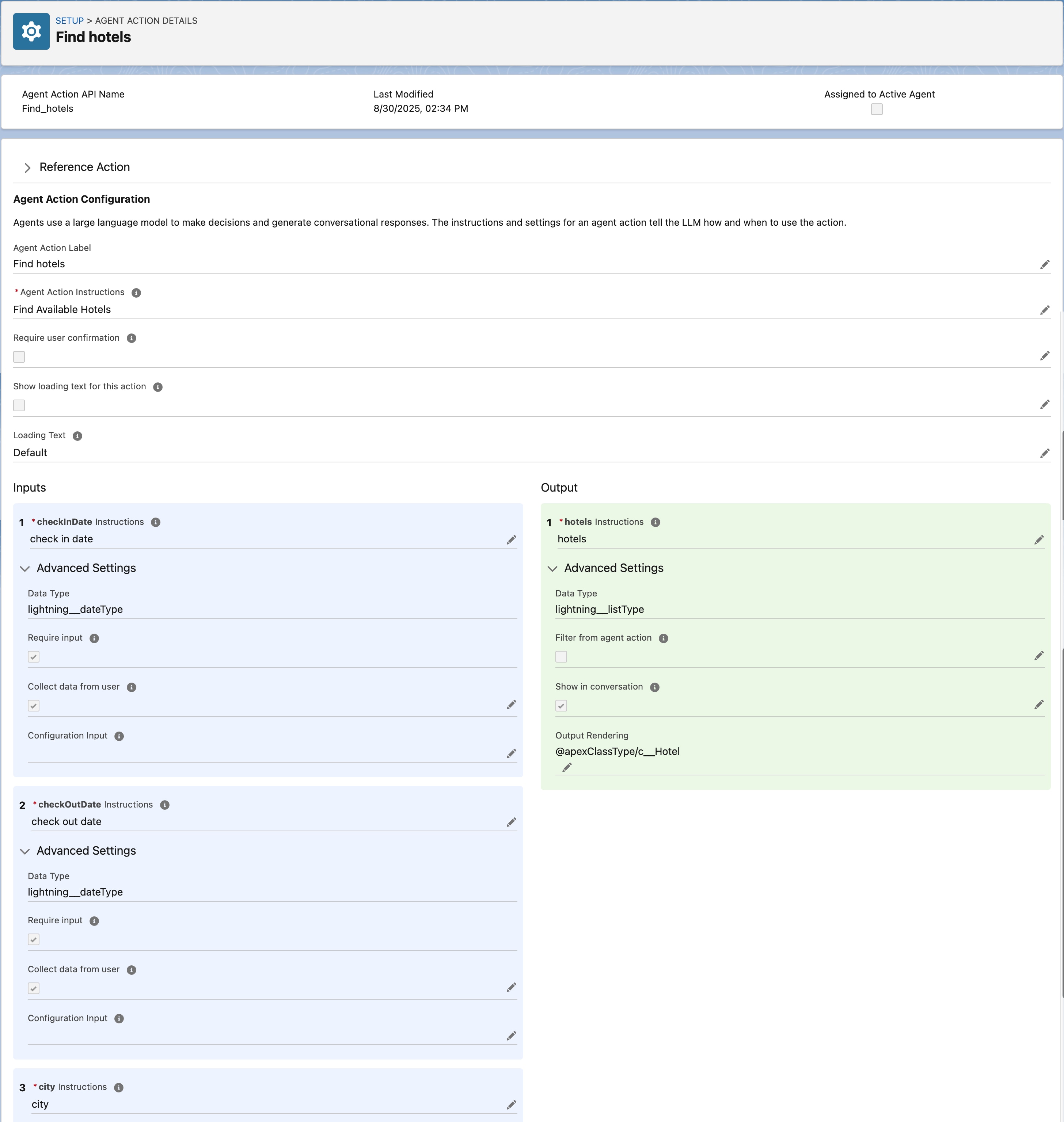
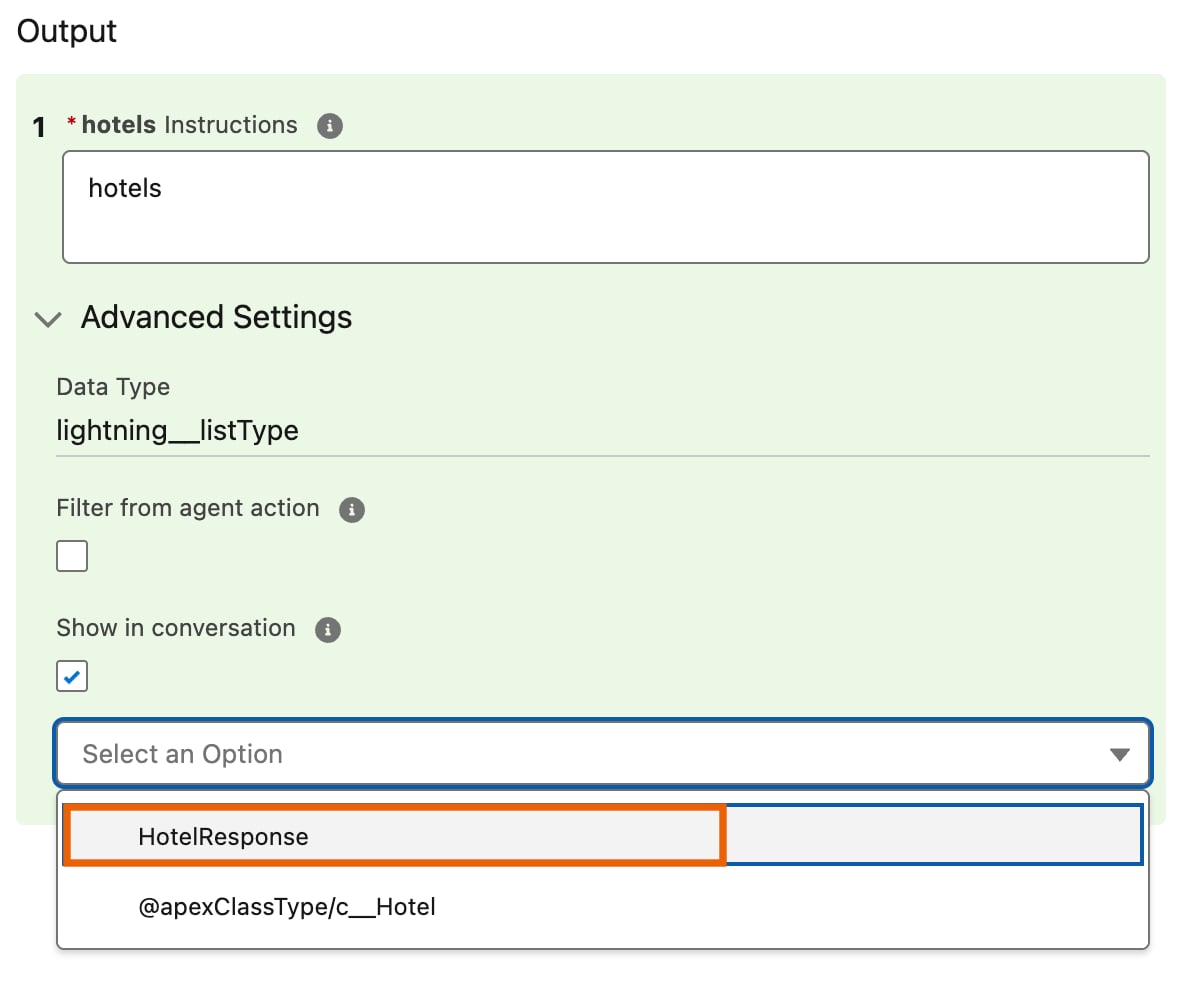
Edit the Output Rendering parameter of the agent action output for HotelResponse.
Select the custom lightning type HotelResponse.
Save the agent action.
The Unsupported Data Type message appears in the Map to Variable parameter. You see this message when you refer to types such as @apexClassType and custom Lightning types in an agent action’s Output Rendering parameter. This message doesn’t affect your saved work and can be safely ignored.
This image shows the custom Lightning type that you created.
Customized Input UI
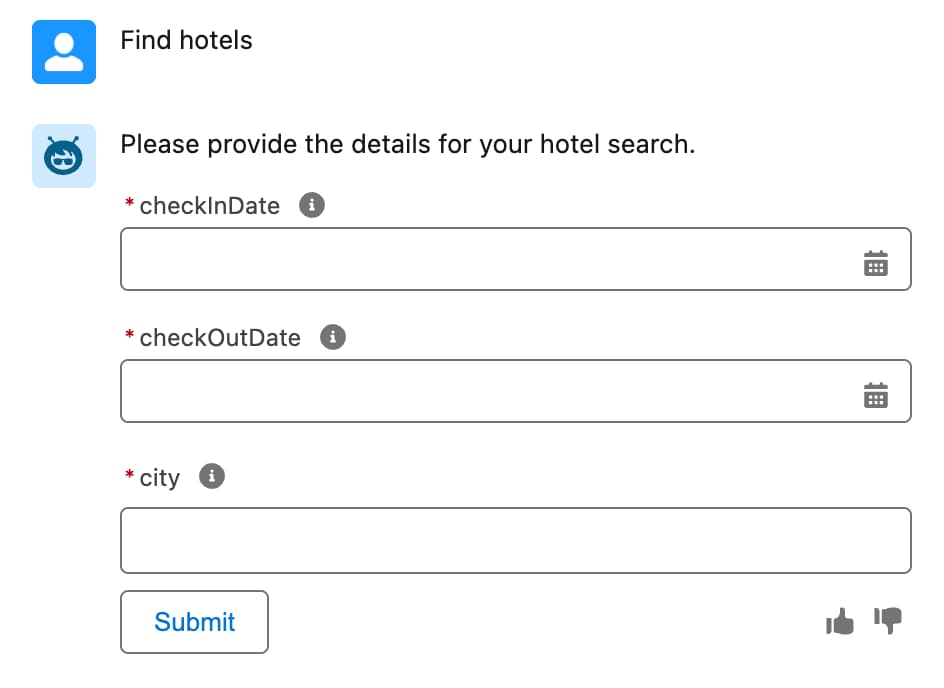
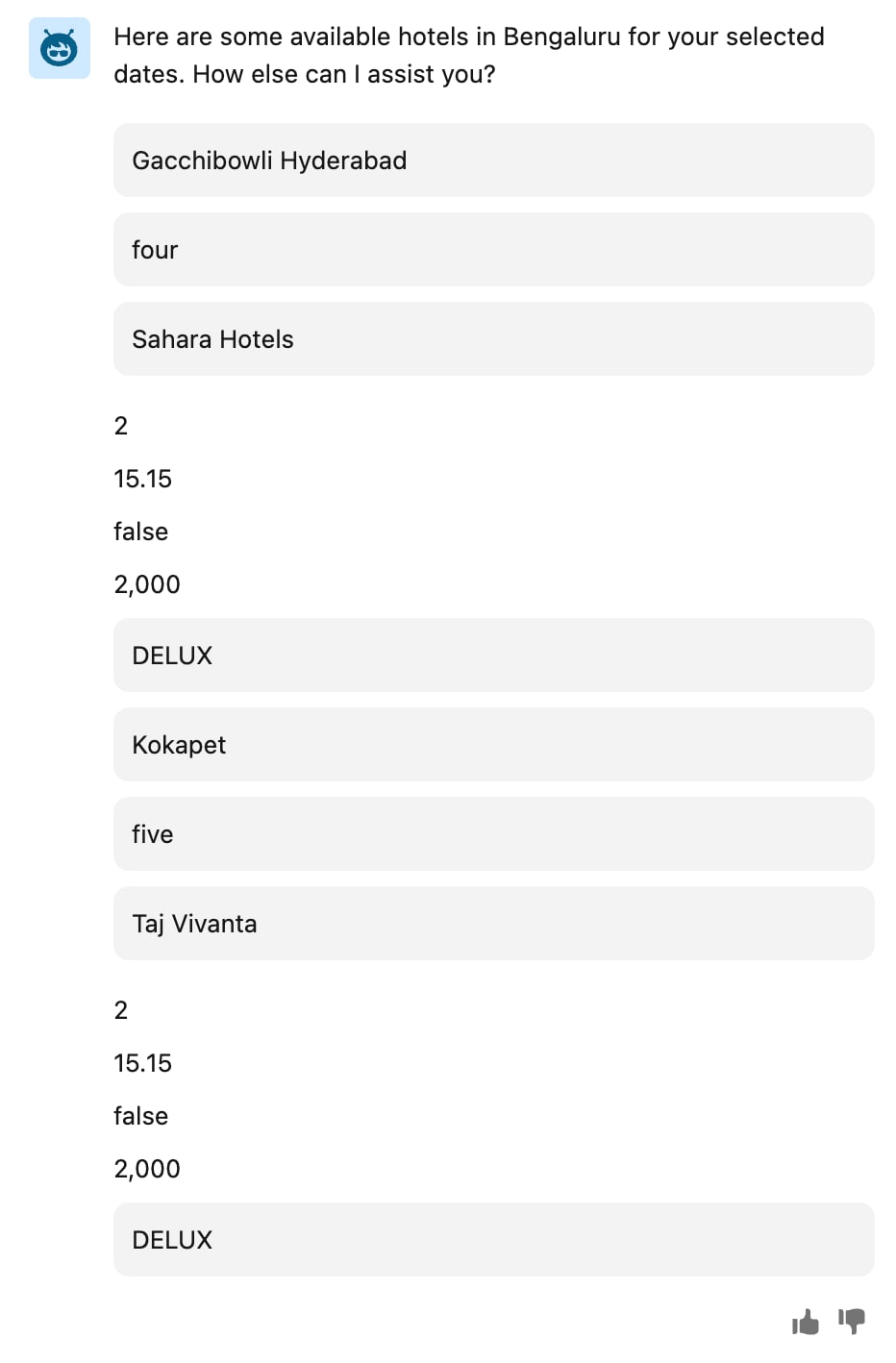
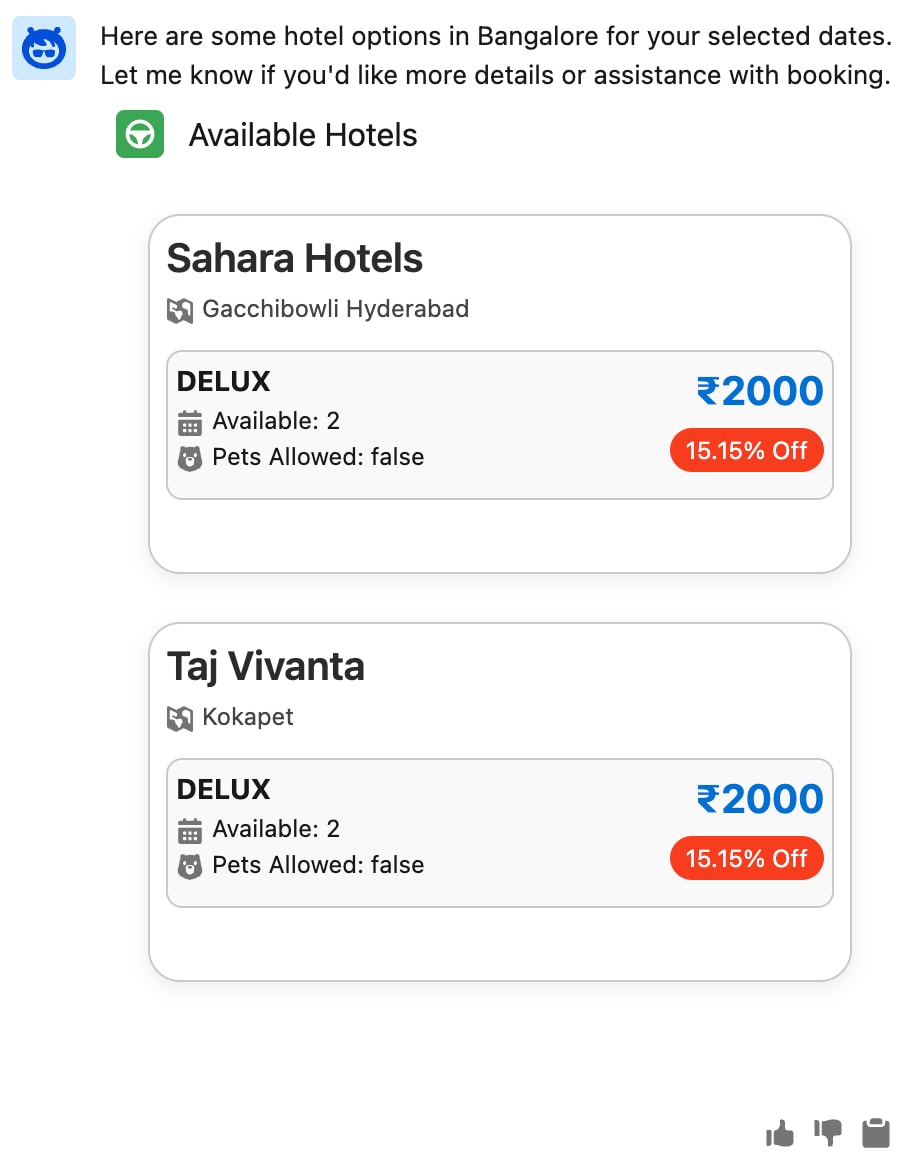
Before executing the agent action that you modified, reload the agent page. The agent prompts you to provide input and then generate the output. The output provides a new UI experience.
This image shows how the custom agent action’s input appears in an agent conversation.


 j
j