template-info.json describes the template. It references all the information required to create an app from the template.
template-info.json can also contain conditions. For example, a source app can have a dashboard with charts. You can include conditions in the template-info.json file to remove specific charts when the user creates the app. Conditions can include overrides that enable the addition or exclusion of assets and data from the app. The override is defined in variables.json. See Complex variables.json Variable Types.
The template-info.json file has multiple parts.
Template Metadata
Metadata information for the template includes the name, description, icons, tags, and custom attributes.
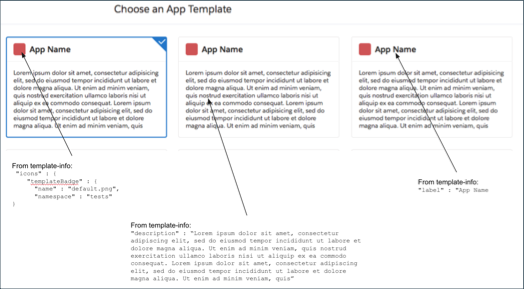
Contains the user’s name for the app. Analytics Studio displays this text in the app creation wizard, such as in the template picker and template details page.
name
The unique developer ID for the template ID. Changing it generates a new template.
description
Specifies the description of the template. The template picker displays the contents of description, as shown in the previous image.
assetVersion
Specifies the version for the template assets. The version is set at the time of creation, generating a snapshot of the asset JSON files. The version doesn’t update unless indicated when updating a template. For more information, see Update an Existing Template.
templateType
Specifies the type of template:
app: a standard app
embeddedapp: an embedded app
data: a collection of data assets
dashboard: a single dashboard
icons
Contains three possible options.
templateBadge
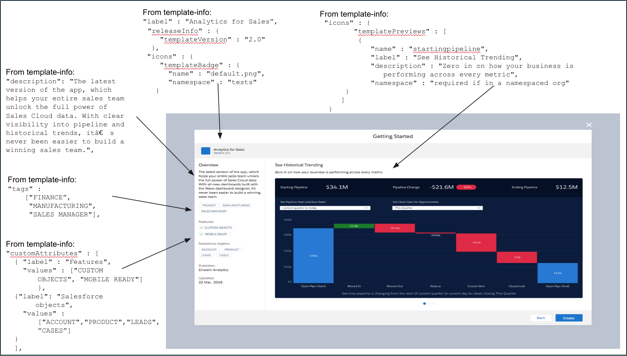
Defines the small icon that appears in the app picker (shown in the previous image) and at the top of the template details window (shown in the next image). Don’t use a file extension with the name attribute, for example "learn", not "learn.png".
appBadge
Defines the icon shown by Analytics Studio for the app after creation. Must be "1.png" through "21.png". Use a file extension with the name attribute, for example "16.png", not "16".
templatePreviews
Defines preview images displayed on the template details window during the app creation process. Supports multiple images. Don’t use a file extension with the name attribute, for example "preview_education", not "preview_education.png".
tags
Specifies tags that are used in template search and that appear on the template details page (shown in the next image).
customAttributes
Specifies information describing the template in the app creation wizard, such as Salesforce objects used or notable features (shown in the next image).
Template Version Information
The templateVersion is a string validated as “#.#”. The notesFile, when present, must be an HTML file. If releaseInfo is present, users can reconfigure or upgrade an app that’s been created from the template from Analytics Studio.
After creating an app from a template for the first time, users can reconfigure the app based on the existing version of the template. When you update the number in templateVersion, CRM Analytics prompts users who created an app from the template to upgrade the app to the new version. For more information about reconfiguring and upgrading apps from templates, see Reconfigure an Analytics App and Upgrade an Analytics App.
Note
Variables File
The file that contains all the variables used in the template is variables.json.
1"variableDefinition": "variables.json",
Configuration Wizard File
The file that defines the wizard the user fills out, answering questions to set variables, is ui.json.
1"uiDefinition": "ui.json",
Org Readiness File
The file that defines the validations to perform when the wizard loads is org-readiness.json. These validations verify that the org has the necessary data and setup to support creating an app from the template without failing.
1"readinessDefinition" : "org-readiness.json"
Rules Files
The file or files defining any rules to be applied to the template assets is rules.json.
The templateToApp rules file defines rules that run when a downstream app is created or updated from a template. These rules are the rules you’re most likely to edit.
The appToTemplate rules file defines rules that run when a template is created or updated from a source app. These rules are created by the framework code. You aren’t likely to edit them.
Dashboards and Lenses
A dashboard or lens entry can contain a condition statement to determine whether the asset is added at app creation time based on a given variable. This condition statement can be an empty list ("[]").
List of files that define external datasets (CSVs) to create. The list can include XMD. Each dataset entry can contain an entry for a conditional statement, allowing for decisions to be made by variables on whether a dataset asset is added at app creation time. This condition statement can be an empty list ("[]").
User XMD is NOT required. If it’s present, there’s an XMD JSON file in the dataset_files directory. Otherwise, no XMD JSON file is present. If User XMD exists, it must be v2.0.
Each dataflow or recipe file must contain a reference to the corresponding dataset (Extract and Register steps). That enables the dataset to be recreated in the creation process of any downstream app.
List of files that define dataflows. This reference can be an empty list ("[]"). If your app includes multiple dataflows, reference each dataflow file. When a user creates an app from the template, dataflows are created in the order they’re entered here.
List of files that define recipes. This reference can be an empty list ("[]"). If your app includes multiple recipes, reference each recipe file. When a user creates an app from the template, recipes are created in the order they’re entered here. Edit the order as needed. If dataflows exist in the app, they execute before the recipes. For more information, see Add a Recipe to a CRM Analytics Template. You can also specify whether a recipe should sync and execute during app creation with the executeCondition attribute. For more information, see Configure Recipe Execution.
List of files that define components in dashboards. This reference can be an empty list ("[]"). Each dashboard component in the app’s dashboards gets a unique entry in this list. Each component entry can contain an entry for a conditional statement, allowing for decisions to be made by variables on whether a component asset is added at app creation time. This condition statement can be an empty list ("[]").
For templates with dependencies, add a line to template-info.json that refers to templates to include in the dependency. See Create Dependent Templates.
Images
These images are associated with the app and used in dashboard files. Each image can contain an entry for a condition statement. Specifying a condition enables decisions to be made with variables on whether an image is added at app creation time. Images must be stored as static resources. References to each image must specify a namespace attribute if the org uses namespace.
The file that contains the folder information including featuredAssets and shares is folder.json.
1"folderDefinition": "folder.json",
Auto-Install File
The file that contains the auto-install hook configuration and the installed app configuration is auto-install.json. This file must exist if your template is installed with a managed package and the app is created with an auto-install request.
1"autoInstallDefinition": "auto-install.json",
Smart Wizard Apex Callback
You can also call a smart wizard from template-info.json to perform computations or detection on the user’s data. The call to the smart wizard must be backed up with an Apex callback class. The Apex callback class can run the smart wizard before or after the configuration wizard runs and when the creation of the app is kicked off. You call the Apex class from template-info.json with something like this:


 j
j