


Force.com Platform Fundamentals
 j
jBecoming Familiar with the Page Layout Editor
The Force.com platform has two drag-and-drop tools for editing page layouts: the original page layout editor and the enhanced page layout editor.
- From Setup, enter Objects in the Quick Find box, then select Objects.
- Click Position.
- In the Page Layouts related list, click Edit next to Position Layout.
Welcome to the page layout editor! As you can see, this editor is different from the ones that we've already used in other areas of the platform. That's because we're designing a user interface and need to see how our page will look as we're working. Before going any further, let's give ourselves a quick orientation to how this page is set up.
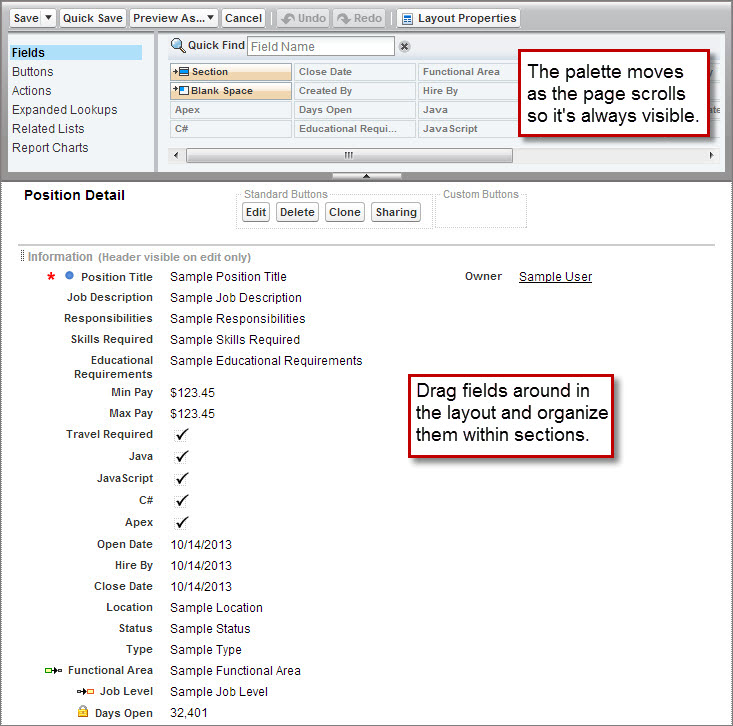
The page layout editor
consists of a palette at the top of the screen and the page layout
below it. The palette contains the user interface elements that are
available for you to add to the page layout, including fields, buttons,
links, and related lists. To add one of these user interface elements
to the page layout, simply select the category to which the element
belongs on the left column of the palette and drag the element from
the palette to the page layout. To remove a user interface element
from the page layout, drag the element from the page layout to the
right side of the palette, or hover over the element you want to remove
and click  . A toolbar above the palette provides
various functions, such as saving and previewing your changes.
. A toolbar above the palette provides
various functions, such as saving and previewing your changes.
Now that we know what we're looking at, let's rearrange the fields in the way a user might want to see them.