


Force.com Platform Fundamentals
 j
jLook at What We've Done
Congratulations. We've just built ourselves a simple Recruiting app that tracks details about an organization's open positions. Let's check out what we've done by revisiting the Positions tab and clicking New. Because of the changes that we've made in our page layout, our Position edit page should now look like:
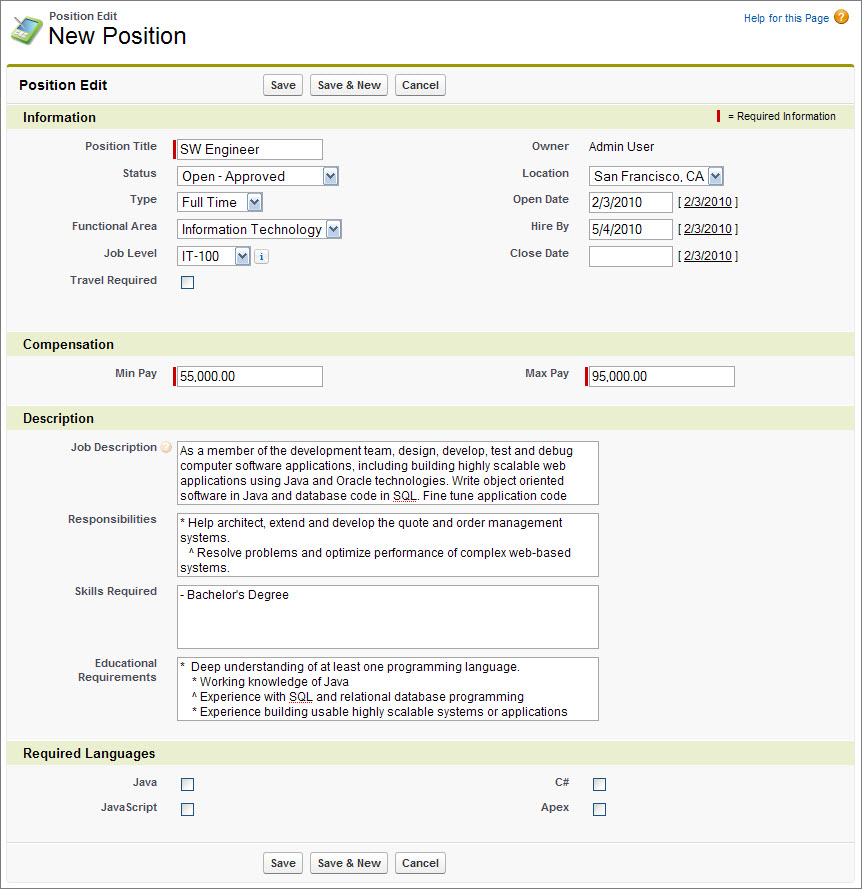
Let’s take a look at our Position detail page before we move on. To do that, we have to create a position. Fill in the required fields, and click Save.
If we scroll to the bottom of the Position detail page, we’ll notice a couple of related lists. Since we haven’t customized the related lists that appear on positions, the platform displays the defaults: Open Activities, Activity History, and Notes & Attachments. Right now, there aren’t any items in any of the lists. To see how one of those items would look, let’s add a task.
- In the Open Activities related list, click New Task.
Notice that some fields are already filled out for us. The platform made some educated guesses to determine who the task should be assigned to, what its status is, and how urgent it is. In addition, because we added the task through the related list on a position, the platform made the correct assumption that we want the task associated with that position. For now, let’s leave the default values in those fields.
- In Subject, enter Post position online.
- In Due Date, select tomorrow’s date.
- Click Save.
Now, back on the detail page for our position, we see that the Open Activities related list contains the task we just created. From this list, we could dig in to the related task to see more details, make changes, or mark it complete.