


Customizing the Log a Call Action
The Log a Call action lets support agents record notes and information about customer calls. With the apex:logCallPublisher, you can:
- Customize the appearance and dimensions of the Log a Call action.
- Specify which fields are displayed in the action.
- Define the visibility and label of the submit button.
- Define onSubmit functionality.
apex:logCallPublisher Attributes
| Attribute Name | Attribute Type | Description | Required? | API Version | Access |
|---|---|---|---|---|---|
autoCollapseBody | Boolean | A Boolean value that specifies whether the Log a Call body is collapsed when it is empty. | 25.0 | ||
entityId | id | Entity ID of the record for which to display the Log a Call action. In the current version, only Case record ids are supported. | Yes | 25.0 | |
id | String | An identifier that allows the component to be referenced by other components on the page. | 25.0 | Global | |
logCallBody | String | The initial text value of the Log a Call body when the action is rendered. | 25.0 | ||
logCallBodyHeight | String | The height of the Log a Call body in em. | 25.0 | ||
onSubmitFailure | String | The JavaScript invoked if the call is not successfully logged. | 25.0 | ||
onSubmitSuccess | String | The JavaScript invoked if the call is successfully logged. | 25.0 | ||
rendered | Boolean | A Boolean value that specifies whether the component is rendered on the page. If not specified, this value defaults to true. | 25.0 | Global | |
reRender | Object | The ID of one or more components that are redrawn when the call is successfully logged. This value can be a single ID, a comma-separated list of IDs, or a merge field expression for a list or collection of IDs. | 25.0 | ||
showAdditionalFields | Boolean | A Boolean value that specifies whether the additional fields defined in the action layout should be displayed. | 25.0 | ||
showSubmitButton | Boolean | A Boolean value that specifies whether the submit button should be displayed. | 25.0 | ||
submitButtonName | String | The name of the submit button in the Log a Call action. | 25.0 | ||
submitFunctionName | String | The name of a function that can be called from JavaScript to publish the call log. | 25.0 | ||
title | String | The title displayed in the Log a Call action header. | 25.0 | ||
width | String | The width of the action in pixels (px) or percentage (%). | 25.0 |
Use Case
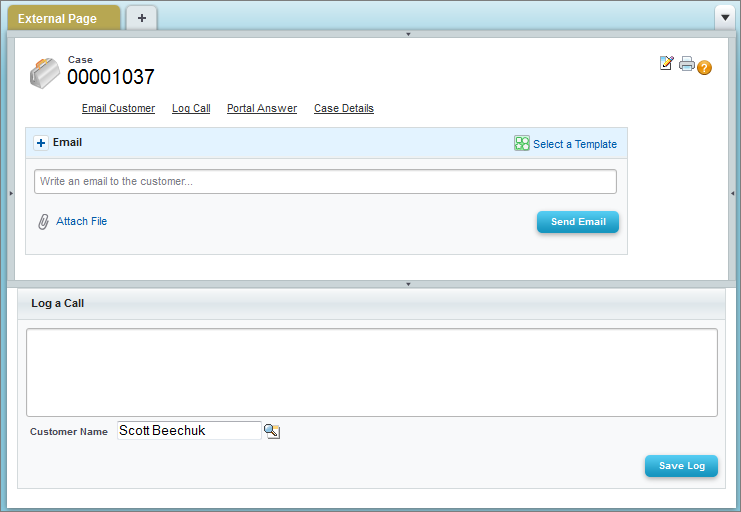
Stellar Wireless is a mobile phone provider with several high-volume call centers, where agents are rewarded both for solving customers’ issues quickly and for keeping detailed, accurate records of customer interactions. Stellar wanted to customize the Log a Call action so it was open and available to agents at all times, even when they were working with another action, giving them a quick and easy way of taking notes about incoming calls.
Stellar used the apex:logCallPublisher component to create a Log a Call action that:
- Appears in the footer of the page, replacing the standard interaction log.
- Is open and available by default each time a support agent opens a case.
Code Sample
1<apex:page standardController="Case">
2  <apex:logCallPublisher entityId="{!case.id}"
3      width="100%"
4      title="Log a Call"
5      autoCollapseBody="false"
6      showAdditionalFields="false"
7      submitButtonName="Save Log" />
8</apex:page>
After you create a Visualforce page with this code, follow these steps to use the Log a Call action you create as a replacement for the standard interaction log:
- From the object management settings for cases, go to Page Layouts.
- Select the layout you’re using from the Page Layouts for Case Feed Users list, and then select Edit detail view.
- Click the Custom Console Components link at the top of the page.
- In the Subtab Components section, use the lookup to select the page you created as the component to use for the bottom sidebar.
- Specify the height of the action.
- Click Save.
- In the page layout editor, click Layout Properties.
- Uncheck Interaction Log.
- Click OK.
- Click Save.
See Also
 j
j