Lightning Communities Developer Guide
 j
jNewer Version Available
CMS Connect (JSON) Expressions
When you place a component on your community page, you specify its properties using JSON expressions. For example, if you are mapping in a blog article, you can define expressions to retrieve the blog’s ID, title, author, and content from your CMS.
Let’s look at an example using this JSON structure as the content source. The example JSON response body is from a Drupal CMS.
1{
2	"data": {
3		"type": "node--page",
4		"id": "c53cf56c-f70d-456e-838b-47788742b074",
5		"attributes": {
6			"nid": 5,
7			"uuid": "c53cf56c-f70d-456e-838b-47788742 b074",
8			"vid ": 5,
9			"langcode": "en",
10			"title": "DIY Dryer Vent Cleaning",
11			"created": 1502133909,
12			"changed": 1502133933,
13			"body": {
14				"value": "This is the body of the blog article. Step 1...",
15				"summary ": "How to clean your dryer vent in 3 easy steps."
16			}
17		},
18		"relationships": {
19			"type ": {
20				"data ": {
21					"type": "node_type--node_type",
22					"id": "5b80bc9e-dc78-4612-add8-e46b2e2ff616"
23				}
24			}
25		}
26	}
27}
To set up a CMS connection, create a content item (for example, a blog) or a content list (a blog series). When you add the component to your page, you enter JSON expressions to define its properties.
For example, to retrieve the title, the expression @data/attributes/title retrieves DIY Dryer Vent Cleaning from the example JSON resource. The @ symbol indicates that the text represents a JSON expression that points to the title element.

Basic JSON Expressions
For CMS JSON connections, the expression syntax follows the JSON Pointer specification in RFC 6901. For the example content source, the parent node @data is the top-level pointer to the source content. To access a nested element, just specify the path. For example, the expression @data/attributes/body/value points to the blog content.
When accessing values in an array, the starting index value is 0. Here’s an example of JSON source containing a simple array.
1{
2 "array": [
3    {
4     "key": 1,
5     "dictionary": {
6        "a": "Air gap",
7        "b": "Belt",
8        "c": "Clog",
9        "d": "Drain"
10  },
11      "var": 2
12    },
13    {
14      "key": 2,
15      "dictionary": {
16        "a": "Appliance",
17        "b": "Breaker",
18        "c": "Coffeemaker",
19        "d": "Dryer"
20      },
21      "var": 3
22    }
23  ]
24}
Using this source, the expression on the left yields the output on the right.
| Example Expression | Output |
|---|---|
| @/array/0/key | 1 |
| @/array/1/key | 2 |
| @/array/1/dictionary/a | "Appliance" |
Using Functions in JSON Expressions
You can build more complex expressions using the where, lookup, and concat functions. Use the where function to filter array elements. The function compares two values using an operator: 'eq' (equals), 'ne' (not equals), 'lt' (less than), 'gt' (greater than), 'le' (less than or equals), or 'ge' (greater than or equals).
| Example Expression | Output |
|---|---|
| @/array[where(key,'eq',2)]/0/dictionary/b | "Breaker" |
| @/array[where(key,'eq',2)][where(var,'eq',3)]/0/dictionary/d | "Dryer" |
In the first example, the where expression filters the array to find where the value of key is equal to 2. The second example uses two where functions, and both conditions must be met to find the array element of interest.
- Starting node
- Key to examine inside the starting node
- String or numeric value to match the key against
| Example Expression | Output |
|---|---|
| @lookup(/array,key,2)/0/var | 3 |
| @lookup(/array,key,1)/0/dictionary/a | "Air gap" |
| @lookup(/array,key,2)/0/dictionary/a | "Appliance" |
The concat function concatenates the strings and parameters you give it. The expression @concat('DIY Focus', ': ', 'about your ' , /array/1/dictionary/d) outputs "DIY Focus: about your Dryer". If your CMS stores the author name in an array with first and last name elements, to output the author’s full name, use an expression such as @concat(author/first_name,' ',author/last_name).
The Fine Print
Keep these points in mind when you compose JSON expressions.
- Enclose strings in single quotes, for example, @'hello' is how you include the string hello in an expression. To include an @ character in a string, enclose it in single quotes, for example, 'myname@gmail.com'.
- Use true or false to indicate a Boolean value. The value true is a Boolean, but 'true' is a string.
- Specify a sibling or parent element relative to the current context using a period (.) for a sibling and two periods (..) for a parent. For example, to search by title, specify @data/attributes/title/../id to retrieve the corresponding ID for a title.
- Use the backslash character (\) as an escape character. For example, @/author/name looks for name under an author element, but @/author\/name looks for author/name as a key.
Error Scenarios
Mistakes happen sometimes. Here are a couple of possible error messages when your JSON expressions aren’t right.
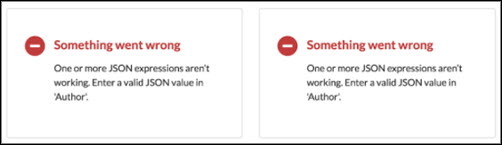
- Entering an invalid JSON path in the property editor of the Experience Builder. For
example, if you enter a JSON expression for author as @author/invalid instead of @author/name, you see an error message like this one.
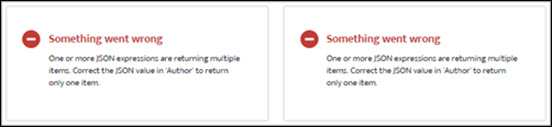
- Entering an expression that returns more than one value when only one value is expected.
For example, if you enter a JSON expression for author as @author instead of @author/name, you
see this error message.
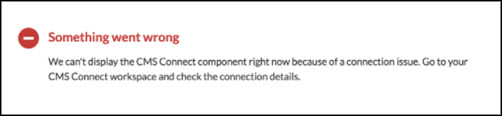
- Providing an invalid URL path when you create a CMS connection for a content list or
connection details. Depending on the issue, you see HTTP errors (for example, HTTP 0 or
HTTP 404 errors) or an error like this one. Verify the configuration settings for your CMS
connection.