Analytics Extended Metadata (XMD) Developer Guide
 j
jNote: This release is in preview. Features described here don’t become generally available until the latest general availability date that Salesforce announces for this release. Before then, and where features are noted as beta, pilot, or developer preview, we can’t guarantee general availability within any particular time frame or at all. Make your purchase decisions only on the basis of generally available products and features.
Change Display Labels for Dataset Fields and Values
You can customize display labels for:
- Dimensions, derived dimensions, measures, and derived measures.
- Values in dimensions and derived dimensions.
Consider these limitations:
- You can’t customize date labels.
- XMD doesn't update formatting for fields that are controlled by user input or context. Formatting can only be applied to a static or preset value.
The following sample chart shows field names and values as they’re stored in the
dataset. 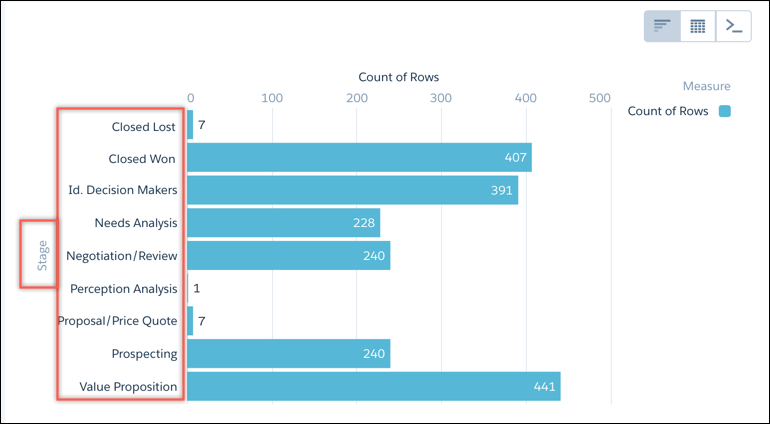
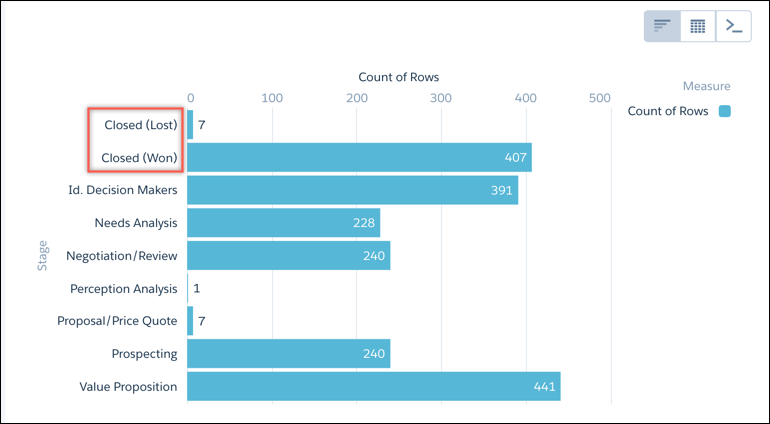
Custom display labels for dimension field values are specified in the members section of the XMD file within the section you’re modifying (such as dimensions). If you have a large XMD file, you can do a text search to find the appropriate members section.
1"field":"StageName",
2         "members":[
3            {
4               "label":"Closed (Lost)",
5               "member":"Closed Lost"
6            },
7            {
8               "label":"Closed (Won)",
9               "member":"Closed Won"
10            }
11         ],
Here’s how the label customizations appear in the chart.