


Identity Implementation Guide
 j
jChoose a My Domain Name
| Available in: both Salesforce Classic (not available in all orgs) and Lightning Experience |
| My Domain available in: Group, Essentials, Professional, Enterprise, Performance, and Unlimited Editions |
| Enhanced domains available in: Group, Essentials, Professional, Enterprise, Performance, and Unlimited Editions |
| User Permissions Needed | |
|---|---|
| To define a My Domain name: | Customize Application AND Modify All Data |
Before updating production, we recommend that you test deploying a My Domain in a sandbox.
-
From Setup, in the Quick Find box, enter My Domain, and then
select My Domain.
In orgs without a provisioned or deployed My Domain, the system shows Step 1: Choose and Register a My Domain.
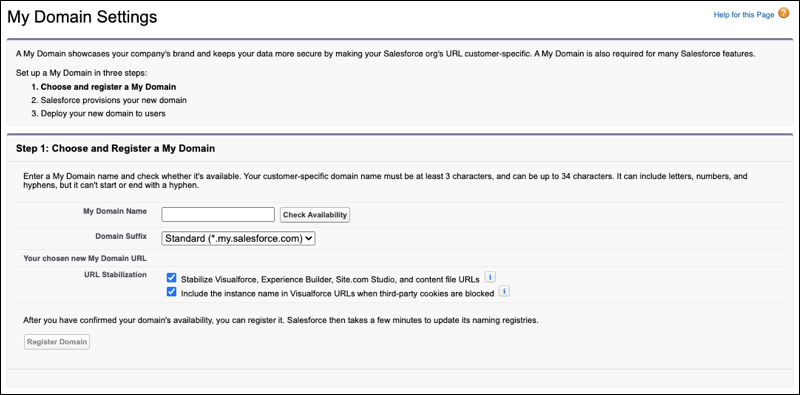
If you see My Domain Details, you have a deployed My Domain. To change your existing My Domain name, see Change Your My Domain Details.
-
Enter the name that you want to use for your My Domain subdomain.
In production and sandbox orgs, your name must contain at least 3 characters and no more than 34 characters. In Developer Edition orgs, your name must contain at least 3 characters and no more than 27 characters. It can include letters, numbers, and hyphens, but you can’t start the name with a hyphen.
Salesforce adds the rest of the domain name. Your production org has the my.salesforce.com domain suffix. In a developer org, the suffix is -dev-ed.my.salesforce.com. When you add a My Domain in a sandbox org, the sandbox name is added to the URL.
- Click Check Availability. If your name is already taken, choose a different one.
-
If more suffixes are available for your org’s My Domain, a suffix dropdown list
appears. Select a suffix.
-
If your suffix is Standard (my.salesforce.com), select Use enhanced
domains.
We recommend enhanced domains for all Salesforce orgs. They are required in Summer ’22. This feature allows your Salesforce login process and related URLs to meet the latest browser requirements. It also stabilizes your My Domain URL by removing the Salesforce instance, preventing user login disruption when your org moves to another Salesforce instance.
-
Optional: If you selected the Standard (*.my.salesforce.com) suffix and didn’t enable
enhanced domains, stabilize your Visualforce, Experience Builder, Site.com Studio, and
content file URLs.
If enhanced domains are enabled, these URLs are stabilized and these settings have no effect. Several browsers and operating systems updated their URL requirements after this option was first made available. Enhanced domains provide the latest standard for stabilizing your Salesforce org’s URLs.
-
Select Stabilize Visualforce, Experience Builder, Site.com Studio, and
content file URLs.
This setting is enabled by default. To avoid disruption during org migrations, your org’s instance name isn’t included in these URLs. For details, see My Domain URL Formats in Salesforce Help.
-
Select Include the instance name in Visualforce URLs when third-party
cookies are blocked.
This setting is enabled by default. Third-party cookie blocking can cause issues loading Visualforce pages with stabilized URLs. This setting is only applicable when Visualforce URLs are stabilized.
-
Select Stabilize Visualforce, Experience Builder, Site.com Studio, and
content file URLs.
-
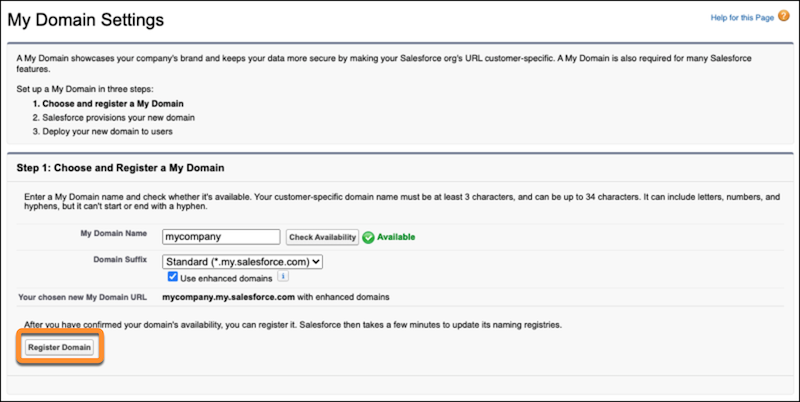
Click Register Domain.
-
Salesforce provisions your My Domain.
The provisioning process usually finishes in a few minutes, but it can take up to 24 hours. You receive an email when your My Domain is ready to be deployed and tested.