


Identity Implementation Guide
 j
jDeploy Your New My Domain
| Available in: both Salesforce Classic (not available in all orgs) and Lightning Experience |
| Available in: Group, Essentials, Professional, Enterprise, Performance, Unlimited, and Developer Editions |
| User Permissions Needed | |
|---|---|
| To edit My Domain settings: | Customize Application |
| To define a My Domain name: | Customize Application AND Modify All Data |
Suggestions for Deploying a My Domain
- Test My Domain changes in a sandbox before updating production.
- Communicate the upcoming change to your users before deploying it.
- Make required changes to your org before users log in with your new My Domain. For more information, see Update Your Salesforce Org for Your New Domain in Salesforce Help.
- Deploy your new My Domain when your org receives minimal traffic, like during a weekend, so that you can troubleshoot while traffic is low.
-
Return to the My Domain Setup page using one of these ways.
- Click the login link in the activation email that you received.
- Log out of your org, and log in to Salesforce using your new My Domain login URL. From Setup, in the Quick Find box, enter My Domain, and then select My Domain.
If your domain is provisioned and ready to deploy, the My Domain Setup page shows Step 3: Deploy Your New Domain.
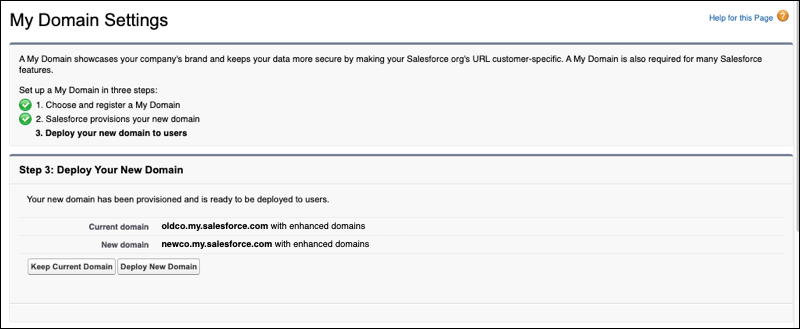
As part of the provisioning process for your new domain, Salesforce performs a cursory check to ensure that you have network access to the new domains. If you don’t have the required access, the My Domain page lists the URLs you can’t access. Before you can deploy your new domain, resolve these network access issues. The access issues can be temporary, such as connectivity issues stemming from a stale DNS cache. Or they can require updates to your allowlists or network configuration. To deploy your My Domain, revisit the My Domain Setup page after the access issues are resolved.
If the My Domain Setup page shows Step 2: Provisioning in Progress, Salesforce is still provisioning your new domain. The provisioning process usually finishes in a few minutes, but it can take up to 24 hours. You receive an email when the process finishes. If you continue to see the Provisioning in Progress page 24 hours after submitting your My Domain name, you can click Stop Provisioning to stop the process. After you stop the process, wait 5 minutes, and then try registering your My Domain name again. Or you can contact Salesforce Customer Support.
-
Optionally, if you renamed your My Domain, update your My Domain settings, such as
adding authentication services. For more information, see Configure My Domain Settings.
-
To roll out the new My Domain to your org, click Deploy to
Users, and click OK.
When you deploy your My Domain, it’s activated immediately. You can now set login policies. See Set the My Domain Login Policy.
Before you test the deployed My Domain, update all URL references in your org. For details, see Update Your Salesforce Org for Your New Domain and Test Your New My Domain.
- Or, to cancel your requested My Domain changes, click Keep Current Domain.