


Identity Implementation Guide
 j
jChange Your My Domain Details
| Available in: both Salesforce Classic (not available in all orgs) and Lightning Experience |
| My Domain available in: Group, Essentials, Professional, Enterprise, Performance, and Unlimited Editions |
| Enhanced domains available in: Group, Essentials, Professional, Enterprise, Performance, and Unlimited Editions |
| User Permissions Needed | |
|---|---|
| To edit My Domain settings: | Customize Application |
| To define a My Domain name: | Customize Application AND Modify All Data |
- From Setup, in the Quick Find box, enter My Domain, and then select My Domain.
- Under My Domain Details, select Edit.
The My Domain Details edit page appears.
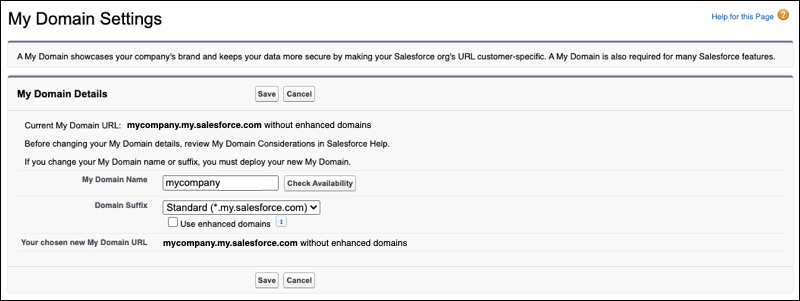
- To change your My Domain, enter your new My Domain or suffix.
- To change your My Domain name, enter a new domain name. To confirm that your
new name is available, click Check for availability. If your name is already
taken, choose a different one.
Avoid entering personal information in your domain name. Instead, enter only public information.
In production and sandbox orgs, your name must contain at least 3 characters and no more than 34 characters. In Developer Edition orgs, your name must contain at least 3 characters and no more than 27 characters. It can include letters, numbers, and hyphens, but you can’t start the name with a hyphen.
- If other suffixes are available for your org’s My Domain, a suffix dropdown list appears. To change your My Domain suffix, select a new suffix.
Your chosen My Domain Login URL is displayed.
- To change your My Domain name, enter a new domain name. To confirm that your
new name is available, click Check for availability. If your name is already
taken, choose a different one.
- Optional: If your suffix is Standard (my.salesforce.com), select Use
enhanced domains.
We recommend enhanced domains for all Salesforce orgs. They are required in Summer ’22. This feature allows your Salesforce login process and related URLs to meet the latest browser requirements. It also stabilizes your My Domain URL by removing the Salesforce instance, preventing user login disruption when your org moves to another Salesforce instance.
Enhanced domains are available in Hyperforce orgs and in orgs with a deployed My Domain routed through Salesforce Edge Network. They aren’t available in Developer Edition or in scratch orgs. For more information on the availability of this feature, join the discussion on the My Domain and Enhanced Domains group in the Trailblazer Community.
- Optional: Stabilize your Visualforce, Experience Builder, Site.com Studio, and
content file URLs.
- Select Stabilize Visualforce, Experience Builder, Site.com
Studio, and content file URLs.
This option only applies when enhanced domains aren’t enabled.
To avoid disruption during org migrations, remove the instance name from these URLs. When you stabilize these URLs, the hostnames change. For details, see My Domain URL Formats in Salesforce Help.
- Optional: Select Include the instance name in Visualforce URLs
when third-party cookies are blocked.
This option only applies to the Standard, Database.com, and Cloudforce suffixes when Visualforce URLs are stabilized without enhanced domains.
Third-party cookie blocking can cause issues loading Visualforce pages with stabilized URLs.
- Select Stabilize Visualforce, Experience Builder, Site.com
Studio, and content file URLs.
- Save your changes.
- If you changed your My Domain name or suffix, or if you enabled or disabled enhanced
domains, Salesforce provisions your My Domain. Those changes take effect after you
deploy your new My Domain.
The provisioning process usually finishes in a few minutes, but it can take up to 24 hours. You receive an email when your My Domain is ready to be deployed and tested.
When you rename your My Domain, Salesforce redirects your previous My Domain URLs to your current My Domain. If you rename your My Domain more than one time, only the last My Domain for your org is redirected. For examples, see My Domain Considerations.
To prevent your previous My Domain URLs from redirecting to your new My Domain URLs, remove it from your org. Likewise, to move a renamed My Domain name to another org, remove the My Domain. For more information, see Remove Your Previous My Domain.