SPI Customer Search Layout
Search for a customer in the Point of Sale app with either a default or a customized layout. Find a customer via first name, last name, email address, and phone number.
To make it easier to find customers, Salesforce uses a customer-specific information system (SPI). This allows businesses to use their own customer records instead of Salesforce. There’s also additional configuration needed in CMS that involves correctly mapping Point of Sale fields. If the fields are incorrectly configured, this results in a failure to search for the right customer.
- Modern POS App Build: 8.8.1 and later
- Platform Support: iPhone & iPad
- Offline Support: no
-
In your custom external system, configure the Clienteling SPI. For more information on APIs and SPIs, refer to Point of Sale API, SPI, and Webhook Overview.
-
In CMS, create a Customer Search layout. See Set Up a Clienteling Layout in Salesforce Help.
-
Edit a cell by clicking inside it.
-
From the toolbar menu, go to Cell Content | Form Element.
-
For Field, enter the corresponding Point of Sale field value. For example, to search a customer by first name, enter firstName. For the full list of values, refer to the Customer Search Layout Mapping table.
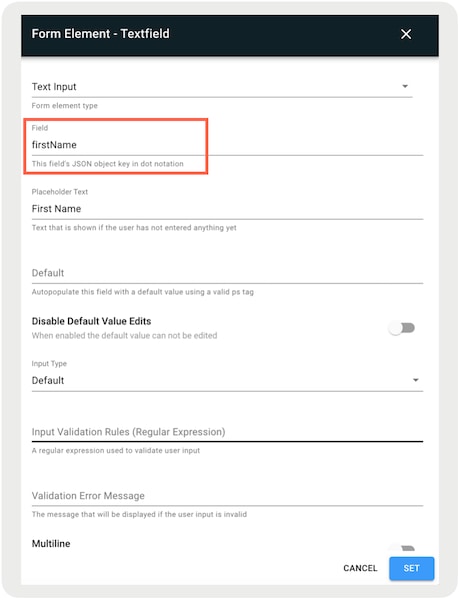
-
Fill in the rest of the fields. See Cell Configuration in Layouts in Salesforce Help.
-
Save and publish your changes.
-
In CMS, go to Apps | All.
-
Edit the app configuration you want to have the search layout.
-
Go to Modules | Clienteling.
-
For Customer Search Layout, select the layout you’ve created.
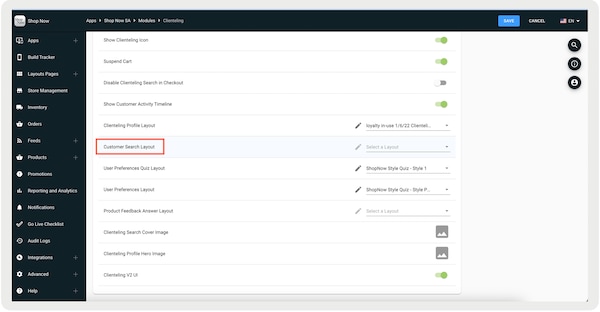
The table below lists the fields that you would typically see on a Customer Search layout. It also lists the corresponding Point of Sale field value and a description for each field.
| Layout Field | Point of Sale Field | Location | Description |
|---|---|---|---|
| First Name | firstName | This field can be configured in the Default and Customized layout. | Search a customer by their first name. |
| Last Name | lastName | This field can be configured in the Default and Customized layout. | Search a customer by their last name. |
| Full Name | fullName | This field can be configured in the Default and Customized layout. | Search a customer by their full name. |
| Phone Number | phone | This field can be configured in the Default and Customized layout. | Search a customer by their phone number. |
| Email Address | This field can be configured in a customized layout. | Search a customer by their email address. | |
| ZIP code | postalCode | This field can be configured in a customized layout. | Search a customer by their ZIP code. |
| Customer ID | id | This field can be configured in a Customized layout. | Search a customer by their customer ID. |
| Birthdate | birthDate | This field can be configured in a Customized layout. | Search a customer by their birthdate. |
| Search String | searchString | This field can be configured in a Customized layout. | Search a customer by matching the entered value. |