


 j
jDisplay Salesforce CMS Content
Display CMS Content in Experience Builder Sites
Configure a Content Selector Using Sample Files
Configure a Content Selector From Scratch
Connect external content providers and digital asset management (DAM) systems to Salesforce CMS to streamline content creation and management.
If you’re a DAM provider or ISV, you can create a managed package that helps CMS users connect to your external system. After the package is installed in an org, CMS users can access and use media from the external provider directly in enhanced CMS workspaces.
Supported media types include images, videos, documents, and audio files.
To connect to an external content system, you define the external content provider connection and create an instance of the provider in the org. You must also create a custom Lighting web component that implements your preferred user interface for selecting content in the CMS content editor.
With this approach, when users create a content item in an enhanced CMS workspace, the CMS content editor shows a list of available provider instances. When users select a provider, the editor uses your component to display the external content. And when they select an asset, the component fires an event that creates a CMS record with a reference to the asset.
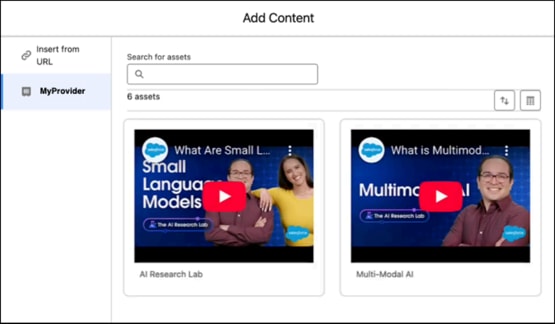
Similarly, in Marketing Cloud Next, the external content selector appears when users create content, such as images or landing pages, in marketing workspaces.
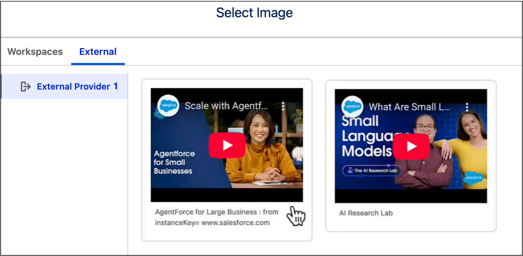
Users can also access external content in enhanced LWR, non-enhanced LWR, and Aura sites in Experience Cloud.
Each external asset uses an externalId to ensure uniqueness within a workspace, meaning a workspace can’t contain assets that share the same externalId. However, multiple workspaces can each contain an asset with that externalId.
When referencing an external media asset, Salesforce CMS checks for existing content using the asset’s unique identifier.
externalId exists in the current workspace or any shared workspace, that existing content is used as the referenced content, and no new content is created. However, the user can override this and create the content in the current workspace if preferred.Users can also share external content across workspaces in the same way as other CMS content. See Share Content Across Enhanced CMS Workspaces in Salesforce Help.
Content created via asset selection can’t be edited or cloned from a CMS workspace.
Note
Several metadata API types combine to create a content selector for an external content source, including:
Additionally, see:
To configure a content selector for an external content system, you can use the files from a Salesforce-provided sample package as a starting point or configure your own content selector from scratch.
j