


 j
jRelease Notes
Prerequisites
Step One: Sign up for Salesforce Developer Edition
Step Two: Set Up Authorization
Step Three: Connect to Using OAuth
Connect to Experience Cloud Sites
Send a Request with Postman
Retired Resources
PDF Archive
With Postman, you can explore and test your API calls across multiple orgs with full control on headers, parameters, and content type.
Before you send a request with Postman, make sure that you have a Developer Edition org and complete Step Two: Set Up Authorization.
Postman supports API requests with different authentication flows, such as the SOAP login flow, OAuth flow, or the JWT bearer token flow. See the Salesforce Developers’ Blog: Explore the Salesforce APIs with a Postman Collection.
Note
This quick start uses the Postman desktop app. Install the postman app and fork the Salesforce APIs. You can then authenticate with Salesforce by getting a new access token on the Postman app. Alternatively, you can connect the Postman web app to Salesforce using the Trailhead quick start, which requires a CORS configuration in Salesforce.
To make a request to your org with Postman:
Open the Postman desktop app.
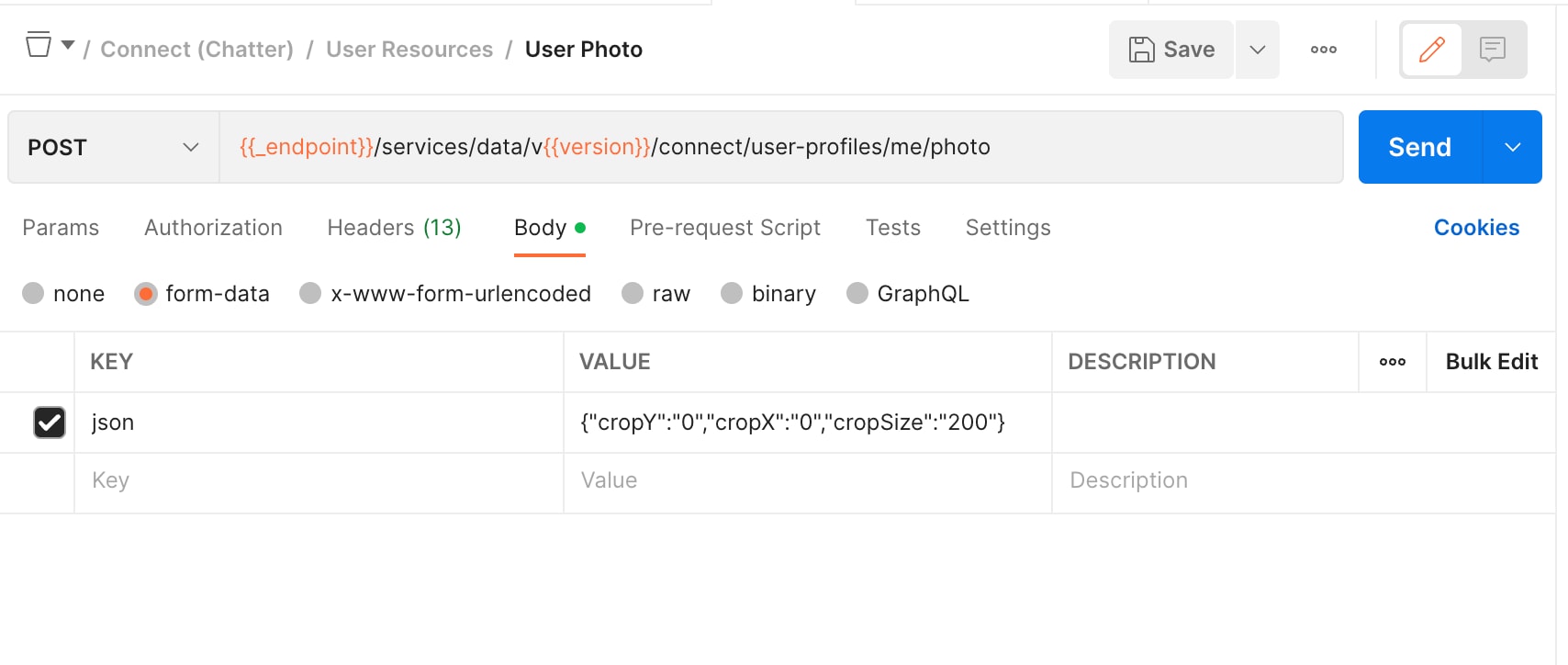
Expand the Salesforce APIs collection and select Connect | Chatter | User | User Photo.
Check that the POST URL lists {{_endpoint}}/services/data/v{{version}}/connect/user-profiles/me/photo. Click Send.
The Body tab shows the response body.
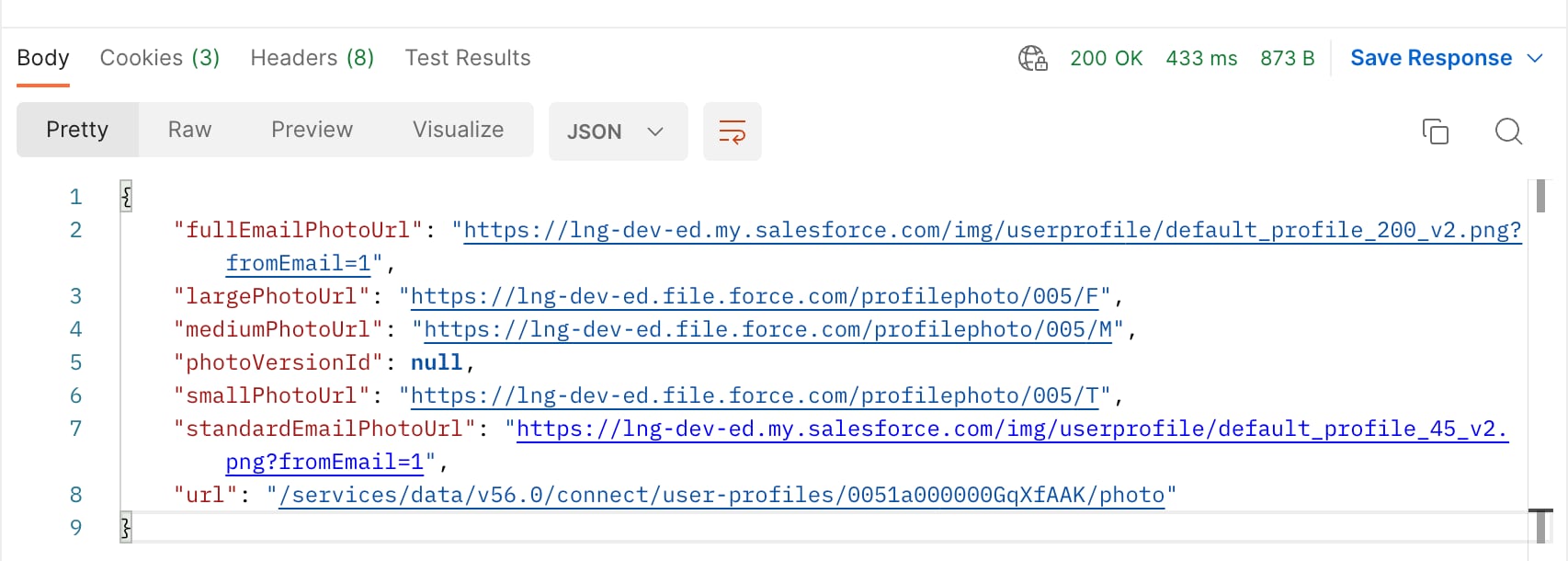
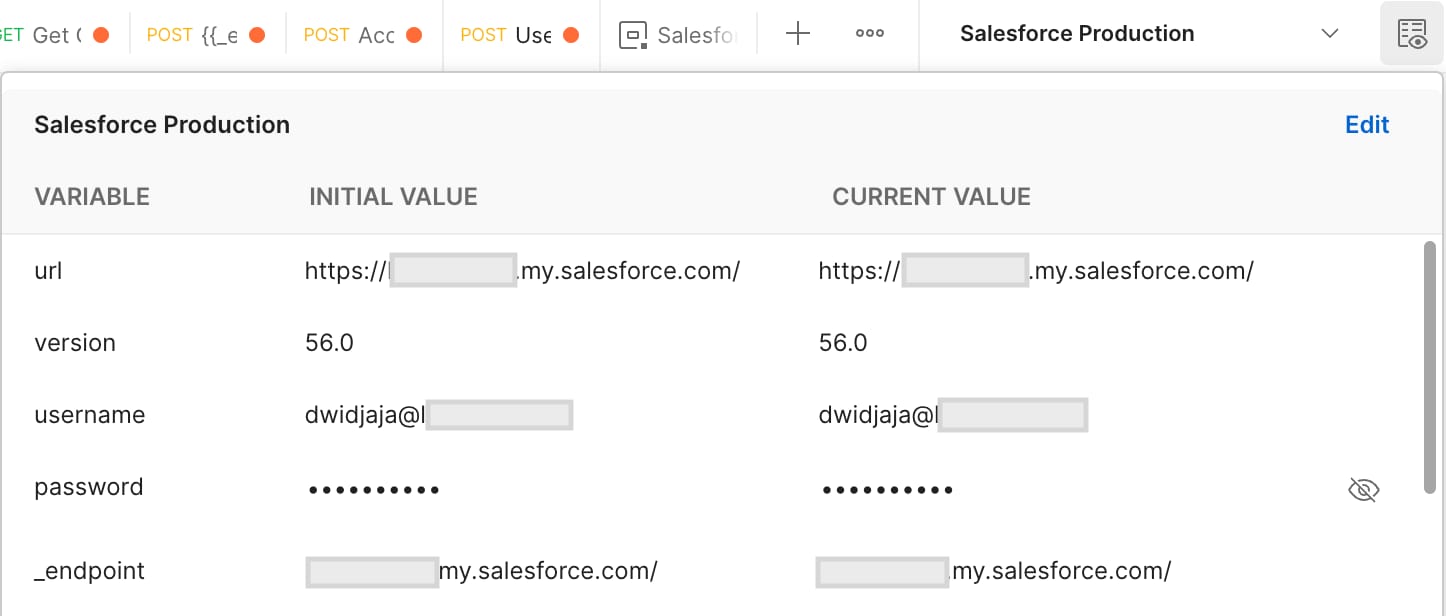
If your call isn’t successful, check that your endpoint and version values are correct in the environment settings.
Also, you can edit the request body, including the parameters for your request. In the previous example, the Body | form-data tab includes the request parameters as a JSON value of {"cropY":"0","cropX":"0","cropSize":"200"}.
j