After you complete the validate and sync in either the client credentials or the browser flow authentication, the Order__x external object exists in your subscriber org, but nobody can access it yet. In this section, you link each order to its customer’s Account record and add an Orders related list to the Account page layout. Service agents then see a customer’s orders in real time, without leaving the Account page.
The steps are the same for both authentication flows.
Step 1: Create an Indirect Lookup Relationship
The publisher org’s Order__c custom object uses Customer_Email__c to identify the customer who placed the order. Create a matching field on Account in the subscriber org to create a relationship between the subscriber Account object and the publisher Order object.
In the subscriber org, go to Setup, open Object Manager, click Account, then click Fields & Relationships and click New.
Select Email as the data type, then click Next.
For Field Label, enter Customer Email. The Field Name defaults to Customer_Email, and the API name defaults to Customer_Email__c.
Select Unique and External ID. The indirect lookup requires an External ID field, and Unique means no two accounts can share an email. Click Next.
Click Next to accept the field-level security defaults, click Next again to keep the page layout defaults, then click Save.
Create a test account. From the App Launcher, open Accounts and click New (you can also edit an existing account).
Enter an Account Name, for example Riley Chen.
For Customer Email, enter an email that matches the Customer Email on an order in the publisher org, for example, riley.chen@acme.com.
Click Save.
Repeat for each customer whose orders you want to see. Use a different email on each account. An order appears only on an account that has a matching Customer Email.
From Setup, in the Quick Find box, enter External Objects, then select External Objects.
Click Acme Order.
Next to the Customer_Email__c field, click Edit.
Click Change Field Type.
Set these fields:
Data Type: Indirect Lookup Relationship
Related To: Account
Target Field: Customer_Email__c
Click Save.
Step 2: Add the Orders Related List to the Account Page
From Setup, in the Quick Find box, enter Object Manager, then select Object Manager.
Click the Account object.
Click Page Layouts, then click Account Layout.
In the layout editor, find Orders in the Related Lists palette.
Drag Orders to the Related Lists section of the layout.
Click Save.
Step 3: View Live Order Data
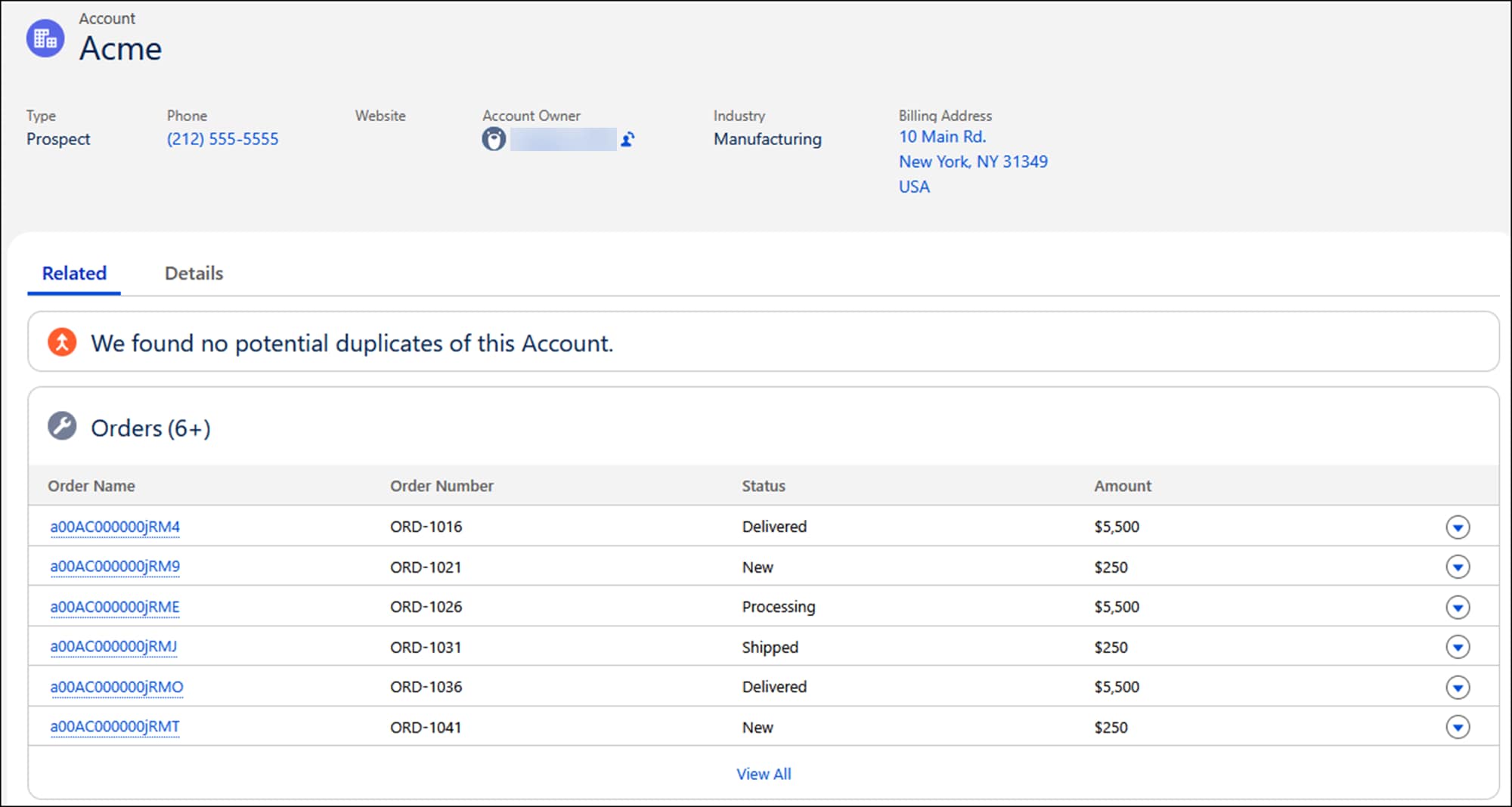
Open an Account record where the Customer Email value matches an Acme Order email value. The Orders related list shows live order data fetched in real time from the publisher org.
Note: Data is fetched at page load via a live callout to the publisher org. Records don’t appear if the named credential loses authentication or the callout times out. No copy of the data is stored in Salesforce.


 j