The publisher org owns the data that you want to expose. In this example, the publisher org is the Acme Order Management org, which stores order data as records in the Order__c custom object. In the subscriber org, Acme Service Cloud, that custom object appears as a single external object, Order__x. Its records are fetched in real time from the publisher org, not copied.
This example uses an Order__c custom object to keep the configuration simple. The cross-org adapter works with standard objects too, including Order, Account, and Case. You can sync any object that the “run-as” user can access in the publisher org.
Step 1: Create the Order Custom Object
From Setup, use the Quick Find box to find and select Object Manager.
Click Create, then select Custom Object.
Set these fields:
Label: Acme Order
Plural Label: Acme Orders
Object Name: Order
Record Name: Order Name
Data Type: Text
Under Object Creation Options, select Launch New Custom Tab Wizard after saving this custom object.
Click Save.
In the tab wizard, choose a tab style, keep Default On for profiles, and add the tab to your app.
Save your changes.
Step 2: Add Fields to the Order Object
From the Acme Order custom object detail page, click Fields & Relationships, then click New to create each of these fields.
Field Label
Data Type
Field Properties and Values
Order Number
Text(20)
Select External ID and Unique
Status
Picklist
Select Enter values, with each value separated by a new line and enter these values: New, Processing, Shipped, and Delivered
Amount
Currency
Expected Ship Date
Date
Customer Email
Email
Step 3: Add Sample Records
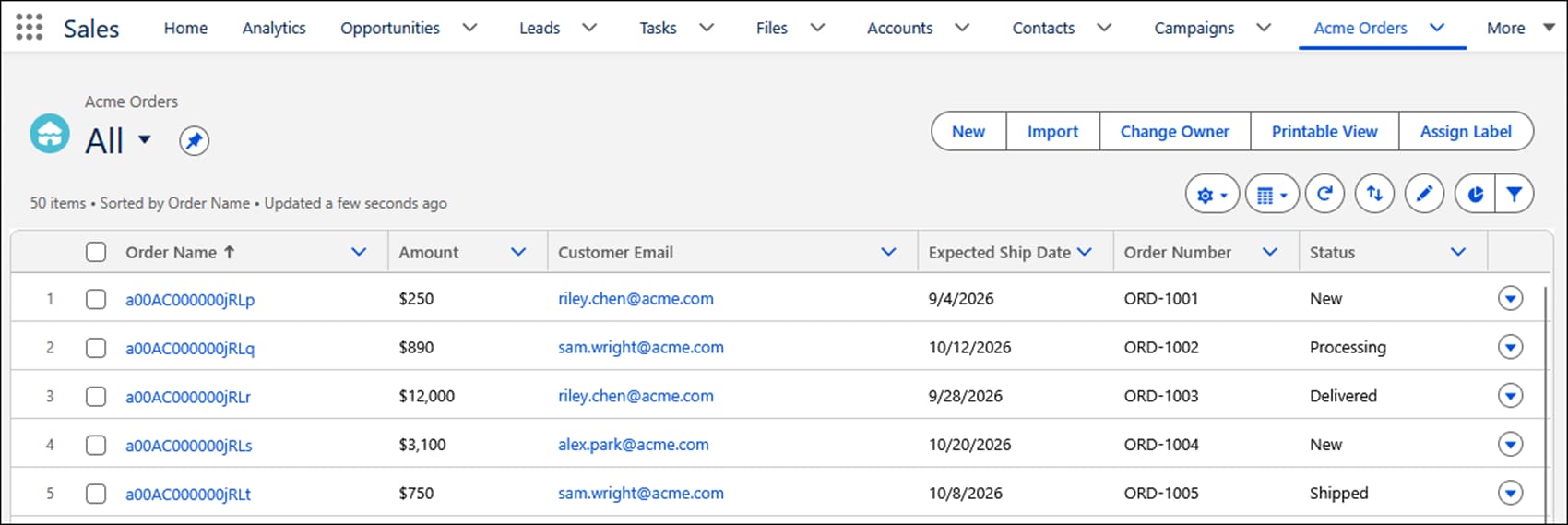
From the App Launcher, open Acme Orders, and create these five records. Customer Email is the foreign key used to link orders to Account records in the subscriber org.
This step enables OAuth between the publisher and subscriber orgs. Without it, the subscriber can’t authenticate.
Before you start, decide which subscriber authentication flow you’ll use: client credentials (a shared service account) or browser flow (each user logs in). The external client app settings differ based on the subscriber authentication method.
One external client app can serve both types of authentication. If you already created this app for one type of authentication, open it and edit it instead of creating a new app. These steps include settings for both types of authentication.
From the Quick Find box in Setup, enter External Client App Manager, then click External Client App Manager.
Click New External Client App.
Enter these fields:
App Name: Acme_OrderManagement
Contact Email: your admin email
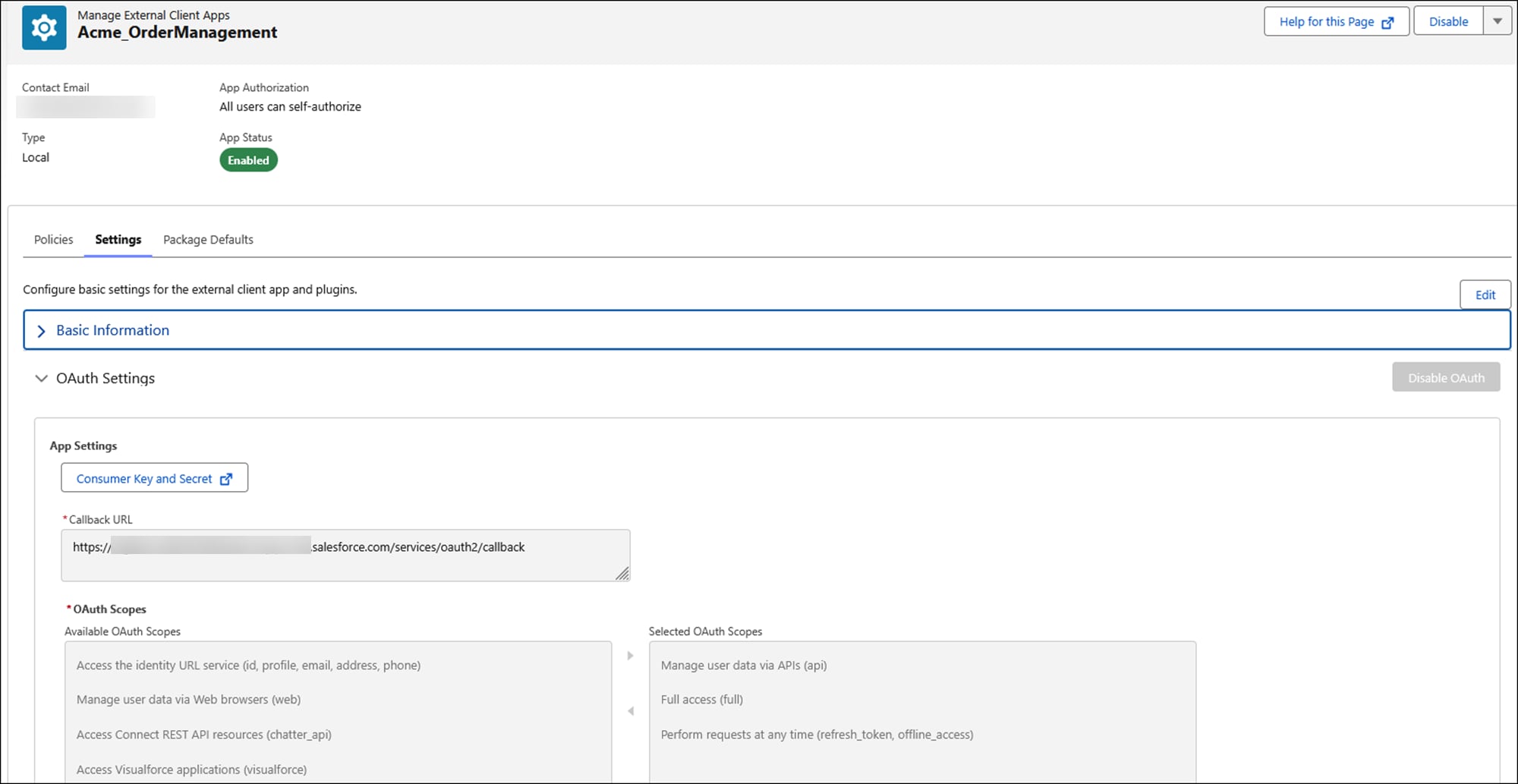
Expand the API (Enable OAuth Settings) section, select Enable OAuth, and enter these fields:
Callback URL: Enter https://login.salesforce.com/services/oauth2/callback. This field is required to save, but client credentials authentication doesn’t use it. For browser flow authentication, you replace this URL with the real URL when you configure subscriber browser flow authentication.
Scopes: For client credentials authentication, select Full access (full) and Manage user data via APIs (api). For browser flow authentication, select Manage user data via APIs (api) and Perform requests at any time (refresh_token, offline_access). If one app serves both authentication methods, select all three scopes.
Under Flow Enablement, select the flow you’re using. For client credentials, select Enable Client Credentials Flow, review the message, and click OK. For Browser Flow, select Enable Authorization Code and Credentials Flow. If one app serves both flows, select both.
Click Create.
If your subscriber is using Client Credentials authentication:
Click the Policies tab, then click Edit. Expand OAuth Policies and under OAuth Flows and External Client App Enhancements, select Enable Client Credentials Flow.
For Run As, select a user in the publisher org that has API access. The external credential runs as this user.
Click Save.
Click the Settings tab, expand OAuth Settings, and copy and save the Consumer Key and Consumer Secret. You’ll need these values when you set up the subscriber org.
Step 5: Copy and Save the Publisher Org's My Domain URL
From Setup, in the Quick Find box, enter My Domain, then select My Domain. Copy the value in the Current My Domain URL field and add the prefix “https://.” This URL is used as the named credential URL in the subscriber org. For example, https://acme-orders.my.salesforce.com.


 j