


Build a Query by Using the SOQL Builder
The Salesforce Object Query Language (SOQL) Query Builder is a part of the Salesforce Extension Pack. This builder helps you build a query by using a form-like visual interface. You can select the components of your query, such as the table, fields, and filters, instead of typing an actual SOQL query. You can instantly view query results, and then save the results to a .csv or a .json file.
Build simple query statements that include:
SELECTclause to pick fields from the selected object, orCOUNT()to perform an aggregation of the resultsFROMclause for only one object typeWHEREclause to filter your dataORDER BYclause with support forASC,DESC,NULLS FIRST, andNULLS LASTLIMITclause
To dig deeper regarding SOQL syntax or to build more complex queries, see the SOQL and Salesforce Object Search Language (SOSL) Reference guide.
To build more complex queries, you can use the text editor.
Note
To build a query by using the SOQL Builder:
-
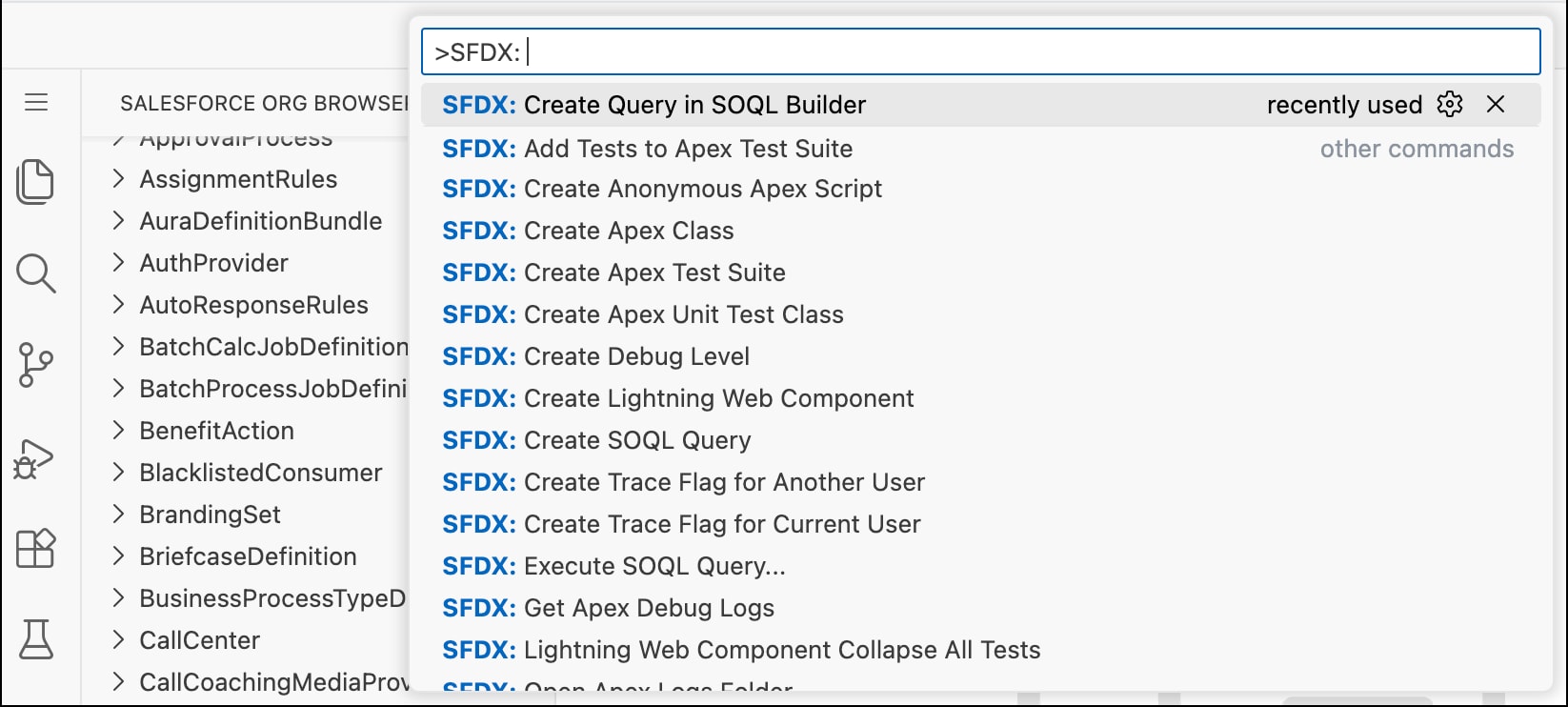
Open the Command Palette and type SFDX: Create Query in SOQL Builder.
-
Enter a name for the query.
-
Select the default directory or specify a directory where the query is stored, and press Enter.
-
In the SOQL Builder, use the UI elements to indicate various parts of your query. In this example, from
Account,Id,BillingCountry, andNamedetails show for companies with more than 100 employees. The actual SOQL query appears in the SOQL Query box.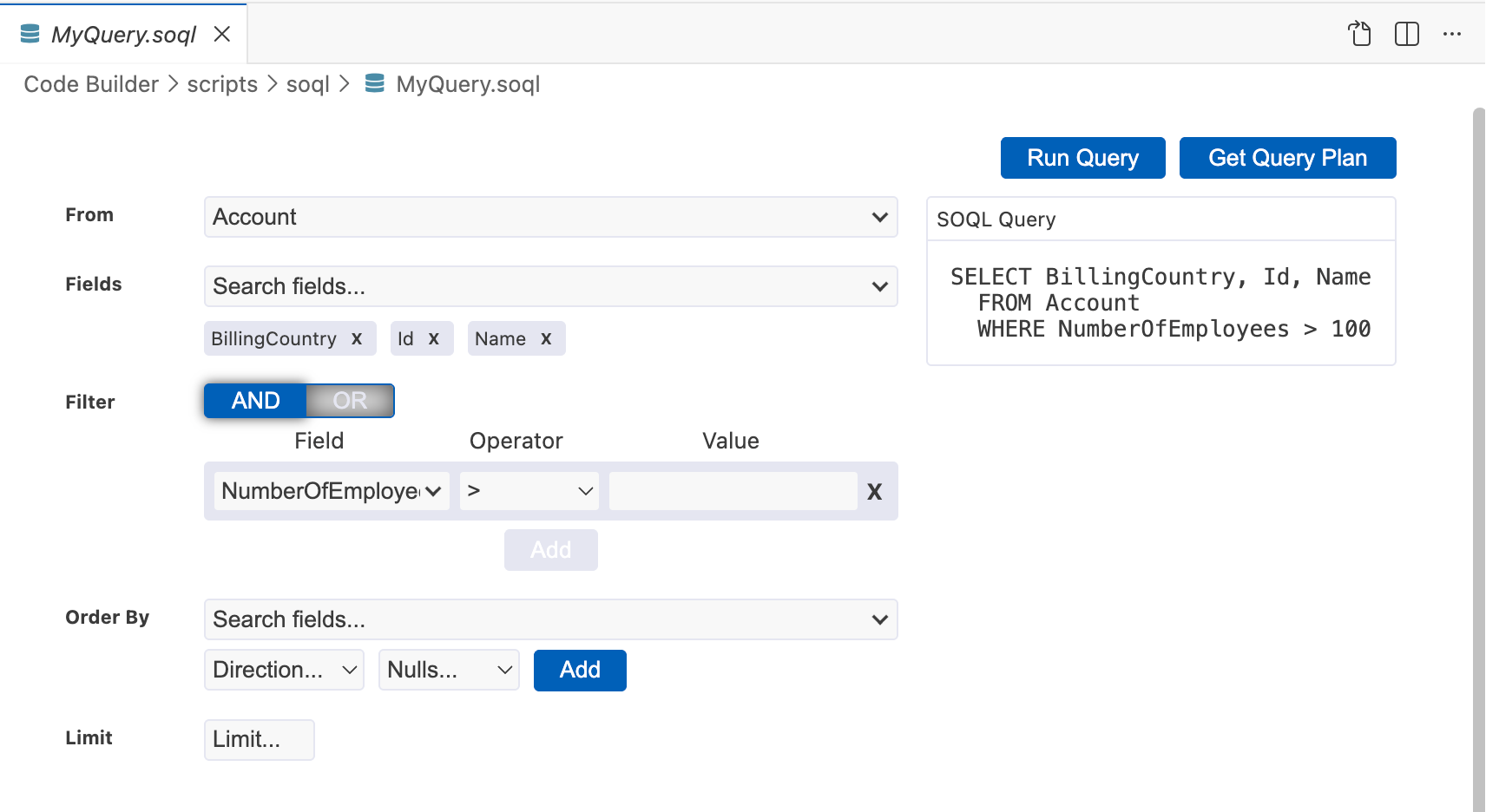
-
Select an object from the From dropdown list.
-
Select one or more fields to show.
-
Add one or more filter conditions for the
WHEREclause.To add a filter, select a field and an operator, and specify a value. To add another filter condition, click ADD and select
ANDorORoperator. The filters are added in the formatWHERE FIELD_NAME OPERATOR VALUE [AND/OR FIELD_NAME OPERATOR VALUE].For example,
WHERE NumberOfEmployees > 100 OR Name LIKE 'A%'. -
To sort the results, select a field as the
ORDER BYclause. Specify the order of sorting and how NULL results are shown. -
Specify the number of records to limit the results to.
To open the query in a text editor, click  .
.
Open an Existing File
- The
.soqlfiles containing the queries are saved in the<project-folder>/scripts/soqldirectory. - The
.csvand.jsonfiles with your query results are stored under the<project-folder>/.sfdx/datadirectory.
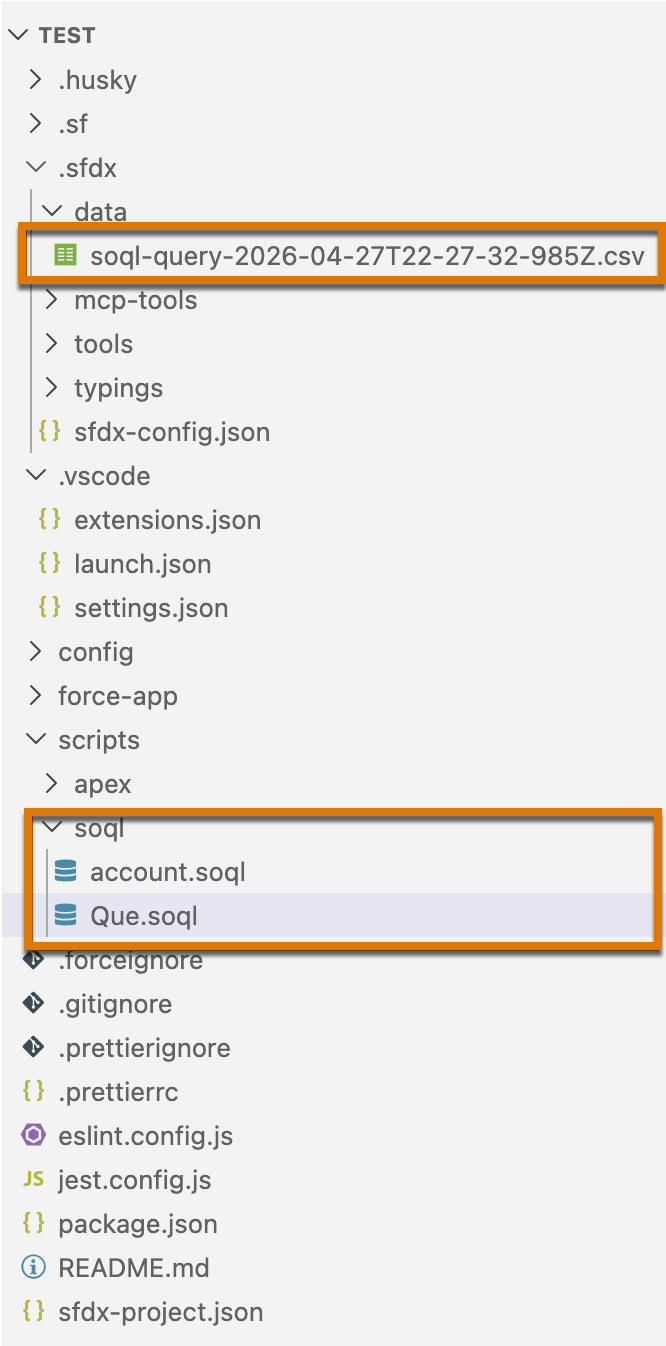
To open an existing file in the text editor, click the file in the explorer or drag the file onto the editor. To open the query in the SOQL Builder, click  .
.
 j
j