Hide Deep Linking Security Dialog
Each time a user opens a deep link to an action from the Field Service mobile app, a security dialog prompts the user to confirm the action. You can hide this Launch action? dialog by configuring the deep link URL with a security key.
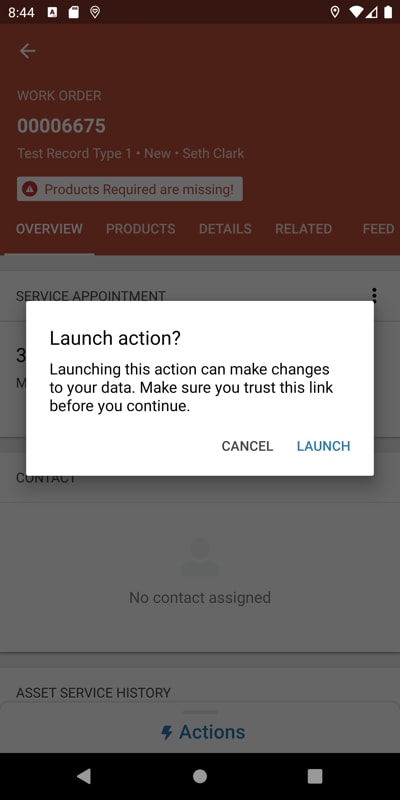
Complete these steps to configure the security key.
Step 1: Create a private and public key
-
For Linux/Mac, run these commands in the terminal to create a private and public key. The .pem key files are created in the folder where you execute the commands.
We don’t officially support Apex for signing the keys, but if you’re signing deep links in Apex, try using the ECDSA-SHA256 algorithm.
1openssl ecparam -genkey -name prime256v1 -noout -out private.pem
2openssl ec -in private.pem -pubout -out public.pem
-
Keep a copy of the private.pem and public.pem files so that you can sign URLs in the future without generating new key pairs. The private.pem file contains the security key.
-
Open the public.pem file, and copy the public key, excluding the header and footer and without spaces or a new line. Here’s a sample public key.
1MFkwEwYHKoZIzj0CAQYIKoZIzj0DAQcDQgAEkvkDcFieJenYABN8wOLlE2VomNt2
29/tcTyj+B06ZndRkTjs7+XwrjHe/wOZvjkdYvewhIByLI6uDTYZixDhO1A==
-
Copy the public key into the Advanced Permissions section of the Field Service Settings UI. This step is required to turn on this feature.
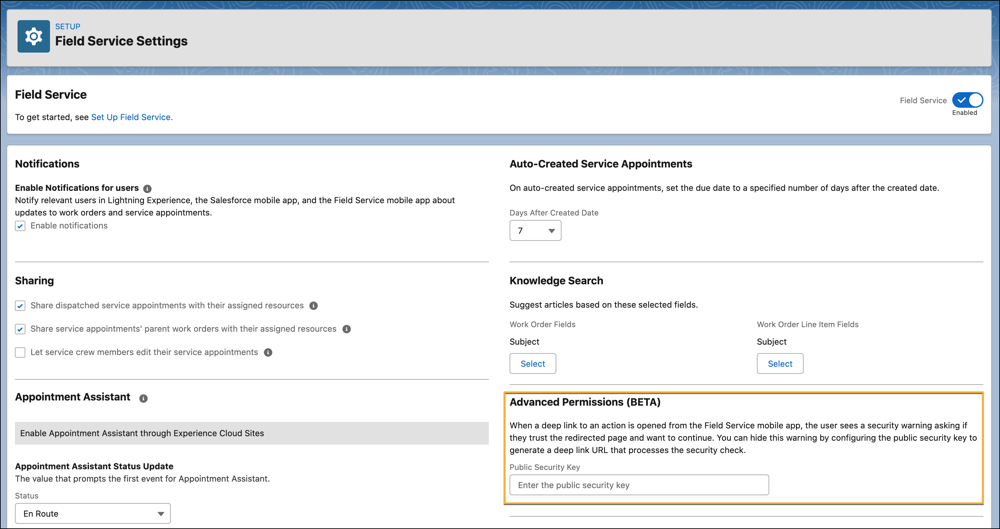
Step 2: Sign the deep link URL
-
In the terminal, change the directory to the folder containing the private.pem file.
-
Generate the deep link URL, and copy it to your clipboard.
1// Base URL.
2com.salesforce.fieldservice://v1/sObject/<id>/<action>
3
4// URL with additional query parameters.
5com.salesforce.fieldservice://v1/sobject/<id>/<action>?param1=value1¶m1=value2
-
To create a signature using the private key, run this command.
1pbpaste | openssl dgst -sha256 -sign private.pem | openssl base64 | tr '/+' '_-' | tr -d '=' | tr -d '\n' | pbcopy
The command creates a signature using OpenSSL and Base64 encoding. Here’s a breakdown of the command parts.
- The
pbpaste command pastes from the pasteboard.
- The
openssl dgst command creates a hash with the sha256 algorithm signed by the private key.
- The
openssl command makes that the output base64 encoded.
- The
tr command replaces ”/+” characters with ”_-”, and then deletes all ”=” characters and new line characters “\n”.
- The
pbcopy command copies the output back to the pasteboard.
If you’re using a dynamic deep link URL, generate a new signature for each unique set of URL parameter values. The signature is unique for a URL string. For example, if the <id> parameter is dynamic, generate a new signature when the <id> value changes.
-
Sign the deep link URL by adding the query parameter __signature=<sig> to the end of the URL. Replace <sig> with the signature, which you can paste from your clipboard. If you have additional query parameters, place the signature parameter after them.
1// Signed URL.
2com.salesforce.fieldservice://v1/sObject/<id>/<action>?__signature=<sig>
3
4// Signed URL with additional query parameters.
5com.salesforce.fieldservice://v1/sobject/<id>/<action>?param1=value1¶m1=value2&__signature=<sig>
Now you can send the deep link URL with the signature as before. When the technician clicks the URL, the deep link opens in the Field Service app. The app verifies the signature using the public key. If the public key hash matches, the URL is loaded without the Launch action? dialog. If the public key hash doesn’t match, the user must confirm the action.


 j
j