


Integrate Open CTI with Lightning Flow for Service
Open CTI provides a set of APIs that enables third-party telephony services to integrate with Salesforce. Lightning Flow for Service takes advantage of three Open CTI methods: getSoftphoneLayout(), screenPop(), and searchAndScreenPop().
-
Update your Open CTI implementation to allow incoming calls to screen-pop to flows.
You can also pass call data, such as the phone number or customer name, directly to a flow when it’s screen-popped.
Use Open CTI API version 42.0 and later with the following methods.
Before updating your implementation, make sure that you understand how Open CTI arguments are passed.
Flows can accept input variables, which are also called arguments. The Actions & Recommendations component on a record page automatically attempts to pass the parent record ID to the flow. To use this information, the flow defines an input variable called
recordIdof typeText. The Open CTI API allows for more complex variable passing. Single variables and collection variables, like lists and arrays, can be passed through theflowArgsparameter available in thescreenPopandsearchAndScreenPopmethods.Note
-
For example, create an Unknown Caller screen flow for when there’s an incoming call and there’s no match in Salesforce for the caller. In Flow Builder, create a screen flow to verify the caller.
- Add a screen with input components First Name, Last Name, Phone Number, and Address.
- Add the Create Records element to create a contact and set the contact fields using the screen input components.
- Connect the start element to the Unknown Caller screen.
In addition to the Unknown Caller flow, create other flows and actions that you want your agents to use when talking to customers on the phone.
-
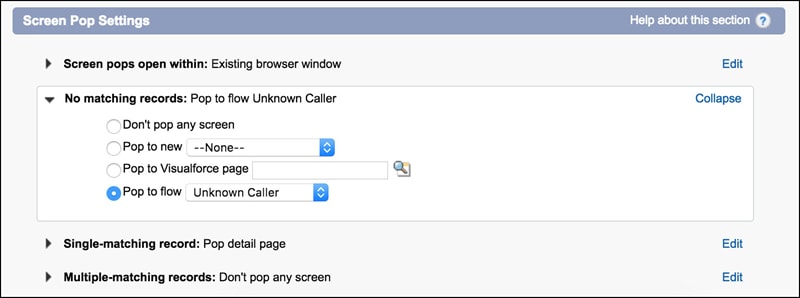
Configure screen-pop settings in the softphone layout.
From Setup, go to the Softphone Layouts page.
For No matching records, select Pop to flow. Then select the flow you created for Unknown Callers.
When you use the Pop to flow option, flows open as primary tabs in the console.
Note
For Single-matching records, select Pop detail page. This setting allows the contact record page, for example, to be popped.
-
Create an Actions & Recommendations deployment and configure default actions for the phone channel.
-
Add the Actions & Recommendations component to a record page, such as the contact page. Select the deployment in the component properties. When calls match a Salesforce record and users get popped to that page, they can see which actions to complete for the call.
See Also
- Open CTI Developer Guide
- Salesforce Help: Designing a Custom Softphone Layout
- Salesforce Help: Assigning a Softphone Layout to a User Profile
- Lightning Components Developer Guide: Set Flow Variable Values from a Lightning Component
 j
j