
Appearance
Exercise 2: Integrate the Web SDK
In this Exercise, you’ll integrate the Pronto Web App with the Data Cloud Web SDK to capture real-time interaction data.
Step 1: Integrate Pronto’s Website with Data Cloud
Connect the Pronto Website with Data Cloud
Go to Data Cloud Setup
Select Web Connection in the Sidebar.
Select Pronto_Site
Go to the Sitemap Section and click Replace Sitemap
Open the sitemap from this link – sitemap.js
Paste the test into the text area Upload Sitemap.

Set "I’m sure I want to change my data capture rules" to true.
Click on Save.
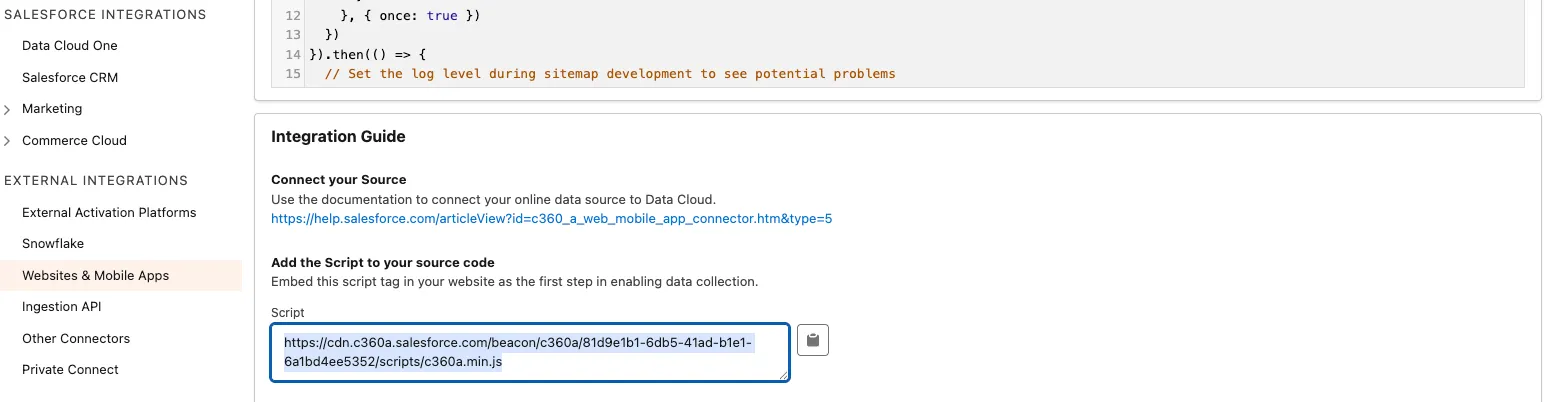
Copy the CDN script url from the Integration Guide section of the website connector.
Step 2: Connect to the Pronto App
In the App Launcher, select the Merchant Management app
On the Home Page click on Launch App
Look towards the bottom of the app and paste in CDN script url in text box at the bottom of the page and click Add Script button.
Give the consent to track website engagement by clicking the Accept button.

TIP
You would normally embed this Javascript on the back end of your application, but to enable all workshop attendees to use the same app, we have exposed it into the UI.
Summary
You have now integrated the Pronto Web App directly with your Data Cloud instance and can send events for processing.