From the App Launcher, find and select Sales, and then open the Contacts tab.
Navigate to any Contact record.
Go to the Setup Menu, find and select Edit Page.
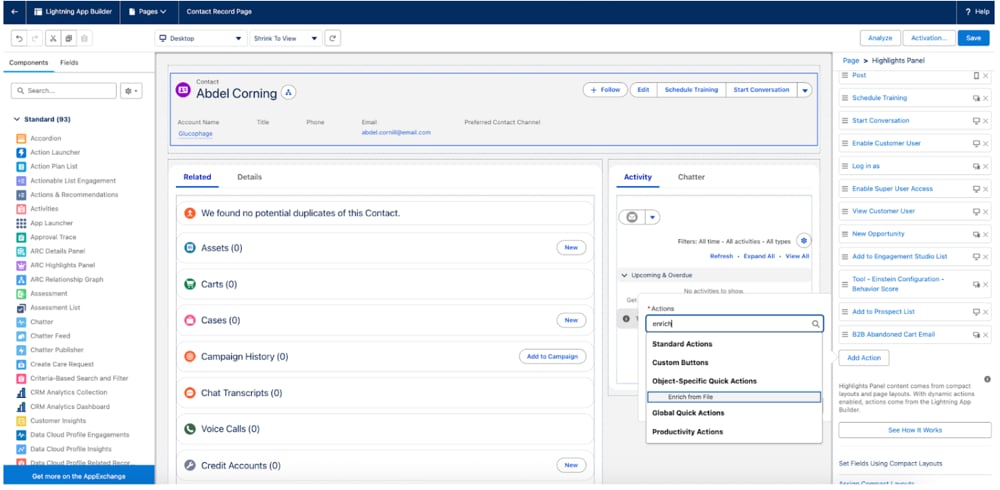
On the Lightning App Builder, find the Actions section on the right.
If you don’t see the Actions section, upgrade to Dynamic Actions. Click anywhere in the Contact component on the top of the page to open the Highlights right pane, and then click Upgrade Now under Upgrade to Dynamic Actions. Choose any layout. Learn more about creating dynamic actions in the Lightning App Builder.
Note
Look for the actions available to add, or click Add Action.
Find and select Enrich from File.
Click Done.
4. Reorder the Button
For better visibility, drag the Enrich from File action to the top of the actions list.
Click Save.
If prompted, click Activate, or click the back arrow in Lightning App Builder to return to the Contact page.
5. Test Your Implementation
In Sales Cloud, navigate to a Contact record.
Locate the Enrich from File button on the top right of the Contact’s Related tab (you may need to refresh the page).
Go to Files and upload a resume document to the Contact record.
Click Enrich from File.
The flow executes, extracts data from the resume, displays it on a screen for review, and updates the Contact record.
Congratulations! You have successfully implemented Document AI for resume processing in Salesforce.


 j
j