The ArrayType variable contains an itemsType attribute, which accepts the following:
SObjectType
SObjectFieldType
DatasetType
DatasetDateType
DatasetDimensionType
DatasetMeasureType
StringType
NumberType
How the Widget Stores Selections
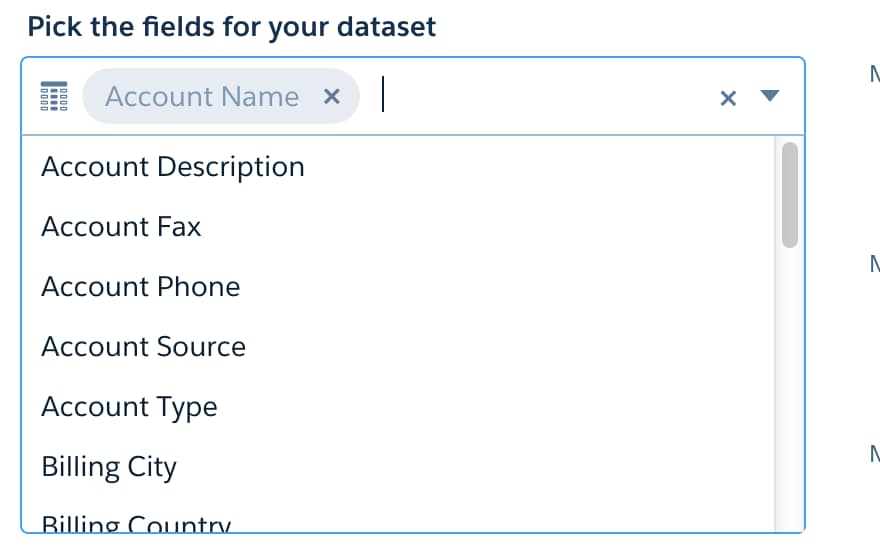
The widget places values in an array. The following show how the widget displays values for the user to select:
Reference Array Items by Index
Items in the array can be referenced by index. Arrays of StringType and NumberType are easy to work with, but arrays of SObjectType and SObjectFieldType contain multiple attributes for each item in the array.
The selection values from the widget are stored in the variable. There are two ways to access them in the template files (rules, dashboards, workflow).
This example, without looping, would be tricky to use, because there would always need to be at least five items in the array. Any fewer would fail, and anything over five would not be used.
With looping
Use array values from SobjectFieldType with the array:forEach function. In this example, a “set” action loops through the SObjectFieldTypes in the array and adds them to the “fields” attribute in the Extract_Account step of the workflow. Each entry in “fields” needs “name” and “var.fieldName”.
You can use array functions in the “set” and “put” actions, but not in the “add” or “delete” actions.
In “add”, the value is being added to an existing array, so the result is an array inside an array, which is not well-formed JSON. To add more array values to an existing array, use “set” with the array:concat function. For “delete”, value is not used.
Note
Use StringType and NumberType Arrays
You can use array values from StringType the same way as from NumberType.
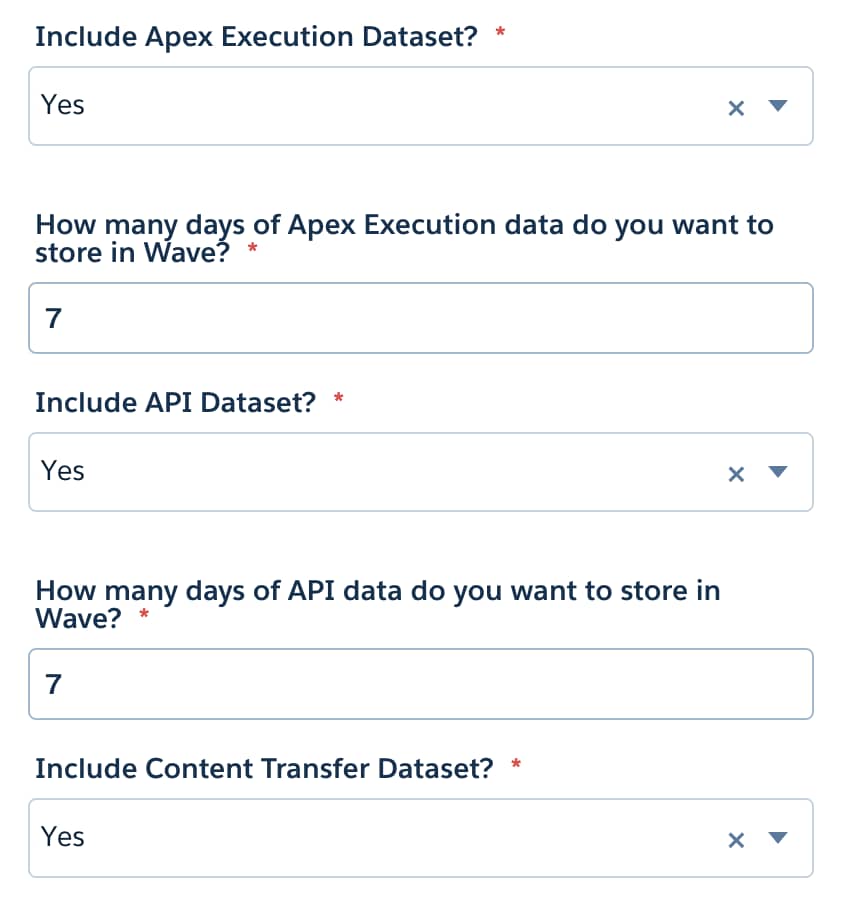
You can also use the multiselect widget to replace multiple StringType widgets with “Yes” and “No” selections. This example uses three StringType widgets on one wizard page:
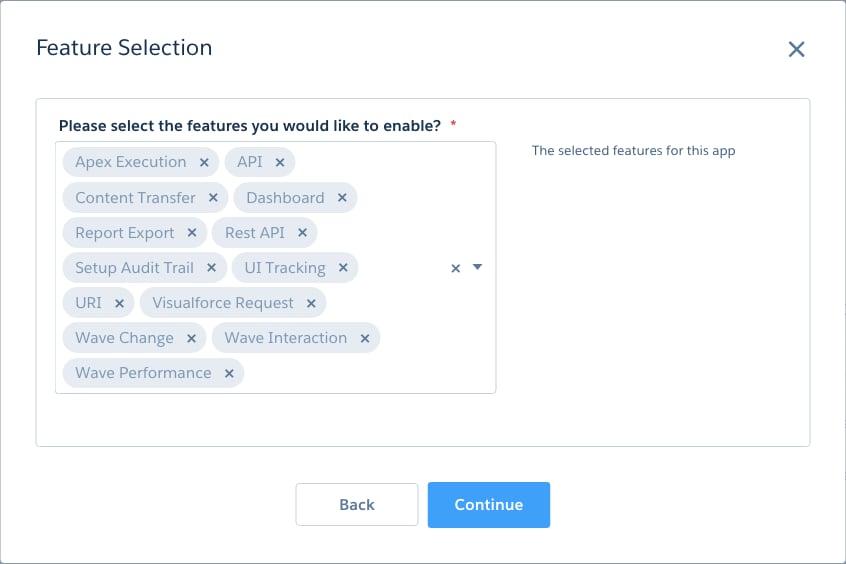
You can replace this with a single ArrayType widget:
The JSON for this variable is:
1"SelectedFeatures": {2 "label": "Please select the features you would like to enable?",3 "description": "The selected features for this app",4 "defaultValue": [5 "Apex Execution"6 ],7 "variableType": {8 "type": "ArrayType",9 "itemsType" : {10 "type" : "StringType",11 "enums" : [12 "Apex Execution",13 "API",14 "Content Transfer",15 "Dashboard",16 "Login",17 "Report Export",18 "Rest API",19 "Setup Audit Trail",20 "UI Tracking",21 "URI",22 "Visualforce Request",23 "Wave Change",24 "Wave Interaction",25 "Wave Performance"26 ]27 }28 },29 "required": true30 }
You can use the selected values to set constants in rules.json, which you can then reference in conditionals for actions or in template-info.json.




 j
j