To customize wizard appearance beyond the default interface, use VisualForce and a JavaScript library.
CRM Analytics runs the wizard before generating the app from the template. The wizard consists of a set of pages, each of which contains questions or other elements you use to set up the app.
The framework lets you run a custom APEX class at any time during app creation. This class can answer questions about the org automatically or validate the org to ensure it meets the requirements to create the app. CRM Analytics uses a default format for the error messages generated by the validation process. VisualForce and a JavaScript library lets you customize the format and include links to help the admin edit the org to meet app-creation requirements.
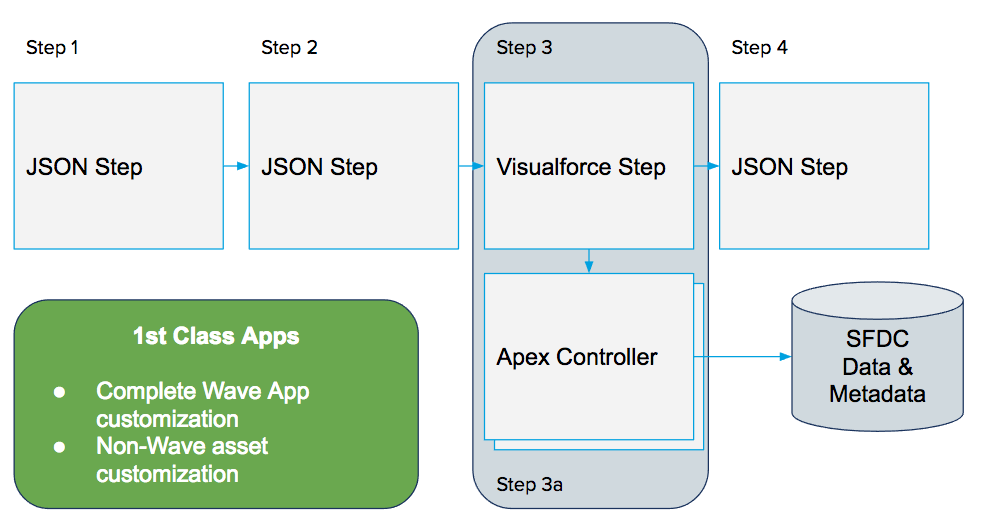
VisualForce lets you replace any or all of the autogenerated wizard pages with a custom VisualForce page that can display anything you want. The illustration shows how you can integrate a custom VisualForce page into the app creation flow.
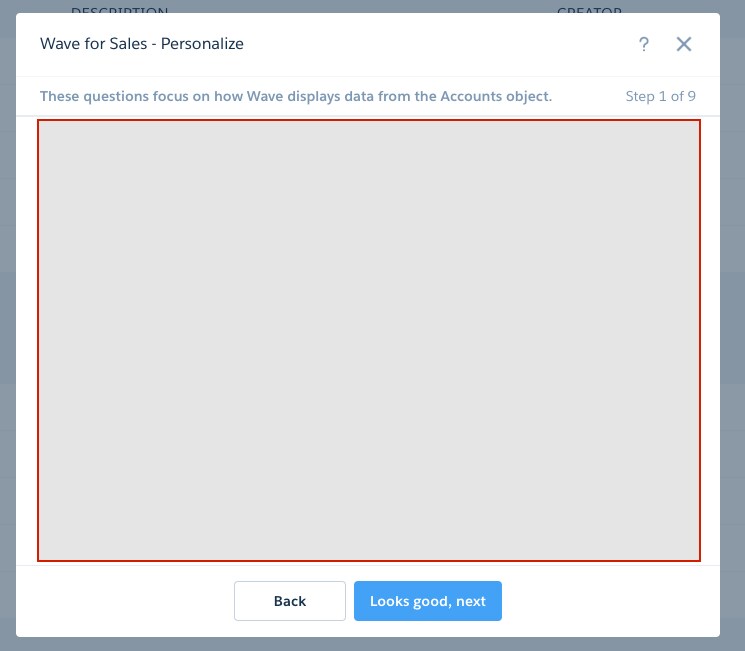
The VisualForce renders everything inside the red lines in the example wizard shown here. It interacts with the wizard through a JavaScript SDK.
The JavaScript SDK is essentially be a pub/sub eventing mechanism with a set of events fired and consumed during a well-defined lifecycle. The SDK is versioned and can be included in any VisualForce page as follows:
Make sure any Visualforce page included in a class can be accessed by users in the organization with Manage Analytics Templated Apps user permission. Otherwise, trying to create an app from your template results in an error. In Setup, go to Visualforce Pages, click Security next to the page, then add the profile with the Manage Analytics Templated Apps user permission.
Important
Refer to the “VisualForce Events for Customizing the Wizard UI” reference section at the end of this guide for details on the events to which you can subscribe or publish.


 j
j