


Lightning Communities Developer Guide
 j
jNewer Version Available
Example: Connect HTML Content to Your Community
Suppose that you use AEM to create content for your site, which is named Capricorn Cafe. To promote the Capricorn Cafe brand in your community, you want to reuse the same look and feel. This example shows how you can create a connection to your CMS and configure settings to retrieve the header and footer. You then add a CMS Connect (HTML) component to include a banner.
Identify Paths to the CMS Content
Before you set up a CMS connection, pinpoint the location of your content, which varies depending on your CMS and setup. Although we test connections to AEM, Drupal, SDL Tridion, Sitecore, and WordPress, a CMS connection isn’t provider-specific. You can retrieve and display HTML and JSON content by specifying the endpoints and paths for the data that you want to display.
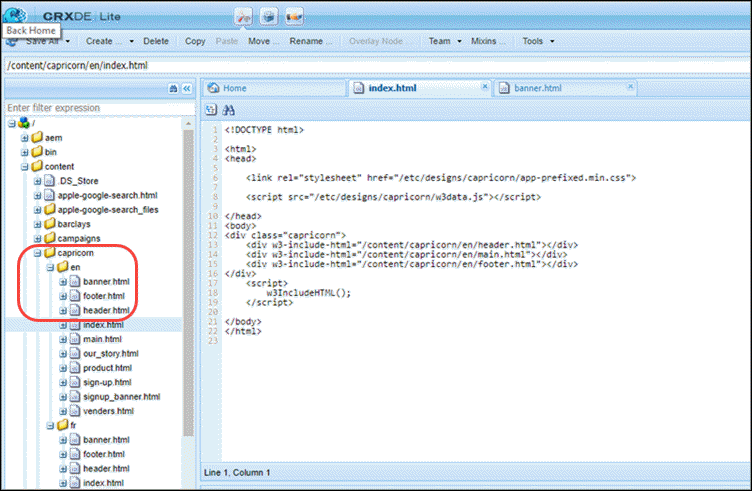
Examining the content structure on your CMS can help locate the paths. For this example, the content endpoint is https://capricorn_cafe.com/content/capricorn/en. In the AEM developer interface, note the path names for the HTML header, footer, and banner.
Set Up a CMS Connection
- Create a CMS connection.
- Under Connection Details, provide this information.
- Name—Capricorn
- CMS Source—AEM
- Connection Type—Public
- Server URL—https://capricorn_cafe.com
If your CMS isn’t listed, select Other as the CMS source. For the server URL, enter a fully qualified domain name for a CMS server that’s accessible with HTTPS.
- (Optional) Set a root path for your CMS content, for example, content/capricorn/en. The root path is relative to the server name. It’s a shortcut so that you don’t have to enter the full path name when you add components later.
- (Optional) If your content has multiple languages, you can also include a placeholder for the language in the root path, for example, content/capricorn/{language}. To configure the connection to support multiple languages, select Enable language mapping. Select a language, and enter the CMS language directory that’s in AEM. Make sure that each language that you add is enabled in your Experience Builder settings.
- Save your connection settings.
Reuse Header and Footer Content
To bring in the HTML header and footer content, use Experience Builder settings, and not CMS Connect (HTML). Defining the header and footer in Settings renders them before other page content.
- From the Experience Builder, go to Settings.
- Click CMS Connect.
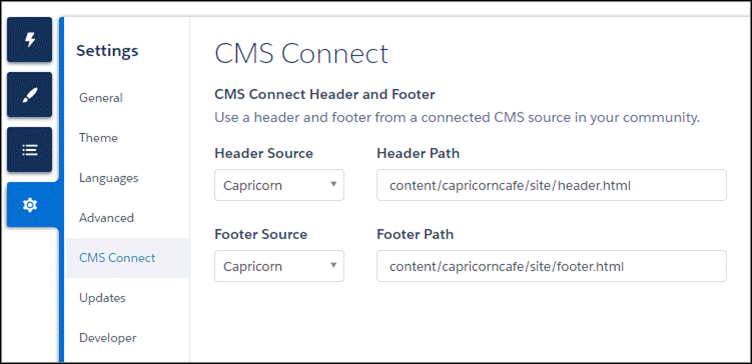
- Specify the connection and paths to the header and footer content.
- For Header Source, select the connection, and enter a header path, for example, content/capricorn/en/header.html.
- For Footer Source, select the connection, and enter a footer path, for example,
content/capricorn/en/footer.html.
Sometimes pulling in your CMS content requires a little creativity. For example, a SiteFinity master template generally contains other content in addition to a header and footer, all in the same file. In this case, the header content and footer content don’t have separate paths. As a workaround, you can construct separate templates: one that contains only the header content and another that contains only the footer content. You can then specify different paths in CMS Connect.
Add Banner Content
To display other HTML content from your CMS, such as the banner, use a CMS Connect (HTML) component from the Experience Builder.
- Drag a CMS Connect (HTML) component to a location on your community page.
- Configure the component’s properties.
- For CMS Source, select the connection.
- Enter the path to the content, for example, content/capricorn/en/banner.html. If you defined the root path in the connection as content/capricorn/en, simply enter banner.html.

That’s it! Your community now displays the site’s header, footer, and banner content.
