


 j
jRelease Notes
Get Chat Settings from Your Org
Chat with Salesforce Classic
Data Protection and Security
Additional Resources
PDF Version
After you’ve set up chat in the console, supply your app developer with four values: the chat endpoint hostname, the organization ID, the deployment ID, and the button ID. You can get this information from your org’s setup.
The legacy chat product is scheduled for retirement on February 14, 2026, and is in maintenance mode until then. During this phase, you can continue to use chat, but we no longer recommend that you implement new chat channels. To avoid service interruptions to your customers, migrate to Messaging for In-App and Web before that date. Messaging offers many of the chat features that you love plus asynchronous conversations that can be picked back up at any time. Learn about chat retirement in Help.
Important
If the endpoint for your server changes (due to an org migration, for example), the SDK automatically reroutes you to the correct server. However, to avoid unnecessary rerouting, you should still update the server endpoint when you notice it has changed inside your org’s settings.
Note
The hostname for the Chat endpoint that your organization has been assigned. To get this value, from Setup, search for Chat Settings and copy the hostname from the API Endpoint.
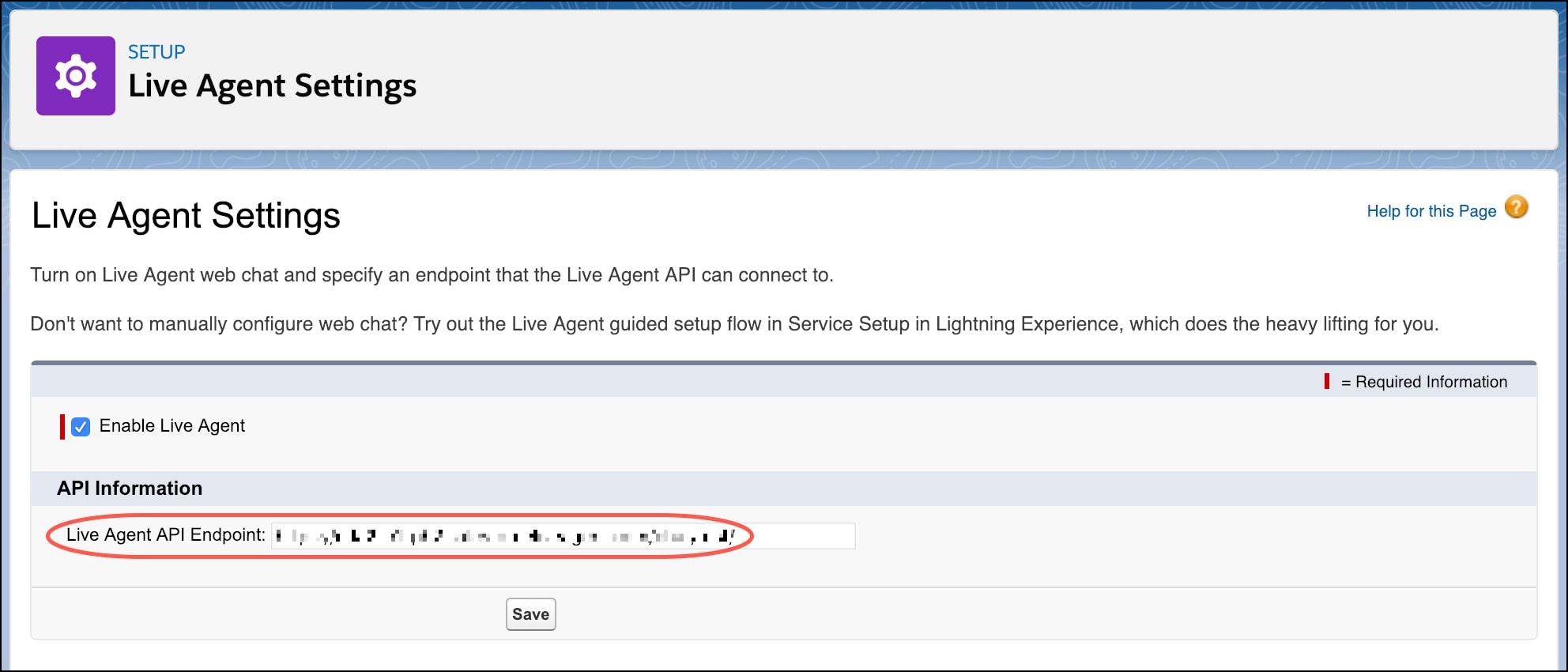
Be sure not to include the protocol or the path. For instance, if the API Endpoint is:
1https://d.gla5.gus.salesforce.com/chat/rest/The chat endpoint hostname is:
1d.gla5.gus.salesforce.comThe Salesforce org ID. To get this value, from Setup, search for Company Information and copy the Salesforce Organization ID.
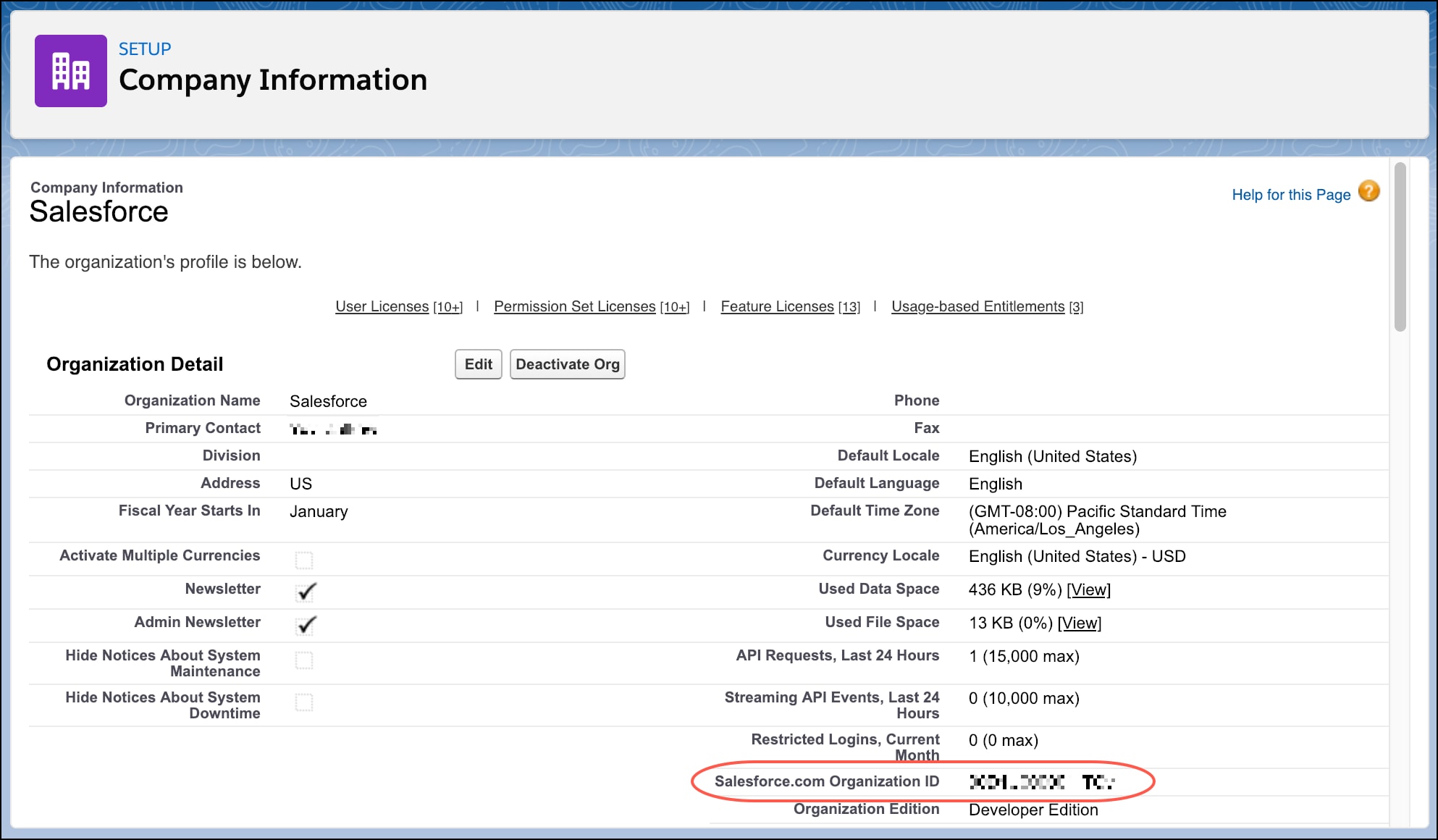
The unique ID of your Chat deployment. To get this value, from Setup, select Chat | Deployments. The script at the bottom of the page contains a call to the liveagent.init function with the pod, the deploymentId, and orgId as arguments. Copy the deploymentId value.
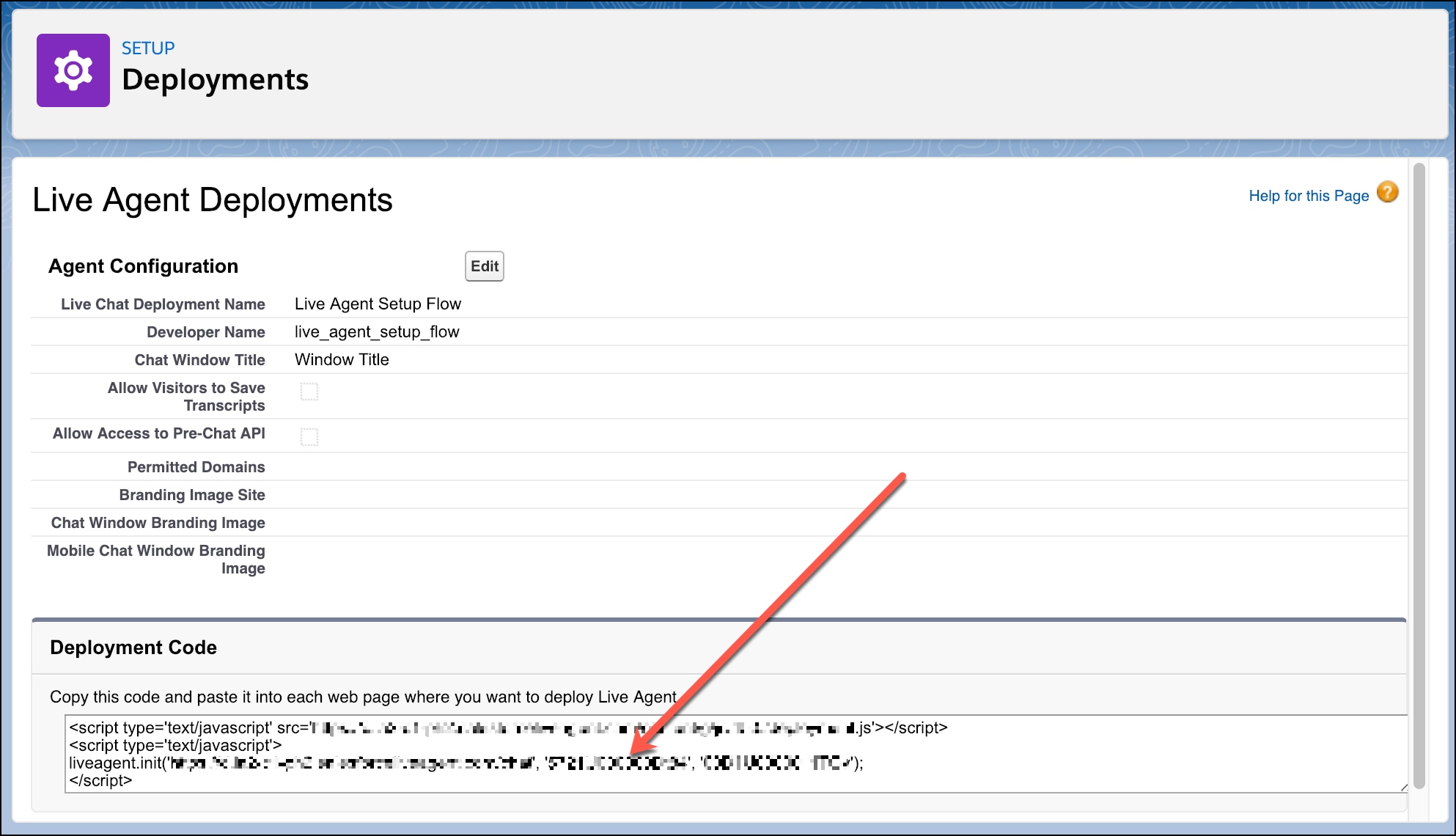
For instance, if the deployment code contains the following information:
1<script
2  type="text/javascript"
3  src="https://d.gla3.gus.salesforce.com/content/g/js/44.0/deployment.js"
4></script>
5<script type="text/javascript">
6  liveagent.init(
7    "https://d.gla5.gus.salesforce.com/chat",
8    "573B00000005KXz",
9    "00DB00000003Rxz",
10  );
11</script>
The deployment ID value is:
1573B00000005KXzBe sure not to use the org ID value (which is also in this deployment code) for the deployment ID.
The unique button ID for your chat configuration. To get this value, from Setup, search for Chat Buttons and select Chat Buttons & Invitations. Copy the id for the button from the JavaScript snippet.
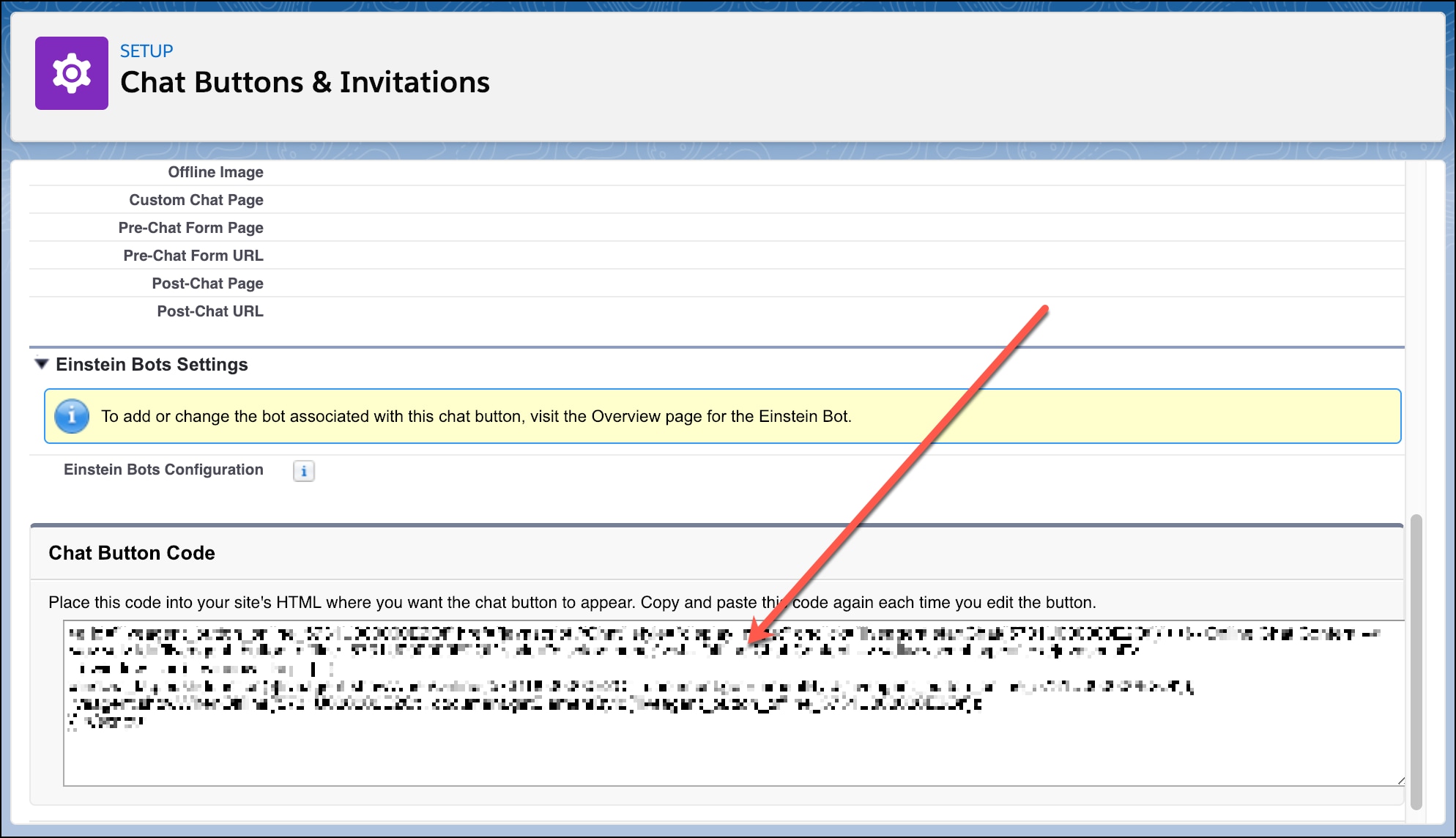
For instance, if your chat button code contains the following information:
1<a
2  id="liveagent_button_online_575C00000004h3m"
3  href="javascript://Chat"
4  style="display: none;"
5  onclick="liveagent.startChat('575C00000004h3m')"
6>
7  <!-- Online Chat Content -->
8</a>
9<div id="liveagent_button_offline_575C00000004h3m" style="display: none;">
10  <!-- Offline Chat Content -->
11</div>
12<script type="text/javascript">
13  if (!window._laq) {
14    window._laq = [];
15  }
16  window._laq.push(function () {
17    liveagent.showWhenOnline(
18      "575C00000004h3m",
19      document.getElementById("liveagent_button_online_575C00000004h3m"),
20    );
21    liveagent.showWhenOffline(
22      "575C00000004h3m",
23      document.getElementById("liveagent_button_offline_575C00000004h3m"),
24    );
25  });
26</script>
The button ID value is:
1575C00000004h3mBe sure to omit the liveagent_button_online_ text from the ID when using it in the SDK.
j