


Visualforce 開発者ガイド
 j
jLightning Experience スタイルシートで既存の Visualforce ページをスタイル設定
Lightning Experience または Salesforce アプリケーションで Visualforce ページが表示されるとき、ページのスタイルが Lightning Experience UI と一致するように設定する場合は、<apex:page> タグで lightningStylesheets="true" に設定します。ページが Salesforce Classic で表示される場合、Lightning Experience のスタイル設定は適用されません。
1<apex:page lightningStylesheets="true">lightningStylesheets="true" の場合、CSS 範囲指定クラス slds-vf-scope は自動的に Visualforce ページの <body> 要素に適用されます。範囲指定クラスが適用されるのは、コンテンツが Lightning Experience UI に一致するようにするためです。applyBodyTag または applyHtmlTag を false に設定した場合、範囲指定クラス slds-vf-scope を手動で追加する必要があります。
lightningStylesheets 属性を使用しない標準の Visualforce ページは次のようになります。ページには、Classic UI のスタイル設定が使用されます。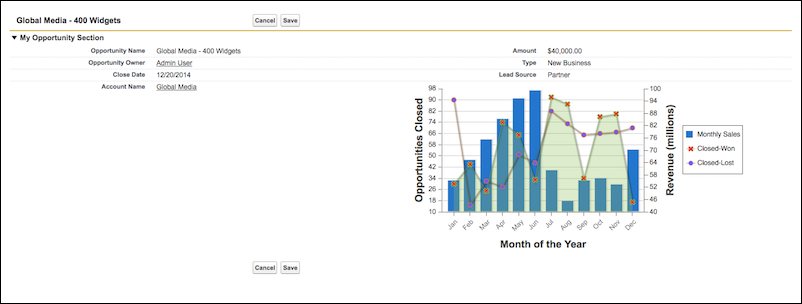
lightningStylesheets 属性が true に設定された同一の Visualforce ページは次のようになります。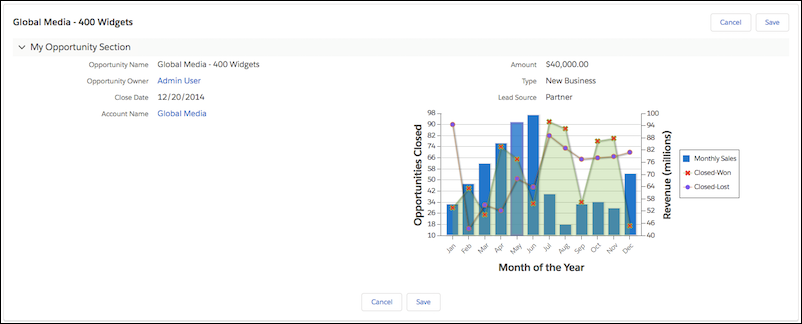
lightningStylesheets 属性を使用して、よく使用される Visualforce コンポーネントのスタイルを設定できます。ただし、一部のコンポーネントのスタイルは Lightning Experience と若干異なります。たとえば、<apex:selectOptions>、<apex:selectRadio>、<apex:inputFile>、および一部の <apex:inputField> 要素では、代わりにブラウザのデフォルトのスタイル設定が使用されます。<apex:form>、<apex:outputText>、<apex:param> など、スタイル設定を必要としない、よく使用される Visualforce コンポーネントは引き続きサポートされます。
Visualforce コンポーネントライブラリに含まれない SLDS コンポーネントを含めるには、lightningStylesheets 属性に加えて <apex:slds /> タグを SLDS コードと共に使用できます。lightningStylesheets 属性はカスタムスタイルに影響しないため、ページの SLDS スタイルに一致するようにカスタムコードを更新する必要があります。
lightningStylesheets 属性をサポートしている、またはスタイル設定を必要としない Visualforce コンポーネントを次に示します。
- analytics:reportChart
- apex:actionFunction
- apex:actionPoller
- apex:actionRegion
- apex:actionStatus
- apex:actionSupport
- apex:areaSeries
- apex:attribute
- apex:axis
- apex:barSeries
- apex:canvasApp
- apex:chart
- apex:chartLabel
- apex:chartTips
- apex:column
- apex:commandButton
- apex:commandLink
- apex:component
- apex:componentBody
- apex:composition
- apex:dataList
- apex:dataTable
- apex:define
- apex:detail
- apex:dynamicComponent
- apex:enhancedList
- apex:facet
- apex:flash
- apex:form
- apex:gaugeSeries
- apex:iframe
- apex:image
- apex:include
- apex:includeLightning
- apex:includeScript
- apex:inlineEditSupport
- apex:input
- apex:inputCheckbox
- apex:inputField
- apex:inputFile
- apex:inputHidden
- apex:inputSecret
- apex:inputText
- apex:inputTextArea
- apex:insert
- apex:legend
- apex:lineSeries
- apex:listViews
- apex:map
- apex:mapMarker
- apex:message
- apex:messages
- apex:outputField
- apex:outputLabel
- apex:outputLink
- apex:outputPanel
- apex:outputText
- apex:page
- apex:pageBlock
- apex:pageBlockButtons
- apex:pageBlockSection
- apex:pageBlockSectionItem
- apex:pageBlockTable
- apex:pageMessage
- apex:pageMessages
- apex:panelBar
- apex:panelBarItem
- apex:panelGrid
- apex:panelGroup
- apex:param
- apex:pieSeries
- apex:radarSeries
- apex:relatedList
- apex:remoteObjectField
- apex:remoteObjectModel
- apex:remoteObjects
- apex:repeat
- apex:scatterSeries
- apex:scontrol
- apex:sectionHeader
- apex:selectCheckboxes
- apex:selectList
- apex:selectOption
- apex:selectOptions
- apex:selectRadio
- apex:stylesheet
- apex:tab
- apex:tabPanel
- apex:toolbar
- apex:toolbarGroup
- apex:variable
- chatter:feed
- chatter:feedWithFollowers
- chatter:follow
- chatter:newsFeed
- flow:interview
- site:googleAnalyticsTracking
- site:previewAsAdmin
- topics:widget