To access on-demand sandboxes, you must purchase sandbox credits, set up user roles, configure an API client key, and obtain your realm ID. Then provision and manage on-demand sandboxes as a self-service feature using the Sandbox API.
Purchase On-Demand Sandbox Credits
To use on-demand sandboxes, you must purchase sandbox credits. Contact your Account Executive for more information.
When you issue a Sandbox API call to create a new on-demand sandbox, the system checks to make sure that your license has remaining credits. A user assigned to the Sandbox API User role controls how the credits are consumed. Monitor credit usage on a sandbox or on the realm using the Sandbox API.
Set Up User Roles for On-Demand Sandboxes
An administrator uses Account Manager to assign appropriate roles to on-demand sandbox users. For each role, configure a scope filter and set it to either All Sandboxes or one or more individual sandboxes in the realm. A user with scope filter of All Sandboxes has access to all sandboxes as well as realm level operations, including realm level usage, creating and deleting a sandbox in the realm. A user with scope filter of individual sandboxes has access to only those individual sandboxes and the APIs of the sandboxes; the user doesn’t have access to realm level operations or creating a new sandbox in the realm.
Create, manage, and operate on-demand sandboxes. Users assigned to the Sandbox API User role can create on-demand sandboxes and consume credits and affect costs.
Administrator or Developer (optional)
All Sandboxes
Business Manager Administrator
Access the on-demand sandbox using Business Manager, maintain data and use administrative functionality of on-demand sandboxes from Business Manager.
Business Manager Administrator or Developer
All Sandboxes
Log Center User
View log files for on-demand sandboxes in Logcenter.
Administrator or Developer
All Sandboxes
OCAPI Explorer Debug User
View debug information for OCAPI REST calls to the on-demand sandboxes.
Developer
All Sandboxes
Configure an API Client ID
To allow users access to the Sandbox API, the administrator uses Account Manager to create an API client ID. If you plan to use scripts to automate API calls, the API Client ID requires the password for authentication.
To create and manage sandboxes, you must know the ID of your realm.
A realm contains your Primary Instance Group (PIG) and Secondary Instance Group (SIG). The SIG contains the sandboxes. Each realm has a unique four-character ID that you can get from your Account Executive (AE) or Customer Success Manager (CSM).
Create an On-Demand Sandbox
Automate Sandbox Management with the B2C Commerce CLI
You can skip manual API calls and manage your ODS lifecycle directly from your terminal. First, see B2C CLI, MCP and Tooling SDK to install the tool and authenticate.
To manage sandboxes via the CLI, your Account Manager user (or API Client) must be assigned the Sandbox API User role with a scope filter set to “All Sandboxes” for your specific realm. See On-Demand Sandboxes for B2C Commerce Partners for detailed instructions.
Note
Once configured, use the CLI to create, start, or stop sandboxes programmatically:
1b2c sandbox create --realm <id>
For a complete list of Sandbox CLI commands, see Sandbox Commands.
Set Up Your Sandox Using the Sandbox API
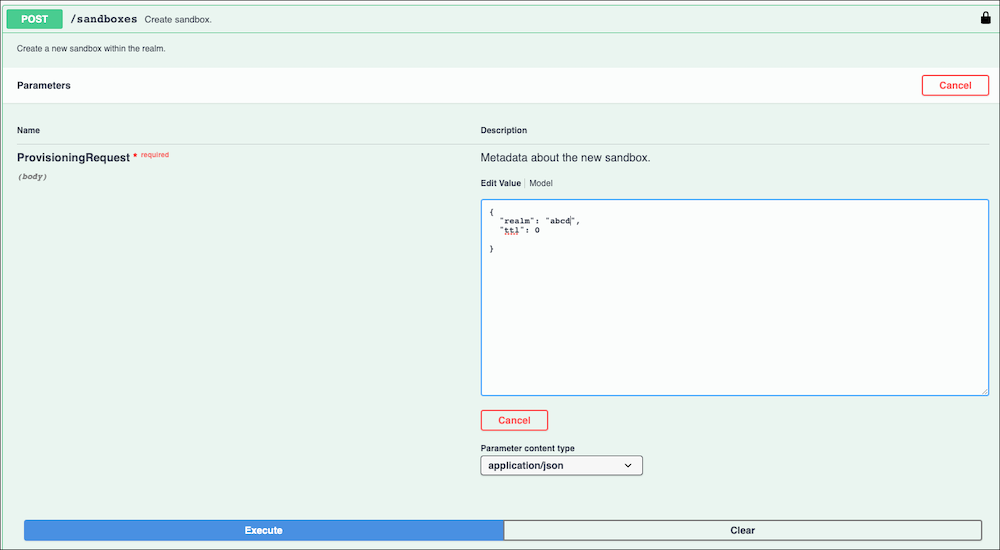
Use the POST/sandboxes method of the Sandbox API to create an on-demand sandbox.
To dismiss the authorization window and return to the Sandbox API user interface, click Close.
In the Sandboxes section of the Sandbox API user interface, click to expand the POST/sandboxes method.
Click Try it out.
In the request body, replace <your realm id> with the appropriate value.
If you don’t want to use 24 hours for the Time-to-Live value for the sandbox, replace the ttl value of 24 with any number of hours up to 2160. Enter 0 or less for ttl to specify that the sandbox lasts until you delete it.
Enter values for OCAPI or WebDAV settings if applicable, or delete those sections of the request body. To upload and deploy your code, and import site data, provision your ODS with the correct API client ID By provisioning your sandbox with a WebDAV and OCAPI configuration, use tools such as sfcc-ci to further bootstrap your sandbox.
Click Execute.
Access Business Manager for On-Demand Sandboxes
You access Business Manager for on-demand sandboxes with a unified cluster-agnostic host name, so you don’t have to remember the cluster that your sandbox belongs to.
To access Business Manager use a hostname that matches the pattern <realm>-<instanceId>.dx.commercecloud.salesforce.com, for example, zzzz-001.dx.commercecloud.salesforce.com. It also matches the domain name of the B2C centralized admin API server, https://admin.dx.commercecloud.salesforce.com/.


 j
j