Set Up Hybrid Storefront with On-Demand Sandbox (ODS) Instances Using eCDN
Applies to: Storefront Next
Use Cloudflare eCDN origin routing on ODS instances to run Storefront Next and SFRA/SiteGenesis side by side at one origin. This setup is for deployed ODS environments and uses eCDN origin routing instead of the local hybrid proxy. At the end of this setup, navigate between Storefront Next and SFRA/SiteGenesis pages in ODS with no visible redirects, using routing behavior that mirrors production.
ODS deployments use eCDN origin routing instead of the hybrid proxy plugin. Hybrid proxy is local-development only and runs only with pnpm dev.
For ODS, Managed Runtime (MRT), and production-style testing, route traffic with Cloudflare eCDN origin rules between Storefront Next and SFRA/SiteGenesis.
Warning
Hybrid ODS Features
Production-Like Hybrid Routing on ODS
Run Storefront Next and SFRA/SiteGenesis together on deployed ODS instances under one origin, with no visible redirects or session loss. Teams can validate hybrid behavior in an environment that is much closer to production than localhost.
Parity with Production eCDN Rules
Routing decisions on ODS use the same Cloudflare eCDN expression format (http.request.uri.path matches) used in production. Reuse your production routing patterns so ODS testing reflects real deployment behavior.
Scalable Development Environment Strategy
ODS lets customers spin up multiple development instances in parallel and test different migration or routing configurations safely. This strategy complements local hybrid proxy workflows on localhost, giving teams both fast local iteration and production-like validation on ODS.
Configuration Flexibility
No assumptions are made about which pages live on Storefront Next versus SFRA/SiteGenesis. You define the split entirely through your eCDN origin rules, so any mix of migrated and legacy routes is supported.
Before You Begin
Make sure that:
You have an active ODS instance with SFRA/SiteGenesis deployed.
You have Managed Runtime Admin console access for the target environment.
Complete the Shared Hybrid Auth Setup for the site on your ODS instance. The shared steps are the same across all environments:
Create or confirm a SLAS client that includes the sfcc.session_bridge scope. For an ODS instance, you can find your SLAS Client ID and Client Secret in SLAS Admin or in your .env.default file. See Shared Hybrid Auth Setup, Steps 1–2.
In Merchant Tools > Select Site > Site Preferences > Hybrid Auth Settings, enable the Hybrid Auth toggle, enter your SLAS Client ID (and secret, or select Is Public Client for a public client), optionally enable Shopper Context and Do-Not-Track Synchronization, and click Apply. See Shared Hybrid Auth Setup, Step 4.
The HttpOnly True toggle doesn’t affect Storefront Next. Storefront Next always sets cookies with HttpOnly=true, regardless of this setting.
Note
Step 2: Configure the Application (MRT Environments)
In the Managed Runtime Admin console, open your project, select the target environment, and go to the Environment Variables section. Set the following values for each deployed environment where you use hybrid routing.
Enable hybrid mode.
1PUBLIC__app__hybrid__enabled=true
Set PUBLIC__app__hybrid__legacyRoutes to a JSON array of routes that belong to SFRA/SiteGenesis. When a user clicks a <Link> to one of these paths, the client-side navigation middleware forces a full-page load so eCDN routes the request to SFRA/SiteGenesis.
This list is the inverse of your eCDN origin routing rules. If a route isn’t in your routing rules (SFRA/SiteGenesis owns it) and a Storefront Next page links to it, add it here. If it’s missing, React Router tries to render the route client-side and shows a 404.
For example, if your eCDN rule routes /product/* to Storefront Next, do not include /product/* in legacyRoutes. If /cart and /checkout aren’t in your eCDN rule, include them in legacyRoutes so Storefront Next forces a full-page navigation to SFRA/SiteGenesis.
Note
Step 3: Configure eCDN Routing Rules
Use the hosted zone created during setup to configure eCDN origin routing rules.
To compare route split patterns, see Choose a Hybrid Routing Matrix.
Locate the eCDN Zone Hostname
In Business Manager, navigate to Administration > Sites > Storefronts.
Select the storefront that you just created.
Under Environments, select the environment that you are setting up.
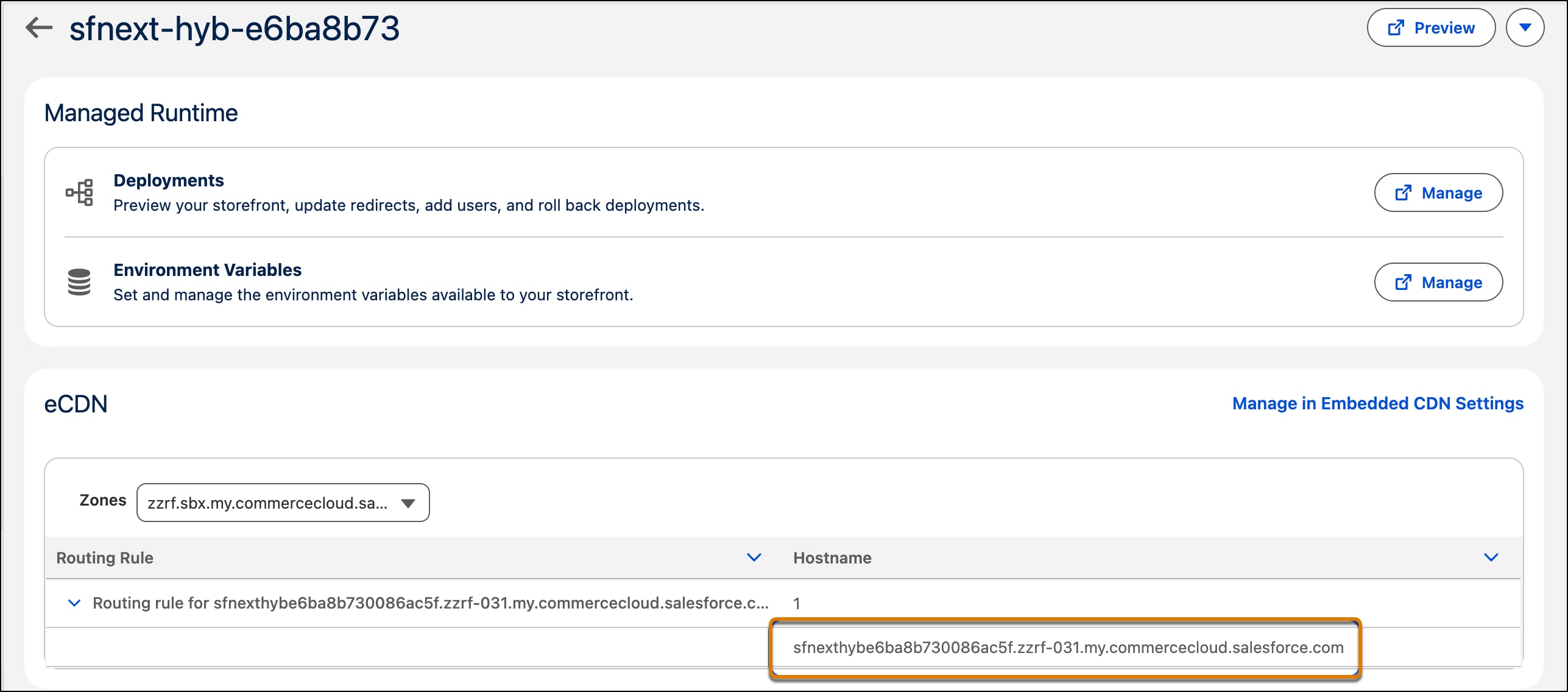
In the eCDN section, find the default routing rule.
Expand that routing rule to locate your eCDN zone hostname.
Update Aliases with the eCDN Hostname
In Business Manager, navigate to Merchant Tools > Select Site > SEO & Discoverability > Aliases.
Update http-host and https-host with the eCDN hostname that you noted in the previous section.
ODS hybrid storefronts use the Salesforce-provided eCDN default domain. Custom or vanity domains aren’t supported for ODS setups. Updating site URL aliases doesn’t create a custom hostname—it only makes generated storefront URLs use the ODS default domain.
Note
Update eCDN Routing Rules for Your Demo Site
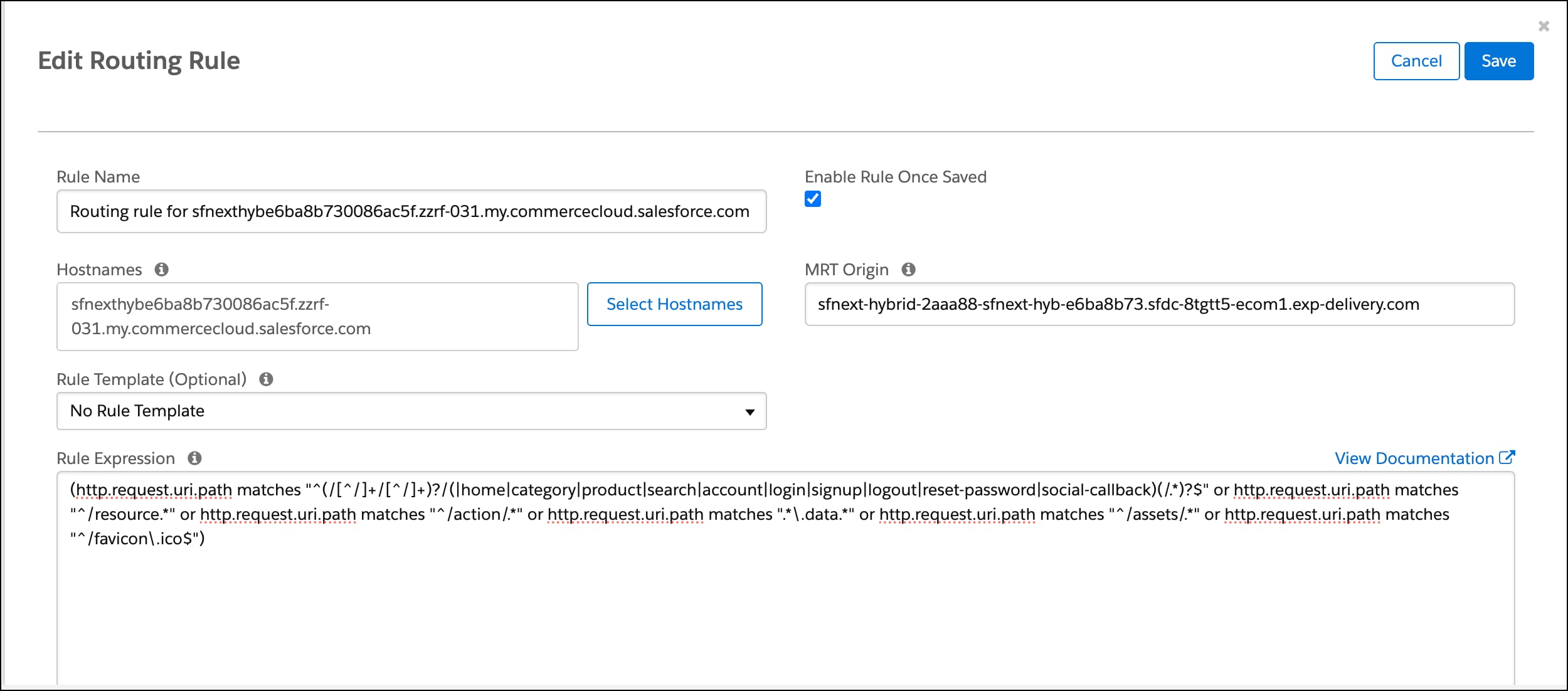
Configure the eCDN routing rule for your hostname in the Business Manager eCDN UI, then set the Storefront Next rule expression. For the full UI walkthrough and screenshots, see Configure Routing Rules in the Business Manager UI.
Go to Administration > Sites > Embedded CDN Settings, open Configure Routing Rules for the zone that contains your hostname, and click Edit on the routing rule for your hostname.
Confirm that the Hostnames and MRT Origin fields are prefilled and match your setup.
In Rule expression, paste the following rule. This expression matches Storefront Next routes (home, category, product, search, and account flows), plus resource routes, action endpoints, React Router data prefetch requests, and static assets.
1(http.request.uri.path matches "^(/[^/]+/[^/]+)?/(|home|category|product|search|account|login|signup|logout|reset-password|social-callback)(/.*)?$" or http.request.uri.path matches "^/resource.*" or http.request.uri.path matches "^/action/.*" or http.request.uri.path matches ".*\.data.*" or http.request.uri.path matches "^/assets/.*" or http.request.uri.path matches "^/favicon\.ico$")
This guide uses a default hybrid split: top-of-funnel pages (home, category, product, search, and authentication flows) on Storefront Next, with cart and checkout on SFRA. Modify both eCDN origin rules and PUBLIC__app__hybrid__legacyRoutes to support any hybrid storefront combination. Make sure the two route definitions are complementary.
Note
Click Save.
Step 4 (Optional): Configure Locale Rules
Storefront Next enables storefront context and automatically adds site ID and locale prefixes to routes.
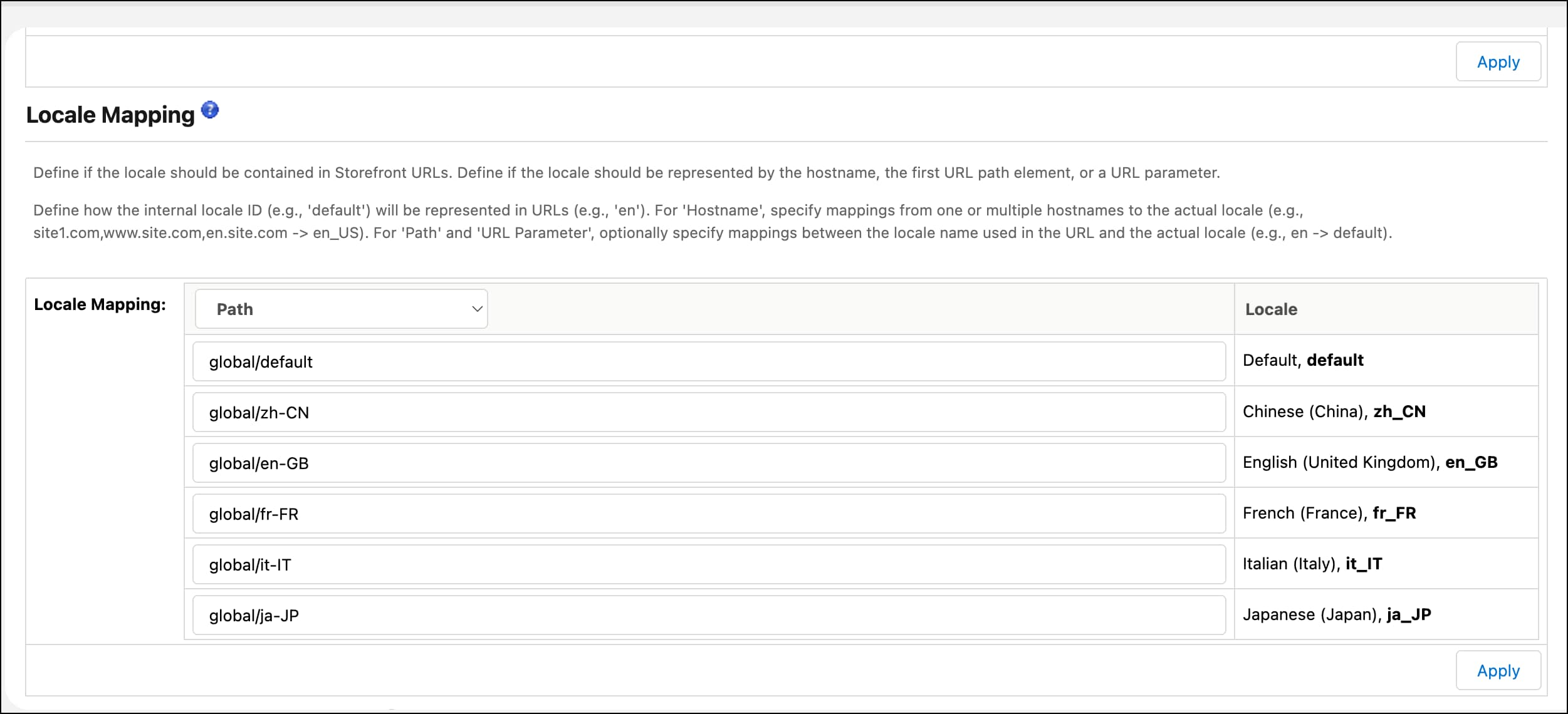
To correctly route between pages that include locale prefixes, configure URL rules in Business Manager so that SFRA/SiteGenesis URLs use matching prefixes.
In Business Manager, navigate to Merchant Tools > Select Site > SEO & Discoverability > URL Rules.
Select the Settings tab.
In the Locale Mapping section, set Locale Mapping to Path.
Add your Storefront Next prefixes for each supported locale.
Click Apply.
Step 5: Verify Your Setup
Your setup is working when navigation between Storefront Next and SFRA/SiteGenesis occurs without visible redirects, all required cookies persist across transitions, and the sfdc_dwsid request header matches the dwsid cookie value.
Visit your eCDN hostname.
Confirm the home page loads on Storefront Next.
Navigate to a page served by SFRA/SiteGenesis.
Open browser Developer Tools and inspect cookies. Confirm that the following cookies are set:
cc-nx-g_{Site_ID}: Guest refresh token
dwsid: B2C Commerce session ID
usid: SLAS customer ID
cc-at_{Site_ID}: SLAS access token (this cookie appears when the user lands on an SFRA/SiteGenesis page; after handoff to Storefront Next, it is consumed)
Navigate to any Storefront Next page and verify:
cc-nx-g_{SiteID} remains the same.
dwsid remains the same.
usid_{SiteID} remains the same.
cc-at_{SiteID} is no longer present because Storefront Next consumes it and stores the access token in localStorage as accesstoken{SiteID}.
In Developer Tools, switch to the Network tab.
Add an item to cart on Storefront Next.
Inspect the SCAPI Add to Cart request. In Request Headers, confirm sfdc_dwsid matches the dwsid cookie value.
The sfdc_dwsid request header is required to keep hybrid storefront behavior stable at production scale when traffic can be distributed across multiple app servers.
If you are not using Storefront Next, set this header in your headless application whenever the dwsid cookie is available.
Note
Troubleshooting
Symptom
Likely cause
Resolution
Routing sends users to the wrong storefront.
eCDN rule and PUBLIC__app__hybrid__legacyRoutes are out of sync.
Confirm that routes matched by the eCDN expression are not listed in legacyRoutes, and that any route owned by SFRA/SiteGenesis is included in legacyRoutes.
Cookies don’t persist across navigation.
Hybrid Auth is disabled or SLAS is missing the sfcc.session_bridge scope.
Re-enable Hybrid Auth in Business Manager and confirm the SLAS client has sfcc.session_bridge.
404 errors on Storefront Next pages.
MRT environment variables aren’t set or weren’t applied to the active environment.
In the MRT Admin console, verify PUBLIC__app__hybrid__enabled and PUBLIC__app__hybrid__legacyRoutes for the active environment, then redeploy if needed.
sfdc_dwsid header doesn’t match the dwsid cookie.
The header isn’t being sent with SCAPI requests.
Confirm that you’re on Storefront Next, or that your headless app sets sfdc_dwsid from the dwsid cookie before each SCAPI request.


 j
j