


 j
jAnnouncements
Agentforce Commerce Vibes
Install the Extension
Get Started with Agentforce Commerce Vibes
Chat with the Agent
Telemetry
Settings
Troubleshooting
B2C Commerce Release Notes
Ask the Community
Use the Agentforce Commerce Vibes chat interface to write prompts and get AI assistance for storefront development and administration tasks. Use Plan mode within the chat interface to plan and approve a complex task before carrying it out.
Commerce Vibes lets you choose which AI model handles your requests. The models you see depend on which AI provider your organization has configured. Click the model name in the bottom-left corner of the Chat interface (for example, Claude Opus or OpenAI GPT) to open the model selector. Available models appear grouped by provider. Select a model to start using it immediately.
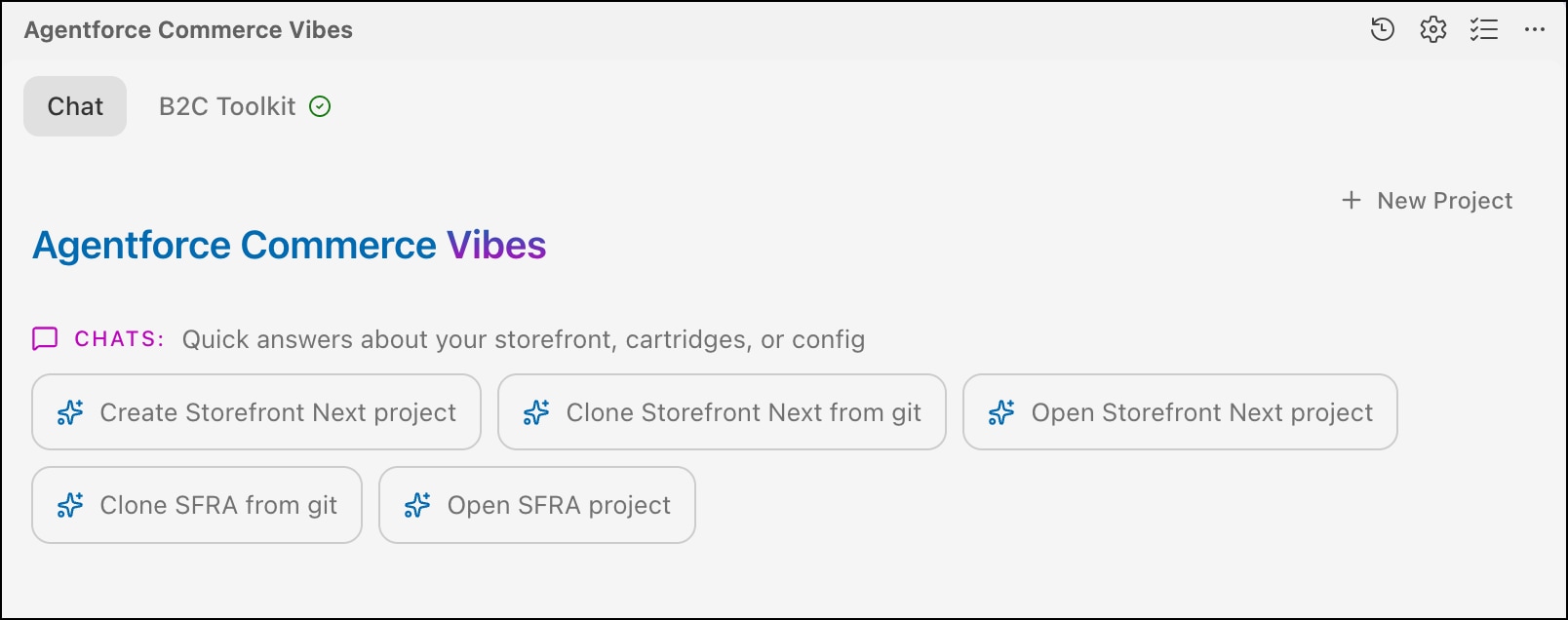
The chat panel displays sample prompts that give you ideas of what you can do in Commerce Vibes and saves you time. When you open VS Code in a folder that doesn’t contain a storefront project, a small set of generic prompts appear in a new chat tab. If the current folder contains a storefront project, a new chat panel shows prompts that are tailored to the storefront type—prompts for Storefront Next, SFRA, and PWA Kit.
Use Plan mode for tasks that span multiple layers, have ordering dependencies, or carry real risk if the sequence is incorrect. Plan Mode tells Agentforce Vibes to map out multi-step work as a structured plan before executing anything. The agent proposes a plan and invites you to approve it before it carries out the work.
When you write prompts for Plan mode, make sure to include all the necessary details and instructions for the agent to figure out the entire plan of work to carry out.
Tip
To switch to Plan mode, click Plan in the bottom bar of the Chat interface, next to the model selector.

These are some examples of prompts that require multi-step execution that are suitable for Plan mode.
Add a promotional banner to the home page with a hero image, headline text, call-to-action button that links to a category or product listing page, and configurable background color.Add image zoom functionality to the product detail page that opens a full-screen zoom modal when clicking on the product image, with zoom controls and thumbnail navigation.Add social media share buttons to the product detail page that let customers share the product on Facebook, Twitter, and Pinterest with the product image, name, and URL.Extend an existing SFRA controller from app_storefront_base: use server.extend to inherit the base routes, add custom middleware for caching or validation, and append new data to the view model with server.append.Create a product comparison extension for Storefront Next: set up the extension folder structure, add a compare checkbox to product tiles using UITarget, create a comparison page showing side-by-side product attributes, and register the extension.j