For vanity or custom domains, configure routing rules in the embedded content delivery network (eCDN) to route traffic to a Managed Runtime (MRT) environment. For default domains, you don’t need to configure routing rules.
Default Routing Rules for Default Domains
When you create Storefront Next in Business Manager, the storefront is automatically configured with eCDN, a default domain, and a default routing rule. The routing rule for default domains directs traffic from the storefront’s default domain, *.my.cc.salesforce.com, to the MRT origin domain, *.exp-delivery.com. The MRT origin is no longer directly accessible and is accessed via eCDN. This change ensures that all MRT traffic flows through eCDN, applying WAF rules, rate limits, and observability consistently across vanity and default domains.
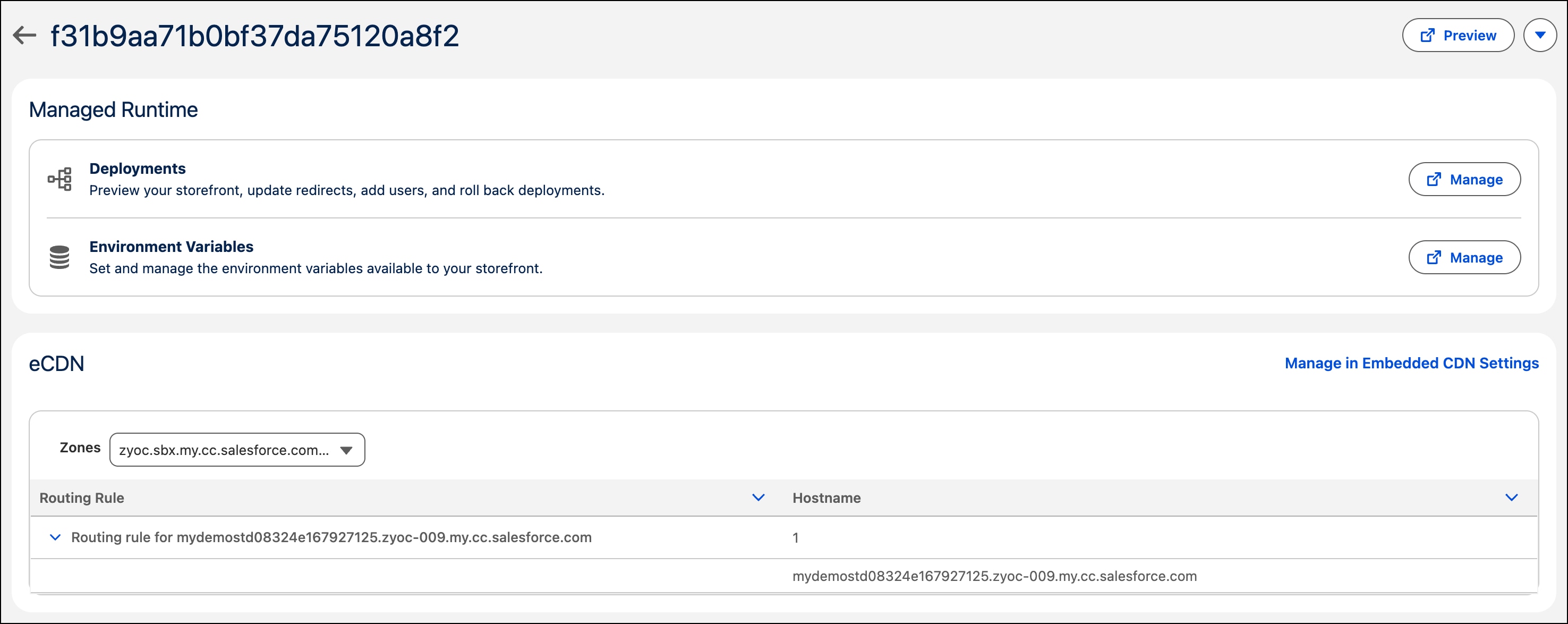
View your default routing rule in your storefront in Business Manager by clicking the environment, and then clicking Manage in Embedded CDN Settings.
Your storefront has a default MRT routing rule that bypasses MRT for image and static content. When using Dynamic Image Service (DIS) and serving image and static content from B2C Commerce, certain request paths must reach the B2C Commerce origin directly instead of routing through Managed Runtime (MRT). This bypass makes sure that image transformations, static assets, and dynamic controllers function correctly and don’t reach MRT because MRT doesn’t host storefront images.
These B2C Commerce request paths must bypass MRT and reach the B2C Commerce origin:
/on/demandware.static/*: Raw static assets (CSS, JavaScript, fonts, and so on)
/on/demandware.image/*: Product image transformations via DIS
To access your storefront’s routing rule in Business Manager:
Access the embedded CDN settings pages in one of these ways.
a. Go to Administration > Storefronts, click you storefront and then the environment, and then click Manage in Embedded CDN Settings from your storefront’s environment page.
b. Go to Administration > Sites > Embedded CDN Settings.
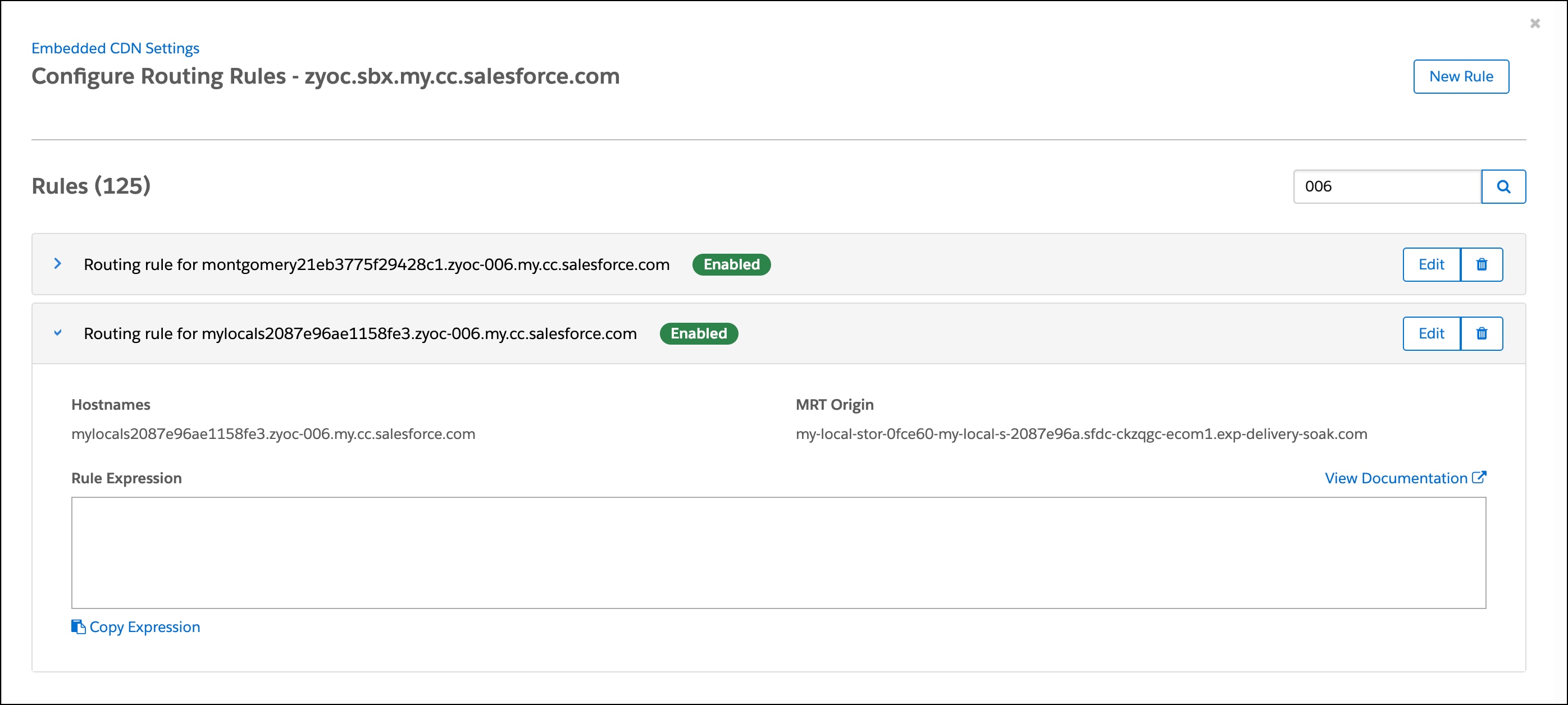
The page shows the default zone. Click the caret dropdown to the right of the zone, and then select Configure Routing Rules.
Filter the rules list to find your hostname. Expand the routing rule for your hostname.
The rule shows the hostname and the MRT origin.
Custom Routing Rules for Vanity or Custom Domains
To route traffic to a Managed Runtime (MRT) environment for vanity or custom domains, configure eCDN routing rules. Business Manager speeds up CDN setup with an intuitive UI and simplifies deployment processes. Use Business Manager to view, create, edit, or delete routing rules for zones in a Storefront Next site or hybrid storefront.
As an alternative to the Business Manager steps covered in this section, use the createCustomRule API CDN API to route traffic programmatically.
Note
Prerequisites
Before you configure routing rules:
Define your hostnames in the alias file. To do so, in Business Manager, click App Launcher and then select Merchant Tools > Your Site > SEO > Aliases.
Find the zone ID of the eCDN zone to be used with Managed Runtime. To find the zone ID, use the getZonesInfo endpoint of the CDN Zones API.
Keep these points in mind when creating a rule expression:
Include one expression per rule.
You can set up all paths or specific paths for a particular hostname to be forwarded to MRT.
When you create or edit a routing rule, if you don’t provide paths in a rule expression and you select only a hostname, all traffic is routed to MRT.
The structure of the rule expression differs slightly when creating rules using Business Manager instead of the CDN API. When you configure rules in Business Manager, leave the http.host field out of the rule expression. You select the hostnames separately on the page, and they’re automatically prepended to the rule expression during rule creation. Requests are directed to your specified MRT origin.
If you provide a single path, the path condition is combined with the host condition using an “AND” operator. This means that both the host and the path conditions must be true for the rule to take effect.
When you provide multiple paths using an “OR” operator, if any of the specified paths match, the rule takes effect.
In this example, the rule applies if the URL path starts with either /products or /be/fr/home-page followed by any number of characters.
http.request.uri.path matches "^/products" or http.request.uri.path matches "^/be/fr/home-page.*"
Create a Routing Rule for a Custom Domain
Routing rules are configured per zone.
Note
To route traffic to a Managed Runtime environment for a custom domain, create a routing rule.
Go to Administration > Sites > Embedded CDN Settings.
Click the caret dropdown to the right of the zone and then select Configure Routing Rules.
On the Configure Routing Rules page, click New Rule.
Fill out the required input fields. See the tooltips for information about each field.
(Optional) A few rule templates are available to help you get started. They provide a foundation for building rule expressions based on your specific use case. For some key points that apply to rule expressions, see Considerations.
To route all traffic to MRT:
On the Rule Template list, select Recommended Fully Composable.
Leave the Rule Expression field blank.
To route only specific paths to MRT.
On the Rule Template list, make a selection.
In the Rule Expression field, enter specific paths to route to MRT.
Click Save.
When the confirmation message appears, click Save again to create the rule.
The new rule displays on the Configure Routing Rules page.


 and then select Merchant Tools > Your Site > SEO > Aliases.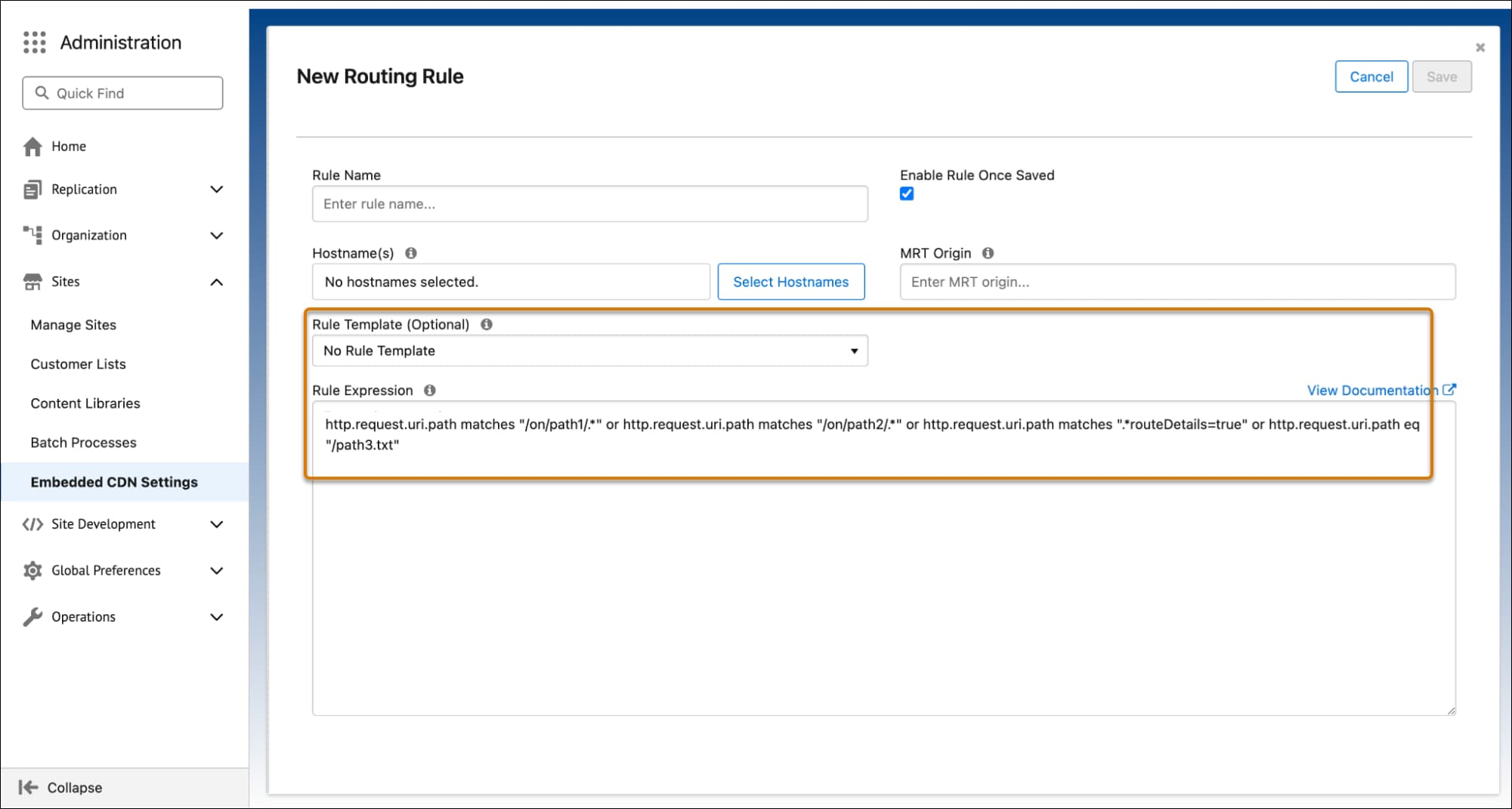
 j
j