


Enable Web Console
During open beta, the Web Console is disabled until an org administrator explicitly enables it. This behavior is true regardless of the edition or the org type. Refer to Supported Org Types (beta) for a list of orgs that are supported in beta.
Important
- Open your org.
- From Setup, in the Quick Find box, enter
Development, and then select Web Console (Beta).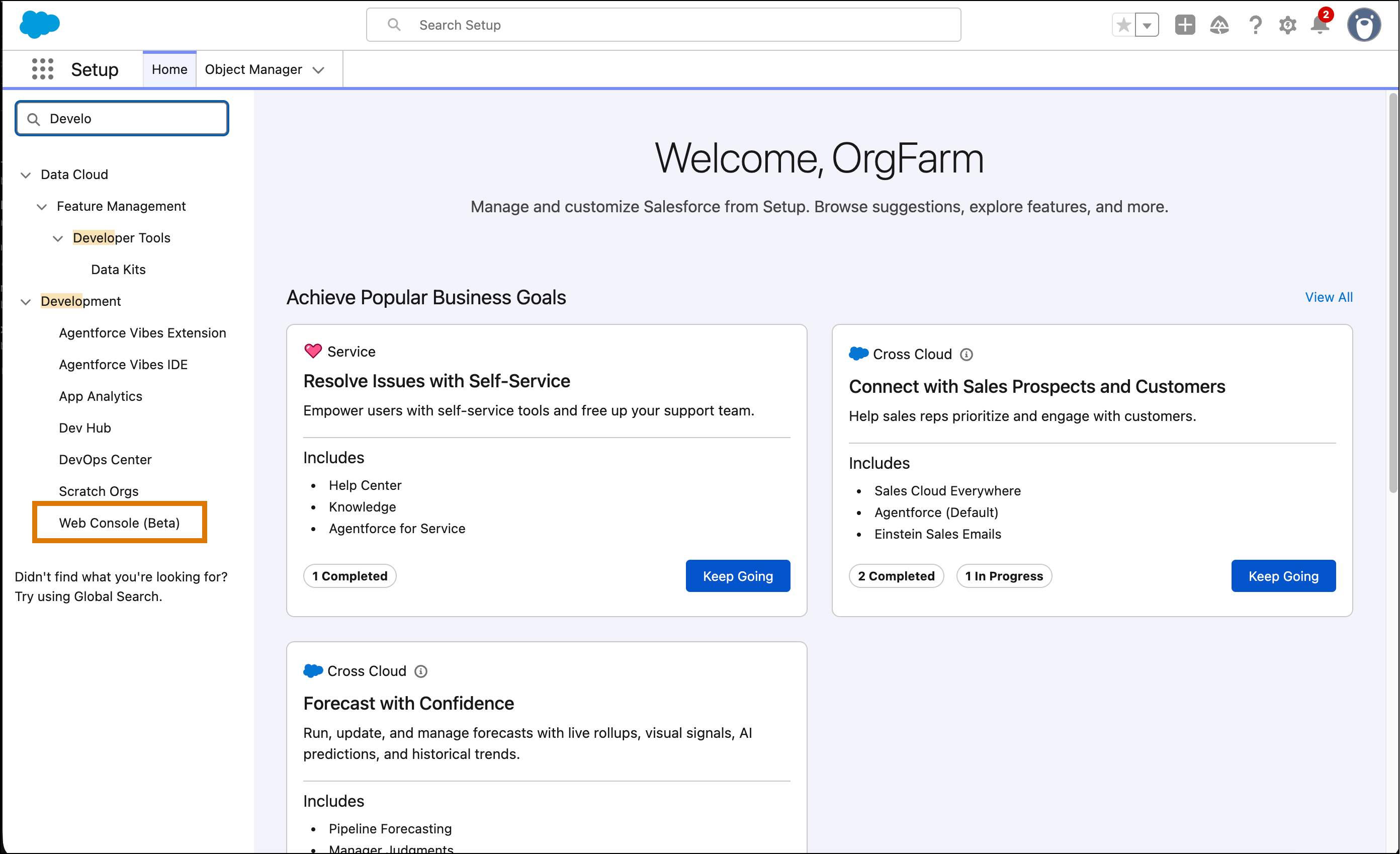
- Switch the Enable Web Console (Beta) to button to Active.
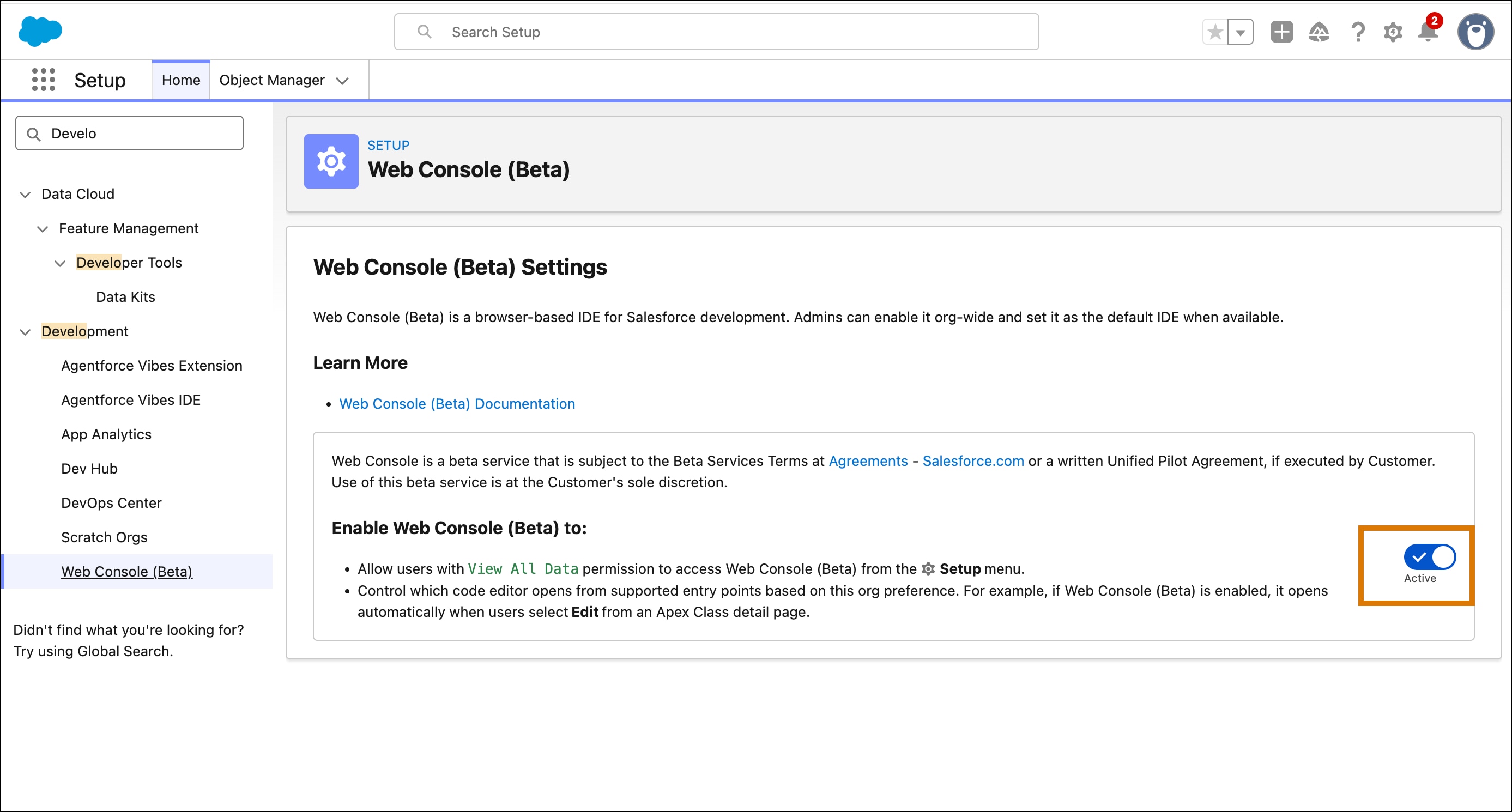
- Close the Setup page.
- Wait a few seconds for the gear menu options to be updated. After they’re updated, you can see the Web Console (Beta) option in the gear menu. Refer to Launch Web Console for other ways to open the Web Console.
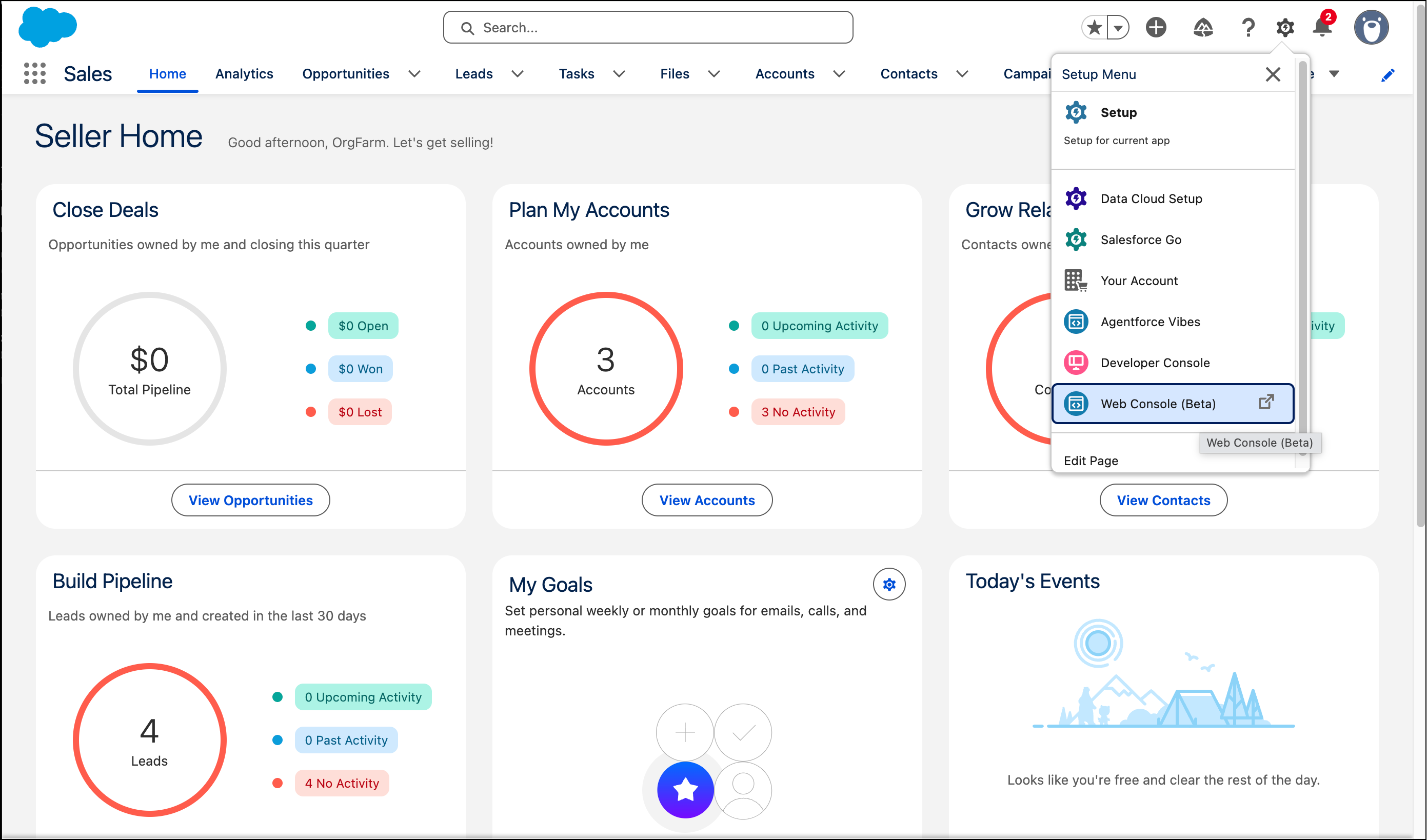
Enable the Use Any API Client Permission
You need the Use Any API Client permission to run a query by using the Run Query option. You can provide this permission via the permission set or via the profiles on your org.
If you don’t see the Use Any API Client permission, API Access Control is disabled on your org.
Note
Via Permission Sets
- Go to Setup.
- In the Quick Find box, search for
Usersand select Permission Sets. - Open a permission set.
- Under System Permissions, enable Use Any API Client.
Via Profiles
- Go to Setup.
- In the Quick Find box, search for
Usersand select Profiles. - Open a user profile.
- Under System Permissions, enable Use Any API Client.
Beta Feature
 j
j