


The online Trailblazer Community is now read-only. [Read the FAQ] [Get Help]
Get Started with Chat
Get rolling quickly with chat sessions between your customers and your agents.
Before You Begin
The legacy chat product is scheduled for retirement on February 14, 2026, and is in maintenance mode until then. During this phase, you can continue to use chat, but we no longer recommend that you implement new chat channels. To avoid service interruptions to your customers, migrate to Messaging for In-App and Web before that date. Messaging offers many of the chat features that you love plus asynchronous conversations that can be picked back up at any time. Learn about chat retirement in Help.
Important
Before doing this tutorial, be sure that you’ve set up Service Cloud for Chat. See Org Setup for Chat in Lightning Experience with a Guided Flow for more information.
This tutorial shows you how to get Chat into your iOS app.
-
Create an Xcode project. For this example, let’s make a Single View Application. Name it
HelloChat.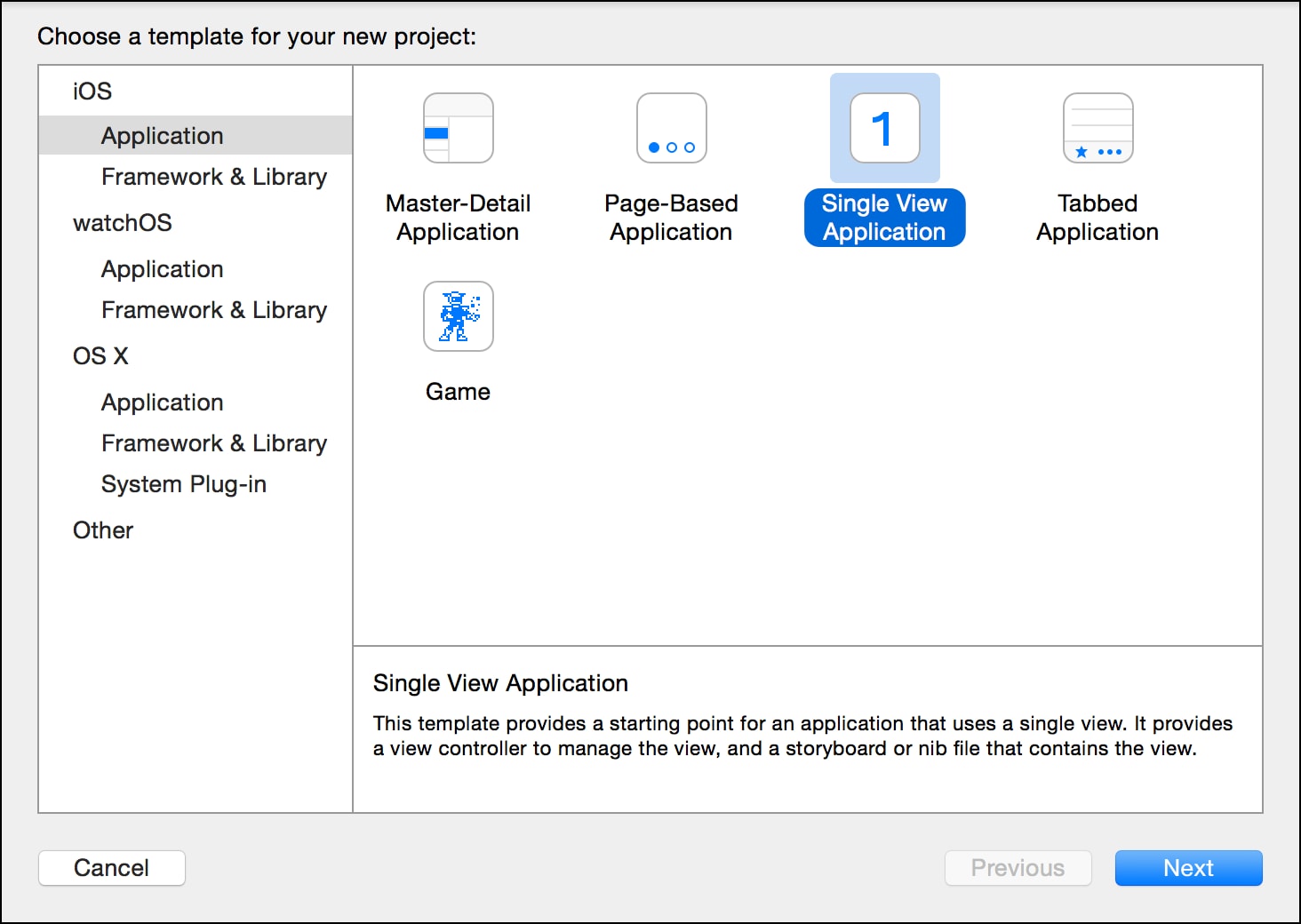
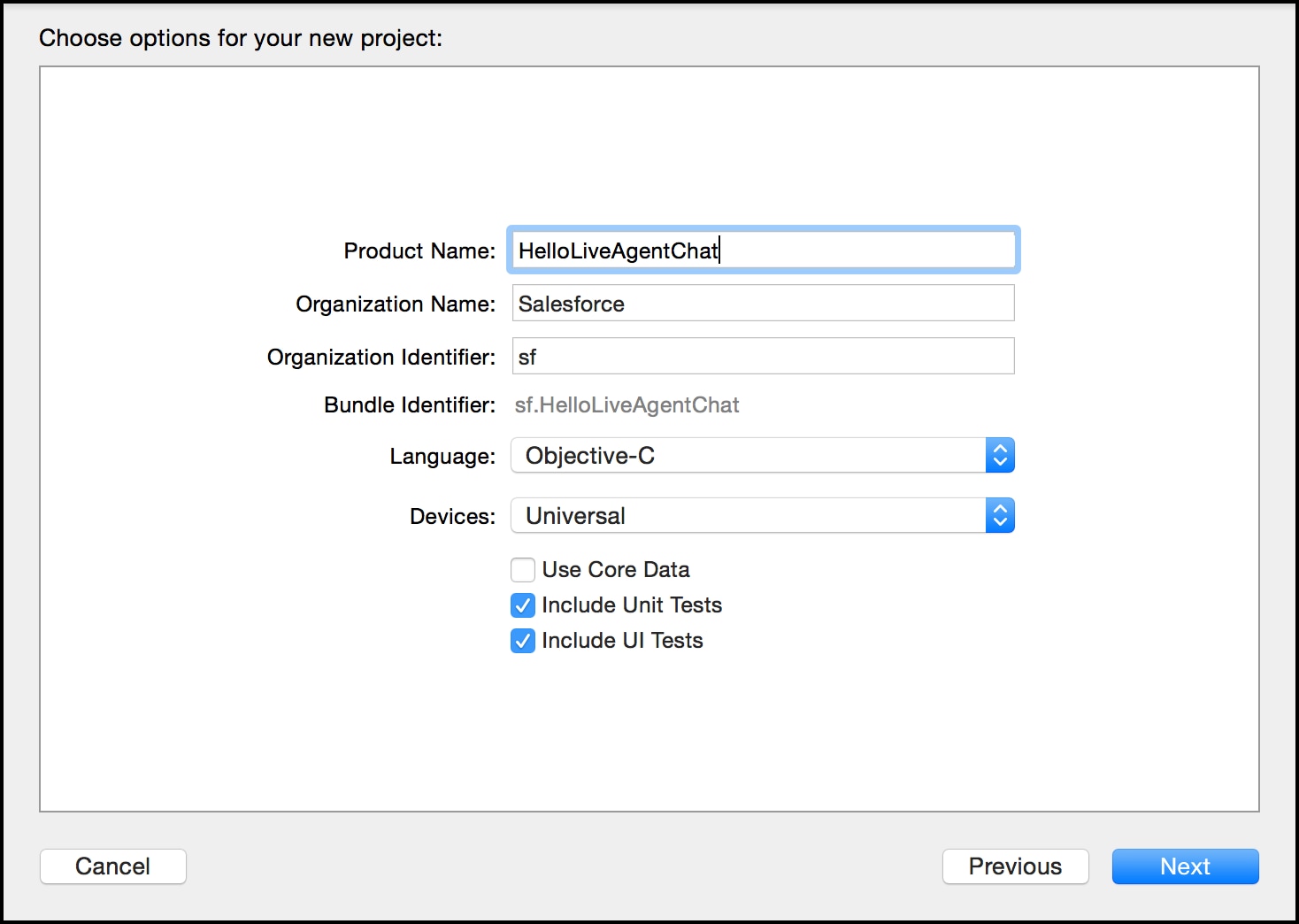
-
Install the SDK as described in Install the Service Chat SDK for iOS.
-
Go to your storyboard and place a button somewhere on the view. Name it
Chat.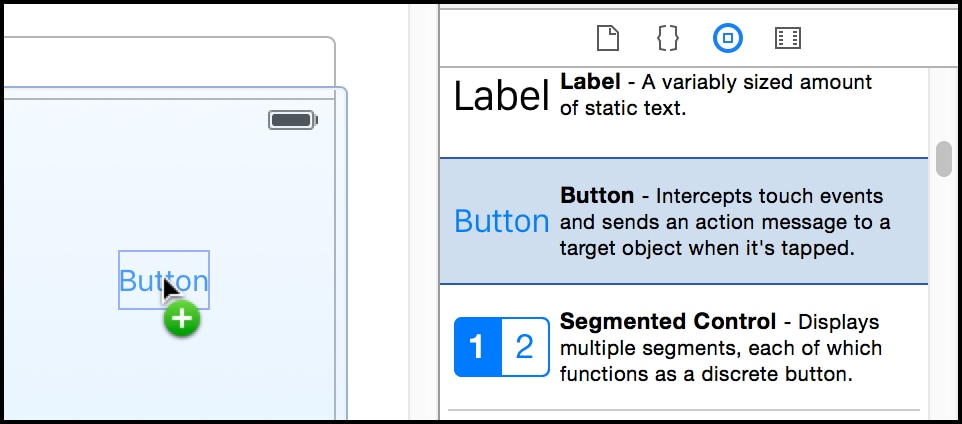
-
Add a
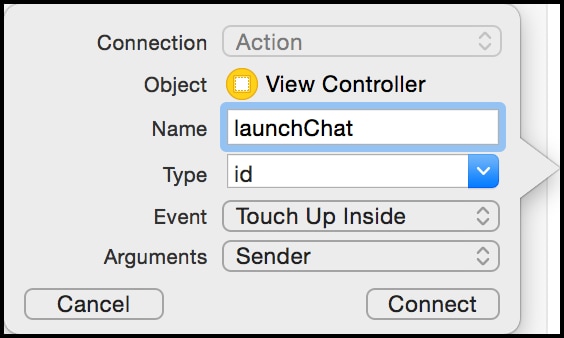
Touch Up Insideaction to yourUIViewControllerimplementation. Name itlaunchChat.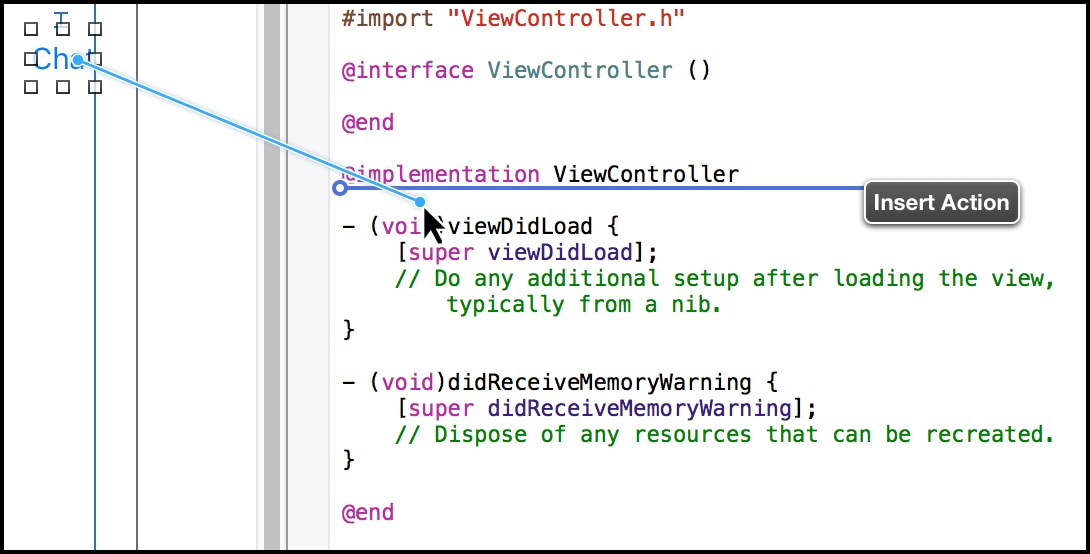
-
Import the SDK. Wherever you intend to use the Chat SDK, be sure to import the ServiceCore framework and the ServiceChat framework.
In Swift:
1import ServiceCore
2import ServiceChat
In Objective-C:
1@import ServiceCore; 2@import ServiceChat; -
Launch a chat session from within the
launchChatmethod.From the button action implementation, launch chat using the
showChat(with:showPrechat:)method onSCSChatInterface.In Swift:
1@IBAction func launchChat(sender: AnyObject) {
2
3  // Create configuration object
4  if let config = SCSChatConfiguration(liveAgentPod: "YOUR_POD_NAME",
5                                       orgId: "YOUR_ORG_ID",
6                                       deploymentId: "YOUR_DEPLOYMENT_ID",
7                                       buttonId: "YOUR_BUTTON_ID") {
8
9    // Start the session
10    ServiceCloud.shared().chatUI.showChat(with: config)
11  }
12}
In Objective-C:
1- (IBAction)launchChat:(id)sender {
2
3  SCSChatConfiguration *config =
4    [[SCSChatConfiguration alloc] initWithLiveAgentPod:@"YOUR_POD_NAME"
5                                                 orgId:@"YOUR_ORG_ID"
6                                          deploymentId:@"YOUR_DEPLOYMENT_ID"
7                                              buttonId:@"YOUR_BUTTON_ID"];
8
9  // Start the session
10  [[SCServiceCloud sharedInstance].chatUI showChatWithConfiguration:config];
11}
Fill in the placeholder text for the Chat API endpoint, the org ID, the deployment ID, and the button ID.
- Deployment ID
The unique ID of your Chat deployment. To get this value, from Setup, select Chat | Deployments. The script at the bottom of the page contains a call to the
liveagent.initfunction with the pod, the deploymentId, and orgId as arguments. Copy the deploymentId value.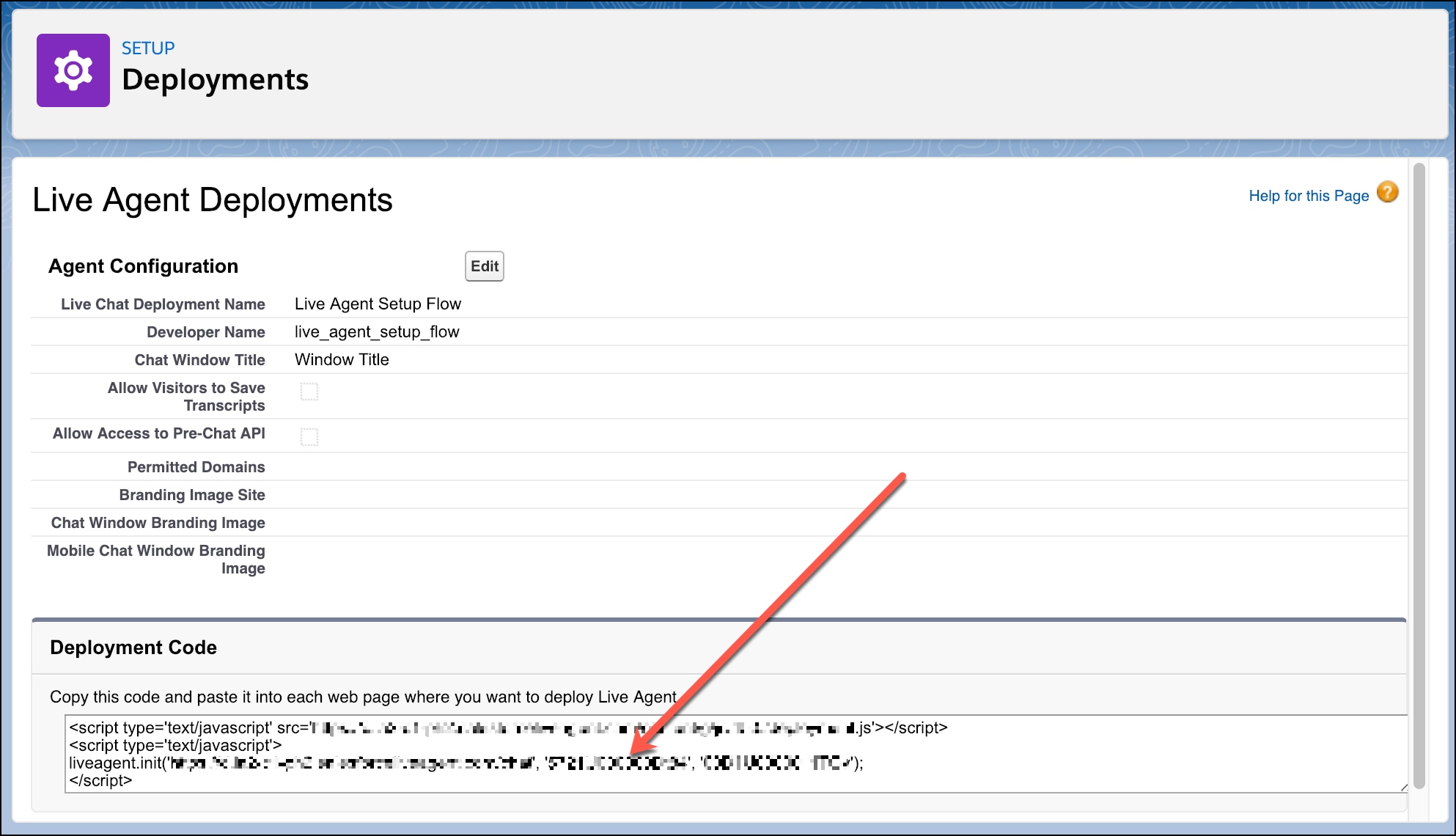
For instance, if the deployment code contains the following information:
1<script
2  type="text/javascript"
3  src="https://d.gla3.gus.salesforce.com/content/g/js/44.0/deployment.js"
4></script>
5<script type="text/javascript">
6  liveagent.init(
7    "https://d.gla5.gus.salesforce.com/chat",
8    "573B00000005KXz",
9    "00DB00000003Rxz",
10  );
11</script>
The deployment ID value is:
1573B00000005KXzBe sure not to use the org ID value (which is also in this deployment code) for the deployment ID.
- Button ID
The unique button ID for your chat configuration. To get this value, from Setup, search for Chat Buttons and select Chat Buttons & Invitations. Copy the
idfor the button from the JavaScript snippet.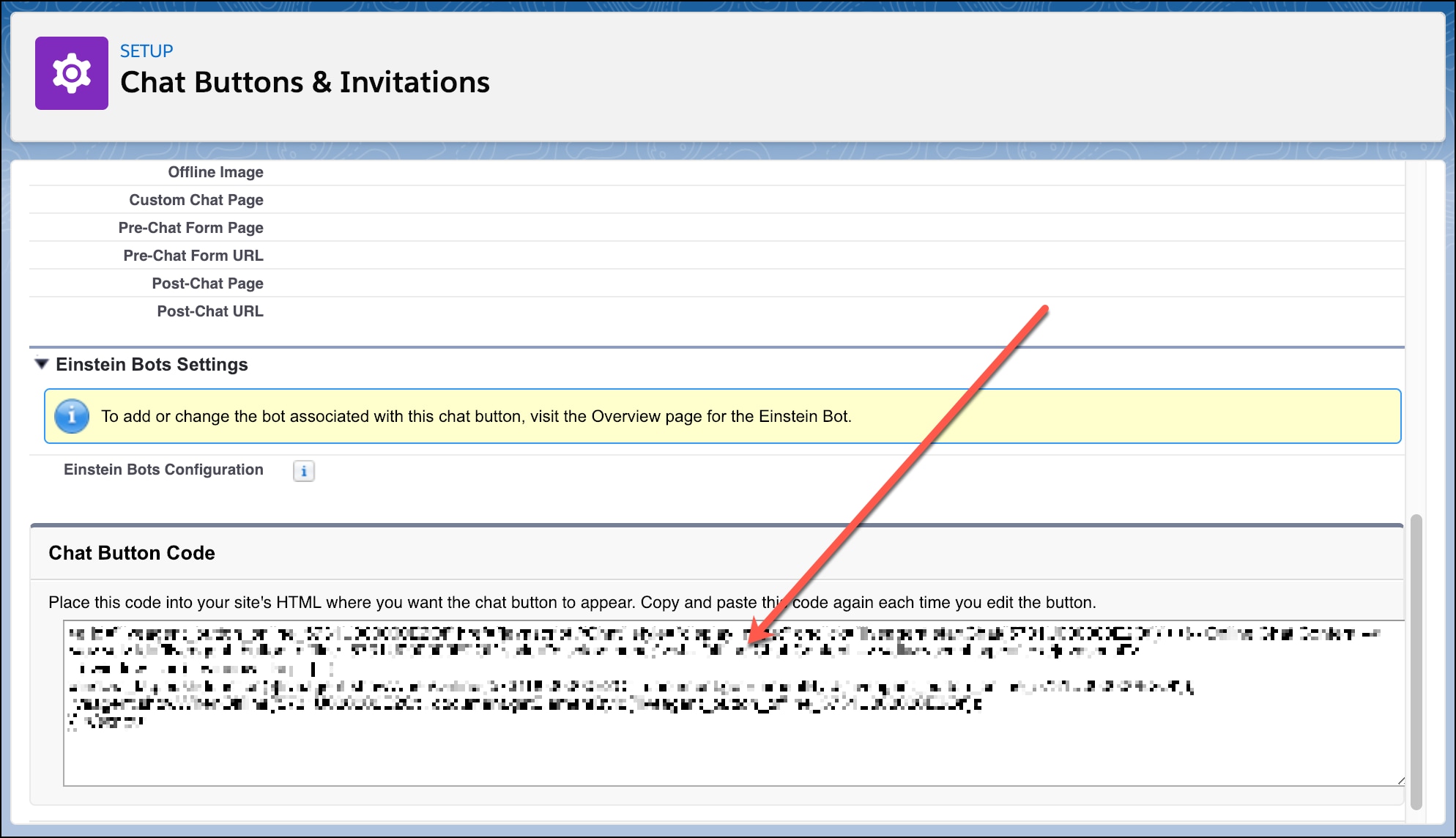
For instance, if your chat button code contains the following information:
1<a
2  id="liveagent_button_online_575C00000004h3m"
3  href="javascript://Chat"
4  style="display: none;"
5  onclick="liveagent.startChat('575C00000004h3m')"
6>
7  <!-- Online Chat Content -->
8</a>
9<div id="liveagent_button_offline_575C00000004h3m" style="display: none;">
10  <!-- Offline Chat Content -->
11</div>
12<script type="text/javascript">
13  if (!window._laq) {
14    window._laq = [];
15  }
16  window._laq.push(function () {
17    liveagent.showWhenOnline(
18      "575C00000004h3m",
19      document.getElementById("liveagent_button_online_575C00000004h3m"),
20    );
21    liveagent.showWhenOffline(
22      "575C00000004h3m",
23      document.getElementById("liveagent_button_offline_575C00000004h3m"),
24    );
25  });
26</script>
The button ID value is:
1575C00000004h3mBe sure to omit the
liveagent_button_online_text from the ID when using it in the SDK.
-
Launch Service Cloud Console. From the Omni-Channel widget, ensure that an agent is online.
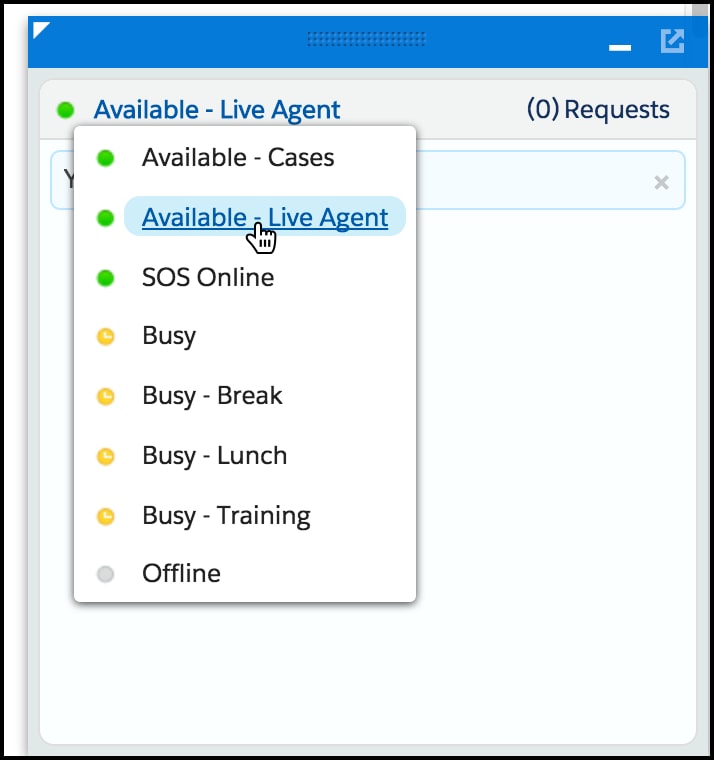
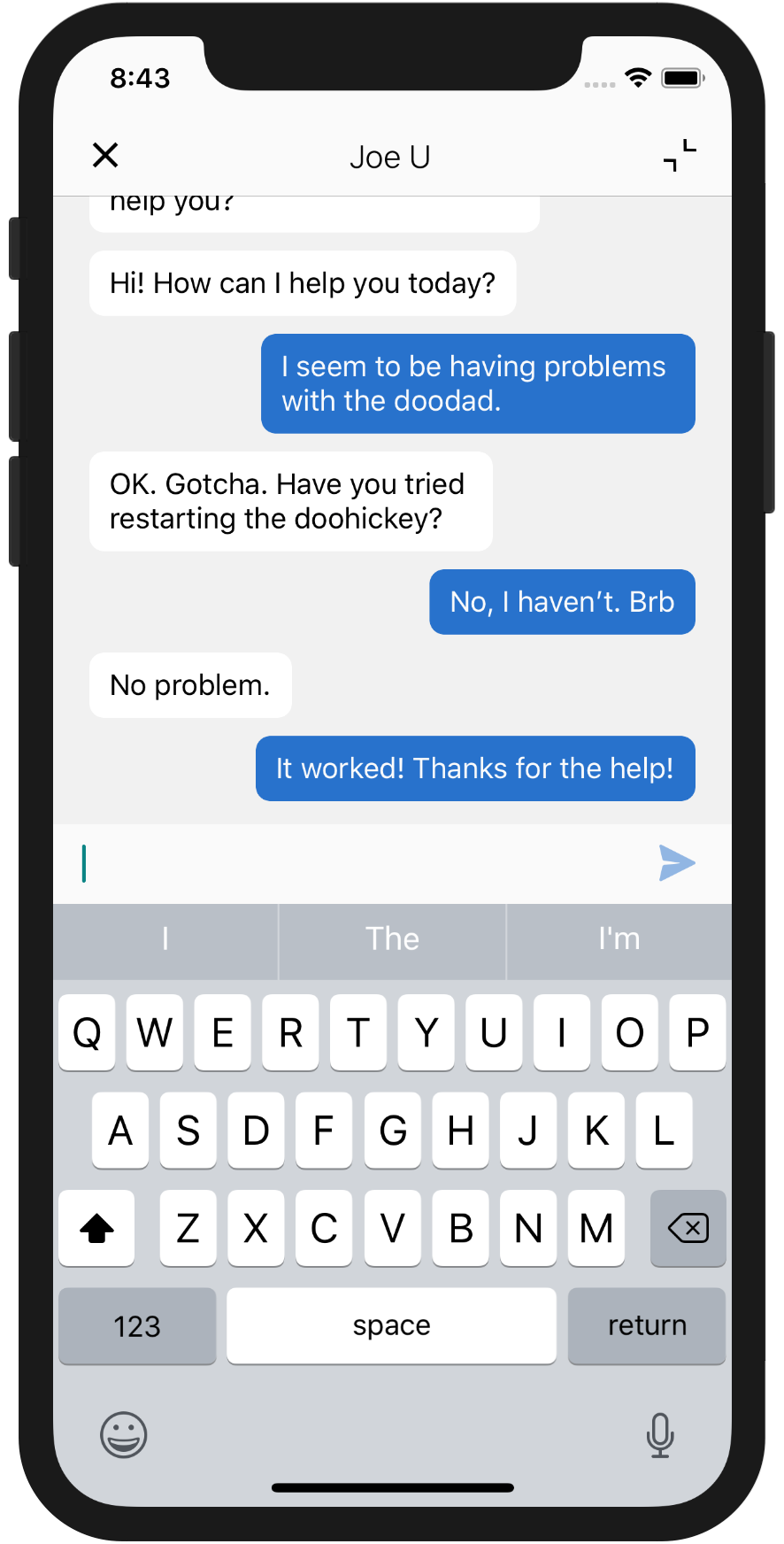
Now you can build and run the app. When you tap the Chat button, the app requests a chat session, which an agent can accept from the Service Cloud Console. From the console, an agent can real-time chat with a customer.
 j
j