
Appearance
Exercise 1: Connect Your AI Assistant to Salesforce
In this exercise, you'll load your company's sample data into your Salesforce org and connect your AI assistant to it, so it can work with your Salesforce data.
To connect, your AI assistant needs two things: permission to sign in to your org, and tools to work with your data. An External Client App (ECA) provides the permission. It defines how an external application authenticates with Salesforce through OAuth 2.0 and what it can access. The Headless 360 MCP Server provides the tools. It's a Salesforce-hosted server that uses the Model Context Protocol (MCP) to let AI assistants find and use Salesforce capabilities.
Step 1: Install the Workshop Package
TIP
Participating in a hosted workshop? The package has already been installed in your org. You can skip this step.
You won't build the External Client App by hand. The workshop package contains a preconfigured one, plus a Workshop Setup tab that loads the sample data.
Log in to your Salesforce org.
Replace the path of the URL with the following path and confirm with Enter:
txt/packaging/installPackage.apexp?p0=04tKi000000kboCIAQSelect Install for Admins Only, then click Install.
In the Approve Third-Party Access dialog, select Yes, grant access to these third-party web sites, then click Continue.
Wait for the installation to finish. You should see the message Installation Complete! Click Done.
TIP
Seeing "This app is taking a long time to install"? Click Done. Salesforce emails you when the installation is complete.
Step 2: Review the External Client App
From Setup, enter
External Clientin the Quick Find box, then select External Client App Manager.Verify that AIforce Workshop MCP Client appears in the list.
TIP
Your External Client App may take up to 30 minutes to become available. You can continue with the next steps while Salesforce activates it.
Step 3: Load the Sample Data
TIP
Participating in a hosted workshop? The sample data has already been loaded into your org. You can skip this step.
Your org starts empty. The sample data adds the customers of Brightline Climate Systems: their accounts, contacts, opportunities, service contracts, cases and recent activities. The records belong to you, and their dates are set relative to today, so your pipeline always looks current.
Click the App Launcher, enter
Workshop Setupin the search box, then select Workshop Setup.Click Load Sample Data.
The page should now say The sample data is loaded. and list how many records of each type it added, for example Account: 10.
TIP
Seeing "The sample data is already in your org"? The data was loaded before, for example by your instructor. Nothing was changed, and you can continue.
Step 4: See What Your AI Assistant Can't Do Yet
Before you connect anything, see what happens when you ask your AI assistant about your Salesforce data.
Start a new chat without a Salesforce connection:
Using Claude: Open claude.ai and click New chat. If you've previously connected Salesforce, click + in the chat box, select Connectors, and turn off all Salesforce connectors.
Using the AIforce Playground: Open the AIforce Playground and sign in with the Access code provided by your instructor. Open the Chat tab and click New chat.
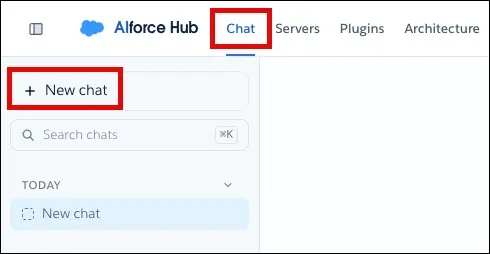
Enter the following prompt:
txtBrief me on my open opportunities. What should I pay attention to?Review the response. Your AI assistant can't answer, because it has no access to your Salesforce org.
That's the gap you'll close in the next steps.
Step 5: Activate the Headless 360 MCP Server
Return to your Salesforce org.
From Setup, enter
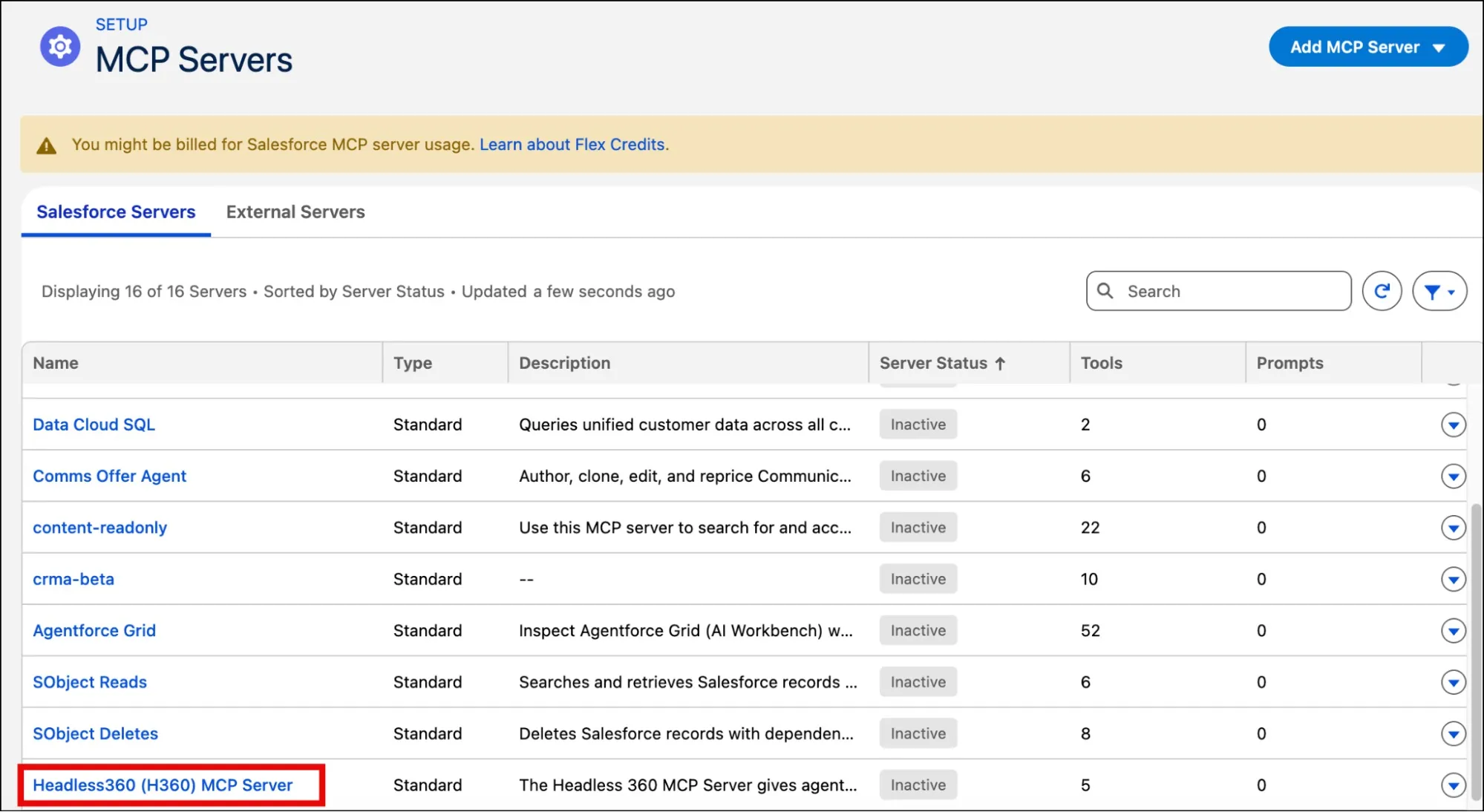
MCP Serversin the Quick Find box, then select MCP Servers under API Catalog.In the list, click Headless360 (H360) MCP Server.
Click Activate in the upper-right corner. If the server is already active, continue with the next step.
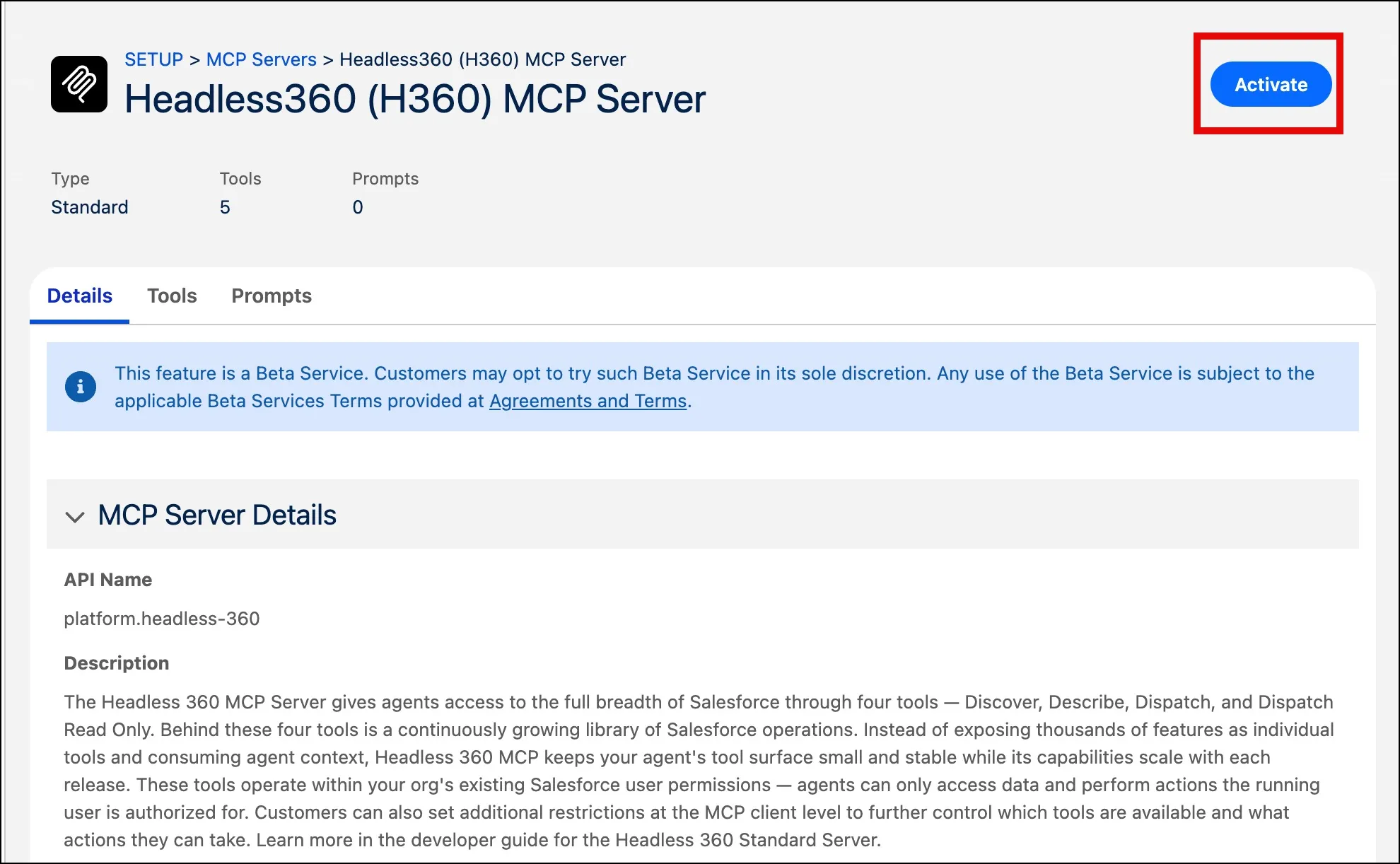
The Activate button should now change to Deactivate.
What's Included in the Headless 360 MCP Server?
The Headless 360 MCP Server provides tools that let AI assistants discover and use Salesforce capabilities. These are the main ones:
| Tool | What It Does |
|---|---|
| Discover APIs | Finds Salesforce APIs that can help accomplish a task. |
| Describe API | Provides the details needed to call a specific API. |
| Dispatch API | Executes Salesforce API requests that can make changes to data or configuration. |
| Dispatch read-only API | Retrieves information from Salesforce without making changes. |
| Display widget | Renders Salesforce information as an interactive UI in the conversation. |
Together, these tools allow your AI assistant to discover Salesforce capabilities, retrieve and update data, and display results in a visual interface.
Step 6: Connect Your AI Assistant
Option 1: Using Claude
In Claude, click Connect.
When asked whether you have a client ID and secret, select Yes, I have them, then click Continue.
Enter the following values. Leave OAuth client secret empty, then click Connect:
Field Value Server URL https://api.salesforce.com/platform/mcp/v1/platform/headless-360OAuth client ID 3MVG9JEx.BE6yifNHUBUk6U.jhhgRROdYHBaI8qIElqhpHe9klG4BsixoUGM_5flDFWRMMnIlQFUhrCHZAhpeSign in to your Salesforce org and click Allow if prompted to authorize access.
Option 2: Using the AIforce Playground
From Setup, enter
My Domainin the Quick Find box, then select My Domain.Copy your Current My Domain URL. Copy only the hostname, without any text that follows it, such as
with partitioned enhanced domains. Setup shows it withouthttps://, so add it in front when you paste the URL in the next step, for examplehttps://your-domain.my.salesforce.com.In the AIforce Playground, click Connect org in the upper-right corner.

TIP
Already connected to another org? Select the username in the upper-right corner and click Disconnect. Then connect with your My Domain URL and the consumer key below.
Enter the following values. Leave Consumer Secret empty.
Field Value Instance URL Your My Domain URL, starting with https://Consumer key 3MVG9JEx.BE6yifNHUBUk6U.jhhgRROdYHBaI8qIElqhpHe9klG4BsixoUGM_5flDFWRMMnIlQFUhrCHZAhpeClick Connect, then sign in to Salesforce and click Allow if prompted to authorize access. Your Salesforce username now appears in the upper-right corner.
Open the Servers tab and click Add server.
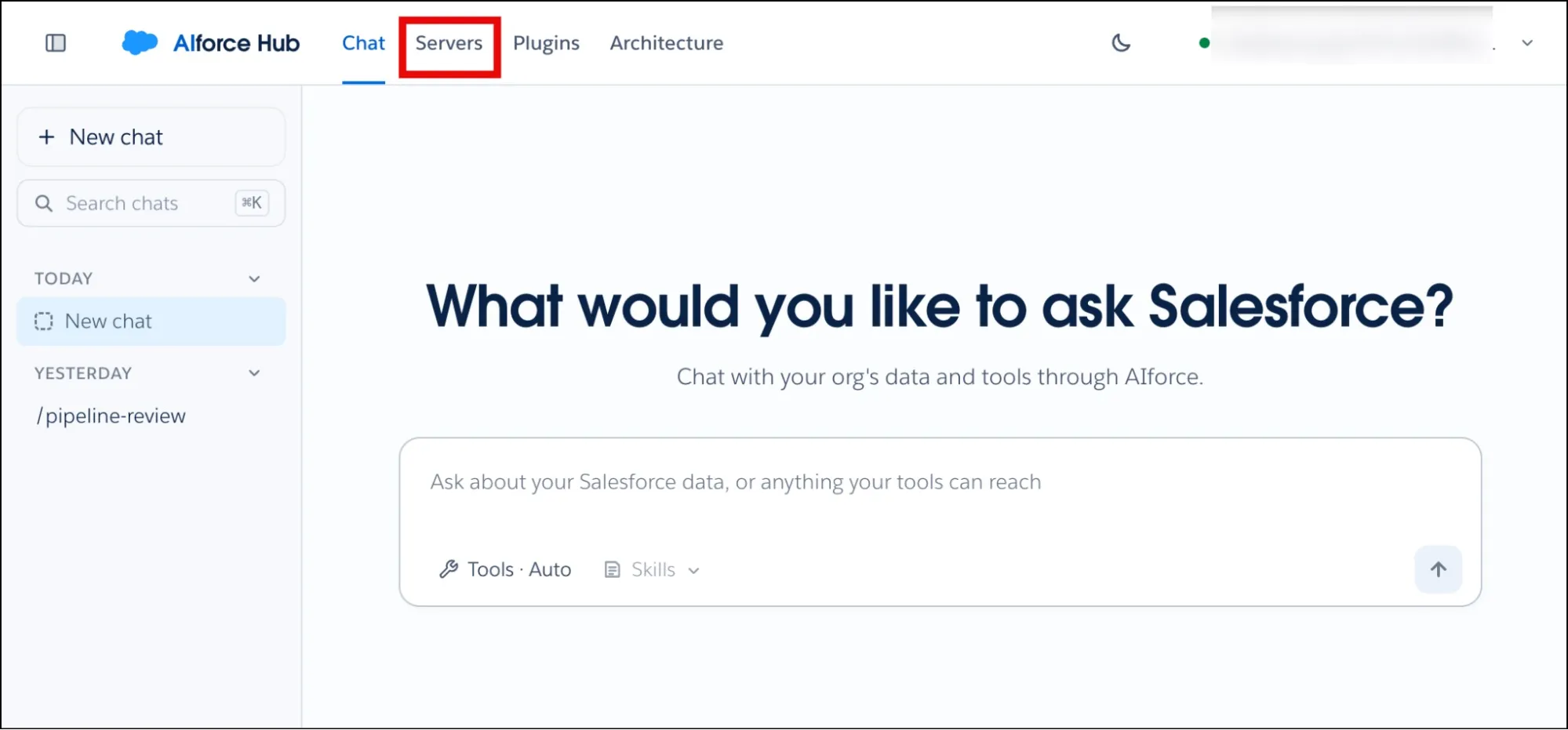
Select the Salesforce hosted tab, then click the headless-360 tile.
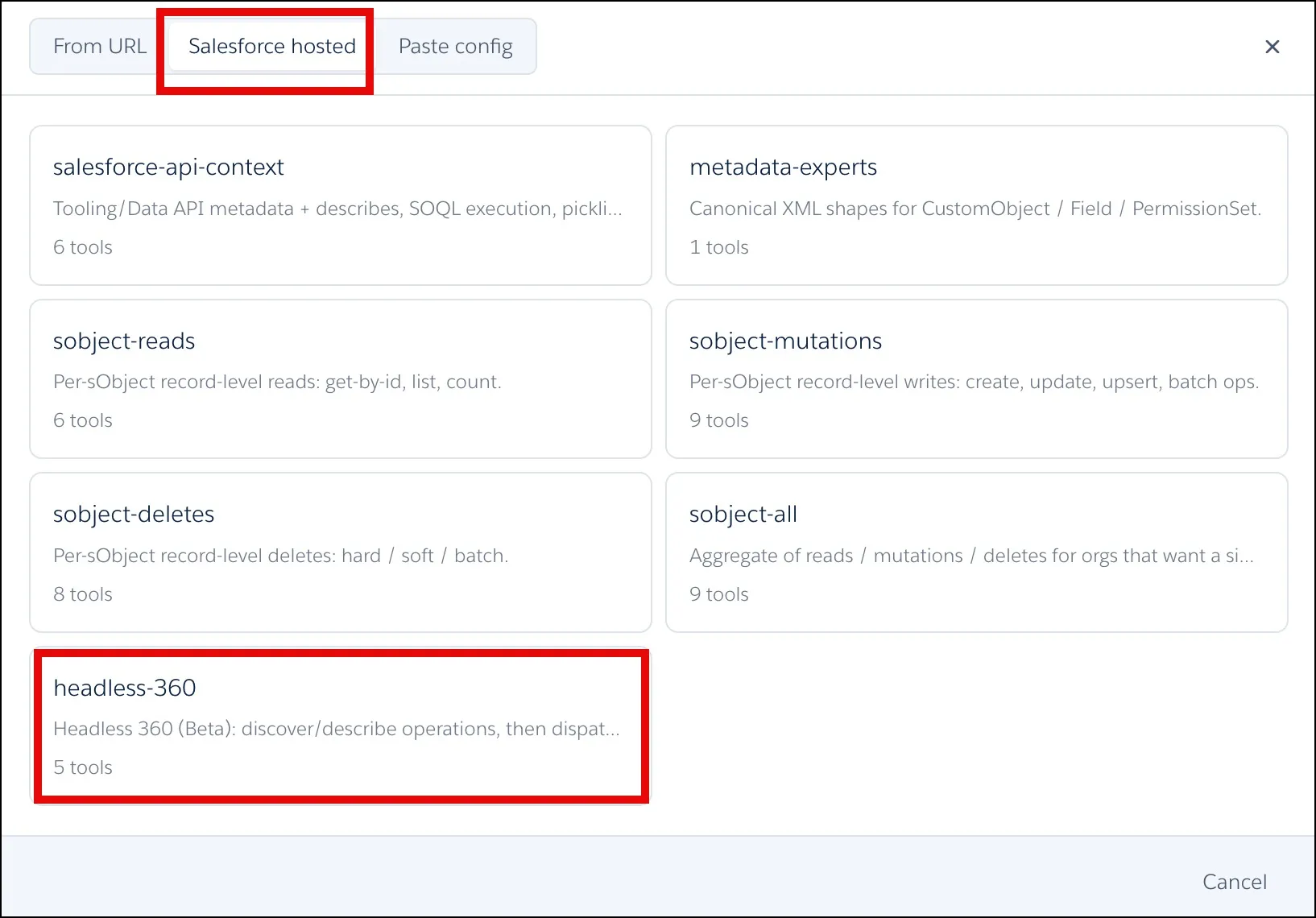
Click Test connection, then click Add server. The headless-360 server now appears on the Servers tab.
TIP
Getting an invalid_client_id error? Your External Client App may not be available yet. Wait a few minutes, then try again.
Your AI assistant is now connected to Salesforce through the Headless 360 MCP Server.
Step 7: Ask Again
Start a new chat with the Salesforce connection turned on:
Claude: Click New chat. Click + in the chat box, select Connectors, and turn on Salesforce.
AIforce Playground: On the Chat tab, click New chat.
TIP
Why a new chat? Your previous chat already has context from the failed attempt.
Enter the same prompt as before:
txtBrief me on my open opportunities. What should I pay attention to?Review the response. This time, your AI assistant uses the Headless 360 tools to read your opportunities and returns a briefing based on your Salesforce data.
Summary
- You installed the workshop package with a preconfigured External Client App.
- You loaded the sample data of Brightline Climate Systems into your org.
- You saw that your AI assistant couldn't answer questions about your Salesforce data.
- You activated the Headless 360 MCP Server and connected your AI assistant to your org.
- You asked again and got an answer based on your own opportunities.
Your AI assistant can now work with Salesforce, but you still have to tell it exactly what to do. Next, you'll explore the standard skills that package common sales tasks for you.