
Appearance
Exercise 3: Check In and Follow Up on Your Accounts
In this exercise, you'll check in on one of your key accounts, Meridian Cold Storage, and follow up on a deal that needs your attention, without leaving your AI assistant.
Normally, getting up to speed on an account means opening the account, its contacts, opportunities, and cases one by one. Following up means switching to your email, then back to Salesforce to log what you did. In this exercise, you'll do all of it in a single chat.
Step 1: Get Up to Speed on an Account
You want a quick overview of Meridian Cold Storage: its key contacts, open opportunities, and recent activity.
Start a new chat with the Salesforce connection turned on:
Claude: Click New chat. Click + in the chat box, select Connectors, and turn on Salesforce.
AIforce Playground: On the Chat tab, click New chat.
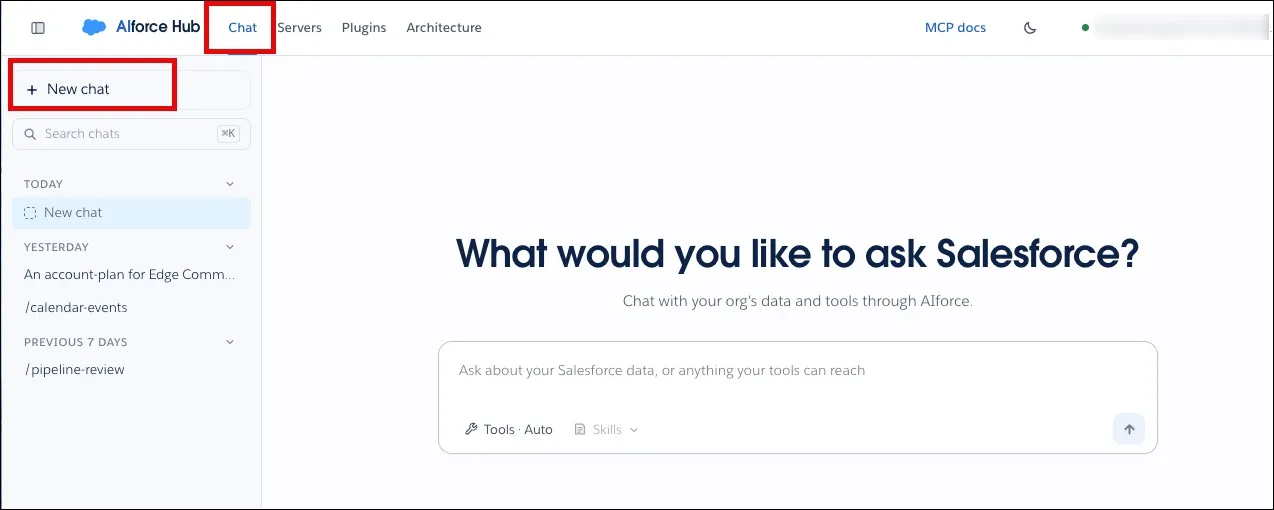
Enter the following prompt:
txt/account-context Meridian Cold StorageYour AI assistant uses the
account-contextskill to summarize the account, its key contacts, open opportunities, and recent activity.In the response, find the open opportunity Meridian Chiller Replacement. It's still at Id. Decision Makers, and its close date has passed.
Step 2: Create a Follow-Up Task
Enter the following prompt:
txtCreate a follow-up task on the overdue opportunity.TIP
If your AI assistant suggests this prompt below its previous response, you can select the suggestion instead of typing.
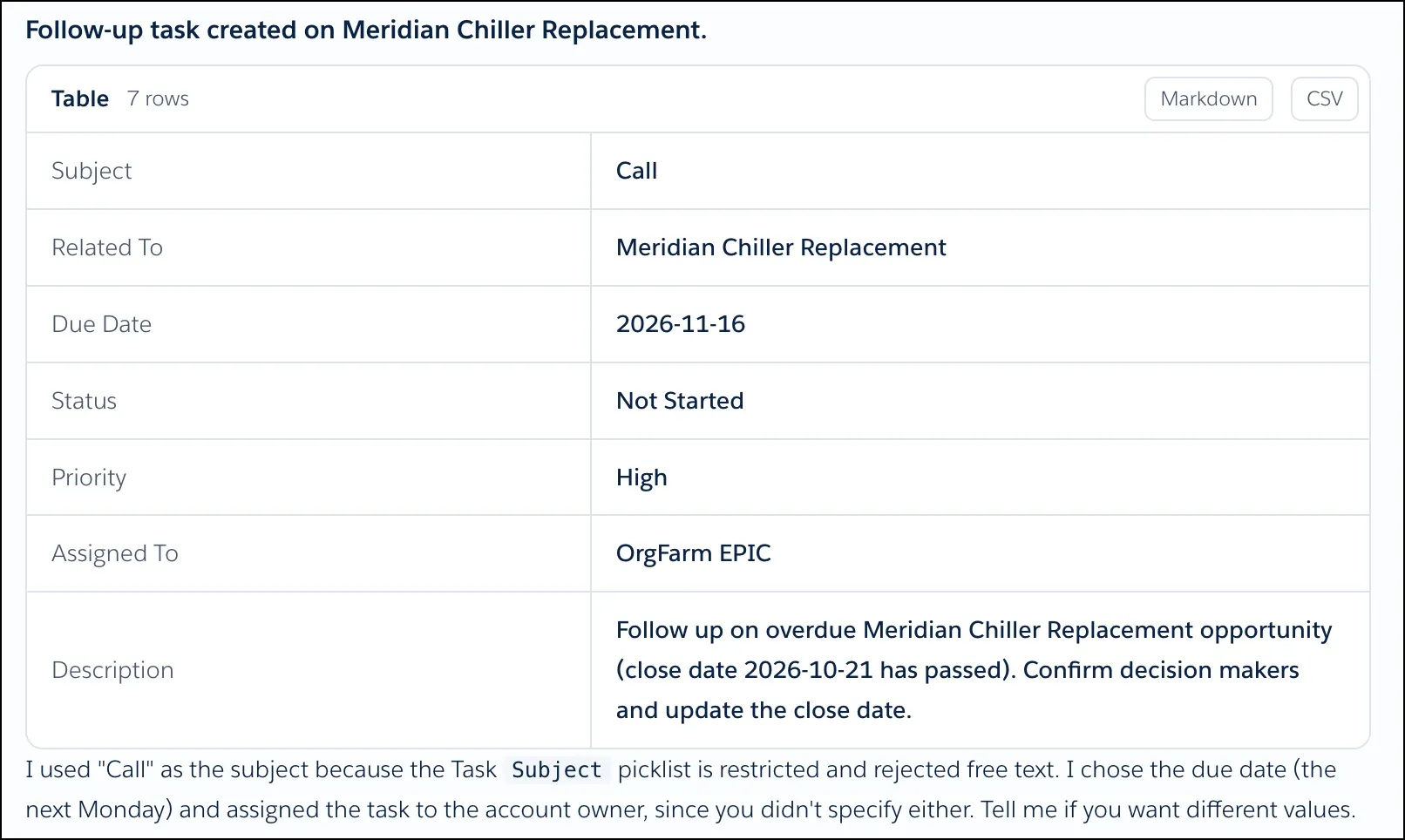
Your AI assistant may create the task right away, or show a draft of the task first. If it asks which contact to use and for confirmation, reply
Dana Whitfield, yes.Your AI assistant confirms that it created the task on the Meridian Chiller Replacement opportunity. The task subject may show as Call.
Step 3: Draft a Personalized Outreach Email
You want to reconnect with your customer in a meaningful, personal way.
Enter the following prompt:
txtDraft an outreach email for this follow-up.Your AI assistant uses the
draft-outreachskill to write an email to your primary contact, based on the account's history.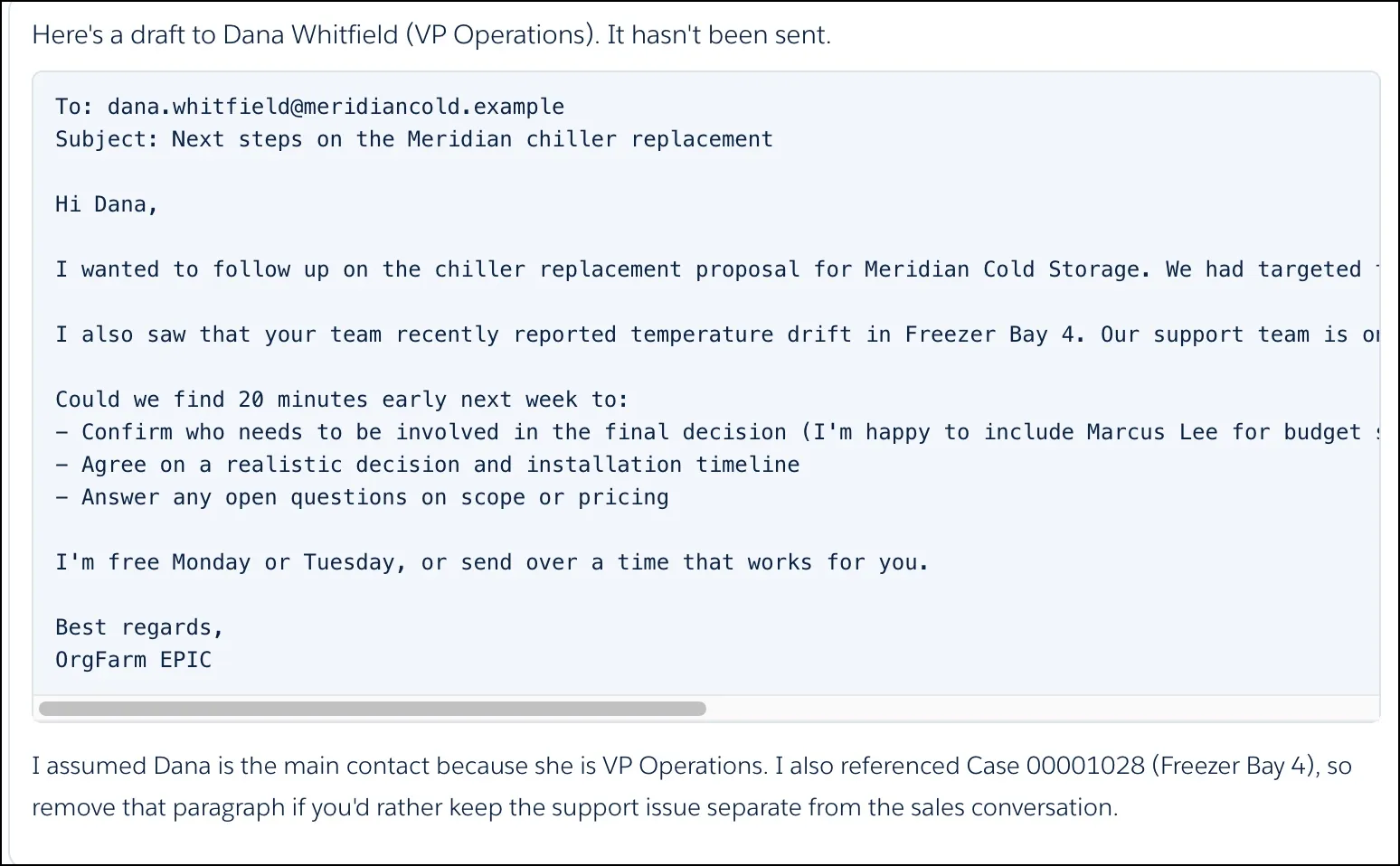
Step 4: Log Your Outreach as an Activity
You want to keep a record of your outreach without switching to Salesforce.
Enter the following prompt:
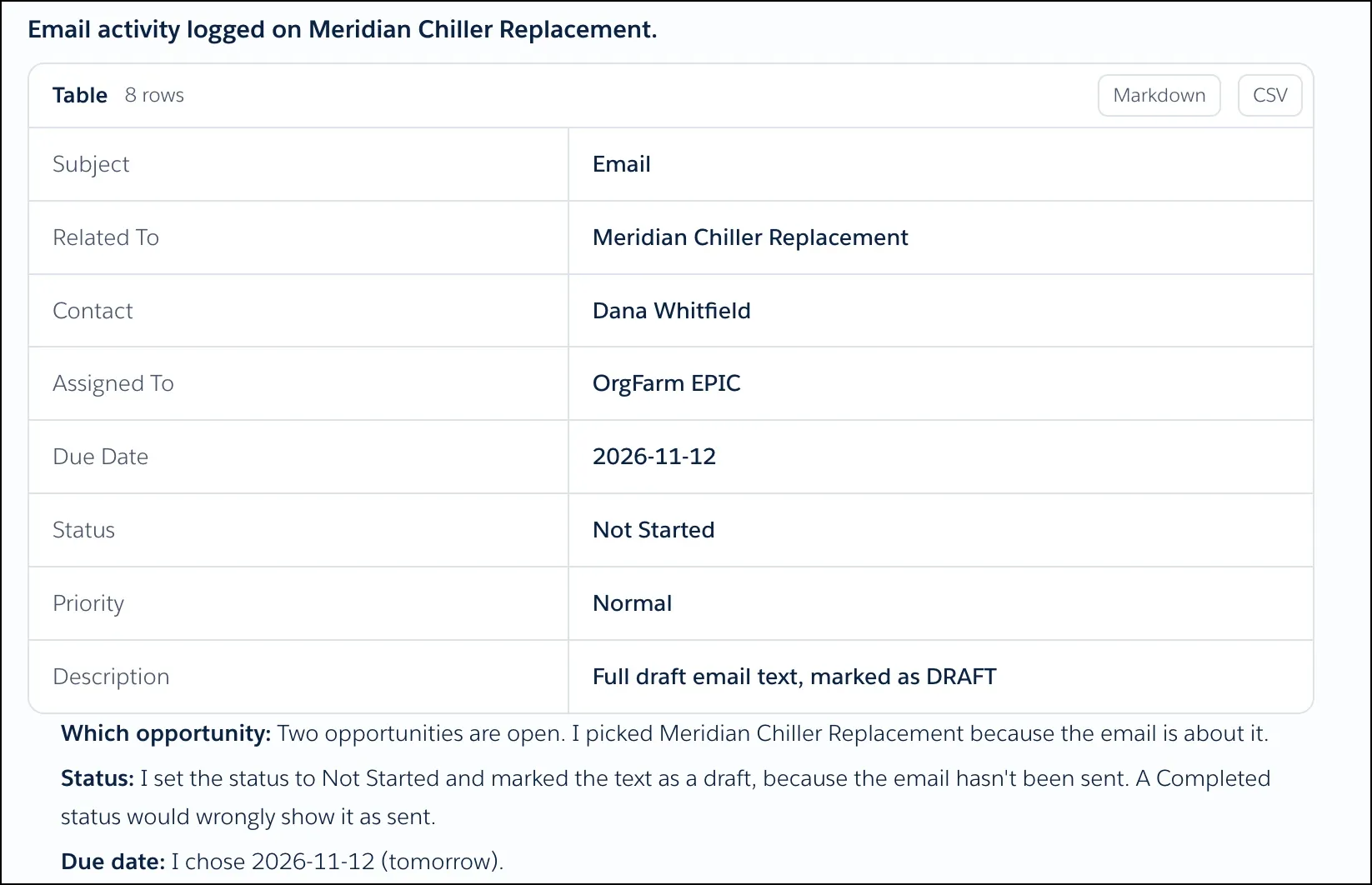
txtLog this email as an activity on the open opportunity.If your AI assistant shows a draft and asks you to confirm, reply
yes.TIP
Warned that the email hasn't been sent? Your AI assistant may have no email tool connected. It still logs the email as a completed activity.
Step 5: Update the Opportunity Stage
The deal has stalled, so you move it back to Needs Analysis to qualify it again.
Enter the following prompt:
txtUpdate the opportunity stage to Needs Analysis.If your AI assistant shows a proposed update and asks you to apply the changes, reply
yes.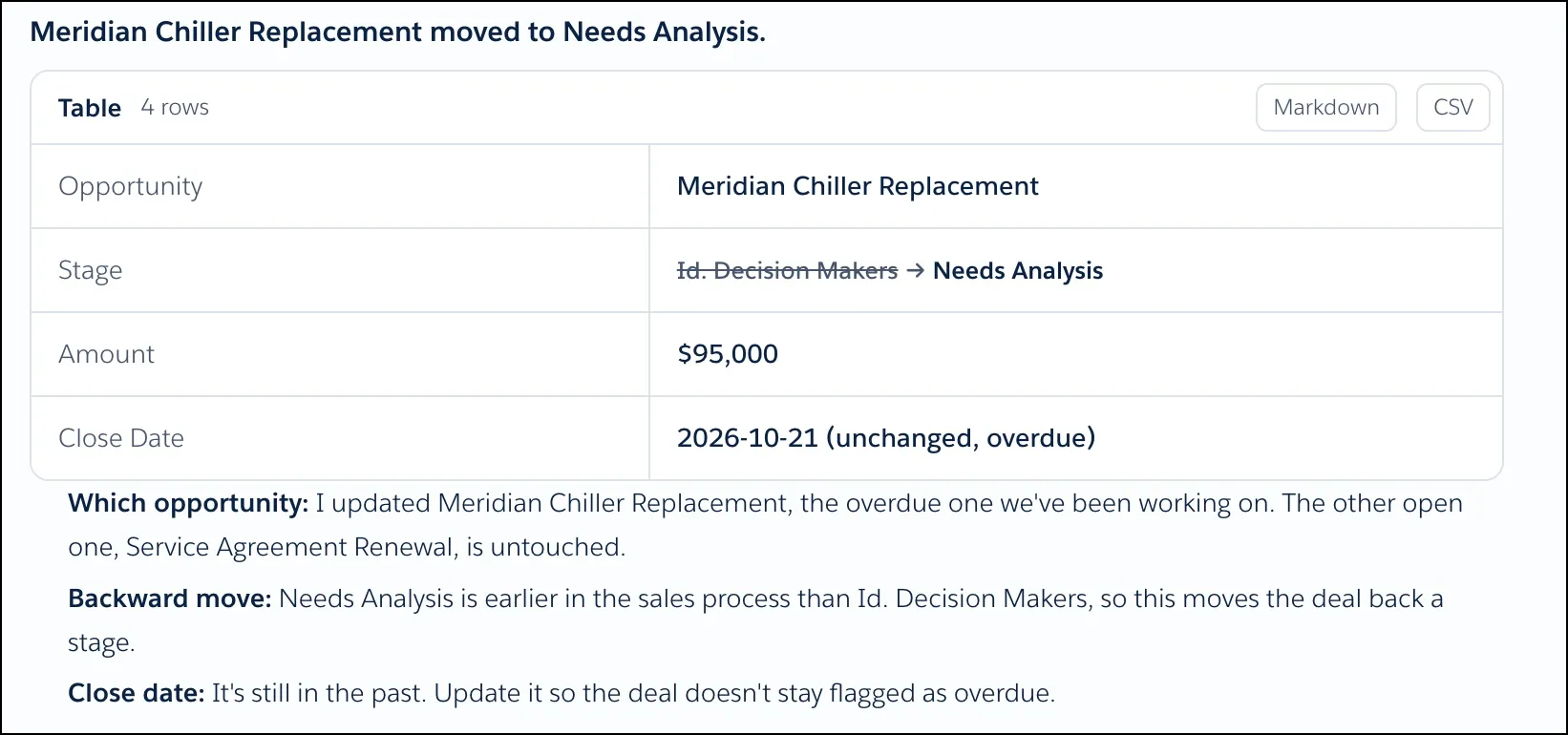
Step 6: Verify Your Updates in Salesforce
In your Salesforce org, enter
Meridian Cold Storagein the search box at the top of the page and press Enter.Under Accounts, click Meridian Cold Storage.

In the Opportunities related list, click Meridian Chiller Replacement.
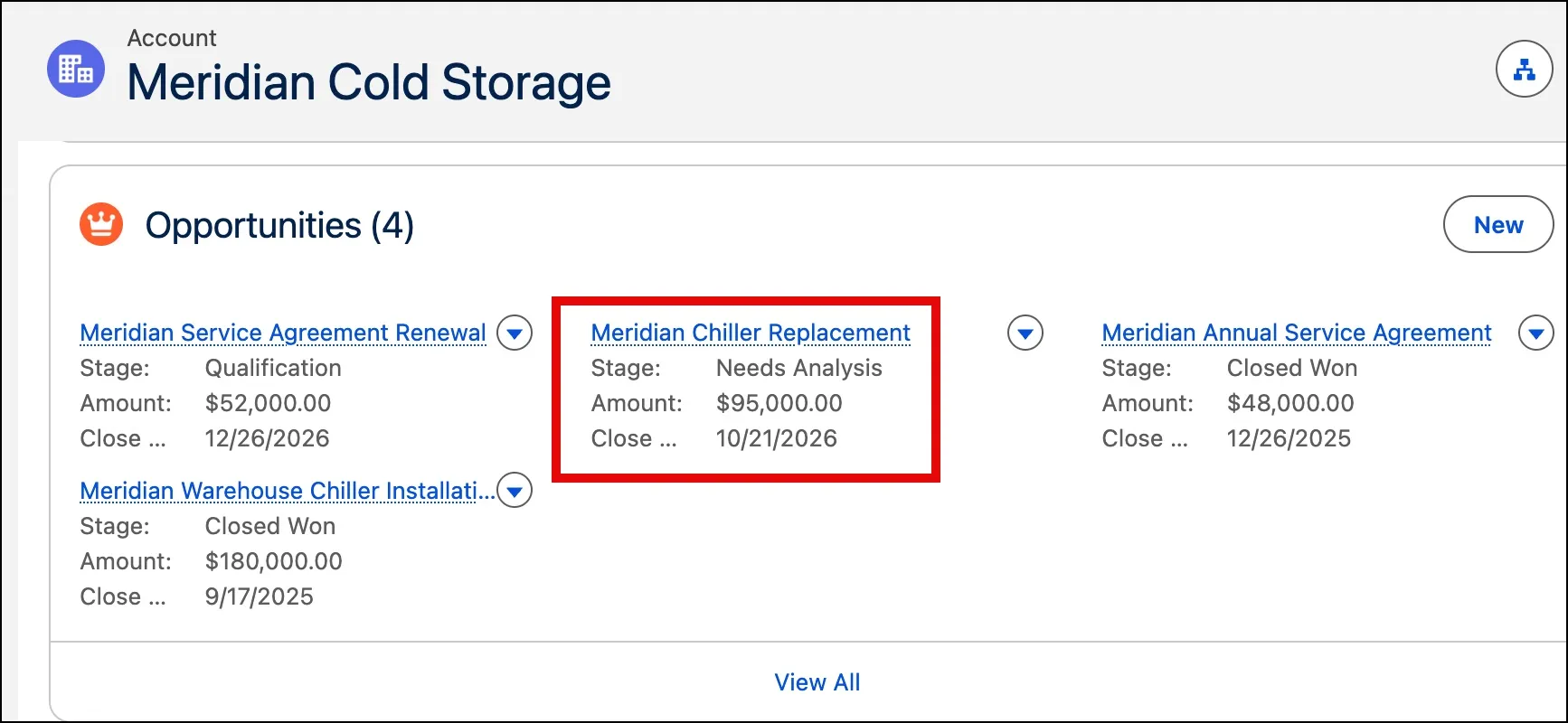
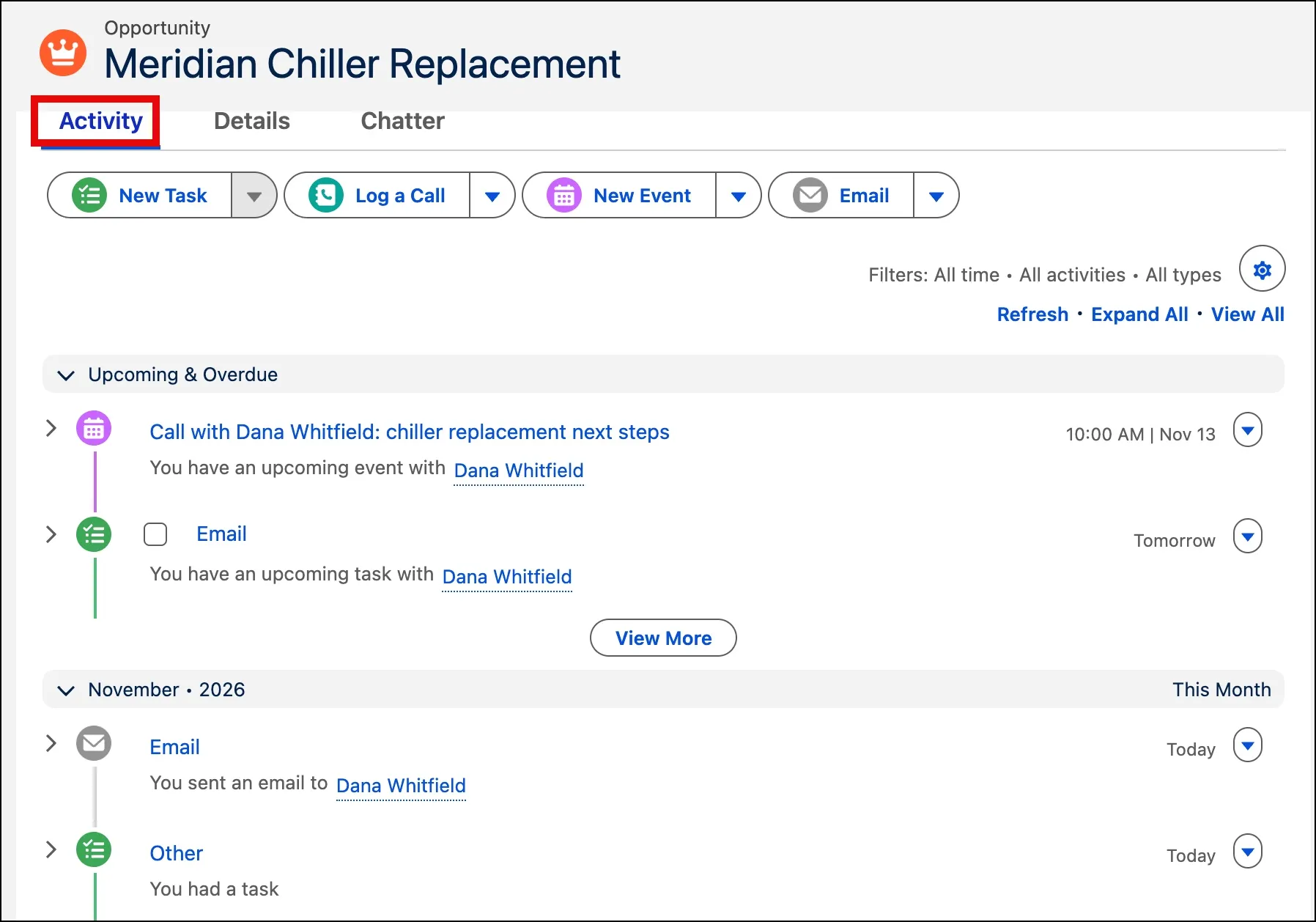
On the Activity tab, you should see the follow-up task and the logged outreach email next to the activities from earlier weeks. They may appear with the subjects Call and Email. You may also see extra items, such as a second Email entry or an Other task.
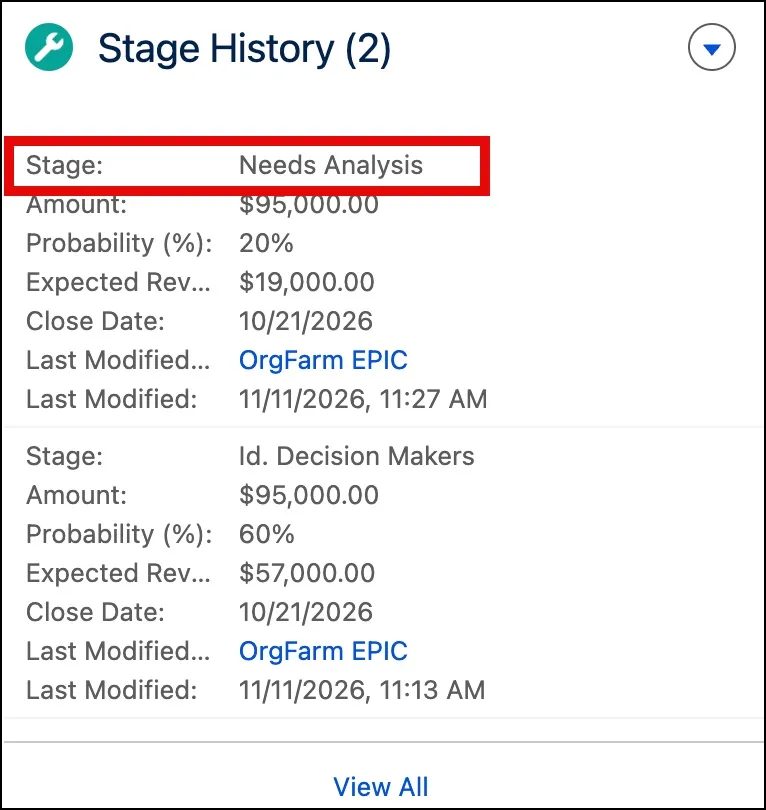
In the Related panel, find the Stage History list. The latest entry should show the stage Needs Analysis.
Summary
- You got an account brief for Meridian Cold Storage using the
account-contextskill. - You created a follow-up task on the overdue opportunity.
- You drafted a personalized outreach email using the
draft-outreachskill. - You logged the email as an activity using the
log-activityskill. - You updated the opportunity stage using the
update-opportunityskill. - You verified that all updates are in Salesforce.
You know what's happening with the account, but not yet where it's headed or who really decides. Next, you'll dive deeper into the account's forecast, stakeholders, and overall health.