Headless Experience Layer (HXL), currently in beta, helps you build rich agentic UIs via widgets that can be rendered across multiple surfaces such as Agentforce employee agents, Claude, Slackbot, and ChatGPT. If your HXL widget already renders in Claude or ChatGPT, it can render in Slackbot too. You don’t need to change the widget, the Apex action, or the Custom Lightning Types.
What’s left is configuration on the Slack side. You decide how Slack connects to your Salesforce MCP server, who can use it, and which tools Slackbot may run.
This post covers what your custom Salesforce Hosted MCP Server needs before you connect and how to connect Slackbot through the Salesforce org connection, as well as tool permissions, tool design for Slackbot, and how to troubleshoot a missing card.
New to HXL? Read Building Interactive UI with Headless Experience Layer to build the widget, the Custom Lightning Types, and the MCP server definition. Then read How HXL Widgets Render in Agentforce and MCP Clients to see what happens on the wire. This post picks up where those end.
What you need before you start:
- HXL (Beta) turned on in Setup > Headless Experience Layer Settings
- An active custom MCP server with a working HXL widget
- A Slack Org Owner, or an admin who can manage Salesforce organizations, and a Salesforce admin
See Pronto storefront tools render in Slackbot
Slackbot renders an HXL widget the same way Claude and ChatGPT do: It follows the tool’s UI resource to the widget and draws it as an interactive block, using HTML styled to look like a Block Kit. A custom MCP server returns the widget as HTML, which is currently the only format it can return because it follows the MCP Apps standard. You don’t build any Block Kit for Slackbot.
Tip: You can preview how widgets will look in Slackbot in the HXL Playground.
To see how this works, you can use Pronto, the sample app for a fictional food-delivery platform. A Pronto employee prompts Slackbot, “Tell me about The Green Fork.” Slackbot calls the getStorefrontFromName tool on a custom MCP server named Pronto Storefront Tools and shows the storefront card. The card’s View Menu button posts a follow-up question, and Slackbot calls getStorefrontMenu to show the menu card.
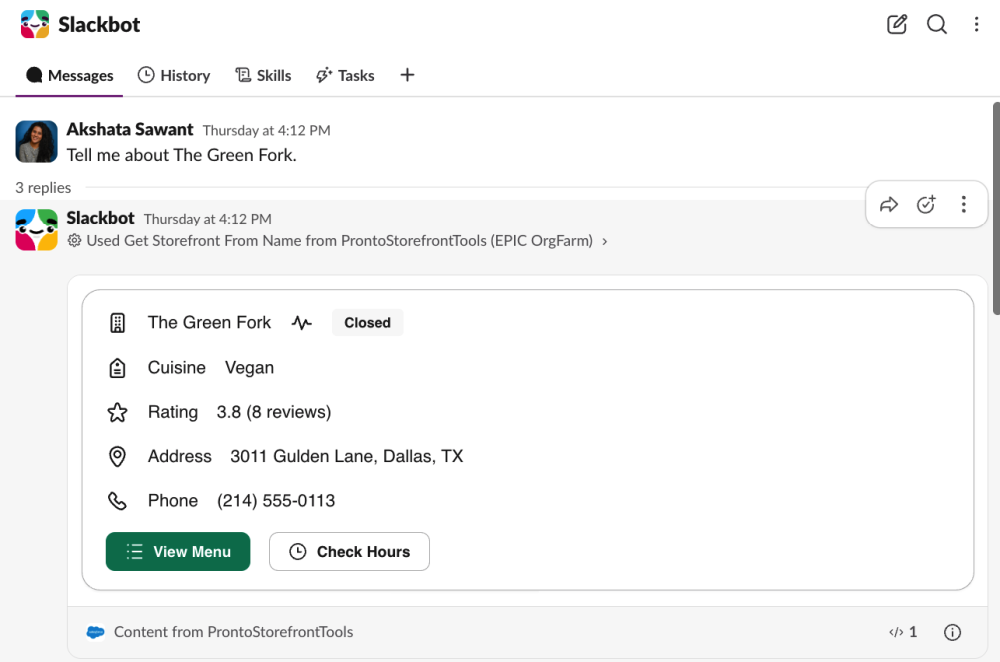
Widget buttons don’t call your Apex action directly. The View Menu button uses the widget’s sendMessage action, so a click posts “Show me the menu for The Green Fork” as a new message. Slackbot treats it like any other question and picks a tool again. The menu card appears only if Slackbot picks the menu tool, which is why clear tool descriptions matter for follow-up cards too.
Check your MCP server before you connect Slackbot
If widgets don’t appear in Slackbot, or Slackbot answers in plain text instead, the cause is usually the MCP server definition, not Slack.
Without a valid UI resource, the server returns no widgets. Check the five server settings in the table below for the most likely issues.
| Check | Why Slackbot needs it | How to verify |
| The server is Active | Slack can’t list the tools of an inactive server | Setup > API Catalog > MCP Servers shows the server as Active, with the tool count you expect |
Every <resources> entry has a <description> |
The server definition in the HXL guide’s Create a Custom MCP Server includes one for each resource. Without it, the tool can return text only, and Slackbot answers in text | Open the server definition and check each resource |
Each tool’s <uiResource> matches a resourceName |
The tool’s <uiResource> value is how Slackbot finds its widget. If no resourceName matches, the tool returns text only |
Compare the two values in the server definition |
Read-only tools set readOnly to true and destructive to false |
These flags tell Slackbot whether a tool only reads data or can change it. Slackbot treats unclassified tools as write tools, which can add confirmation prompts | Review each tool’s flags |
descriptionOverride says exactly what the tool returns |
Slackbot’s model reads it to decide which tool to call | Read it as if you were the model |
Connect Slackbot through the Salesforce org connection
Slackbot connects to a custom MCP server through the Salesforce org connection. The org connection links your Slack workspace to your Salesforce org once. Then you add any active MCP server from that org. You need to be a Slack Org Owner, or an admin who can manage Salesforce organizations, and a Salesforce admin. Perform the Slack admin steps in a browser rather than the desktop app.
- Map users. On each Salesforce user, set Federation ID to the email address the person uses in Slack.
- Request the connection. In Slack, go to Tools & settings > Manage Salesforce Organizations, and click Connect Salesforce Org. Enter your org’s My Domain URL and click Request Connection.
- Approve it in Salesforce. In Setup, open Manage Slack Connection. Set Salesforce Mapping Field to SAML Federation ID, and approve the request. Back in Slack, refresh the Salesforce organizations page. A green banner shows your org; click View details and approve it.
- Add the MCP server. In Slack admin, open Salesforce > MCP servers, click Add MCP server, and pick your server. Finish every screen, and choose who can use it.
- Check the result. Verify that the MCP servers list shows your server as Connected, with a value in Date added.
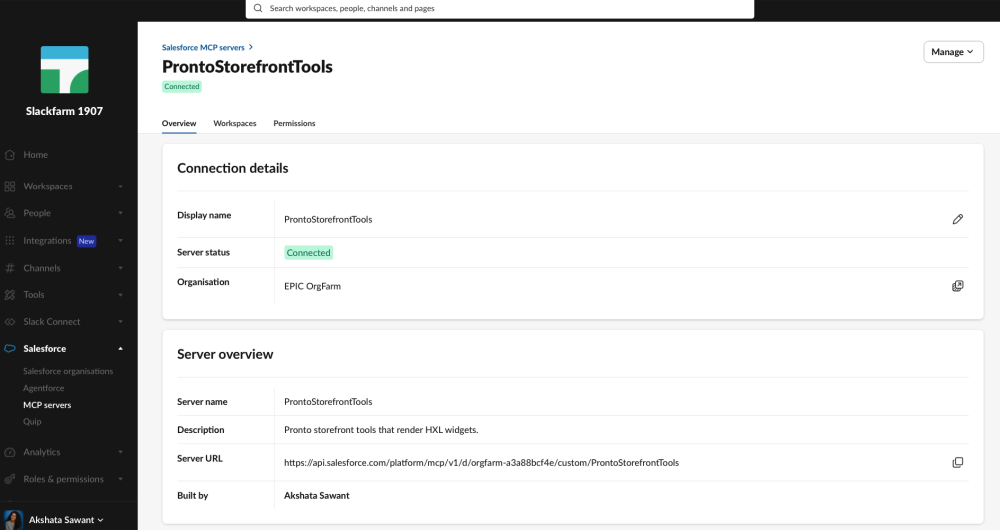
Note: If the Date added is blank, the configuration isn’t complete, and Slackbot can’t see the server’s tools. Remove the server and add it again.
Turn on the server in Slackbot and set tool permissions
Each user turns on the server in Slackbot and signs in once.
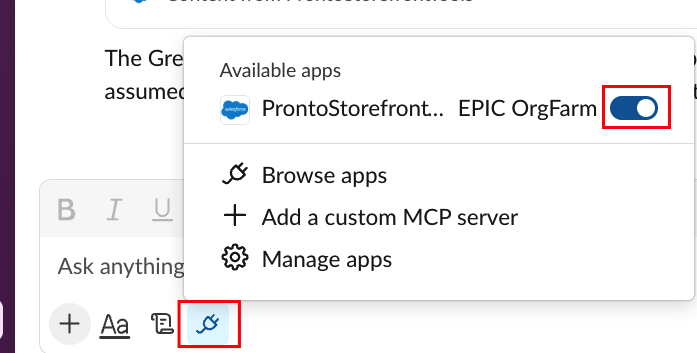
- Open a direct message with Slackbot and open the apps menu below the message box.
- Switch on your server. If Slack asks, sign in to Salesforce and allow access.
- Send a prompt that one of your tools can answer, for example “Tell me about The Green Fork.”
The first time Slackbot calls a tool, it asks the user to choose Allow once, Always allow, or Deny. This is per-tool trust, and it’s one more reason to keep read-only tools and write tools separate. In Pronto, lookup tools like getStorefrontFromName are safe to always allow. Pronto Employee Server also has tools like createOrder and cancelOrder, which are marked destructive, so users should approve each call.
Two limits from the Slackbot MCP client documentation shape your server design:
- Five active servers. Each user can have up to five active MCP servers in Slackbot, so keep each server focused on one job.
- 60-second timeout. A tool must respond within 60 seconds. MCP tool calls are stateless, so each call runs your invocable Apex action from the start. Keep that work small: avoid chained callouts and heavy aggregate SOQL queries, and return only the fields the widget needs.
Help Slackbot pick the right MCP tool
Slackbot chooses among every tool it can reach. That includes the tools on all of the user’s active servers, and Slackbot’s own Salesforce search. If another tool can answer the question, Slackbot may pick it, and you get a plain table instead of your card.
You can see this in Pronto. Pronto Employee Server and Pronto Storefront Tools both answer storefront questions. With both servers on, Slackbot sometimes calls searchStorefronts and a menu lookup on the Employee Server, and builds its own table. To see which tools Slackbot ran, check the step line: the short summary of its work that Slackbot shows with each answer, such as “Queried Salesforce” or the name of a tool it called. Expand it to see each step. If it names Slackbot’s own Salesforce search or a tool from another server, see “Troubleshoot HXL widgets in Slackbot” below.
These practices help Slackbot pick the tool that has the widget:
- Avoid overlapping servers. Don’t put two tools that answer the same question on two active servers. If you must, switch one server off while you test.
- Write specific tool descriptions. Name the object and the fields the tool returns, as the
descriptionOverridebelow does. - Name records clearly in prompts. “Tell me about The Green Fork” is easier to route than “that restaurant.”
- Start a new direct message after a change. A conversation can keep a tool list from before you added or removed a server.
Here’s the Slack-relevant part of the getStorefrontFromName tool in Pronto Storefront Tools. The description names the object and the fields the tool returns, and the readOnly and destructive flags mark it as a lookup.
1<tools>
2    <descriptionOverride>Look up a Pronto storefront by name: cuisine, status, rating, address, and phone. Read-only.</descriptionOverride>
3    <destructive>false</destructive>
4    <readOnly>true</readOnly>
5    <toolName>getStorefrontFromName</toolName>
6    <toolTitle>Get Storefront From Name</toolTitle>
7    <uiResource>getStorefrontFromName</uiResource>
8</tools>
The full server definition, including apiDefinition and the <resources> block, is covered in Building Interactive UI with Headless Experience Layer.
Troubleshoot HXL widgets in Slackbot
A missing or incorrect HXL card in Slackbot usually traces back to one of six causes, and most fixes are straightforward. To troubleshoot, match what you see to a row in this table.
| What you see | Likely cause | Fix |
| A plain table, and the step line says Slackbot queried Salesforce or used another server | Slackbot picked a different tool | Switch off overlapping servers, start a new direct message, and name the record |
| Slackbot says a tool doesn’t exist, or keeps checking tool availability | The server add in Slack admin didn’t finish | Check Date added. If it’s blank, remove the server and add it again |
| Text only, from your tool | No UI resource: a <resources> entry is missing its <description>, or the outer type (the Custom Lightning Type that mirrors the tool-call envelope) has no renderer.json |
Fix the server definition or the type, and redeploy |
| Slackbot can’t load the tools | The OAuth session expired | Reconnect the server in the Slackbot apps menu |
| The card renders, but some values are blank | A renderer attribute name or output path doesn’t match the widget’s schema.json or the action output |
Make the names and paths match exactly |
| A permission prompt on every call | The user chose Allow once | Choose Always allow for read-only tools |
Troubleshooting tip: To check the server without Slack, connect a debugging tool such as MCP Inspector or MCPJam to your server and call the tool. If the tool result has no UI resource there either, the fix is in your server definition, not in Slack.
Test in the Slack desktop app or Slack in a browser. After you change a widget, the MCP client can take a while to pick up the new version, so allow time before you test again.
Conclusion
Your HXL widget doesn’t need any Slack-specific code to appear in Slackbot. The work is in the setup: make sure the server is active, every resource has a description, and each tool’s readOnly and destructive flags are set correctly. Then connect it through the Salesforce org connection, set tool permissions, and write tool descriptions that help Slackbot pick the right tool. Do that, and the card your users see in Agentforce and Claude shows up in Slack too, where many of them already work.
Try it with Pronto Storefront Tools, then with your own server. You can ask questions in the new Trailblazer Community on Slack.
Resources
- Use HXL Widgets on MCP Channels
- Slackbot as an MCP Client
- Headless Experience Layer: Get Started
- Blog: Building Interactive UI with Headless Experience Layer
- Blog: How HXL Widgets Render in Agentforce and MCP Clients
- Pronto sample app on GitHub
- AIforce Workshop: Give Agents UI with the Headless Experience Layer (HXL)
About the author
Akshata Sawant is a Lead Developer Advocate at Salesforce, focused on Agentforce and the Headless Experience Layer (HXL). For a more in-depth look at Akshata’s accomplishments, visit her LinkedIn profile.