


 j
jComplete Document AI Schema Configuration (For Reference Only)
Step 3 - Create Apex Class (Document AI API Wrapper)
Step 4 - Create Bank Statement Extraction Flow (Apex Wrapper)
Set up the Data 360 Document AI processor configuration for a bank statement data extraction. This configuration uses an LLM model to analyze an uploaded bank statement, define the structured fields for extraction, and ensure the output is delivered as a clean, structured JSON schema. Learn more about Document AI.
Prepare your bank documents for upload. In the document schema builder, click Upload Files and select your bank statement.
On the top left, select any LLM model. Gemini 2.0 Flash is recommended for PDF analysis.
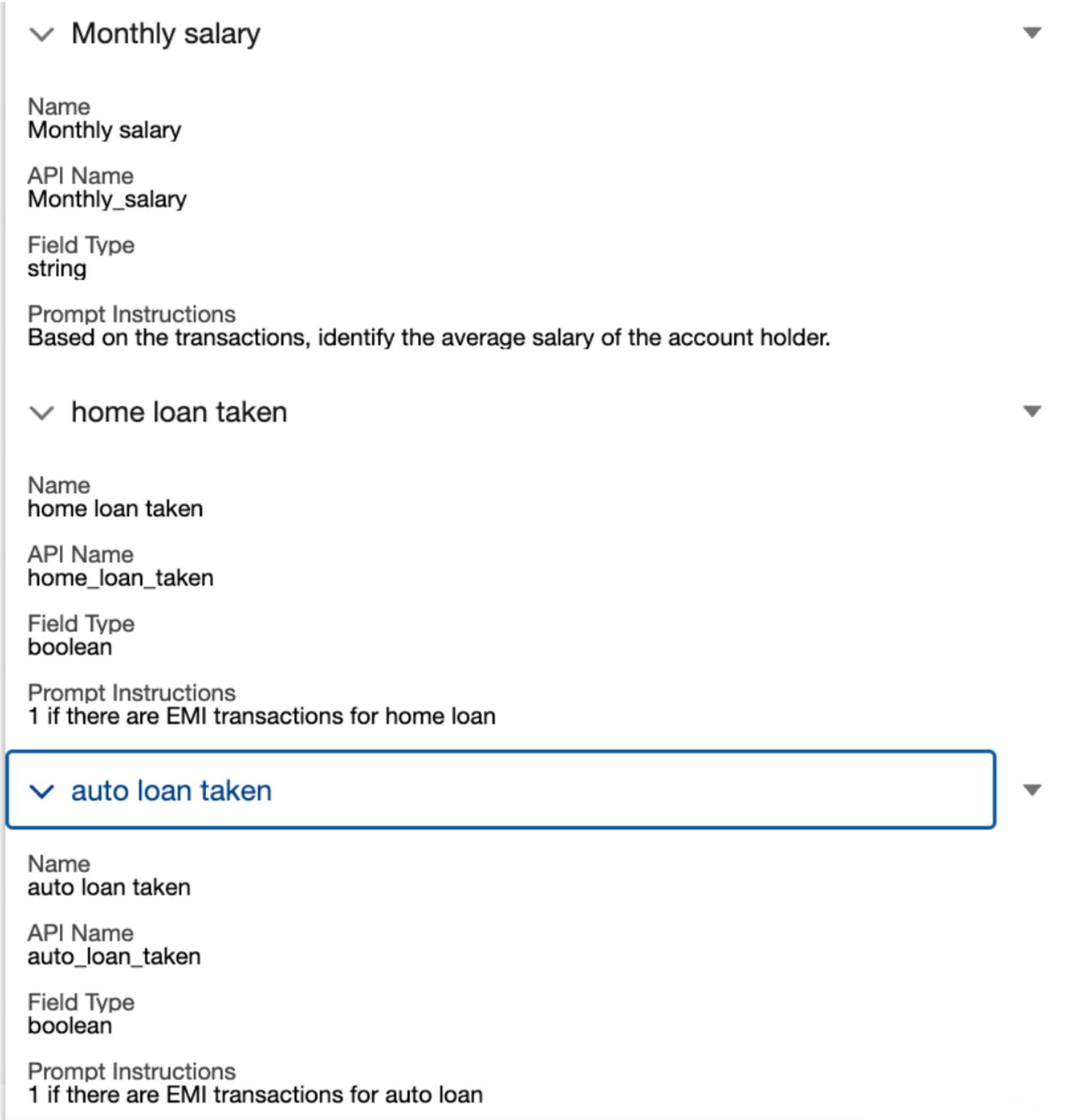
Configure extraction fields:
| Name | API Name | Field Type | Prompt Instruction |
|---|---|---|---|
| Monthly salary | Monthly_salary | string | Based on the transactions, identify the average salary of the account holder. |
| home loan taken | home_loan_taken | boolean | 1 if there are EMI transactions for home loan. |
| auto loan taken | auto_loan_taken | boolean | 1 if there are EMI transactions for auto loan. |
Verify the results of the bank statement data extraction.
Click Test.
Document AI processes the uploaded file and extracts the defined fields. Review the output to verify that all fields are extracted correctly.
Save the configuration:
bank_stmt_analyzer. Copy and save the API name for next steps.You successfully created your Document AI processor configuration for bank statement data extraction. For an example JSON schema, see the complete document schema configuration.
Step 2 - Create Flow to Retrieve File ID from Email Address: Create a screen flow to identify the bank statement file from the customer’s email address.
j