


 j
jStep 3 - Create Apex Class (Document AI API Wrapper)
Step 4 - Create Bank Statement Extraction Flow (Apex Wrapper)
Create a screen flow to invoke your Apex method that extracts data from the customer’s bank statement.
On the App Launcher, create a new flow to extract data from the customer’s bank statement.
Bank_Statement_Extraction.Open the toolbox on the top left and click New Resource to create input variables.
The New Resource modal opens. Select Variable as Resource Type.
Enter ContactEmail as API Name.
Select Text as Data Type.
Check the checkbox next to Available for input.
Click Done.
Repeat steps 2-7 for these items:
Org_DomainClient_IdClient_SecretDocument_TypeLLM_ModelContentDocumentIdIDPConfigIdOpen the toolbox on the top left and click New Resource to create output variables.
In the New Resource modal, Select Variable as Resource Type.
Enter Status as API Name.
Select Text as Data Type.
Select Available for output.
Click Done.
Repeat steps 2-7 for these items:
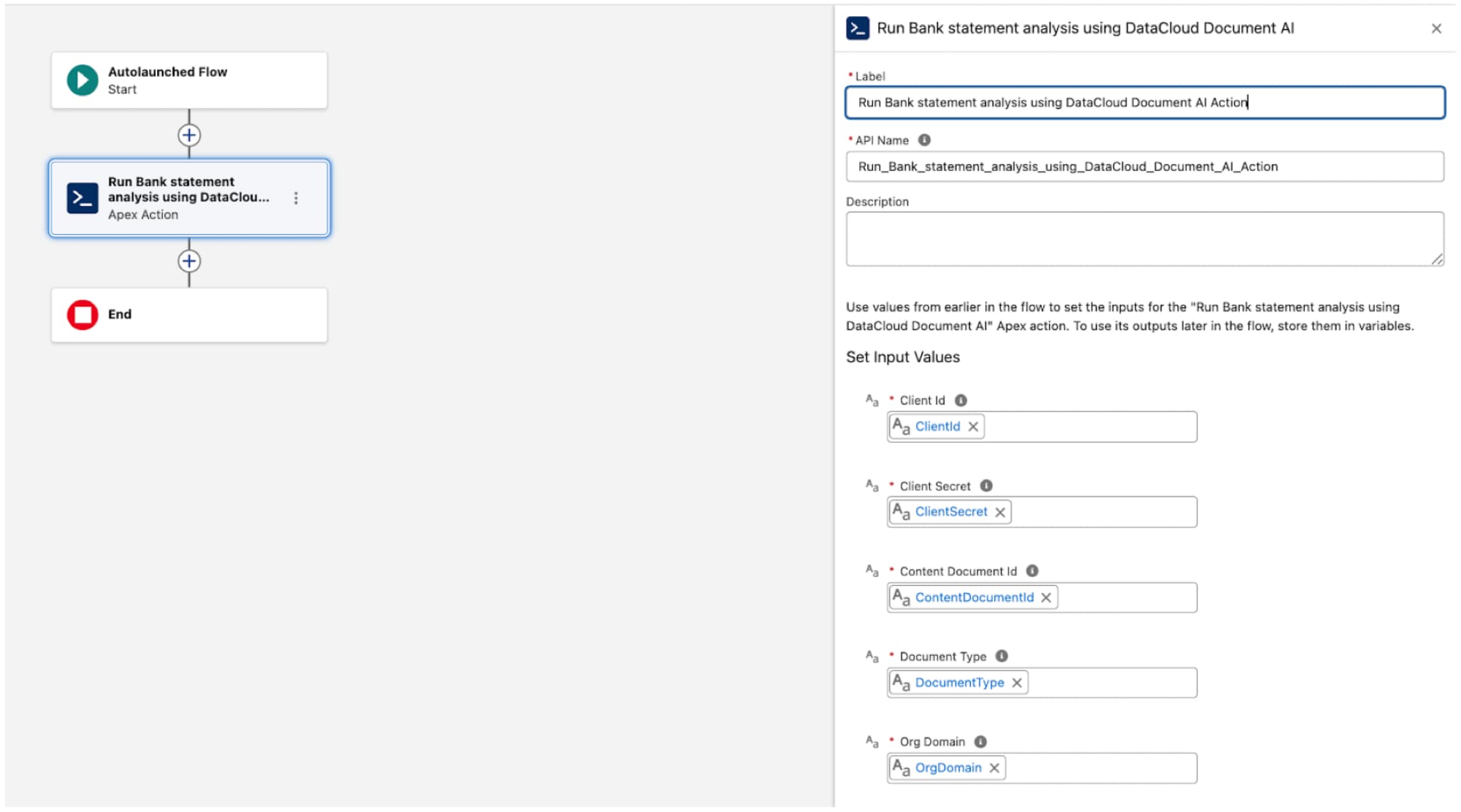
ExtractedDataJsonErrorMessageUnder Set Input Values on the right, enter these values to map the inputs.
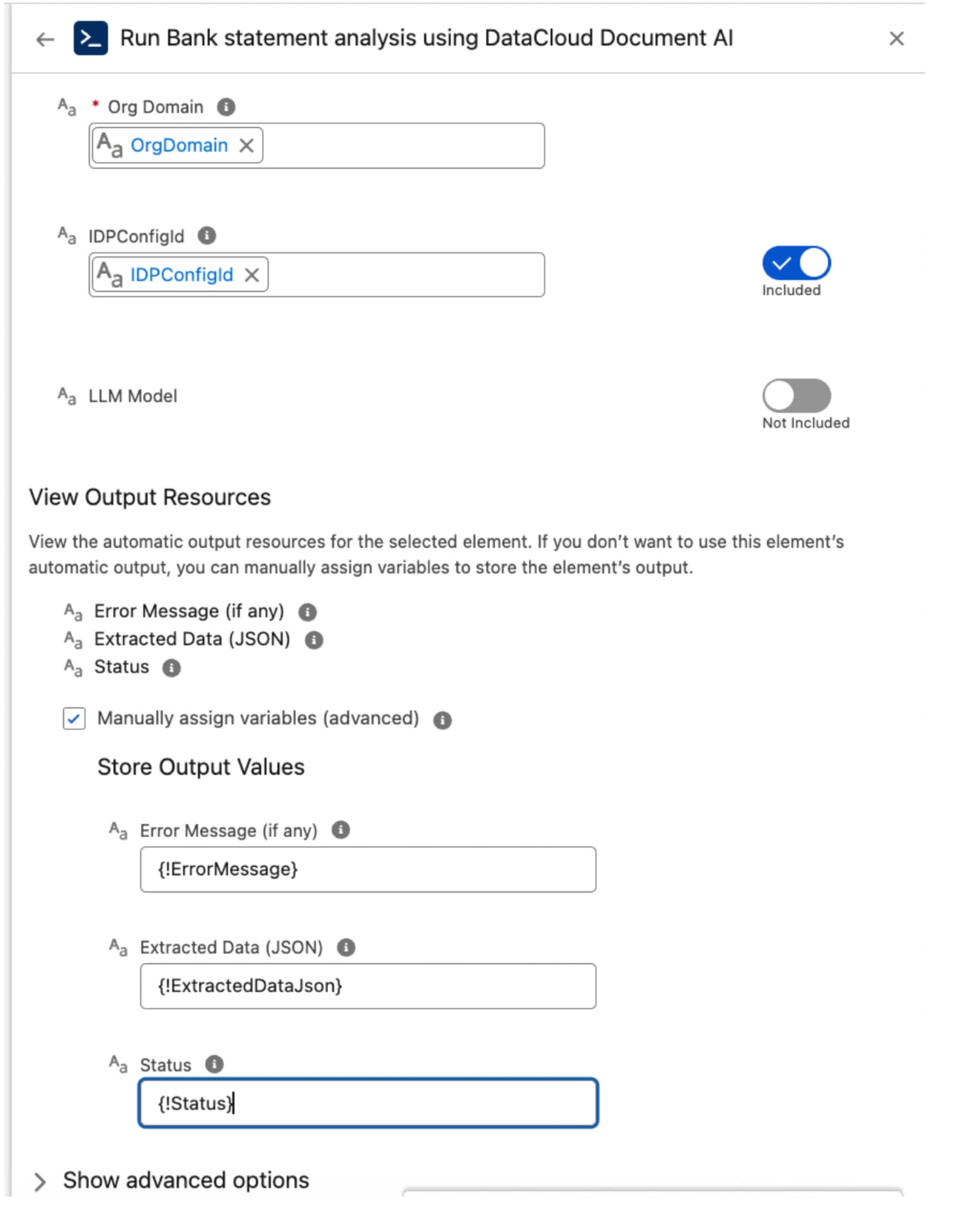
Under View Output Resources, select Manually assign variables (advanced).
Under Store Output Values, enter these values.
Bank_Statement_Extraction.j