Set up record-level actions on a dimension so that dashboard viewers can perform actions directly from a CRM Analytics chart or table. Each action applies to a single Salesforce record, such as creating a task for an opportunity record. You can also create an action to open the Salesforce record or a URL.
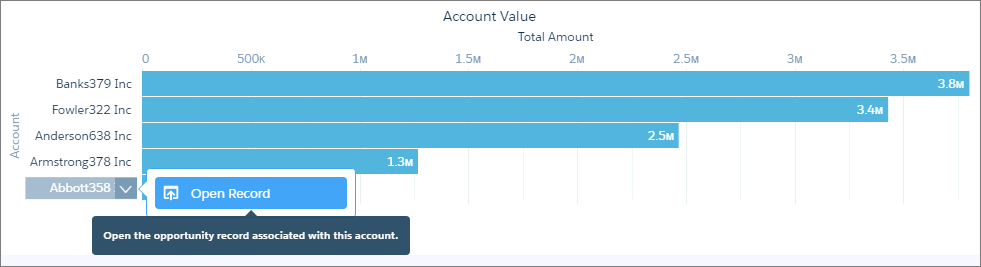
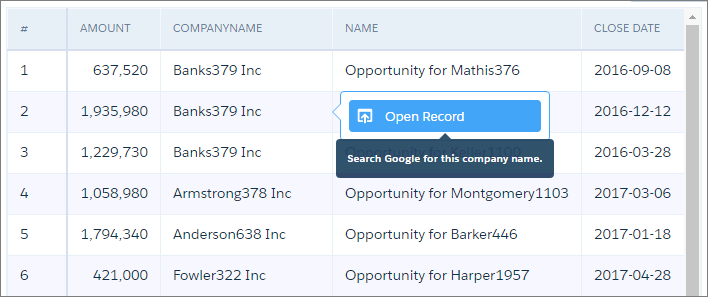
You can add a link in the action menu to open a Salesforce record directly from CRM Analytics charts and tables. The link name appears as Open Record. To let the dashboard viewer know the purpose of the link, add a tooltip that appears when the user hovers over the link.
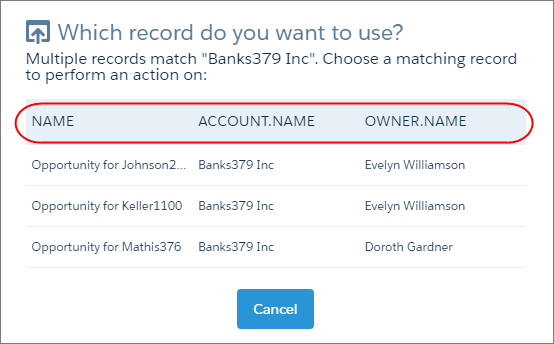
CRM Analytics determines which record to open based on the Salesforce ID provided in the dataset field. When a user tries to open the record and multiple Salesforce records apply to the selected dimension, a popup asks which record to open. For example, the chart shows the value for all opportunities for each account. When the user tries to open the opportunity record for an account and the account has multiple opportunities, the user is prompted to select one. To help the user choose the correct record, the dataset fields show the opportunity name, account name, and owner for each opportunity.
The bold text in the XMD example shows how to set up this type of action.
1"dimensions": [{2 "field": "Account.Name",3 "linkTemplateEnabled": true,4 "linkTooltip": "Open the opportunity record associated with this account.",5 "members": [],6 "recordDisplayFields": ["Name", "Account.Name", "Owner.Name"],7 "recordIdField": "Id",8 "salesforceActions": [],9 "salesforceActionsEnabled": false10}],
Open a Salesforce Record in a Multi-Org Environment
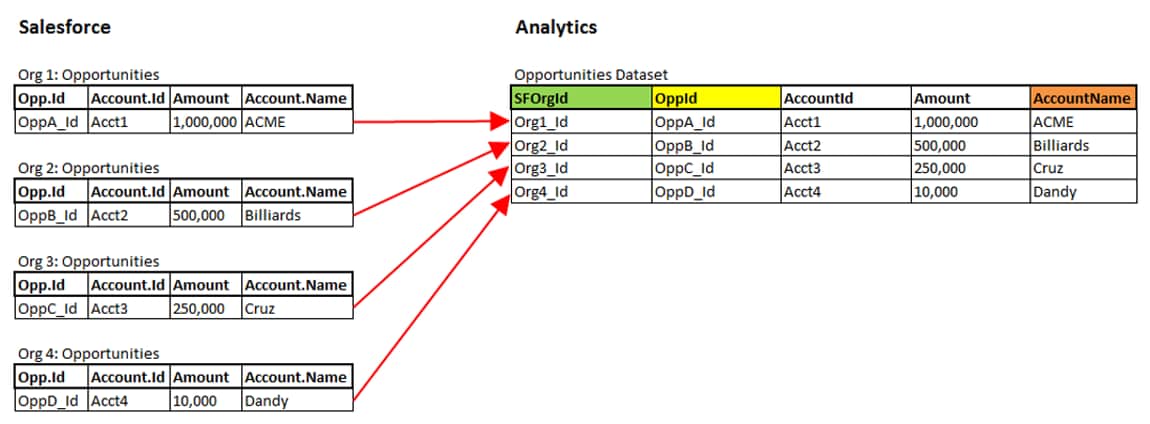
You can configure the action menu in a chart or table to open Salesforce records from multiple orgs. Before we get into how to configure the XMD, let’s look at an example.
You previously loaded opportunity records from multiple orgs into a dataset.
Now you want to allow dashboard viewers to open the Salesforce record directly from a dimension in a chart or table. To locate a Salesforce record in a multi-org environment, CRM Analytics needs the dataset fields that identify each Salesforce record and its org. To provide CRM Analytics with this information.
In the recordIdField and recordOrganizationIdField fields under dimensions specify the dataset fields that contain the record ID and org ID, respectively.
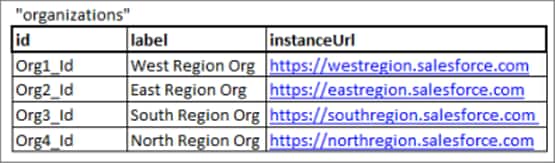
In the id and instanceURL fields under organizations, map the org IDs to the org URLs. You can also specify a label for each org.
When a user clicks the link to open a Salesforce record, CRM Analytics determines which Salesforce record to open by using the org URL and the record ID. CRM Analytics looks up the org ID in the dataset field specified in the recordOrganizationIdField of the XMD. It then uses the org ID to look up the org URL in the organizations section. CRM Analytics retrieves the record ID from the dataset field specified in the recordIdField field of the XMD. For example, if the org URL is https://mydomain.salesforce.com and the record ID is 006f4000002fjpCAAQ, the link to the record in its org is https://mydomain.salesforce.com/006f4000002fjpCAAQ.
The bold text in the XMD example shows how to set up this type of action.
You can add a link to open a website from charts and tables. You can pass dataset field values in the URL using the following syntax.
1“<website url>{{row.<dataset_field_name>}}"
The bold text in the XMD example shows how to set up this type of action.
1"dimensions": [{2 "field": "CompanyName",3 "linkTemplate": "http://www.google.com/search?q={{row.CompanyName}}",4 "linkTemplateEnabled": true,5 "linkTooltip": "Search Google for this company name.",6 "members": [],7 "recordDisplayFields": [],8 "salesforceActions": [],9 "salesforceActionsEnabled": false10}],
When a dashboard viewer clicks the Open Record link, CRM Analytics performs a search in Google based on the company name specified in the CompanyName dataset field.
Perform a Salesforce Action on a Salesforce Record from CRM Analytics
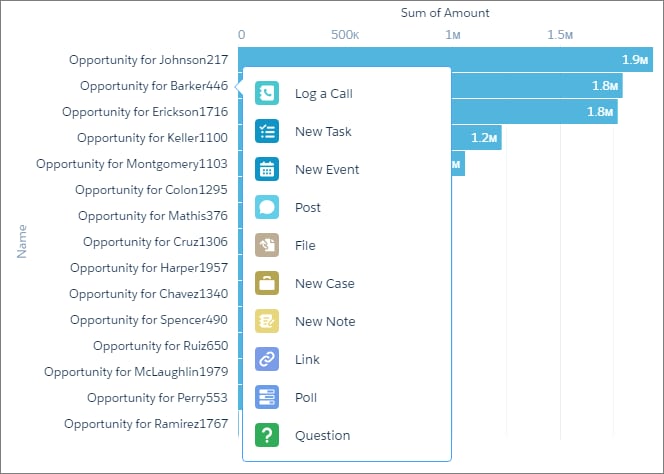
You can add Salesforce actions to the action menu. You can only add actions defined in the page layouts for the corresponding Salesforce object. Actions are only available for the local org, and are not supported for multi-org records.
The bold text in the XMD example shows how to set up this type of action. In this example, all actions defined for any page layout for the object show up in the actions menu.



 j
j