


Lightning Components Developer’s Guide
 j
jNewer Version Available
Optional: Install the Expense Tracker App
If you want to skip over the quick start tutorial, you can install the Expense
Tracker app as a package.
A package is a bundle of components that you can install in your org. This packaged
app is useful if you want to learn about the Lightning app without going
through the quick start tutorial. If you’re new to Lightning components, we
recommend that you go through the quick start tutorial.
To install the Expense Tracker app:
- Click the installation URL link: https://login.salesforce.com/packaging/installPackage.apexp?p0=04to00000003onL
- Log in to your organization by entering your username and password.
- On the Package Installation Details page, click Continue.
- Click Next, and on the Security Level page click Next.
- Click Install.
- Click Deploy Now and then Deploy.
When the installation completes, you can select the Expenses
tab on the user interface to add new expense records. You’ll also see the
Expenses menu item on the Salesforce1 navigation menu. If
you don’t see the menu item in Salesforce1, add it by going to .
You’ll also see the
Expenses menu item on the Salesforce1 navigation menu. If
you don’t see the menu item in Salesforce1, add it by going to .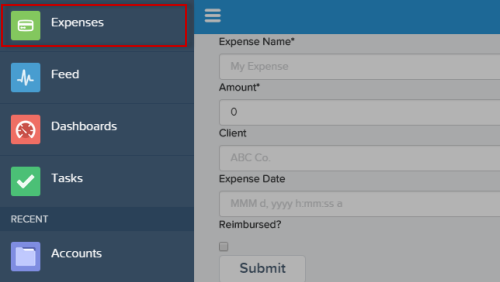
You’ll also see the
Expenses menu item on the Salesforce1 navigation menu. If
you don’t see the menu item in Salesforce1, add it by going to .Next, you can modify the code in the Developer Console or explore the standalone app at https://<mySalesforceInstance>.lightning.force.com/c/expenseTracker.app, where <mySalesforceInstance> is the name of the instance hosting your org; for example, na1.