Environments separate your production storefront from other storefronts for development and testing. Environments are hosted in Managed Runtime. The Storefront Next setup flow in Business Manager creates an environment for the new storefront. Admins can also create more environments for the storefront in Business Manager. Environments created in Business Manager are behind an embedded content delivery network (eCDN).
To create an environment:
In Business Manager, click App Launcher and then select Administration > Sites > Storefronts, and then click your storefront.
In the storefront detail page, in the Environments section, click Create.
Enter the environment name.
The environment creation process starts. The environment status is updated to Ready after the environment is created. The system assigns a default region to your environment based on the region that’s closest to your site.
Click Create.
The default region for new environments is US East (N. Virginia) because it’s located closest to on-demand sandboxes, which are commonly associated with development and testing environments.
If you previously created an environment, you can Edit Environment Settings to connect it to a B2C Commerce instance and one or more site IDs.
Production and non-production environments receive the same resources. All environments automatically scale to handle traffic in the same way. For details, see Environments.


 and then select Administration > Sites > Storefronts, and then click your storefront.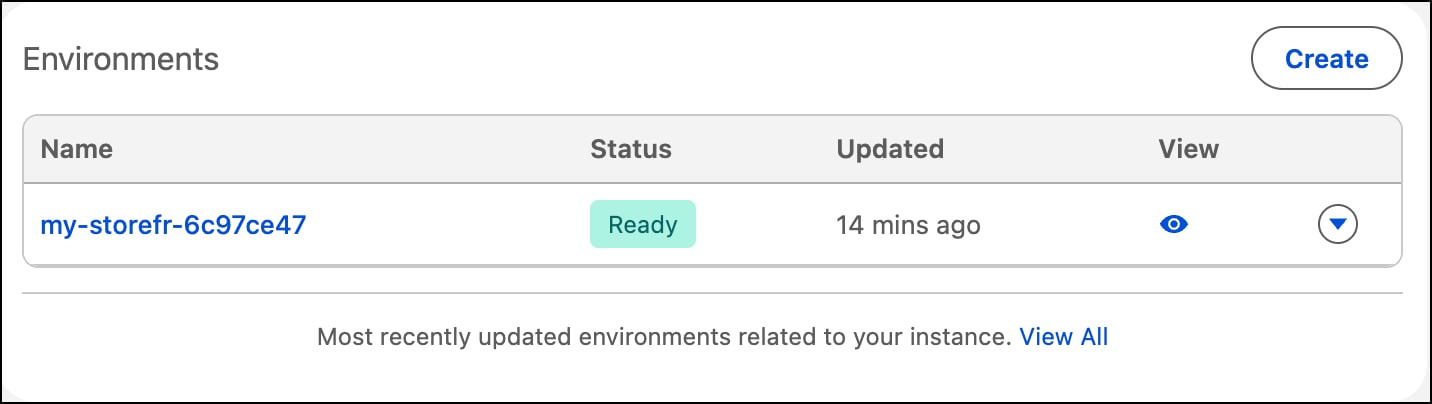
 j
j