


 j
jAnnouncements
Preview Your Storefront
Create a Story
Storybook File and Folder Structure
Test Components in Storybook
End-to-End Testing with CodeceptJS
CLI Reference
B2C Commerce Release Notes
Ask the Community
Test components in the browser by using stories. View stories and their automated tests in the Storybook component library, or run tests via the command line.
The snapshot is the base copy of the components, their properties, labels, and behaviors. Tests use the snapshot to compare component changes. If a test fails, it can indicate a regression bug or an intended change. After making component changes or adding new components, update the snapshot so it becomes the new base for future tests.
To create a snapshot, run this command.
1pnpm test-storybook:snapshotTo update a snapshot, run this command.
1pnpm test-storybook:snapshot:updateAn interaction test verifies that a component behaves correctly when a user interacts with it through clicks, typing, and hovers. It simulates these actions within the isolated Storybook environment, often by using the play function and testing library for powerful, reliable component testing.
To run an interaction test in the browser, click a story under a component. The interaction tests for that component run and show the results.
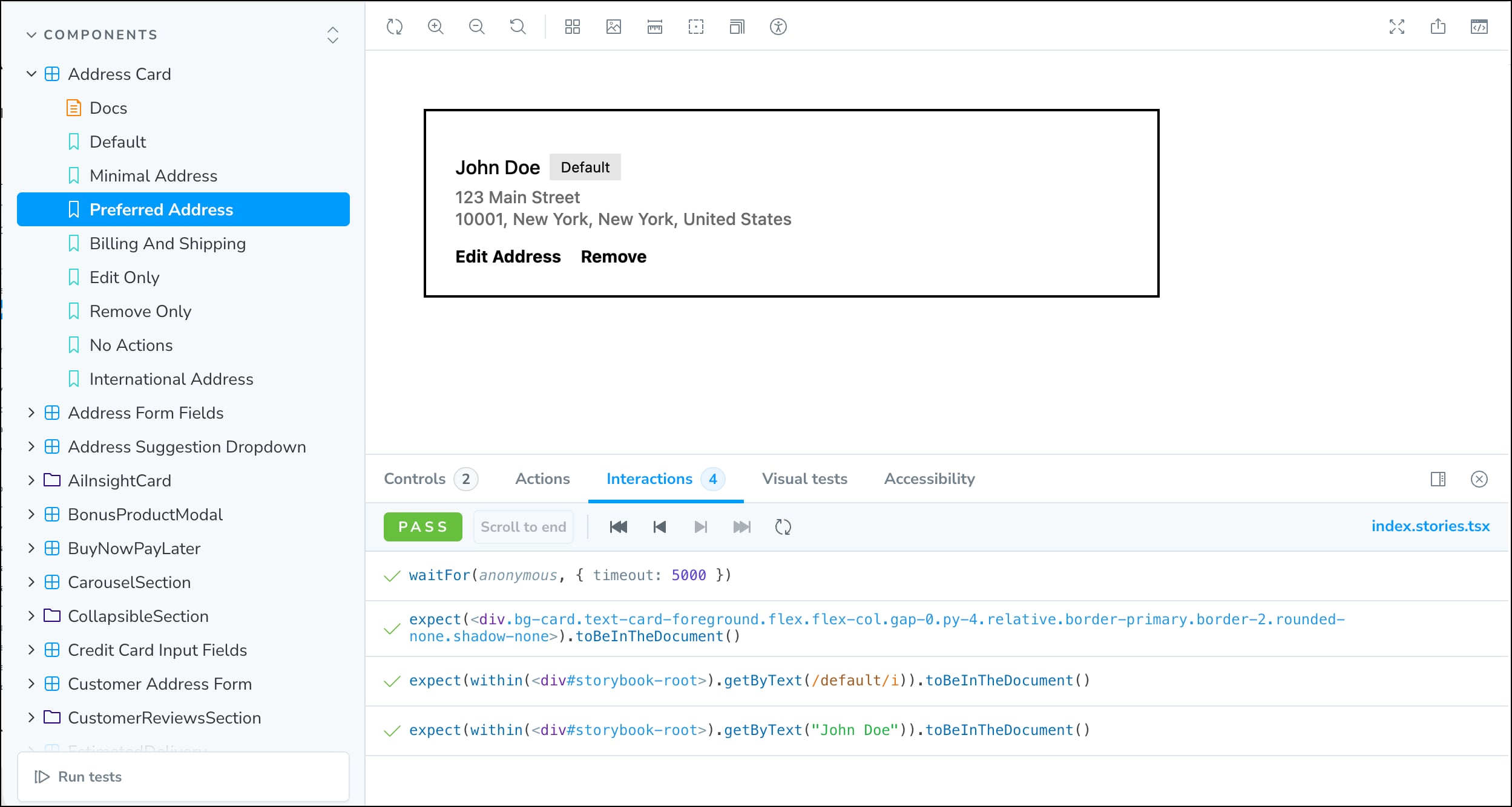
To run interaction tests via the command line, use this command.
1pnpm test-storybook:interactionStorybook accessibility tests check for Web Content Accessibility Guidelines (WCAG) violations in a component. They help you catch accessibility issues in a component and report issues like low contrast, missing alt text, and keyboard navigation problems during development. Accessibility tests help make sure that components are usable by everyone, even simulating vision impairments like color blindness.
To run an accessibility test in the browser, click a story under a component. The accessibility tests for that component run and show the results.
To run accessibility tests via the command line, use this command.
1pnpm test-storybook:a11y