Preview you PWA Kit storefront in Business Manager to verify how it looks based on shopper context including customer groups, date and time, source code triggers, and qualifiers. Use it to test changes to products, pricing, and marketing strategies in a staging environment before deploying to production, ensuring your site displays correctly for specific scenarios like upcoming sales or seasonal campaigns.
Prerequisites
PWA Kit Version
A recent PWA Kit version. We recommend using PWA Kit version 3.18 or later.
Prerequisite Setup
Connect your PWA Kit storefront to B2C Commerce in Business Manager. The storefront connection makes the MRT environment and storefront data available so that Storefront Preview can identify which environment to associate with the storefront and site. In Business Manager, click App Launcher and then select Administration > Sites > Storefronts > Connect Existing.
The Storefront Preview feature requires the same headless design that Page Designer uses even if you aren’t using Page Designer. Perform these steps from Migration Steps:
Set up your site based on the functionality you want to validate in Storefront Preview. Examples:
Set up custom qualifiers and customer group IDs using customer groups in Business Manager to apply rules for personalized pricing, products, or promotions.
To see a personalized shopper experience, set up source code that calls the Shopper Context endpoints. This is required because Storefront Preview uses context information for personalization.
Set up the pricing that you want to offer on a particular date. That way your specified pricing appears when you select that date in Storefront Preview.
Configure your browser to allow third-party cookies on https://runtime.commercecloud.com.
Supported Browsers
You can use Storefront Preview with the latest versions of Chrome or Safari. Your browser must allow https://runtime.commercecloud.com to access third-party cookies. Storefront Preview won’t work if you don’t enable third-party cookies.
Learn how to enable third-party cookies for Chrome and Safari.
Tip
Considerations
Data and experiences shown in Storefront Preview don’t necessarily reflect the shopper experience. Shopper personalization requires the use of the Shopper Context API within your PWA Kit project. Learn more about Shopper Context.
In Business Manager, click App Launcher and then select Merchant Tools, select the site associated with your storefront, and then click Preview.
A new tab opens showing the storefront, with the Storefront Preview form on the left sidebar.
To view the storefront based on various settings, select preview settings by clicking the preview button on the banner of the preview site.
Enter preview settings for the site. All the preview settings are optional.
a. To view the site for a specific customer group, select a customer group from the picklist.
b. To see how the site looks on a specific date and time, select the effective date and time using the date picker in On Date. The date and time displayed is based on your computer’s time zone and then converted to UTC time before sending the request that sets the context. If you don’t specify a date and time, the preview reflects the current date and time.
c. To trigger the promotion or campaign assignment and price books, which are assigned to a source code group, select the triggering source code from the picklist.
d. To view the personalized prices, products, or promotions set up in Business Manager, enter the custom qualifiers as key and value pairs. The custom qualifier keys must be unique. You can define up to 20 custom qualifiers.
Click Apply.
You can now view with the storefront using the context you want to preview. Interact with the storefront to verify the applied context. For example, select a particular size for a merchandise to see any available discounted price.
Debug Storefront Preview
If you experience any issues with Storefront Preview, you can enable Storefront Preview logs in your MRT environment.
This prints extra logs when you click the Preview button to help you debug the issues.
To enable Storefront Preview logs, add the MRT environment variableSTOREFRONT_PREVIEW_DEBUG=1 to your MRT environment.
You can use MRT tail logs to read the Storefront Preview logs.
Node 22 Deprecation
Node 22 has an end-of-life date of June 1, 2027. We strongly recommend that you update your production projects to Node 24 by upgrading to the latest minor version of PWA Kit 3.x. See full details on Node support dates and upgrade steps in Upgrade Node Version.


 and then select Administration > Sites > Storefronts > Connect Existing.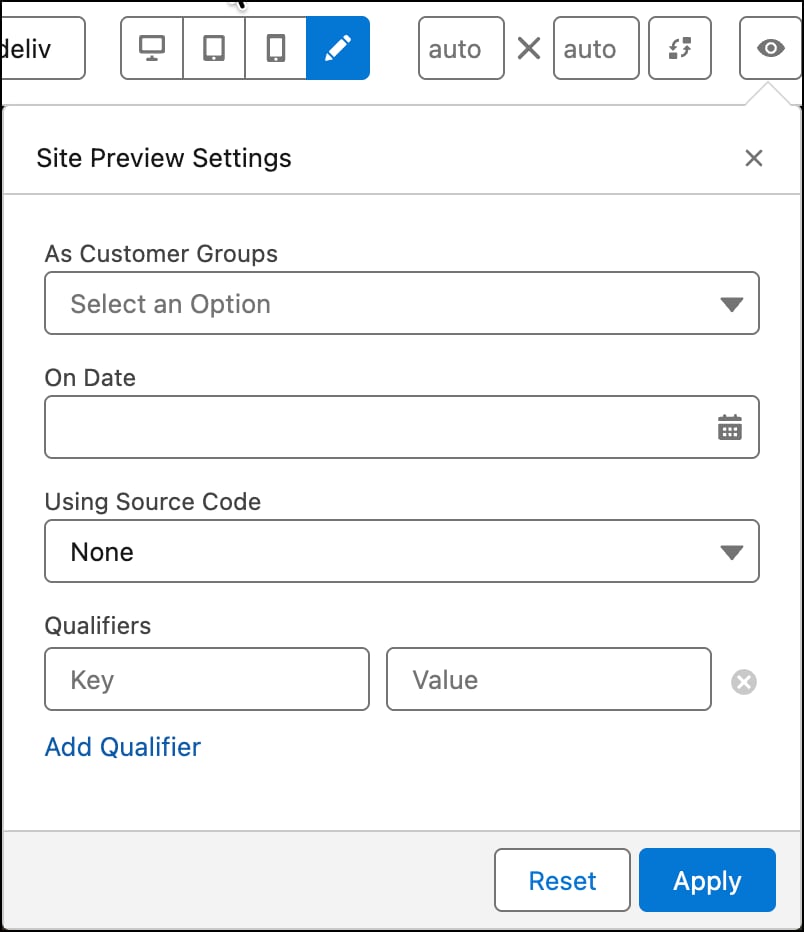
 j
j