The screen pop in Salesforce Voice is a declarative Omni-Channel Flow action triggered at routing time, server-side. You configure it using Flow Builder, not adapter JS.
Screen pops don’t work with apps that use standard navigation. Screen pops work only if a service rep is accepting work from an app using console navigation.
Note
Build the Flow
In Setup, enter Flows in the Quick Find box, then select Flows.
Click New Flow, then search for and select Omni-Channel Flow.
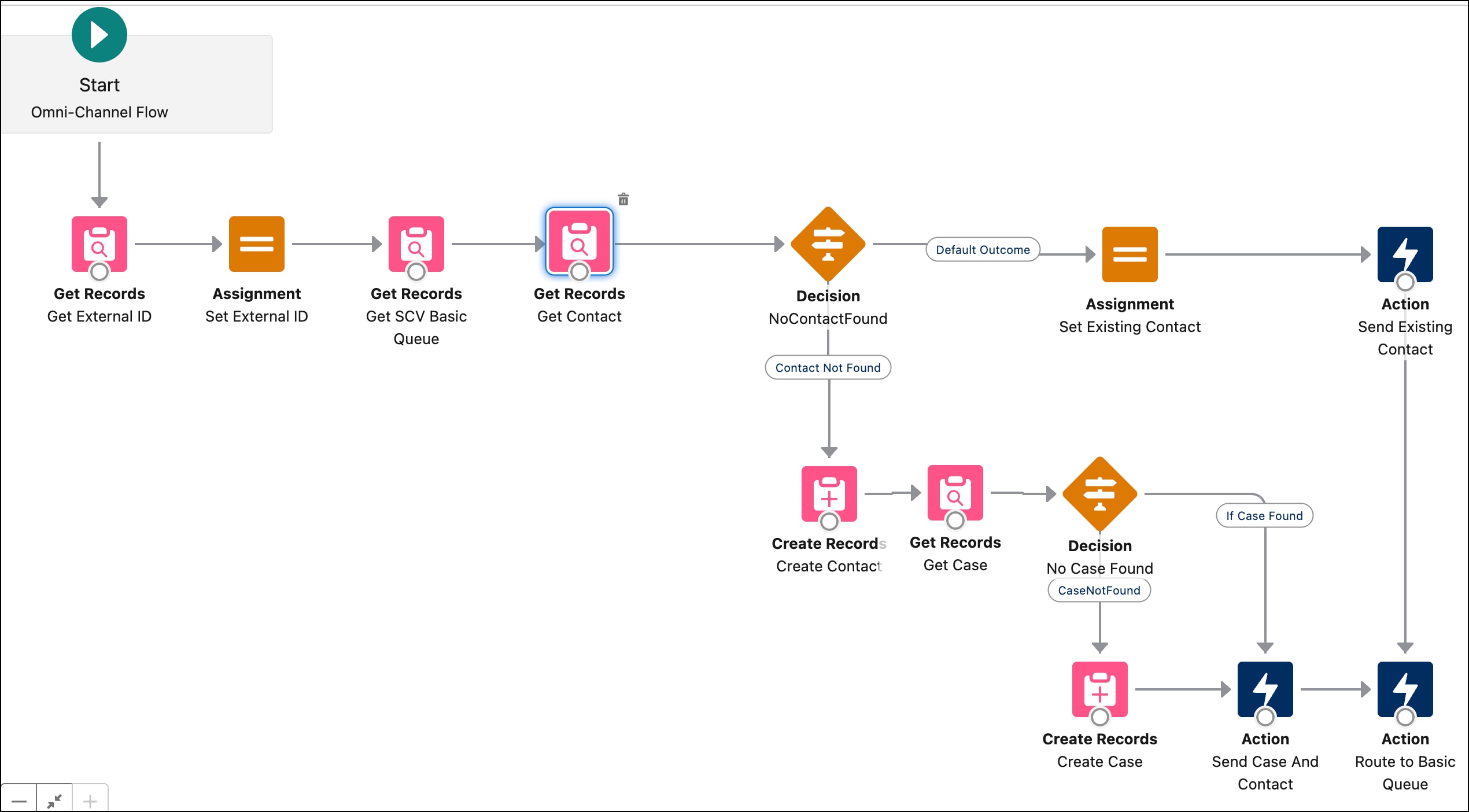
Configure the flow by adding elements and actions. Your flow will be unique to your business logic.
Save and activate your flow.
Assign the Flow to Your Voice Channel
From Setup, enter Contact Centers into the Quick Find box, then select Partner Telephony Contact Centers.
Select your contact center.
Under Channels, select your channel and edit the Routing information to assign the flow.
Full Screen Pop Migration Mapping
Open CTI Call
Omni-Channel Flow Equivalent
screenPop(SCREENPOP_TYPE.SOBJECT, recordId)
Route Work → Screen Pop → SObject Record
screenPop(SCREENPOP_TYPE.SEARCH_PAGE, params)
Route Work → Screen Pop → Search
screenPop(SCREENPOP_TYPE.NEW, defaultFields)
Route Work → Screen Pop → New Record + field prepopulation
screenPop(SCREENPOP_TYPE.URL, url)
Route Work → Screen Pop → URL
Custom lookup + screenPop
Get Records (Contact/Account by phone) + Route Work → Screen Pop


 j
j