Show Pre-Chat Fields to User

Before a chat session begins, you can request that the user enter pre-chat fields that are sent to the agent at the start of the session.

The legacy chat product is scheduled for retirement on February 14, 2026, and is in maintenance mode until then. During this phase, you can continue to use chat, but we no longer recommend that you implement new chat channels. To avoid service interruptions to your customers, migrate to Messaging for In-App and Web before that date. Messaging offers many of the chat features that you love plus asynchronous conversations that can be picked back up at any time. Learn about chat retirement in Help.

To create pre-chat fields, add SCSPrechatObject instances to the prechatFields property on the SCSChatConfiguration object.

  1. Create an SCSChatConfiguration object.

    In Swift:

    In Objective-C:

    See Configure a Chat Session on how to configure a chat session.

  2. Create SCSPrechatObject objects for the pre-chat fields you want to specify in your app.

    There are several types of pre-chat fields:

    • SCSPrechatObject does not require user input and can be used to send custom data directly to the agent.
    • SCSPrechatTextInputObject (a subclass of SCSPrechatObject) takes user input from a text field.
    • SCSPrechatPickerObject (a subclass of SCSPrechatObject) provides the user with a dropdown list of options. Each type has different properties you can configure.
    1. Create objects that don’t require user input using SCSPrechatObject.

      In Swift:

      In Objective-C:

      When using SCSPrechatObject to send data without user input, specify both the label and the value. The SCSPrechatObject base class contains the following properties:

      • label—name of the pre-chat field shown to agent.
      • value—value of the pre-chat field; only use this property if you don’t intend for the user to fill in this field.
      • displayLabel—optional display name of the pre-chat field shown to the user if different than the label.
      • transcriptFields—optional array of field identifiers on the LiveAgentChatTranscript object in Salesforce.
      • displayToAgent—indicates whether this pre-chat detail is shown to an agent accepting the chat session; defaults to true.
    2. Create text input objects using SCSPrechatTextInputObject.

      In Swift:

      In Objective-C:

      When using a SCSPrechatTextInputObject, you can control several other properties:

      • required—indicates whether the field is required.
      • keyboardType—provides access to other standard keyboards (such as UIKeyboardTypeEmailAddress).
      • autocapitalizationType—controls how text capitalization works.
      • autocorrectionType—controls auto-correction behavior.
      • maxLength—specifies the maximum length of the field
      • displayLabel—optional display name of the pre-chat field shown to the user if different than the label.
      • transcriptFields—optional array of field identifiers on the LiveAgentChatTranscript object in Salesforce.
      • displayToAgent—indicates whether this pre-chat detail is shown to an agent accepting the chat session; defaults to true.
    3. Create dropdown lists using SCSPrechatPickerObject.

      In Swift:

      In Objective-C:

      When using a SCSPrechatPickerObject, you can access these properties:

      • required—indicates whether the field is required.
      • options—specifies items in the dropdown list. This property is an array of SCSPrechatPickerOption objects.
      • displayLabel—optional display name of the pre-chat field shown to the user if different than the label.
      • transcriptFields—optional array of field identifiers on the LiveAgentChatTranscript object in Salesforce.
      • displayToAgent—indicates whether this pre-chat detail is shown to an agent accepting the chat session; defaults to true.
  3. (Optional) Create SCSPrechatEntity objects to associate pre-chat fields with fields from a record in your org.

    Pre-chat fields are always sent to the agent at the start of the session. But if you want to fill in fields of a particular record, instantiate an SCSPrechatEntity for each Salesforce object (for example, Case or Contact) and instantiate an SCSPrechatEntityField for each field association within that Salesforce object (for example, Subject or LastName). To learn more, see Create or Update Salesforce Records from a Chat Session.

  4. Update the config object’s prechatFields property with an array of your pre-chat objects.

    In Swift:

    In Objective-C:

  5. Show the pre-chat form and start a chat session by calling showChat(with:showPrechat:) and specify true for whether to show the pre-chat form.

    1. If you want to show the pre-chat form and then send those results to the agent when starting a session, call showChat(with:showPrechat:).

      In Swift:

      In Objective-C:

    2. If you want to programmatically change the pre-chat data before passing it to the org or agent, call the showPrechat(withFields:modal:completion:) method first. From within the completion block of this method, update the config object’s prechatFields property and then call showChat(with:showPrechat:) and specify false for showPrechat.

      For example, the following Swift code asks the user for their first and last name. After the user completes the pre-chat form, the code creates a new field by concatenating the two name fields. When we start the chat session, only this new field is sent to the agent.

This code sample builds a set of pre-chat fields that are shown to the user.

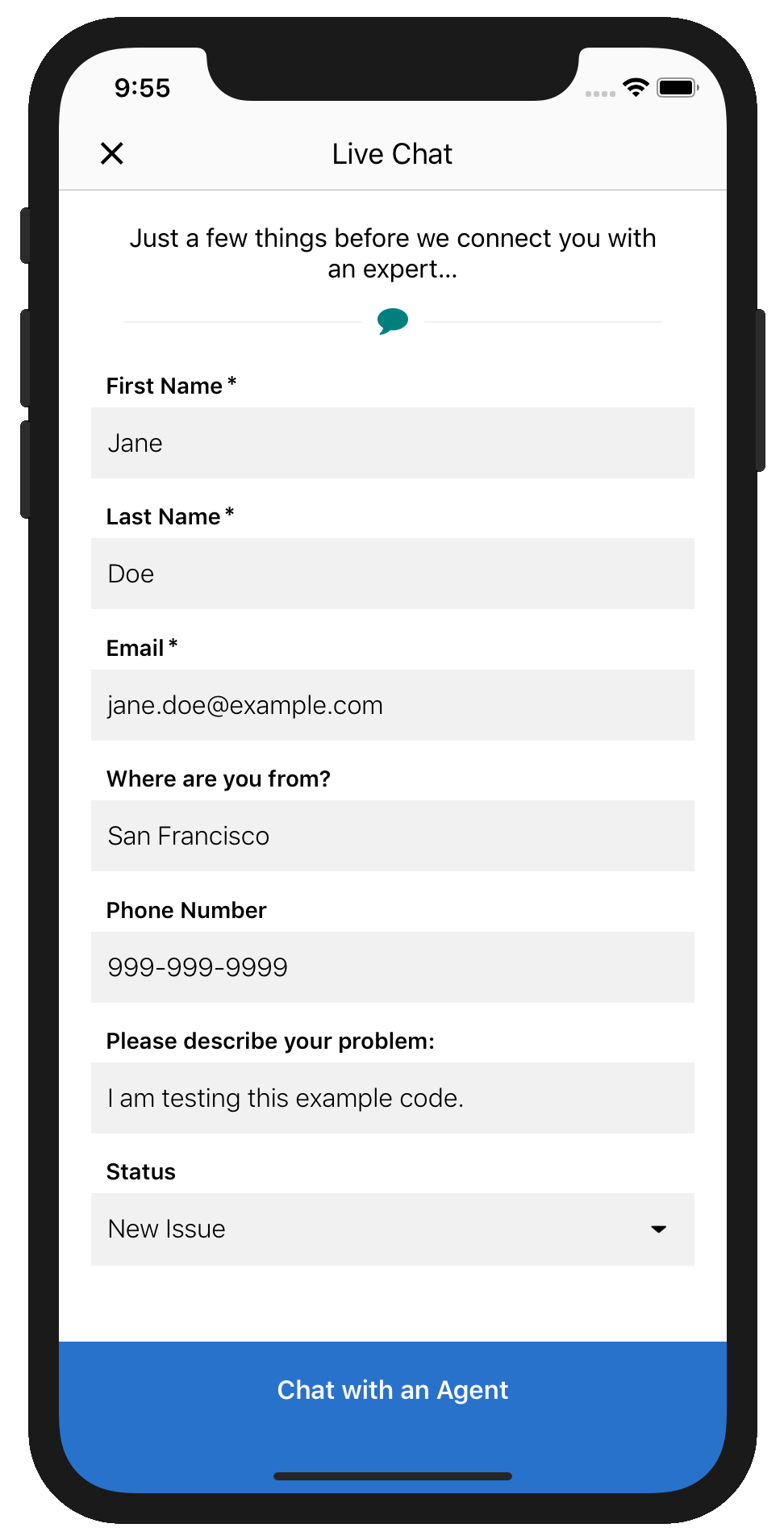
With this code, the user sees the following pre-chat UI in their mobile app.

Pre-chat UI on app

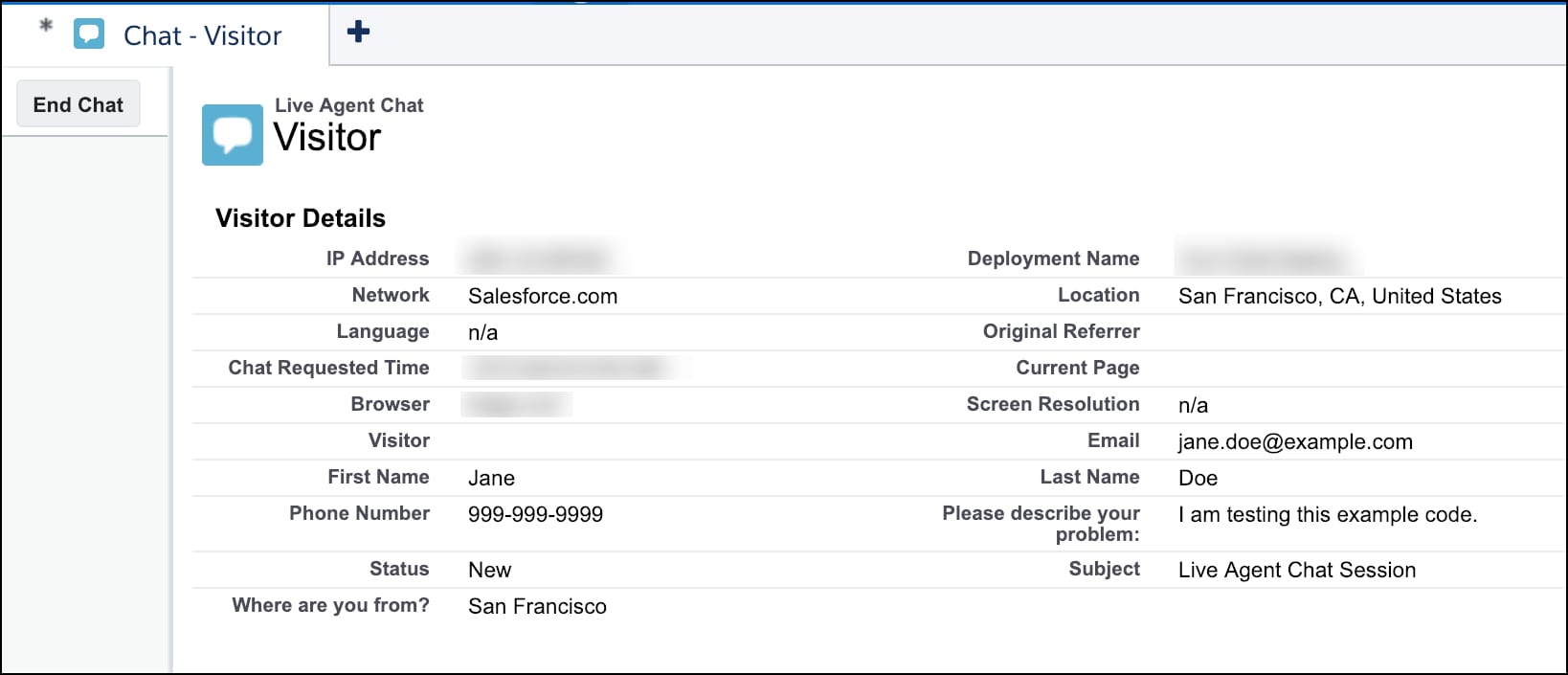
And the agent sees the following UI from the console.

Pre-chat UI on console